Block 1 - Slack Trigger
- Type / Role
- n8n-nodes-base.slackTrigger - slackTrigger
- Config choices
- Version 1


 Early Deal
This workflow creates an automated Product Intelligence Engine that continuously collects signals from multiple product sources and generates structured PRD updates using AI. It ingests conversatio...
n8n-nodes-base.slacktrigger, n8n-nodes-base.formtrigger, n8n-nodes-base.httprequest, n8n-nodes-base.zoom, @n8n/n8n-nodes-langchain.openai, n8n-nodes-base.set, n8n-nodes-base.merge, @n8n/n8n-nodes-langchain.lmchatopenai
This workflow is cataloged by N8N Workflows and links back to its original n8n.io source page by Haramal.
Original n8n.io sourceThis workflow creates an automated Product Intelligence Engine that continuously collects signals from multiple product sources and generates structured PRD updates using AI. It ingests conversations, feedback, support tickets, analytics, and design comments, standardizes them, analyzes them with an AI PRD Agent, and automatically updates a Google Doc with structured PRD recommendations. Instead of manually reviewing Slack threads, Zoom calls, Jira comments, support tickets, and customer forms, this workflow centralizes everything into one intelligent PRD analysis system.
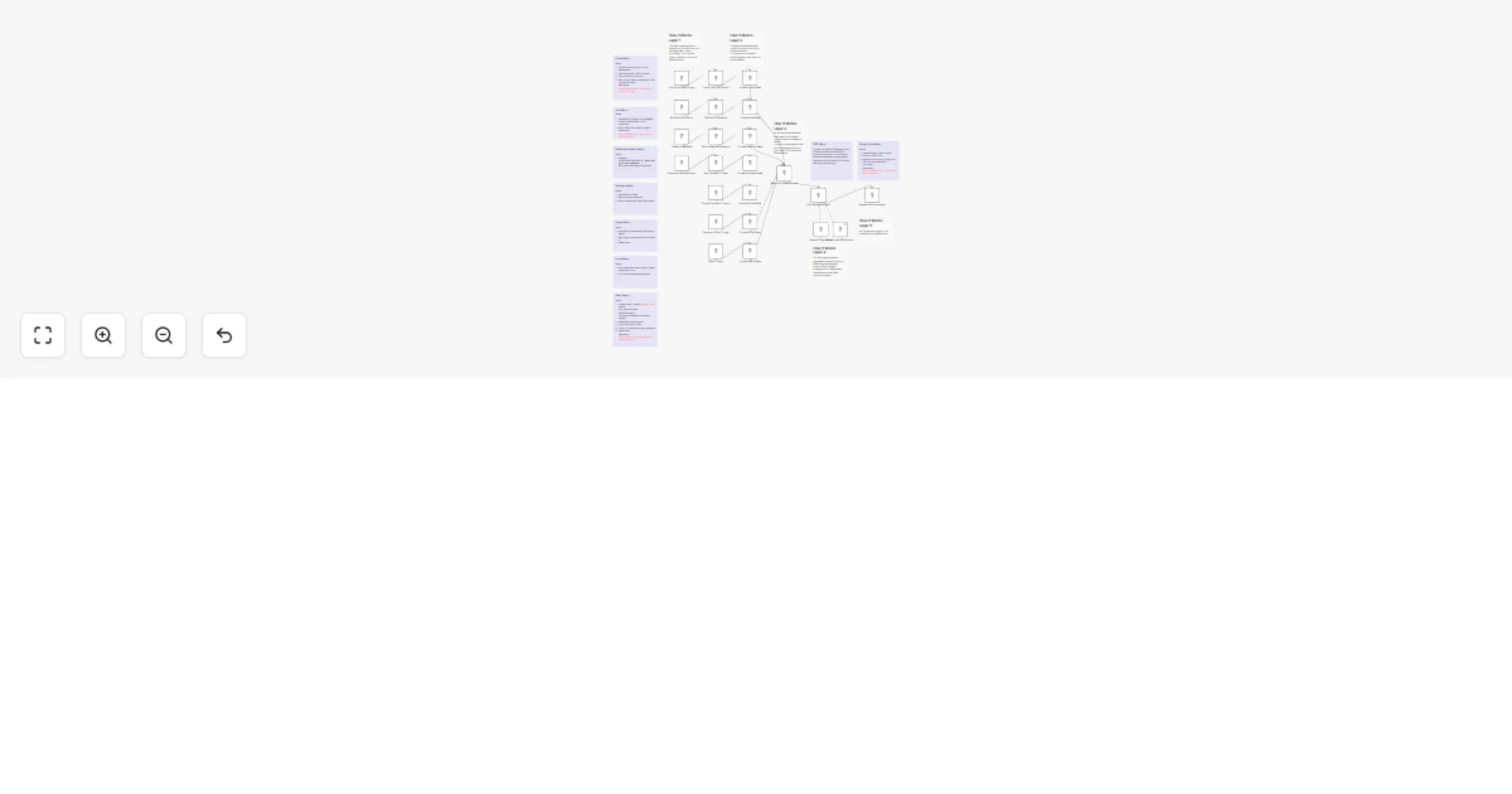
High-Level Architecture - The workflow runs in 4 layers:
1. Signal Ingestion Layer Captures product signals from: • Slack (channel messages + app mentions) • Customer Form submissions • Zoom recordings (scheduled) • Jira comments (scheduled) • Zendesk tickets (scheduled) • Figma comments (file updates) • Platform analytics via webhook • (Extendable to Salesforce / HubSpot)
2. Standardization Layer Each source passes through a Format Node that: • Extracts relevant text • Normalizes metadata • Adds timestamps • Labels source type All inputs are converted into a unified "product signal" object.
3. Intelligence Layer (AI PRD Agent) All signals are merged into a single stream using a Merge node. The PRD Analysis Agent then: • Extracts feature requests • Detects scope changes • Identifies risks and constraints • Evaluates priority signals • Detects target user shifts • Generates structured PRD updates
4. PRD Governance Layer - output in a Google Doc The structured AI output is appended to a Google Doc, which is fully traceable. This creates a living PRD that continuously evolves based on real product signals.
Required Credentials (And How To Add Them): You will need to configure the following credentials in n8n:
1. Slack Used for Slack Trigger. Steps: Create a Slack App at api.slack.com Enable: app_mentions:read channels:history chat:write (optional if you want replies) Install app to workspace Copy Bot OAuth Token In n8n → Create Slack API credential Paste token Reference - https://www.youtube.com/watch?v=qk5JH6ImK0I
2. Zoom (OAuth2) Used to fetch recordings. Steps: Create an OAuth App in Zoom Marketplace Add the Redirect URL from n8n Copy Client ID + Secret Add Zoom OAuth2 credential in n8n Connect account Reference - https://www.youtube.com/watch?v=BC6O_3LYgac
3. Google Docs (OAuth2) Used to update PRD document. Steps: Create Google Cloud Project Add Doc URl to n8n Replace the example Google Doc URL with your own PRD document. Reference - https://www.youtube.com/watch?v=iieEHvu93dc
4. Jira (Cloud) Steps: Generate API token from Atlassian Create Jira Software Cloud credential Enter: Email API token Domain Reference - https://www.youtube.com/watch?v=T4z7lzqSZDY
5. Zendesk Steps: Generate API token Add Zendesk credential Enter: Subdomain Email API token
6. Figma Steps: Generate a personal access token in Figma Add Figma credentials with the team ID Paste token
7. Platform Analytics Webhook Replace: <PLACEHOLDER_VALUE__your_analytics_api_endpoint> With your real analytics endpoint. You can: • Send Mixpanel exports • Send Amplitude exports • Or POST custom JSON
What Makes This Powerful • Eliminates product signal silos • Creates AI-driven PRD governance • Ensures traceability of decisions • Enables continuous PRD evolution • Scales across teams
This catalog entry is organized from the workflow JSON. The node-level section below shows the executable blocks available for review before importing the template.
Showing the first 24 of 37 workflow blocks. Download the JSON for the full node graph.
| Workflow | Generate continuous PRD updates in Google Docs from Slack, Zoom, Jira, Zendesk, Figma and analytics using OpenAI |
|---|---|
| Complexity | advanced |
| Nodes | 37 |
| Categories | Market Research, AI Summarization |
| Author | Haramal |
| Published | 20 Feb 2026 |
Use the JSON export at /data/workflows/13553/13553.json as the source template for this automation.
Open n8n, import the downloaded JSON, and review each node before activating the workflow.
Replace placeholder credentials, API keys, webhook URLs, account IDs, and environment-specific values with your own settings.
Run the workflow manually or in a staging workspace, inspect node output, and confirm downstream systems receive the expected data.
Enable the workflow only after testing, then monitor executions, errors, and rate limits during the first production runs.
Review imported nodes carefully before activation. This catalog entry is intended to help you inspect the workflow structure, understand required services, and find related templates faster.
Node names, credentials, schedules, webhook paths, and external service limits may need adjustment for your workspace.
This workflow creates an automated Product Intelligence Engine that continuously collects signals from multiple product sources and generates structured PRD updates using AI. It ingests conversatio...
Review the workflow JSON, configure any required credentials in n8n, and test the automation in a safe workspace before using it in production.
Yes. Use the block-by-block analysis and the downloadable JSON to inspect each node, then adjust credentials, prompts, schedules, filters, or destinations for your Market Research, AI Summarization use case.