Generate content ideas with Gemini Pro and store in Google Sheets

Workflow preview

Workflow preview
100%
Generate content ideas with Gemini Pro and store in Google Sheets preview
Open on n8n.io

Important notice

This workflow is provided as-is. Please review and test before using in production.

1. Workflow Overview

Automated Content Idea Generation and Expansion with Google Gemini and Google Sheets This n8n workflow automates the process of generating content ideas based on a user defined topic, then expands ...

Best for

  • Content Creation automation workflows
  • Multimodal AI automation workflows
  • intermediate n8n builders looking for reusable templates

Tools used

n8n-nodes-base.manualtrigger, n8n-nodes-base.stickynote, n8n-nodes-base.splitinbatches, n8n-nodes-base.code, @n8n/n8n-nodes-langchain.chainllm, @n8n/n8n-nodes-langchain.lmchatgooglegemini, @n8n/n8n-nodes-langchain.outputparserstructured, n8n-nodes-base.googlesheets

Source and attribution

This workflow is cataloged by N8N Workflows and links back to its original n8n.io source page by Dvir Sharon.

Original n8n.io source

1.1 Workflow description

Title
Generate content ideas with Gemini Pro and store in Google Sheets
Workflow name
Generate content ideas with Gemini Pro and store in Google Sheets

Automated Content Idea Generation and Expansion with Google Gemini and Google Sheets

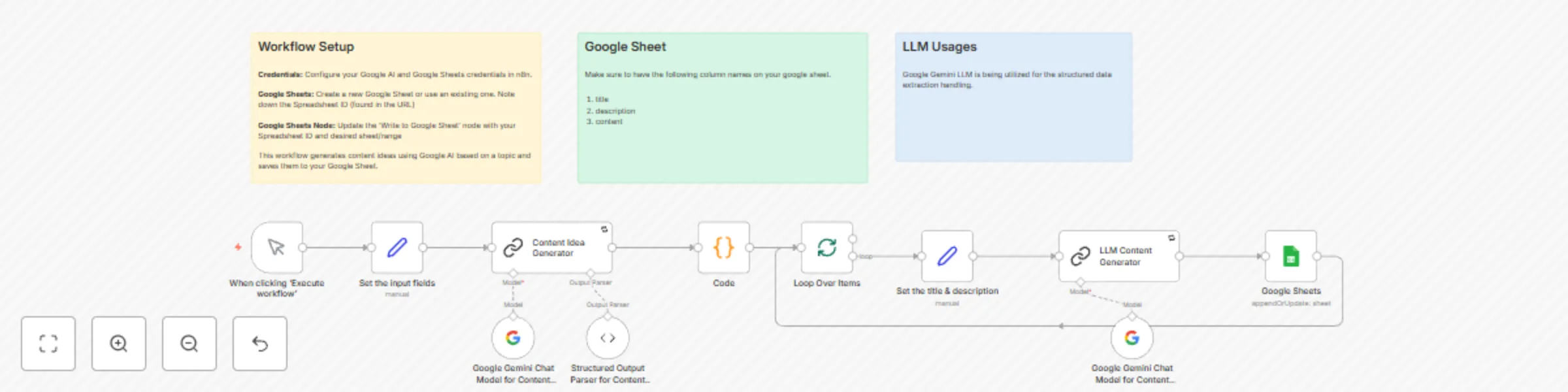
This n8n workflow automates the process of generating content ideas based on a user-defined topic, then expands each idea into a more detailed content piece (like a blog post) using Google Gemini, and finally saves all the generated data (idea title, description, and full content) into a Google Sheet. It's a powerful tool for streamlining content creation workflows.

This workflow includes:

  • Generation of multiple content ideas from a single topic.
  • Expansion of each idea into detailed content using AI.
  • Storage of ideas and generated content in a structured Google Sheet.
  • Sticky Notes within the workflow for inline documentation and setup guidance.

Prerequisites

  1. n8n Instance: You need a running n8n instance (self-hosted or cloud).
  2. Google AI Account: Access to Google AI (Gemini). You will need an API key.
  3. Google Account: Access to Google Sheets. You will need to create or use an existing spreadsheet with specific column headers.

Installation and Setup

  1. Import the Workflow:

    • Copy the entire JSON code provided.
    • In your n8n instance, go to "Workflows".
    • Click "New" -> "Import from JSON".
    • Paste the JSON code and click "Import".
  2. Configure Credentials:

    • Google AI (Gemini):
      • Find the "Google Gemini Chat Model for Content Idea Generator" node and the "Google Gemini Chat Model for Content Generation" node.
      • Click on the "Credentials" field in both nodes (it will likely show a placeholder name like "Google Gemini(PaLM) Api account").
      • Click "Create New".
      • Select "Google AI API".
      • Enter your Google AI API Key.
      • Save the credential. (You can reuse the same credential for both nodes).
    • Google Sheets:
      • Find the "Google Sheets" node.
      • Click on the "Credentials" field (it will likely show a placeholder name like "Google Sheets account").
      • Click "Create New".
      • Select "Google Sheets OAuth2 API".
      • Follow the steps to connect your Google Account and grant n8n access to Google Sheets.
      • Save the credential.
  3. Configure Google Sheets Node:

    • Open the "Google Sheets" node settings.
    • Spreadsheet ID: Replace the placeholder value with the actual ID of your Google Sheet. You can find the Spreadsheet ID in the URL of your Google Sheet (it's the long string of characters between /d/ and /edit).
    • Sheet Name: Select or enter the name or GID of the sheet within your spreadsheet where you want to save the data (e.g., Sheet1 or gid=0).
    • Columns: Ensure your Google Sheet has columns named title, description, and content. The node is configured to map the generated data to these specific column headers.
    • Save the node settings.
  4. Review Sticky Notes:

    • Look at the Sticky Notes placed around the workflow canvas. They provide helpful context and reminders for setup, required Google Sheet columns, and the AI models used.

How to Use

  1. Activate the Workflow: Toggle the workflow switch to "Active".
  2. Trigger the Workflow:
    • Since this workflow uses a "When clicking ‘Execute workflow’" node as the trigger, you can run it directly from the n8n editor.
    • Click the "Execute Workflow" button.
    • The workflow will start automatically.
  3. Set the Topic:
    • Open the "Set the input fields" node.
    • Modify the topic value to the subject you want to generate content ideas about.
    • Save the node settings.
  4. Monitor Execution: Watch the workflow execute. The nodes will light up as they process. The "Loop Over Items" node will show multiple executions as it processes each generated idea.
  5. Check Results:
    • The generated content ideas (title, description) and the expanded content will be written as new rows in the Google Sheet you configured. Each row will correspond to one generated idea and its content.

This workflow provides a robust starting point for AI-assisted content creation. You can customize the AI prompts in the "Content Idea Generator" and "LLM Content Generator" nodes to refine the output style and format, or integrate additional steps like sending notifications or further processing the generated content.

1.2 Logical Blocks

This catalog entry is organized from the workflow JSON. The node-level section below shows the executable blocks available for review before importing the template.

2. Block-by-Block Analysis

Block 1 - When clicking ‘Execute workflow’

Type / Role
n8n-nodes-base.manualTrigger - manualTrigger
Config choices
Version 1

Block 2 - Sticky Note

Type / Role
n8n-nodes-base.stickyNote - stickyNote
Config choices
Version 1

Block 3 - Loop Over Items

Type / Role
n8n-nodes-base.splitInBatches - splitInBatches
Config choices
Version 3

Block 4 - Code

Type / Role
n8n-nodes-base.code - code
Config choices
Version 2

Block 5 - LLM Content Generator

Type / Role
@n8n/n8n-nodes-langchain.chainLlm - chainLlm
Config choices
Version 1.7

Block 6 - Google Gemini Chat Model for Content Generation

Type / Role
@n8n/n8n-nodes-langchain.lmChatGoogleGemini - lmChatGoogleGemini
Config choices
Version 1

Block 7 - Structured Output Parser for Content Idea Generator

Type / Role
@n8n/n8n-nodes-langchain.outputParserStructured - outputParserStructured
Config choices
Version 1.2

Block 8 - Google Sheets

Type / Role
n8n-nodes-base.googleSheets - googleSheets
Config choices
Version 4.6

Block 9 - Sticky Note1

Type / Role
n8n-nodes-base.stickyNote - stickyNote
Config choices
Version 1

Block 10 - Sticky Note4

Type / Role
n8n-nodes-base.stickyNote - stickyNote
Config choices
Version 1

Block 11 - Set the title & description

Type / Role
n8n-nodes-base.set - set
Config choices
Version 3.4

Block 12 - Set the input fields

Type / Role
n8n-nodes-base.set - set
Config choices
Version 3.4

Block 13 - Content Idea Generator

Type / Role
@n8n/n8n-nodes-langchain.chainLlm - chainLlm
Config choices
Version 1.7

Block 14 - Google Gemini Chat Model for Content Idea Generator

Type / Role
@n8n/n8n-nodes-langchain.lmChatGoogleGemini - lmChatGoogleGemini
Config choices
Version 1

3. Summary Table

Workflow Generate content ideas with Gemini Pro and store in Google Sheets
Complexity intermediate
Nodes 14
Categories Content Creation, Multimodal AI
Author Dvir Sharon
Published 27 May 2025

4. Reproducing the Workflow from Scratch

  1. 1. Download the workflow JSON

    Use the JSON export at /data/workflows/4432/4432.json as the source template for this automation.

  2. 2. Import the template into n8n

    Open n8n, import the downloaded JSON, and review each node before activating the workflow.

  3. 3. Configure credentials and variables

    Replace placeholder credentials, API keys, webhook URLs, account IDs, and environment-specific values with your own settings.

  4. 4. Test with sample data

    Run the workflow manually or in a staging workspace, inspect node output, and confirm downstream systems receive the expected data.

  5. 5. Activate and monitor

    Enable the workflow only after testing, then monitor executions, errors, and rate limits during the first production runs.

5. General Notes & Resources

Review imported nodes carefully before activation. This catalog entry is intended to help you inspect the workflow structure, understand required services, and find related templates faster.

Node names, credentials, schedules, webhook paths, and external service limits may need adjustment for your workspace.

Frequently asked questions

What does Generate content ideas with Gemini Pro and store in Google Sheets do?

Automated Content Idea Generation and Expansion with Google Gemini and Google Sheets This n8n workflow automates the process of generating content ideas based on a user defined topic, then expands ...

What do I need before importing this workflow?

Review the workflow JSON, configure any required credentials in n8n, and test the automation in a safe workspace before using it in production.

Can I customize this workflow?

Yes. Use the block-by-block analysis and the downloadable JSON to inspect each node, then adjust credentials, prompts, schedules, filters, or destinations for your Content Creation, Multimodal AI use case.