Block 1 - When clicking ‘Execute workflow’
- Type / Role
- n8n-nodes-base.manualTrigger - manualTrigger
- Config choices
- Version 1


 Early Deal
This workflow is provided as-is. Please review and test before using in production.
Who it’s for This workflow is for content creators and marketers who write short scripts in Google Sheets and want to automatically turn each line into an AI generated avatar video stored in Google...
n8n-nodes-base.manualtrigger, n8n-nodes-base.splitinbatches, n8n-nodes-base.set, n8n-nodes-base.stickynote, n8n-nodes-base.googlesheets, n8n-nodes-base.noop, @n8n/n8n-nodes-langchain.googlegemini, n8n-nodes-base.googledrive
This workflow is cataloged by N8N Workflows and links back to its original n8n.io source page by Angel Menendez.
Original n8n.io sourceThis workflow is for content creators and marketers who write short scripts in Google Sheets and want to automatically turn each line into an AI-generated avatar video stored in Google Drive, with links written back to the sheet.
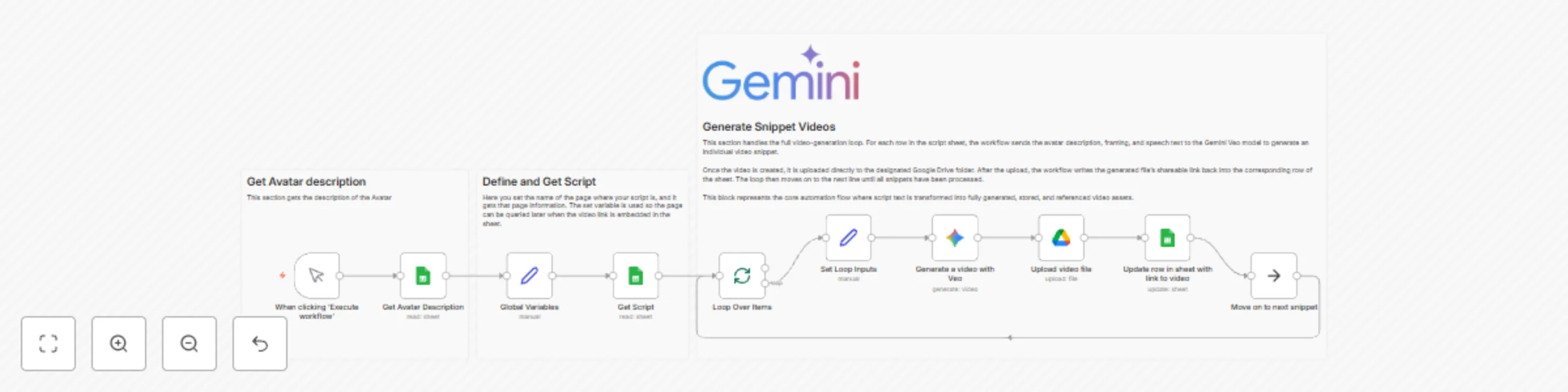
A Manual Trigger starts the workflow. It first uses Get Avatar Description (Google Sheets) to read avatar details from a dedicated “Gaia” sheet. The Global Variables node sets the working script page (for example, “Draft 5”) and exposes the avatar description. Next, Get Script reads all rows from the selected sheet. Loop Over Items iterates through each row, while Set Loop Inputs prepares the variables: avatar description, speech, and framing. For every row, Generate a video with Veo (Google Gemini video model) creates an 8-second 16:9 clip. Upload video file saves it to a chosen Google Drive folder, and Update row in sheet with link to video writes the Drive link back into the same row, then loops to the next snippet. Yellow sticky notes explain each phase, with the large one summarizing the end-to-end snippet generation loop.
This catalog entry is organized from the workflow JSON. The node-level section below shows the executable blocks available for review before importing the template.
| Workflow | Generate avatar snippet videos from Google Sheets scripts in Google Drive |
|---|---|
| Complexity | intermediate |
| Nodes | 13 |
| Categories | Content Creation, Multimodal AI |
| Author | Angel Menendez |
| Published | 24 Nov 2025 |
Use the JSON export at /data/workflows/11203/11203.json as the source template for this automation.
Open n8n, import the downloaded JSON, and review each node before activating the workflow.
Replace placeholder credentials, API keys, webhook URLs, account IDs, and environment-specific values with your own settings.
Run the workflow manually or in a staging workspace, inspect node output, and confirm downstream systems receive the expected data.
Enable the workflow only after testing, then monitor executions, errors, and rate limits during the first production runs.
Review imported nodes carefully before activation. This catalog entry is intended to help you inspect the workflow structure, understand required services, and find related templates faster.
Node names, credentials, schedules, webhook paths, and external service limits may need adjustment for your workspace.
Who it’s for This workflow is for content creators and marketers who write short scripts in Google Sheets and want to automatically turn each line into an AI generated avatar video stored in Google...
Review the workflow JSON, configure any required credentials in n8n, and test the automation in a safe workspace before using it in production.
Yes. Use the block-by-block analysis and the downloadable JSON to inspect each node, then adjust credentials, prompts, schedules, filters, or destinations for your Content Creation, Multimodal AI use case.