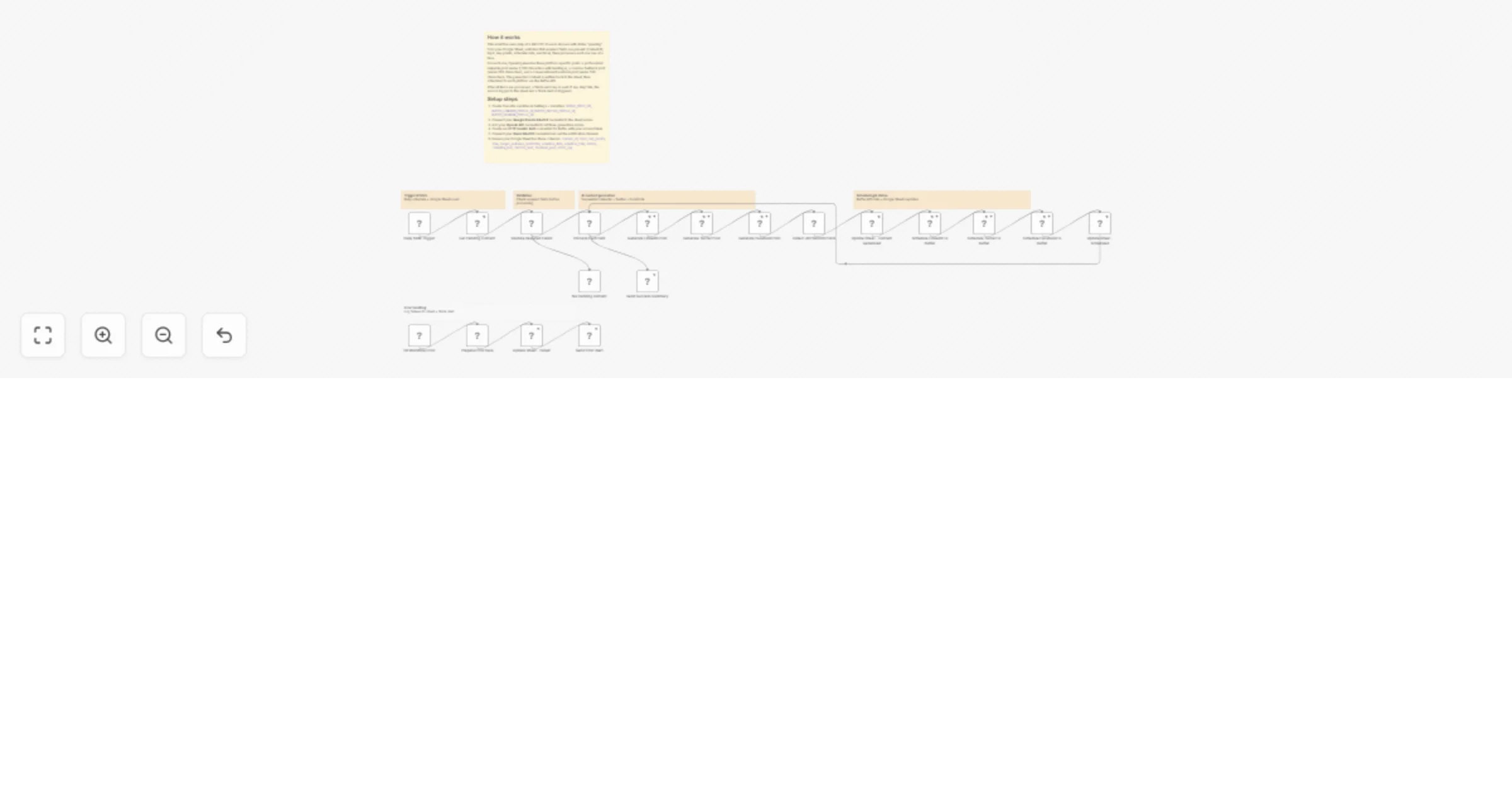
Generate and schedule social media posts with OpenAI, Google Sheets and Buffer

Workflow preview

Workflow preview
100%
Generate and schedule social media posts with OpenAI, Google Sheets and Buffer preview
Open on n8n.io

1. Workflow Overview

Automate your social media content pipeline from idea to scheduled post. This workflow reads content ideas from a Google Sheet, uses OpenAI to generate platform optimized posts for LinkedIn, X (Twi...

Best for

  • Social Media automation workflows
  • Multimodal AI automation workflows
  • advanced n8n builders looking for reusable templates

Tools used

n8n-nodes-base.scheduletrigger, n8n-nodes-base.googlesheets, n8n-nodes-base.if, n8n-nodes-base.noop, n8n-nodes-base.splitinbatches, @n8n/n8n-nodes-langchain.openai, n8n-nodes-base.set, n8n-nodes-base.httprequest

Source and attribution

This workflow is cataloged by N8N Workflows and links back to its original n8n.io source page by Mostafa.

Original n8n.io source

1.1 Workflow description

Title
Generate and schedule social media posts with OpenAI, Google Sheets and Buffer
Workflow name
Generate and schedule social media posts with OpenAI, Google Sheets and Buffer

Automate your social media content pipeline from idea to scheduled post. This workflow reads content ideas from a Google Sheet, uses OpenAI to generate platform-optimized posts for LinkedIn, X (Twitter), and Facebook, then schedules them via Buffer — all with Slack notifications and error tracking.

Key features:

  • Multi-platform optimization: Tailors content length, tone, and hashtags for each social network.
  • Automated scheduling: Direct integration with Buffer for hands-off publishing.
  • Robust error handling: Updates your sheet with failure logs and alerts Slack if something goes wrong.
  • Batch processing: Handles multiple content rows in a single execution.

What's next:

  • Add human-in-the-loop verification before publishing.
  • Add multiple data sources (e.g., Reddit, Medium).

1.2 Logical Blocks

This catalog entry is organized from the workflow JSON. The node-level section below shows the executable blocks available for review before importing the template.

2. Block-by-Block Analysis

Block 1 - Daily 6AM Trigger

Type / Role
n8n-nodes-base.scheduleTrigger - scheduleTrigger
Config choices
Version 1.2

Block 2 - Get Pending Content

Type / Role
n8n-nodes-base.googleSheets - googleSheets
Config choices
Version 4.5

Block 3 - Validate Required Fields

Type / Role
n8n-nodes-base.if - if
Config choices
Version 2

Block 4 - No Pending Content

Type / Role
n8n-nodes-base.noOp - noOp
Config choices
Version 1

Block 5 - Process Each Item

Type / Role
n8n-nodes-base.splitInBatches - splitInBatches
Config choices
Version 3

Block 6 - Generate LinkedIn Post

Type / Role
@n8n/n8n-nodes-langchain.openAi - openAi
Config choices
Version 1.8

Block 7 - Generate Twitter Post

Type / Role
@n8n/n8n-nodes-langchain.openAi - openAi
Config choices
Version 1.8

Block 8 - Generate Facebook Post

Type / Role
@n8n/n8n-nodes-langchain.openAi - openAi
Config choices
Version 1.8

Block 9 - Collect All Platform Posts

Type / Role
n8n-nodes-base.set - set
Config choices
Version 3.4

Block 10 - Update Sheet - Content Generated

Type / Role
n8n-nodes-base.googleSheets - googleSheets
Config choices
Version 4.5

Block 11 - Schedule LinkedIn to Buffer

Type / Role
n8n-nodes-base.httpRequest - httpRequest
Config choices
Version 4.2

Block 12 - Schedule Twitter to Buffer

Type / Role
n8n-nodes-base.httpRequest - httpRequest
Config choices
Version 4.2

Block 13 - Schedule Facebook to Buffer

Type / Role
n8n-nodes-base.httpRequest - httpRequest
Config choices
Version 4.2

Block 14 - Update Sheet - Scheduled

Type / Role
n8n-nodes-base.googleSheets - googleSheets
Config choices
Version 4.5

Block 15 - Send Success Summary

Type / Role
n8n-nodes-base.slack - slack
Config choices
Version 2.2

Block 16 - On Workflow Error

Type / Role
n8n-nodes-base.errorTrigger - errorTrigger
Config choices
Version 1

Block 17 - Prepare Error Data

Type / Role
n8n-nodes-base.set - set
Config choices
Version 3.4

Block 18 - Update Sheet - Failed

Type / Role
n8n-nodes-base.googleSheets - googleSheets
Config choices
Version 4.5

Block 19 - Send Error Alert

Type / Role
n8n-nodes-base.slack - slack
Config choices
Version 2.2

Block 20 - Note - Main

Type / Role
n8n-nodes-base.stickyNote - stickyNote
Config choices
Version 1

Block 21 - Note - Trigger section

Type / Role
n8n-nodes-base.stickyNote - stickyNote
Config choices
Version 1

Block 22 - Note - Validation section

Type / Role
n8n-nodes-base.stickyNote - stickyNote
Config choices
Version 1

Block 23 - Note - AI generation section

Type / Role
n8n-nodes-base.stickyNote - stickyNote
Config choices
Version 1

Block 24 - Note - Buffer scheduling section

Type / Role
n8n-nodes-base.stickyNote - stickyNote
Config choices
Version 1

Showing the first 24 of 25 workflow blocks. Download the JSON for the full node graph.

3. Summary Table

Workflow Generate and schedule social media posts with OpenAI, Google Sheets and Buffer
Complexity advanced
Nodes 25
Categories Social Media, Multimodal AI
Author Mostafa
Published 09 Feb 2026

4. Reproducing the Workflow from Scratch

  1. 1. Download the workflow JSON

    Use the JSON export at /data/workflows/13265/13265.json as the source template for this automation.

  2. 2. Import the template into n8n

    Open n8n, import the downloaded JSON, and review each node before activating the workflow.

  3. 3. Configure credentials and variables

    Replace placeholder credentials, API keys, webhook URLs, account IDs, and environment-specific values with your own settings.

  4. 4. Test with sample data

    Run the workflow manually or in a staging workspace, inspect node output, and confirm downstream systems receive the expected data.

  5. 5. Activate and monitor

    Enable the workflow only after testing, then monitor executions, errors, and rate limits during the first production runs.

5. General Notes & Resources

Review imported nodes carefully before activation. This catalog entry is intended to help you inspect the workflow structure, understand required services, and find related templates faster.

Node names, credentials, schedules, webhook paths, and external service limits may need adjustment for your workspace.

Frequently asked questions

What does Generate and schedule social media posts with OpenAI, Google Sheets and Buffer do?

Automate your social media content pipeline from idea to scheduled post. This workflow reads content ideas from a Google Sheet, uses OpenAI to generate platform optimized posts for LinkedIn, X (Twi...

What do I need before importing this workflow?

Review the workflow JSON, configure any required credentials in n8n, and test the automation in a safe workspace before using it in production.

Can I customize this workflow?

Yes. Use the block-by-block analysis and the downloadable JSON to inspect each node, then adjust credentials, prompts, schedules, filters, or destinations for your Social Media, Multimodal AI use case.