Block 1 - AI Agent
- Type / Role
- @n8n/n8n-nodes-langchain.agent - agent
- Config choices
- Version 2.1


 Early Deal
This workflow is provided as-is. Please review and test before using in production.
How it works: This template turns rows in a Google Sheet into polished newsletter drafts in Notion using an AI writing agent. You click Execute workflow in n8n. It fetches all rows marked N8n Statu...
@n8n/n8n-nodes-langchain.agent, @n8n/n8n-nodes-langchain.lmchatopenai, n8n-nodes-base.googlesheets, n8n-nodes-base.httprequest, n8n-nodes-base.code, n8n-nodes-base.notion, n8n-nodes-base.manualtrigger, n8n-nodes-base.splitinbatches
This workflow is cataloged by N8N Workflows and links back to its original n8n.io source page by Snehasish Konger.
Original n8n.io sourceHow it works:
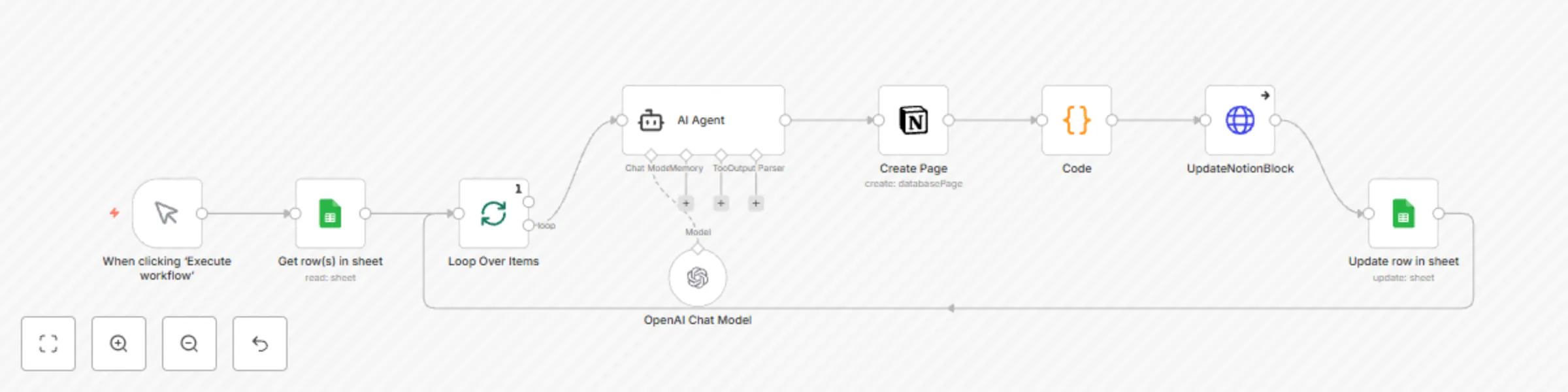
This template turns rows in a Google Sheet into polished newsletter drafts in Notion using an AI writing agent. You click Execute workflow in n8n. It fetches all rows marked N8n Status = Pending, generates a draft from Newsletter Title and About the Newsletter, creates a Notion page, writes the full draft, then flips the sheet row to Done before moving to the next one.
Before you start (use your own credentials):
Create and select your credentials in n8n:
Replace any placeholders in nodes:
newsletter).Give the Notion integration access to the database (Share → Invite the integration).
Do not hard-code secrets in nodes. Store them in n8n Credentials.
Step-by-step:
Manual Trigger Start the run with When clicking ‘Execute workflow’.
Fetch pending input (Google Sheets → Get row(s) in sheet)
Read the newsletter tab and pull only rows where N8n Status = Pending.
Iterate (Split In Batches → Loop Over Items) Process one sheet row at a time for stable memory use and pacing.
Generate the newsletter (AI Agent + OpenAI Chat Model)
Create a Notion page (Notion → Create Page) Create a page in your Newsletter Automation database with the page title set from Newsletter Title.
Prepare long content for Notion (Code) Split the AI output into ~1,800-character chunks and wrap as Notion paragraph blocks to avoid payload limits.
Write content blocks to Notion (HTTP Request → UpdateNotionBlock) Send a PATCH request to append all generated blocks so the full draft appears on the page.
Mark the sheet row as done (Google Sheets → Update row in sheet) Update N8n Status = Done for the processed Newsletter Title.
Continue the loop Return to Split In Batches for the next pending row until none remain.
Tools integration:
Pending → Done)Want auto-runs? Add a Cron trigger before step 2 and keep the flow unchanged.
This catalog entry is organized from the workflow JSON. The node-level section below shows the executable blocks available for review before importing the template.
| Workflow | Generate AI newsletter drafts from Google Sheets to Notion with GPT-5-mini |
|---|---|
| Complexity | intermediate |
| Nodes | 9 |
| Categories | Content Creation, Multimodal AI |
| Author | Snehasish Konger |
| Published | 25 Aug 2025 |
Use the JSON export at /data/workflows/7848/7848.json as the source template for this automation.
Open n8n, import the downloaded JSON, and review each node before activating the workflow.
Replace placeholder credentials, API keys, webhook URLs, account IDs, and environment-specific values with your own settings.
Run the workflow manually or in a staging workspace, inspect node output, and confirm downstream systems receive the expected data.
Enable the workflow only after testing, then monitor executions, errors, and rate limits during the first production runs.
Review imported nodes carefully before activation. This catalog entry is intended to help you inspect the workflow structure, understand required services, and find related templates faster.
Node names, credentials, schedules, webhook paths, and external service limits may need adjustment for your workspace.
How it works: This template turns rows in a Google Sheet into polished newsletter drafts in Notion using an AI writing agent. You click Execute workflow in n8n. It fetches all rows marked N8n Statu...
Review the workflow JSON, configure any required credentials in n8n, and test the automation in a safe workspace before using it in production.
Yes. Use the block-by-block analysis and the downloadable JSON to inspect each node, then adjust credentials, prompts, schedules, filters, or destinations for your Content Creation, Multimodal AI use case.