S

Snehasish Konger

3
Workflows

Workflows by Snehasish Konger

Workflow preview: Auto-generate & schedule LinkedIn posts from Google Sheets with GPT-4o
Free intermediate

Auto-generate & schedule LinkedIn posts from Google Sheets with GPT-4o

## Target audience Solo creators, PMs, and content teams who queue LinkedIn ideas in Google Sheets and want them posted on a fixed schedule with AI-generated copy. ## How it works The workflow runs on a schedule (Mon/Wed/Fri at 09:30). It pulls the first Google Sheet row with **Status = Pending**, generates a LinkedIn-ready post from **Post title** using an OpenAI prompt, publishes to your LinkedIn profile, then updates the same row to **Done** and writes the final post back to the sheet. ## Prerequisites (use your own credentials) * **Google Sheets (OAuth2)** with access to the target sheet * **LinkedIn OAuth2** tied to the account that should post — set the **person** field to your profile’s URN in the LinkedIn node * **OpenAI API key** for the Chat Model node * Store secrets in n8n **Credentials**. Never hard-code keys in nodes. ## Google Sheet structure (exact columns) **Minimum required columns** * `id` — unique integer/string used to update the same row later * `Status` — allowed values: `Pending` or `Done` * `Post title` — short prompt/topic for the AI model **Recommended columns** * `Output post` — where the workflow writes the final text (use this header, or keep your existing `Column 5`) * `Hashtags` *(optional)* — comma-separated list (the prompt can append these) * `Image URL` *(optional)* — public URL; add an extra LinkedIn “Create Post” input if you post with media later * `Notes` *(optional)* — extra hints for tone, audience, or CTA **Example header row** ``` id | Status | Post title | Hashtags | Image URL | Output post | Notes ``` **Example rows (inputs → outputs)** ``` 1 | Pending | Why I moved from Zapier to n8n | #automation,#nocode | | | Focus on cost + flexibility 2 | Done | 5 lessons from building a rules engine | #product,#backend | | This is the final posted text... | ``` **Resulting `Output post` (for row 1 after publish)** ``` I switched from Zapier to n8n for three reasons: control, flexibility, and cost. Here’s what changed in my stack and what I’d repeat if I had to do it again. #automation #nocode ``` > If your sheet already has a column named **Column 5**, either rename it to **Output post** and update the mapping in the final Google Sheets **Update** node, or keep **Column 5** as is and leave the node mapping untouched. ## Step-by-step 1. **Schedule Trigger** Runs on **Mon/Wed/Fri at 09:30**. 2. **Fetch pending rows (Google Sheets → Get Rows)** Reads the sheet and filters rows where **Status = Pending**. 3. **Limit** Keeps only the first pending row so one post goes out per run. 4. **Writing the post (Agent + OpenAI Chat Model + Structured Output Parser)** Uses **Post title** (and optional `Notes`/`Hashtags`) as input. The agent returns JSON with a `post` field. Model set to **gpt-4o-mini** by default. 5. **Create a post (LinkedIn)** Publishes `{{$json.output.post}}` to the configured **person** (your profile URN). 6. **Update the sheet (Google Sheets → Update)** Matches by `id`, sets **Status = Done**, and writes the generated text into **Output post** (or your existing output column). ## Customization * **Schedule** — change days/time in the Schedule node. Consider your n8n server timezone. * **Posts per run** — remove or raise the **Limit** to post more than one item. * **Style and tone** — edit the Agent’s system prompt. Add rules for line breaks, hashtags, or a closing CTA. * **Hashtags handling** — parse the `Hashtags` column in the prompt so the model appends them cleanly. * **Media posts** — add a branch that attaches `Image URL` (requires LinkedIn media upload endpoints). * **Company Page** — switch the **person** field to an **organization** URN tied to your LinkedIn app scope. ## Troubleshooting * **No post created** * Check the **If/Limit** path: is there any row with `Status = Pending`? * Confirm the sheet **ID** and **tab name** in the Google Sheets nodes. * **Sheet not updating** * The **Update** node must receive the original `id`. If you changed field names, remap them. * Make sure `id` values are unique. * **LinkedIn errors (403/401/404)** * Refresh **LinkedIn OAuth2** in Credentials. * The **person/organization URN** is wrong or missing. Copy the exact URN from the LinkedIn node helper. * App lacks required permissions for posting. * **Rate limit (429) or model errors** * Add a short **Wait** before retries. * Switch to a lighter model or simplify the prompt. * **Post too long or broken formatting** * LinkedIn hard limit is \~3,000 characters. Add a truncation step in Code or instruct the prompt to cap length. * Replace double line breaks in the LinkedIn node if you see odd spacing. * **Timezone mismatch** * The Schedule node uses the n8n instance timezone. Adjust or move to a Cron with explicit TZ if needed. Need to post at a different cadence, or push two posts per day? Tweak the **Schedule** and **Limit** nodes and you’re set.

S
Snehasish Konger
Social Media
7 Sep 2025
542
0
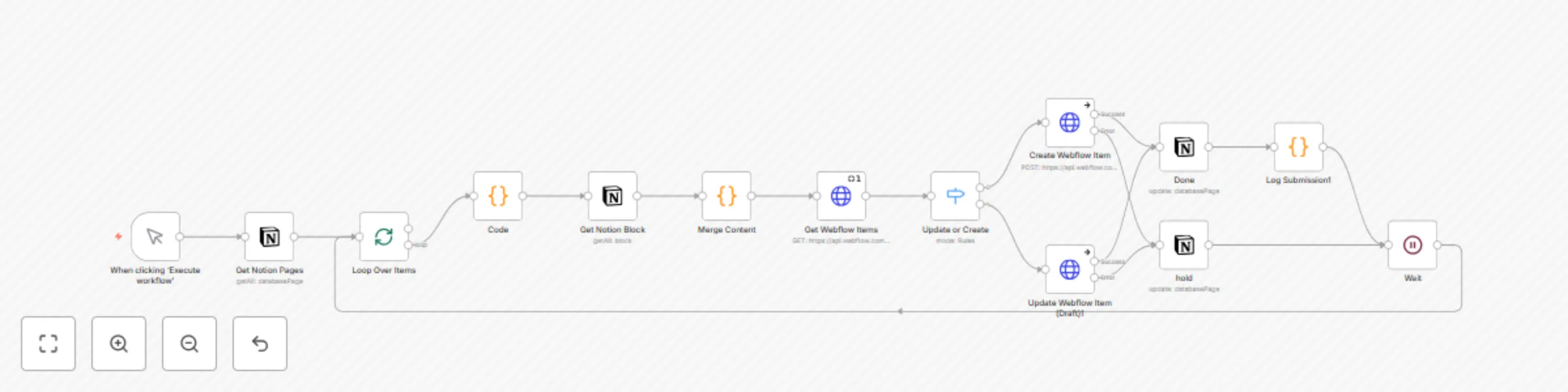
Workflow preview: Sync Notion content to Webflow CMS as draft items with status tracking
Free intermediate

Sync Notion content to Webflow CMS as draft items with status tracking

## **How it works:** This template takes approved Notion pages and syncs them to a Webflow CMS collection as **draft** items. It reads pages marked **Status = Ready for publish** in a specific Notion database/project, merges JSON content stored across page blocks into a single object, then either **creates** a new CMS item or **updates** the existing one by **name**. On success it sets the Notion page to **5. Done**; on failure it switches the page to **On Hold** for review.  ## **Step-by-step:** 1. **Manual Trigger** You start the run with **When clicking ‘Execute workflow’**. 2. **Get Notion Pages (Notion → Database: Tech Content Tasks)** Pull all pages with **Status = Ready for publish** scoped to the target **Project**. 3. **Loop Over Items (Split In Batches)** Process one Notion page at a time. 4. **Code (Pass-through)** Expose page fields (e.g., **name**, **id**, **url**, **sector**) for downstream nodes. 5. **Get Notion Block (children)** Fetch all blocks under the page **id**. 6. **Merge Content (Code)** Concatenate code-block fragments, **parse** them into one `mergedContent` JSON, and attach the page metadata. 7. **Get Webflow Items (HTTP GET)** List items in the target Webflow **collection** to see if an item with the same **name** already exists. 8. **Update or Create (Switch)** * **No match:** **Create Webflow Item** (POST) with `isDraft: true`, mapping all `fieldData` (e.g., category titles, meta title, excerpt, hero copy/image, benefits, problem pointers, FAQ, ROI). * **Match:** **Update Webflow Item (Draft)** (PATCH) for that **id**. Keep the **existing slug**, write latest `fieldData`, leave `isDraft: true`. 9. **Write Back Status (Notion)** * **Success path →** set **Status = 5. Done**. * **Error path →** set **Status = On Hold**. 10. **Log Submission (Code)** Log a compact object with **status**, **notionPageId**, **webflowItemId**, **timestamp**, and **action**. 11. **Wait → Loop** Short pause, then continue with the next page. ## **Tools integration:** * **Notion** — source database and page blocks for approved content. * **Webflow CMS API** — destination collection; items created/updated as **drafts**. * **n8n Code** — JSON merge and lightweight logging. * **Split In Batches + Wait** — controlled, item-wise processing. Want hands-free publishing? Add a **Cron** trigger before step 2 to run on a schedule.

S
Snehasish Konger
Content Creation
27 Aug 2025
118
0
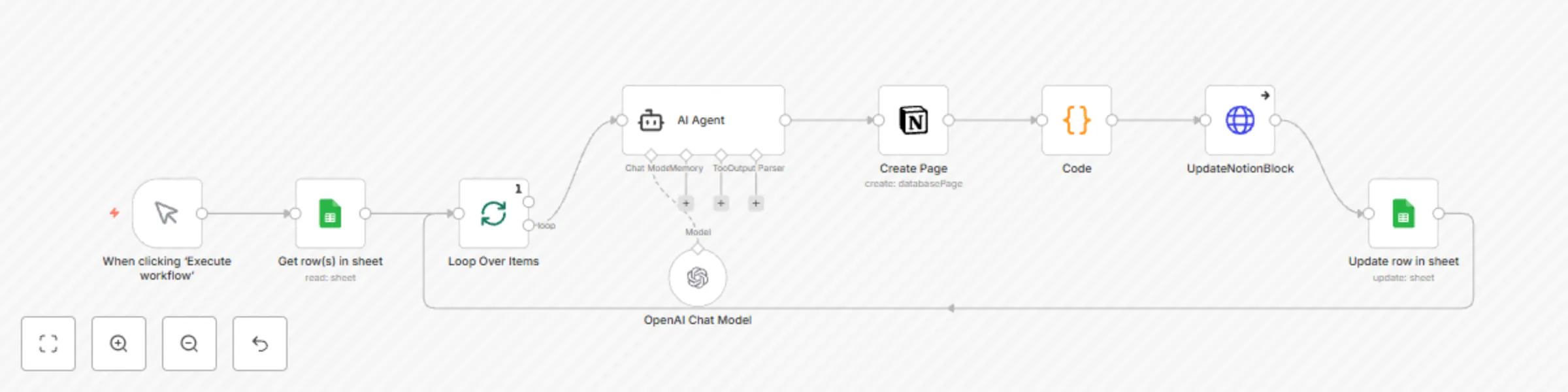
Workflow preview: Generate AI newsletter drafts from Google Sheets to Notion with GPT-5-mini
Free intermediate

Generate AI newsletter drafts from Google Sheets to Notion with GPT-5-mini

**How it works:** This template turns rows in a Google Sheet into polished newsletter drafts in Notion using an AI writing agent. You click **Execute workflow** in n8n. It fetches all rows marked **N8n Status = Pending**, generates a draft from **Newsletter Title** and **About the Newsletter**, creates a Notion page, writes the full draft, then flips the sheet row to **Done** before moving to the next one. **Before you start (use your own credentials):** * Create and select **your** credentials in n8n: * **Google Sheets** (OAuth2 or Service Account) with access to the target spreadsheet. * **Notion** (Internal Integration) with access to the target database. * **OpenAI** (API Key) for the Chat Model. * Replace any placeholders in nodes: * Spreadsheet **ID/URL** and sheet/tab name (e.g., `newsletter`). * Notion **Database ID** / Parent and any page or block IDs used by HTTP Request nodes. * OpenAI **model** name if you prefer a different model. * Give the Notion integration access to the database (Share → Invite the integration). * Do not hard-code secrets in nodes. Store them in n8n **Credentials**. **Step-by-step:** 1. **Manual Trigger** Start the run with **When clicking ‘Execute workflow’**. 2. **Fetch pending input (Google Sheets → Get row(s) in sheet)** Read the `newsletter` tab and pull only rows where **N8n Status = Pending**. 3. **Iterate (Split In Batches → Loop Over Items)** Process one sheet row at a time for stable memory use and pacing. 4. **Generate the newsletter (AI Agent + OpenAI Chat Model)** * **AI Agent** loads the “System Role Instructions” that define style, sections, and format. * Pass **Newsletter Title** and **About the Newsletter** to the **OpenAI Chat Model** to produce the draft. 5. **Create a Notion page (Notion → Create Page)** Create a page in your **Newsletter Automation** database with the page title set from **Newsletter Title**. 6. **Prepare long content for Notion (Code)** Split the AI output into \~1,800-character chunks and wrap as Notion paragraph blocks to avoid payload limits. 7. **Write content blocks to Notion (HTTP Request → UpdateNotionBlock)** Send a **PATCH** request to append all generated blocks so the full draft appears on the page. 8. **Mark the sheet row as done (Google Sheets → Update row in sheet)** Update **N8n Status = Done** for the processed **Newsletter Title**. 9. **Continue the loop** Return to **Split In Batches** for the next pending row until none remain. **Tools integration:** * **Google Sheets** — input queue and status tracking (`Pending` → `Done`) * **OpenAI** — LLM that writes the draft from provided fields * **Notion** — destination database for each draft page * **n8n Code + HTTP Request** — chunking and Notion API block updates Want auto-runs? Add a **Cron** trigger before step 2 and keep the flow unchanged.

S
Snehasish Konger
Content Creation
25 Aug 2025
450
0