Block 1 - Sticky Note7
- Type / Role
- n8n-nodes-base.stickyNote - stickyNote
- Config choices
- Version 1


 Early Deal
This workflow is provided as-is. Please review and test before using in production.
This n8n template demonstrates how to automate the creation of high quality visual content using AI. The workflow takes simple titles from a Go...
n8n-nodes-base.stickynote, n8n-nodes-base.if, n8n-nodes-base.limit, @n8n/n8n-nodes-langchain.agent, n8n-nodes-base.code, @n8n/n8n-nodes-langchain.outputparserstructured, @n8n/n8n-nodes-langchain.lmchatgooglegemini, @n8n/n8n-nodes-langchain.googlegemini
This workflow is cataloged by N8N Workflows and links back to its original n8n.io source page by Muhammad Farooq Iqbal.
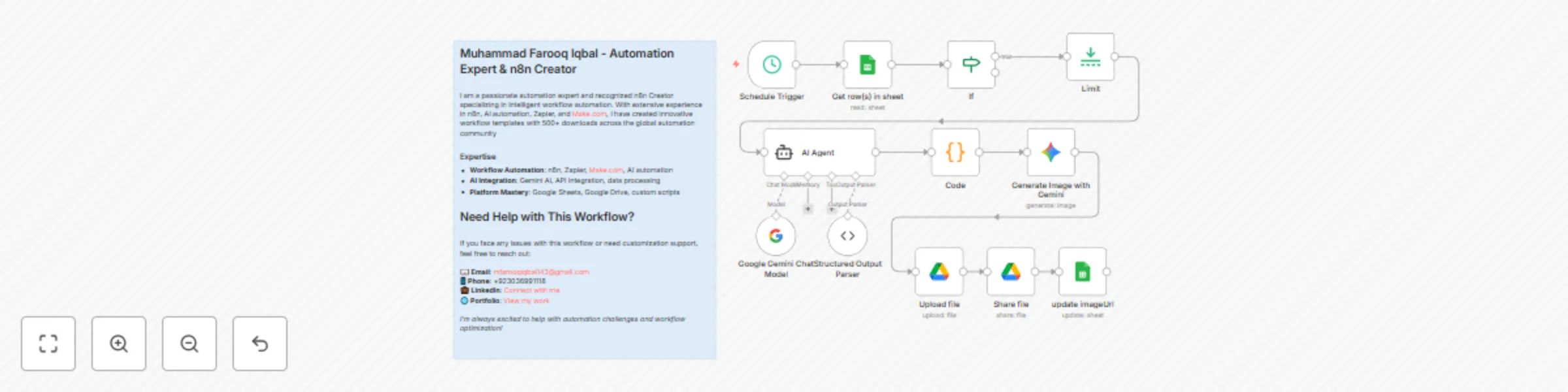
Original n8n.io sourceThis n8n template demonstrates how to automate the creation of high-quality visual content using AI. The workflow takes simple titles from a Google Sheets spreadsheet, generates detailed artistic prompts using AI, creates photorealistic images, and manages the entire process from data input to final delivery.
Use cases are many: Perfect for digital marketers, content creators, social media managers, e-commerce businesses, advertising agencies, and anyone needing consistent, high-quality visual content for marketing campaigns, social media posts, or brand materials!
Automated Trigger: A schedule trigger runs every minute to check for new entries in your Google Sheets spreadsheet.
Data Retrieval: The workflow fetches rows from your Google Sheets document, specifically looking for entries with "pending" status.
AI Prompt Generation: Using Google Gemini, the workflow takes simple titles and transforms them into detailed, artistic prompts for image generation. The AI considers:
Text Processing: A code node ensures proper JSON formatting by escaping newlines and maintaining clean text structure.
Image Generation: Gemini's advanced image generation model creates photorealistic images based on the detailed prompts, ensuring high-quality, consistent results.
File Management: Generated images are automatically uploaded to a designated folder in Google Drive with organized naming conventions.
Public Sharing: Images are made publicly accessible with read permissions, enabling easy sharing and embedding.
Database Update: The workflow completes by updating the Google Sheets with the generated image URL and changing the status from "pending" to "posted", creating a complete audit trail.
Setup: Ensure you have the required Google Sheets document with columns for ID, prompt, status, and imageUrl.
Configuration: Update the Google Sheets document ID and folder IDs in the respective nodes to match your setup.
Activation: The workflow is currently inactive - activate it in n8n to start processing.
Data Input: Simply add new rows to your Google Sheets with titles and set status to "pending" - the workflow will automatically process them.
Monitoring: Check the Google Sheets for updated status and image URLs to track progress.
Content Variations: Try different visual styles, seasonal themes, or trending designs by modifying the AI prompt in the LangChain agent.
Output Formats: Adjust the aspect ratio or image specifications for different platforms (Instagram, Pinterest, TikTok, Facebook ads, etc.).
Integration Options: Replace the schedule trigger with webhooks for real-time processing, or add notification nodes for status updates.
Batch Processing: Modify the limit node to process multiple items simultaneously, though be mindful of API rate limits.
Quality Control: Add additional validation nodes to ensure generated images meet quality standards before uploading.
Analytics: Integrate with analytics platforms to track image performance and engagement metrics.
This workflow provides a complete solution for automated visual content creation, perfect for businesses and creators looking to scale their visual content production while maintaining high quality and consistency across all marketing materials.
This catalog entry is organized from the workflow JSON. The node-level section below shows the executable blocks available for review before importing the template.
| Workflow | Generate AI images from text prompts with Gemini 2.0, Google Sheets & Drive |
|---|---|
| Complexity | intermediate |
| Nodes | 13 |
| Categories | Content Creation, Multimodal AI |
| Author | Muhammad Farooq Iqbal |
| Published | 18 Aug 2025 |
Use the JSON export at /data/workflows/7544/7544.json as the source template for this automation.
Open n8n, import the downloaded JSON, and review each node before activating the workflow.
Replace placeholder credentials, API keys, webhook URLs, account IDs, and environment-specific values with your own settings.
Run the workflow manually or in a staging workspace, inspect node output, and confirm downstream systems receive the expected data.
Enable the workflow only after testing, then monitor executions, errors, and rate limits during the first production runs.
Review imported nodes carefully before activation. This catalog entry is intended to help you inspect the workflow structure, understand required services, and find related templates faster.
Node names, credentials, schedules, webhook paths, and external service limits may need adjustment for your workspace.
This n8n template demonstrates how to automate the creation of high quality visual content using AI. The workflow takes simple titles from a Go...
Review the workflow JSON, configure any required credentials in n8n, and test the automation in a safe workspace before using it in production.
Yes. Use the block-by-block analysis and the downloadable JSON to inspect each node, then adjust credentials, prompts, schedules, filters, or destinations for your Content Creation, Multimodal AI use case.