Block 1 - Loop Over Items
- Type / Role
- n8n-nodes-base.splitInBatches - splitInBatches
- Config choices
- Version 3


 Early Deal
This workflow is provided as-is. Please review and test before using in production.
AI powered alt text generation from Google Sheets to WordPress media Who's it for WordPress site owners, content managers, and accessibility advocates who need to efficiently add alt text descripti...
n8n-nodes-base.splitinbatches, n8n-nodes-base.googlesheets, n8n-nodes-base.code, n8n-nodes-base.httprequest, n8n-nodes-base.if, n8n-nodes-base.filter, @n8n/n8n-nodes-langchain.openai, n8n-nodes-base.stickynote
This workflow is cataloged by N8N Workflows and links back to its original n8n.io source page by Growth AI.
Original n8n.io sourceWordPress site owners, content managers, and accessibility advocates who need to efficiently add alt text descriptions to multiple images for better SEO and web accessibility compliance.
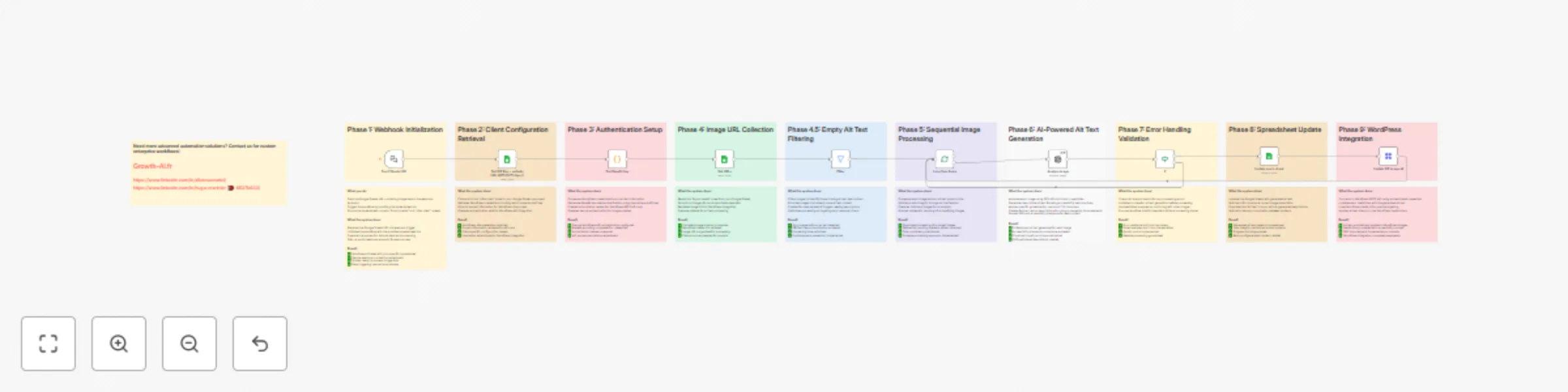
This workflow automates the process of generating and updating alt text for WordPress media files using AI analysis. It reads image URLs from a Google Sheet, analyzes each image with Claude AI to generate accessibility-compliant descriptions, updates the sheet with the generated alt text, and automatically applies the descriptions to the corresponding WordPress media files. The workflow includes error handling to skip unsupported media formats and continue processing.
Input: Provide a Google Sheets URL containing image URLs and WordPress media IDs Authentication: Retrieves WordPress credentials from a separate sheet and generates Base64 authentication Processing: Loops through each image URL in the sheet AI Analysis: Claude AI analyzes each image and generates concise, accessible alt text (max 125 characters) Error Handling: Automatically skips unsupported media formats and continues with the next item Update Sheet: Writes the generated alt text back to the Google Sheet WordPress Update: Updates the WordPress media library with the new alt text via REST API
Google Sheets with image URLs and WordPress media IDs WordPress site with Application Passwords enabled Claude AI (Anthropic) API credentials WordPress admin credentials stored in Google Sheets Export Media URLs WordPress plugin for generating the media list
Install the "Export Media URLs" plugin on your WordPress site Go to the plugin settings and check both ID and URL columns for export (these are mandatory for the workflow) Export your media list to get the required data
Go to WordPress Admin → Users → Your Profile Scroll down to "Application Passwords" section Enter application name (e.g., "n8n API") Click "Add New Application Password" Copy the generated password immediately (it won't be shown again)
Duplicate this Google Sheets template to get the correct structure. The template includes two sheets: Sheet 1: "Export media" - Paste your exported media data with columns:
ID (WordPress media ID) URL (image URL) Alt text (will be populated by the workflow)
Sheet 2: "Infos client" - Add your WordPress credentials:
Admin Name: Your WordPress username KEY: The application password you generated Domaine: Your site URL without https:// (format: "example.com")
Add your Anthropic API credentials to the Claude node Connect your Google Sheets account to the Google Sheets nodes
Language: The Claude prompt is in French - modify it in the "Analyze image" node for other languages Alt text length: Adjust the 125-character limit in the Claude prompt Batch processing: Change the batch size in the Split in Batches node Error handling: The workflow automatically handles unsupported formats, but you can modify the error handling logic Authentication: Customize for different WordPress authentication methods
This workflow is perfect for managing accessibility compliance across large WordPress media libraries while maintaining consistent, AI-generated descriptions. It's built to be resilient and will continue processing even when encountering unsupported media formats.
This catalog entry is organized from the workflow JSON. The node-level section below shows the executable blocks available for review before importing the template.
Showing the first 24 of 31 workflow blocks. Download the JSON for the full node graph.
| Workflow | Generate accessible alt text with AI from Google Sheets to WordPress |
|---|---|
| Complexity | advanced |
| Nodes | 31 |
| Categories | Content Creation, Multimodal AI |
| Author | Growth AI |
| Published | 18 Aug 2025 |
Use the JSON export at /data/workflows/7548/7548.json as the source template for this automation.
Open n8n, import the downloaded JSON, and review each node before activating the workflow.
Replace placeholder credentials, API keys, webhook URLs, account IDs, and environment-specific values with your own settings.
Run the workflow manually or in a staging workspace, inspect node output, and confirm downstream systems receive the expected data.
Enable the workflow only after testing, then monitor executions, errors, and rate limits during the first production runs.
Review imported nodes carefully before activation. This catalog entry is intended to help you inspect the workflow structure, understand required services, and find related templates faster.
Node names, credentials, schedules, webhook paths, and external service limits may need adjustment for your workspace.
AI powered alt text generation from Google Sheets to WordPress media Who's it for WordPress site owners, content managers, and accessibility advocates who need to efficiently add alt text descripti...
Review the workflow JSON, configure any required credentials in n8n, and test the automation in a safe workspace before using it in production.
Yes. Use the block-by-block analysis and the downloadable JSON to inspect each node, then adjust credentials, prompts, schedules, filters, or destinations for your Content Creation, Multimodal AI use case.