Fetch all page content from website and store with Gemini embedding in Pinecone

Workflow preview

Workflow preview
100%
Fetch all page content from website and store with Gemini embedding in Pinecone preview
Open on n8n.io

Important notice

This workflow is provided as-is. Please review and test before using in production.

1. Workflow Overview

Fetch and Extract all Website Pages Content and Store in Pinecone Vector Database as KnowledgeBase with Google Gemini Embeddings Use cases are many: Populate a custom chatbot's knowledge base, crea...

Best for

  • Document Extraction automation workflows
  • AI RAG automation workflows
  • advanced n8n builders looking for reusable templates

Tools used

n8n-nodes-base.stickynote, n8n-nodes-base.code, n8n-nodes-base.xml, n8n-nodes-base.httprequest, n8n-nodes-base.merge, n8n-nodes-base.removeduplicates, n8n-nodes-base.splitinbatches, n8n-nodes-base.html

Source and attribution

This workflow is cataloged by N8N Workflows and links back to its original n8n.io source page by Zain Khan.

Original n8n.io source

1.1 Workflow description

Title
Fetch all page content from website and store with Gemini embedding in Pinecone
Workflow name
Fetch all page content from website and store with Gemini embedding in Pinecone

Fetch and Extract all Website Pages Content and Store in Pinecone Vector Database as KnowledgeBase with Google Gemini Embeddings

Use cases are many: Populate a custom chatbot's knowledge base, create a powerful search index for your website, or build a comprehensive repository of information for internal tools!

Good to know

  • At time of writing, Pinecone and Gemini API costs apply based on usage. Refer to their respective pricing pages for updated information.
  • The models used in this workflow are subject to regional availability. If you encounter a "model not found" error, the service may not be available in your country or region.

How it works

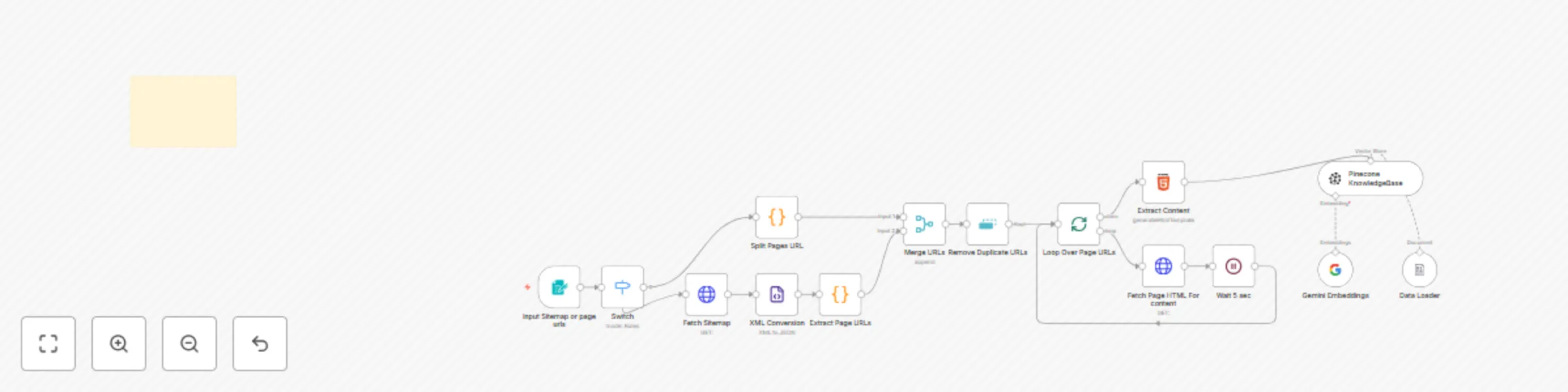
  1. Input Collection: The workflow starts by collecting URLs, either from a user-provided sitemap or a list of individual page URLs.
  2. URL Processing: It then fetches sitemap XML (if provided), converts it to JSON, extracts all page URLs, and merges them with any manually entered URLs. All duplicate URLs are removed to ensure efficiency.
  3. Content Fetching: The workflow iterates through the unique URLs, sending HTTP requests to download the HTML content of each page. A small delay is added between requests to be courteous to the website servers.
  4. Content Extraction: The HTML content is then processed to extract the main textual content from the page's body, excluding images, and cleaning the text for better quality.
  5. Embedding Generation: Gemini's embedding model converts the extracted text into vector embeddings, capturing the semantic meaning of the content.
  6. Pinecone Storage: Finally, these vector embeddings, along with their associated content, are uploaded to your specified Pinecone index, creating a searchable knowledge base. Existing data in the namespace is cleared before new data is inserted.

How to use

  • The workflow is triggered by a form where you input your sitemap or page URLs.
  • You can monitor the execution flow within n8n to see pages being processed and uploaded.
  • The Wait 5 sec node can be adjusted if you need to fetch content more rapidly or slowly, depending on the website's rate limits.

Requirements

  • Google Gemini API key for text embeddings.
  • Pinecone API key for vector database storage.

Customising this workflow

This workflow can be adapted for various purposes. Consider:

  • Adding more sophisticated HTML parsing logic to extract specific sections of a webpage.
  • For building a Web Support Chatbot
  • Integrating with other services to trigger updates to the knowledge base (e.g., automatically updating when new blog posts are published).
  • Connecting the Pinecone knowledge base to a chatbot or search application for enhanced functionalities.

1.2 Logical Blocks

This catalog entry is organized from the workflow JSON. The node-level section below shows the executable blocks available for review before importing the template.

2. Block-by-Block Analysis

Block 1 - Sticky Note

Type / Role
n8n-nodes-base.stickyNote - stickyNote
Config choices
Version 1

Block 2 - Extract Page URLs

Type / Role
n8n-nodes-base.code - code
Config choices
Version 2

Block 3 - XML Conversion

Type / Role
n8n-nodes-base.xml - xml
Config choices
Version 1

Block 4 - Fetch Sitemap

Type / Role
n8n-nodes-base.httpRequest - httpRequest
Config choices
Version 4.2

Block 5 - Split Pages URL

Type / Role
n8n-nodes-base.code - code
Config choices
Version 2

Block 6 - Merge URLs

Type / Role
n8n-nodes-base.merge - merge
Config choices
Version 3.2

Block 7 - Remove Duplicate URLs

Type / Role
n8n-nodes-base.removeDuplicates - removeDuplicates
Config choices
Version 2

Block 8 - Loop Over Page URLs

Type / Role
n8n-nodes-base.splitInBatches - splitInBatches
Config choices
Version 3

Block 9 - Extract Content

Type / Role
n8n-nodes-base.html - html
Config choices
Version 1.2

Block 10 - Fetch Page HTML For content

Type / Role
n8n-nodes-base.httpRequest - httpRequest
Config choices
Version 4.2

Block 11 - Wait 5 sec

Type / Role
n8n-nodes-base.wait - wait
Config choices
Version 1.1

Block 12 - Data Loader

Type / Role
@n8n/n8n-nodes-langchain.documentDefaultDataLoader - documentDefaultDataLoader
Config choices
Version 1.1

Block 13 - Gemini Embeddings

Type / Role
@n8n/n8n-nodes-langchain.embeddingsGoogleGemini - embeddingsGoogleGemini
Config choices
Version 1

Block 14 - Pinecone KnowledgeBase

Type / Role
@n8n/n8n-nodes-langchain.vectorStorePinecone - vectorStorePinecone
Config choices
Version 1.3

Block 15 - Input Sitemap or page urls

Type / Role
n8n-nodes-base.formTrigger - formTrigger
Config choices
Version 2.2

Block 16 - Switch

Type / Role
n8n-nodes-base.switch - switch
Config choices
Version 3.2

3. Summary Table

Workflow Fetch all page content from website and store with Gemini embedding in Pinecone
Complexity advanced
Nodes 16
Categories Document Extraction, AI RAG
Author Zain Khan
Published 27 Jul 2025

4. Reproducing the Workflow from Scratch

  1. 1. Download the workflow JSON

    Use the JSON export at /data/workflows/6526/6526.json as the source template for this automation.

  2. 2. Import the template into n8n

    Open n8n, import the downloaded JSON, and review each node before activating the workflow.

  3. 3. Configure credentials and variables

    Replace placeholder credentials, API keys, webhook URLs, account IDs, and environment-specific values with your own settings.

  4. 4. Test with sample data

    Run the workflow manually or in a staging workspace, inspect node output, and confirm downstream systems receive the expected data.

  5. 5. Activate and monitor

    Enable the workflow only after testing, then monitor executions, errors, and rate limits during the first production runs.

5. General Notes & Resources

Review imported nodes carefully before activation. This catalog entry is intended to help you inspect the workflow structure, understand required services, and find related templates faster.

Node names, credentials, schedules, webhook paths, and external service limits may need adjustment for your workspace.

Frequently asked questions

What does Fetch all page content from website and store with Gemini embedding in Pinecone do?

Fetch and Extract all Website Pages Content and Store in Pinecone Vector Database as KnowledgeBase with Google Gemini Embeddings Use cases are many: Populate a custom chatbot's knowledge base, crea...

What do I need before importing this workflow?

Review the workflow JSON, configure any required credentials in n8n, and test the automation in a safe workspace before using it in production.

Can I customize this workflow?

Yes. Use the block-by-block analysis and the downloadable JSON to inspect each node, then adjust credentials, prompts, schedules, filters, or destinations for your Document Extraction, AI RAG use case.