Extract structured data from Brave Search with Bright Data MCP & Google Gemini

Workflow preview

Workflow preview
100%
Extract structured data from Brave Search with Bright Data MCP & Google Gemini preview
Open on n8n.io

Important notice

This workflow is provided as-is. Please review and test before using in production.

1. Workflow Overview

Notice Community nodes can only be installed on self hosted instances of n8n. Who this is for The Brave Search Structured Data Extractor workflow is...

Best for

  • Market Research automation workflows
  • AI Summarization automation workflows
  • advanced n8n builders looking for reusable templates

Tools used

n8n-nodes-base.manualtrigger, @n8n/n8n-nodes-langchain.lmchatgooglegemini, @n8n/n8n-nodes-langchain.chainllm, n8n-nodes-base.set, @n8n/n8n-nodes-langchain.outputparserstructured, n8n-nodes-mcp.mcpclient, n8n-nodes-base.switch, n8n-nodes-base.stickynote

Source and attribution

This workflow is cataloged by N8N Workflows and links back to its original n8n.io source page by Ranjan Dailata.

Original n8n.io source

1.1 Workflow description

Title
Extract structured data from Brave Search with Bright Data MCP & Google Gemini
Workflow name
Extract structured data from Brave Search with Bright Data MCP & Google Gemini

Notice

Community nodes can only be installed on self-hosted instances of n8n.

Who this is for

The Brave Search Structured Data Extractor workflow is designed for professionals and teams that need high-quality, structured insights from Brave search results in real time. Whether you're performing market research, tracking competitors, training AI models, or powering content engines, this workflow offers a robust and automated solution.

This workflow is tailored for:

Market Researchers - Who analyze trends across multimedia channels

AI Developers - Who require clean, structured datasets for model fine-tuning

SEO & Content - Analysts looking to monitor visibility across news, images, and videos

Media Researchers - Curating timely and relevant information across formats

Automation Engineers - Integrating search insights into downstream workflows

What problem is this workflow solving?

Traditional web scraping and search result parsing is fragmented, inconsistent, and prone to errors, especially when dealing with multimedia (images, videos, news) data from search engines. This workflow provides:

  • Centralized Brave search data extraction across all content types. Switches the search execution based upon the type of search that is being set. ex: news, images, videos, all

  • Automated structured data transformation using Google Gemini

  • Unified output persistence and notification across disk, webhook, and Google Sheets

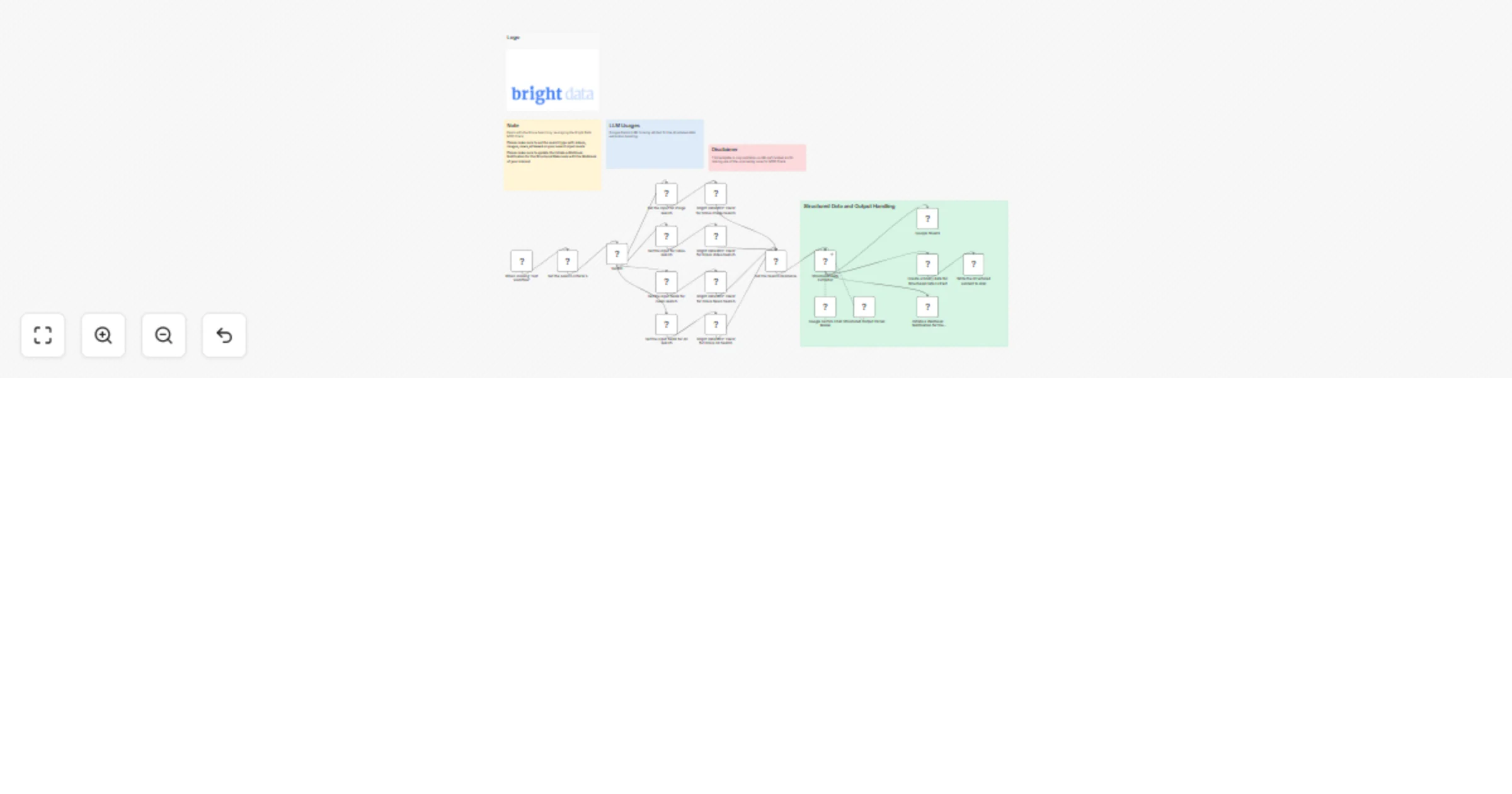
What this workflow does

Input Configuration

  • Define your Brave search query

  • Set the search type: videos, images, news, or all

  • Configure your Bright Data MCP zone

Bright Data MCP Search Execution

  • Initiates a Brave search via Bright Data MCP using the correct URL pattern for each search type

  • Returns raw HTML of search results

Google Gemini LLM

  • Structured Data Extraction

  • Transforms raw results into structured data (e.g., title, URL, source, snippet)

Output Handling

  • Save to disk (e.g., JSON or CSV file)

  • Send Webhook notification with structured data (e.g., Slack, internal dashboards)

  • Store in Google Sheets for team-wide access or dashboarding

Pre-conditions

  1. Knowledge of Model Context Protocol (MCP) is highly essential. Please read this blog post - model-context-protocol
  2. You need to have the Bright Data account and do the necessary setup as mentioned in the Setup section below.
  3. You need to have the Google Gemini API Key. Visit Google AI Studio
  4. You need to install the Bright Data MCP Server @brightdata/mcp
  5. You need to install the n8n-nodes-mcp

Setup

  1. Please make sure to setup n8n locally with MCP Servers by navigating to n8n-nodes-mcp
  2. Please make sure to install the Bright Data MCP Server @brightdata/mcp on your local machine.
  3. Sign up at Bright Data.
  4. Create a Web Unlocker proxy zone called mcp_unlocker on Bright Data control panel.
  5. Navigate to Proxies & Scraping and create a new Web Unlocker zone by selecting Web Unlocker API under Scraping Solutions.
  6. In n8n, configure the Google Gemini(PaLM) Api account with the Google Gemini API key (or access through Vertex AI or proxy).
  7. In n8n, configure the credentials to connect with MCP Client (STDIO) account with the Bright Data MCP Server as shown below.

Make sure to copy the Bright Data API_TOKEN within the Environments textbox above as API_TOKEN=<your-token>

How to customize this workflow to your needs

Enhance Output Analysis Add additional LLM prompts for topic classification, sentiment scoring, or trend forecasting.

Output Format Options Choose to output CSV, Markdown, or HTML reports based on your integration target.

Schedule Automation Trigger the workflow on a schedule (daily/weekly) to keep monitoring topical content.

1.2 Logical Blocks

This catalog entry is organized from the workflow JSON. The node-level section below shows the executable blocks available for review before importing the template.

2. Block-by-Block Analysis

Block 1 - When clicking ‘Test workflow’

Type / Role
n8n-nodes-base.manualTrigger - manualTrigger
Config choices
Version 1

Block 2 - Google Gemini Chat Model

Type / Role
@n8n/n8n-nodes-langchain.lmChatGoogleGemini - lmChatGoogleGemini
Config choices
Version 1

Block 3 - Structured Data Extractor

Type / Role
@n8n/n8n-nodes-langchain.chainLlm - chainLlm
Config choices
Version 1.6

Block 4 - Set the input for image search

Type / Role
n8n-nodes-base.set - set
Config choices
Version 3.4

Block 5 - Structured Output Parser

Type / Role
@n8n/n8n-nodes-langchain.outputParserStructured - outputParserStructured
Config choices
Version 1.2

Block 6 - Bright Data MCP Client for Brave Image Search

Type / Role
n8n-nodes-mcp.mcpClient - mcpClient
Config choices
Version 1

Block 7 - Switch

Type / Role
n8n-nodes-base.switch - switch
Config choices
Version 3.2

Block 8 - Set the input for video search

Type / Role
n8n-nodes-base.set - set
Config choices
Version 3.4

Block 9 - Bright Data MCP Client for Brave Video Search

Type / Role
n8n-nodes-mcp.mcpClient - mcpClient
Config choices
Version 1

Block 10 - Set the Search Response

Type / Role
n8n-nodes-base.set - set
Config choices
Version 3.4

Block 11 - Sticky Note2

Type / Role
n8n-nodes-base.stickyNote - stickyNote
Config choices
Version 1

Block 12 - Sticky Note4

Type / Role
n8n-nodes-base.stickyNote - stickyNote
Config choices
Version 1

Block 13 - Sticky Note5

Type / Role
n8n-nodes-base.stickyNote - stickyNote
Config choices
Version 1

Block 14 - Sticky Note3

Type / Role
n8n-nodes-base.stickyNote - stickyNote
Config choices
Version 1

Block 15 - Set the input fields for news search

Type / Role
n8n-nodes-base.set - set
Config choices
Version 3.4

Block 16 - Set the search criteria's

Type / Role
n8n-nodes-base.set - set
Config choices
Version 3.4

Block 17 - Bright Data MCP Client for Brave News Search

Type / Role
n8n-nodes-mcp.mcpClient - mcpClient
Config choices
Version 1

Block 18 - Bright Data MCP Client for Brave All Search

Type / Role
n8n-nodes-mcp.mcpClient - mcpClient
Config choices
Version 1

Block 19 - Set the input fields for All search

Type / Role
n8n-nodes-base.set - set
Config choices
Version 3.4

Block 20 - Google Sheets

Type / Role
n8n-nodes-base.googleSheets - googleSheets
Config choices
Version 4.5

Block 21 - Create a binary data for Structured Data Extract

Type / Role
n8n-nodes-base.function - function
Config choices
Version 1

Block 22 - Write the structured content to disk

Type / Role
n8n-nodes-base.readWriteFile - readWriteFile
Config choices
Version 1

Block 23 - Initiate a Webhook Notification for the Structured Data

Type / Role
n8n-nodes-base.httpRequest - httpRequest
Config choices
Version 4.2

Block 24 - Sticky Note

Type / Role
n8n-nodes-base.stickyNote - stickyNote
Config choices
Version 1

3. Summary Table

Workflow Extract structured data from Brave Search with Bright Data MCP & Google Gemini
Complexity advanced
Nodes 24
Categories Market Research, AI Summarization
Author Ranjan Dailata
Published 29 May 2025

4. Reproducing the Workflow from Scratch

  1. 1. Download the workflow JSON

    Use the JSON export at /data/workflows/4497/4497.json as the source template for this automation.

  2. 2. Import the template into n8n

    Open n8n, import the downloaded JSON, and review each node before activating the workflow.

  3. 3. Configure credentials and variables

    Replace placeholder credentials, API keys, webhook URLs, account IDs, and environment-specific values with your own settings.

  4. 4. Test with sample data

    Run the workflow manually or in a staging workspace, inspect node output, and confirm downstream systems receive the expected data.

  5. 5. Activate and monitor

    Enable the workflow only after testing, then monitor executions, errors, and rate limits during the first production runs.

5. General Notes & Resources

Review imported nodes carefully before activation. This catalog entry is intended to help you inspect the workflow structure, understand required services, and find related templates faster.

Node names, credentials, schedules, webhook paths, and external service limits may need adjustment for your workspace.

Frequently asked questions

What does Extract structured data from Brave Search with Bright Data MCP & Google Gemini do?

Notice Community nodes can only be installed on self hosted instances of n8n. Who this is for The Brave Search Structured Data Extractor workflow is...

What do I need before importing this workflow?

Review the workflow JSON, configure any required credentials in n8n, and test the automation in a safe workspace before using it in production.

Can I customize this workflow?

Yes. Use the block-by-block analysis and the downloadable JSON to inspect each node, then adjust credentials, prompts, schedules, filters, or destinations for your Market Research, AI Summarization use case.