Extract contact information from business cards with Mistral OCR and GPT-4o-mini

Workflow preview

Workflow preview
100%
Extract contact information from business cards with Mistral OCR and GPT-4o-mini preview
Open on n8n.io

Important notice

This workflow is provided as-is. Please review and test before using in production.

1. Workflow Overview

Business Card Scanner – Automate Contact Extraction This workflow automates the process of extracting contact details from business cards ...

Best for

  • Document Extraction automation workflows
  • AI Summarization automation workflows
  • intermediate n8n builders looking for reusable templates

Tools used

n8n-nodes-base.httprequest, @n8n/n8n-nodes-langchain.agent, @n8n/n8n-nodes-langchain.lmchatopenai, @n8n/n8n-nodes-langchain.outputparserstructured, @n8n/n8n-nodes-langchain.memorybufferwindow, n8n-nodes-base.datatable, n8n-nodes-base.formtrigger, n8n-nodes-base.extractfromfile

Source and attribution

This workflow is cataloged by N8N Workflows and links back to its original n8n.io source page by Wolfgang Renner.

Original n8n.io source

1.1 Workflow description

Title
Extract contact information from business cards with Mistral OCR and GPT-4o-mini
Workflow name
Extract contact information from business cards with Mistral OCR and GPT-4o-mini

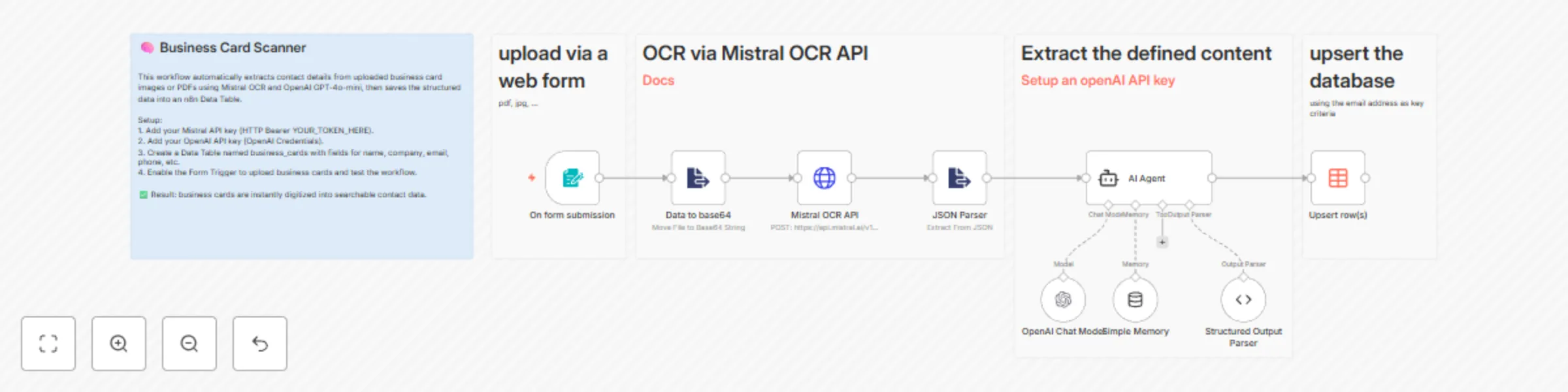
🧠 Business Card Scanner – Automate Contact Extraction

This workflow automates the process of extracting contact details from business cards (PDF or image) and saving them directly into an n8n Data Table.
No more manual data entry — just upload a card and let AI do the rest.


⚙️ How It Works

  1. Upload the business card via a web form (PDF or image).
  2. The uploaded file is converted to Base64 for processing.
  3. The Base64 data is sent to the Mistral OCR API, which extracts text from the image.
  4. The OCR output is parsed into JSON.
  5. An AI Agent (OpenAI GPT-4o-mini) interprets the extracted text and converts it into structured business card information (e.g., name, company, email, phone).
  6. The Structured Output Parser validates and aligns the data with a predefined schema.
  7. The workflow upserts (inserts or updates) the contact details into an n8n Data Table named business cards, using the email address as the unique identifier.

Result: Seamless digitization of business cards into structured, searchable contact data.


🧩 Prerequisites

Before importing the workflow, make sure you have the following:

  1. n8n Instance with access to the Data Table feature
  2. OpenAI Platform account and API key (configured in n8n)
  3. Mistral AI account and API key (configured in n8n)

🛠️ Setup Steps

  1. Import the Workflow

    • Download and import the JSON file into your n8n instance.
  2. Create a Data Table

    • Name it business_cards (or adjust the workflow accordingly).
    • Add the following fields:
      firstname
      name
      company
      jobdescription
      phone
      mobil
      email
      street
      postcode
      place
      web
      
  3. Configure API Credentials

    • Mistral OCR API → Add your API key under HTTP Bearer Auth.
    • OpenAI API → Add your API key under OpenAI Credentials.
      • Model: gpt-4o-mini (recommended for speed and low cost).
  4. Activate the Web Form Trigger

    • Enable the trigger node to make the business card upload form accessible via a public URL.
  5. Test the Workflow

    • Upload a sample business card.
    • Confirm that extracted contact data automatically appears in your Data Table.

💡 Example JSON Output

{
  "firstname": "Anna",
  "name": "Müller",
  "company": "NextGen Tech GmbH",
  "jobdescription": "Head of Marketing",
  "email": "[email protected]",
  "phone": "+49 821 1234567",
  "mobil": "+49 170 9876543",
  "street": "Schillerstraße 12",
  "postcode": "86150",
  "place": "Augsburg",
  "web": "https://nextgen.tech"
}

1.2 Logical Blocks

This catalog entry is organized from the workflow JSON. The node-level section below shows the executable blocks available for review before importing the template.

2. Block-by-Block Analysis

Block 1 - Mistral OCR API

Type / Role
n8n-nodes-base.httpRequest - httpRequest
Config choices
Version 4.2

Block 2 - AI Agent

Type / Role
@n8n/n8n-nodes-langchain.agent - agent
Config choices
Version 2.2

Block 3 - OpenAI Chat Model

Type / Role
@n8n/n8n-nodes-langchain.lmChatOpenAi - lmChatOpenAi
Config choices
Version 1.2

Block 4 - Structured Output Parser

Type / Role
@n8n/n8n-nodes-langchain.outputParserStructured - outputParserStructured
Config choices
Version 1.3

Block 5 - Simple Memory

Type / Role
@n8n/n8n-nodes-langchain.memoryBufferWindow - memoryBufferWindow
Config choices
Version 1.3

Block 6 - Upsert row(s)

Type / Role
n8n-nodes-base.dataTable - dataTable
Config choices
Version 1

Block 7 - On form submission

Type / Role
n8n-nodes-base.formTrigger - formTrigger
Config choices
Version 2.3

Block 8 - Data to base64

Type / Role
n8n-nodes-base.extractFromFile - extractFromFile
Config choices
Version 1

Block 9 - JSON Parser

Type / Role
n8n-nodes-base.extractFromFile - extractFromFile
Config choices
Version 1

Block 10 - Sticky Note

Type / Role
n8n-nodes-base.stickyNote - stickyNote
Config choices
Version 1

Block 11 - Sticky Note1

Type / Role
n8n-nodes-base.stickyNote - stickyNote
Config choices
Version 1

Block 12 - Sticky Note2

Type / Role
n8n-nodes-base.stickyNote - stickyNote
Config choices
Version 1

Block 13 - Sticky Note3

Type / Role
n8n-nodes-base.stickyNote - stickyNote
Config choices
Version 1

Block 14 - Sticky Note4

Type / Role
n8n-nodes-base.stickyNote - stickyNote
Config choices
Version 1

3. Summary Table

Workflow Extract contact information from business cards with Mistral OCR and GPT-4o-mini
Complexity intermediate
Nodes 14
Categories Document Extraction, AI Summarization
Author Wolfgang Renner
Published 03 Oct 2025

4. Reproducing the Workflow from Scratch

  1. 1. Download the workflow JSON

    Use the JSON export at /data/workflows/9212/9212.json as the source template for this automation.

  2. 2. Import the template into n8n

    Open n8n, import the downloaded JSON, and review each node before activating the workflow.

  3. 3. Configure credentials and variables

    Replace placeholder credentials, API keys, webhook URLs, account IDs, and environment-specific values with your own settings.

  4. 4. Test with sample data

    Run the workflow manually or in a staging workspace, inspect node output, and confirm downstream systems receive the expected data.

  5. 5. Activate and monitor

    Enable the workflow only after testing, then monitor executions, errors, and rate limits during the first production runs.

5. General Notes & Resources

Review imported nodes carefully before activation. This catalog entry is intended to help you inspect the workflow structure, understand required services, and find related templates faster.

Node names, credentials, schedules, webhook paths, and external service limits may need adjustment for your workspace.

Frequently asked questions

What does Extract contact information from business cards with Mistral OCR and GPT-4o-mini do?

Business Card Scanner – Automate Contact Extraction This workflow automates the process of extracting contact details from business cards ...

What do I need before importing this workflow?

Review the workflow JSON, configure any required credentials in n8n, and test the automation in a safe workspace before using it in production.

Can I customize this workflow?

Yes. Use the block-by-block analysis and the downloadable JSON to inspect each node, then adjust credentials, prompts, schedules, filters, or destinations for your Document Extraction, AI Summarization use case.