W

Wolfgang Renner

3
Workflows

Workflows by Wolfgang Renner
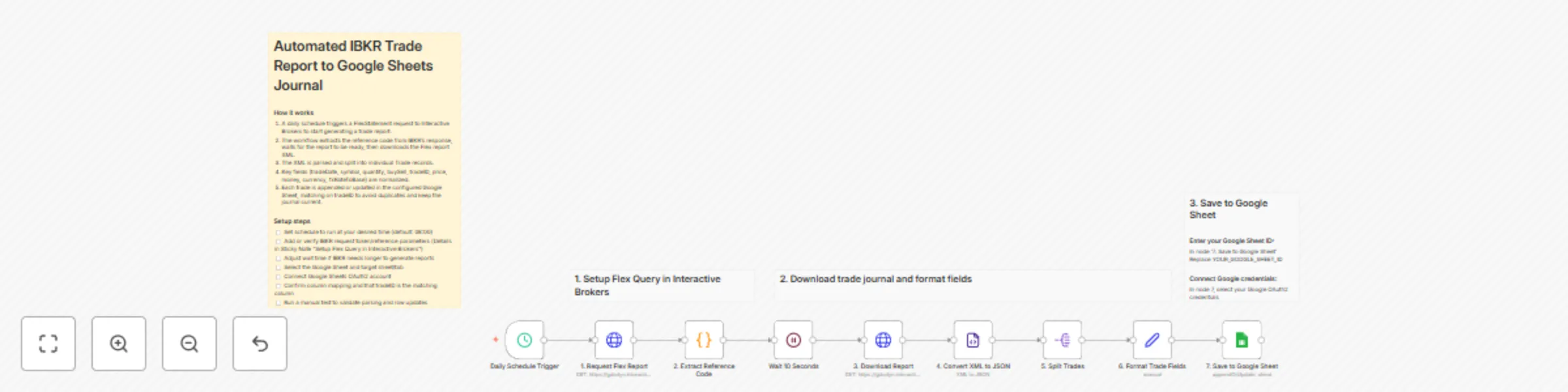
Workflow preview: Log daily Interactive Brokers trades to a Google Sheets journal
Free intermediate

Log daily Interactive Brokers trades to a Google Sheets journal

![tempImageKbwBTH.gif](fileId:3902) ## Automated Trade Report from Interactive Brokers This workflow is aimed at traders who use Interactive Brokers. It automatically retrieves the trades made in IBKR on a daily basis and writes them to a Google Sheet, so that anyone can easily perform further analyses and statistics using the on-board tools. This creates an automatic, continuous trade journal. ### Typical Usecaes - Monitoring your trades in one journal - Analyze your Profit & Losses - Basis for any kind of statistics • Log trades (entry, exit, setup, reason) • Analyze performance (win rate, R/R, expectancy) • Evaluate strategies & setups • Detect mistakes & patterns • Track emotions & discipline • Support coaching, reviews & improvement ### How it works 1. A daily schedule triggers a FlexStatement request to Interactive Brokers to start generating a trade report. 2. The workflow extracts the reference code from IBKR's response, waits for the report to be ready, then downloads the Flex report XML. 3. The XML is parsed and split into individual Trade records. 4. Key fields (tradeDate, symbol, quantity, buySell, tradeID, price, money, currency, fxRateToBase) are normalized.\n5. Each trade is appended or updated in the configured Google Sheet, matching on tradeID to avoid duplicates and keep the journal current. ### Prerequisites - Trading Account on [IBKR](IBKR) - Google Sheets OAuth2 - A Google Sheet containing your trading journal ### Setup - [ ] Set schedule to run at your desired time (default: 08:00) - [ ] Add or verify IBKR request token/reference parameters. #### 1. Create Flex Query Token: Go to IBKR [Account Management](https://ndcdyn.interactivebrokers.com/portal/?loginType=1&action=ACCT_MGMT_MAIN&mid=001&clt=1#/dashboard) Reports → Flex Queries → Flex Web Service → Generate Current Token → Make a note of the token (e.g.: 123456789012345678901234) #### 2. Enter Flex Token: In node '1. Request Flex Report' and in node '2. Extract Reference Code' Replace YOUR_FLEX_TOKEN with your token ID #### 3. Create Flex Query in IBKR (if not already done): Go to IBKR [Account Management](https://ndcdyn.interactivebrokers.com/portal/?loginType=1&action=ACCT_MGMT_MAIN&mid=001&clt=1#/dashboard) Reports → Flex Queries → Activity Flex Query → Create Select: Trade Confirmation ✓ Period: Last 365 Days Format: XML Save and note down the query ID #### 4. Enter Flex Query ID: In node '1. Request Flex Report' Replace YOUR_QUERY_ID with your query ID - [ ] Adjust wait time if IBKR needs longer to generate reports - [ ] Select the Google Sheet and target sheet/tab - [ ] Connect Google Sheets OAuth2 account - [ ] Confirm column mapping and that tradeID is the matching column - [ ] Run a manual test to validate parsing and row updates

W
Wolfgang Renner
Crypto Trading
26 Dec 2025
0
0
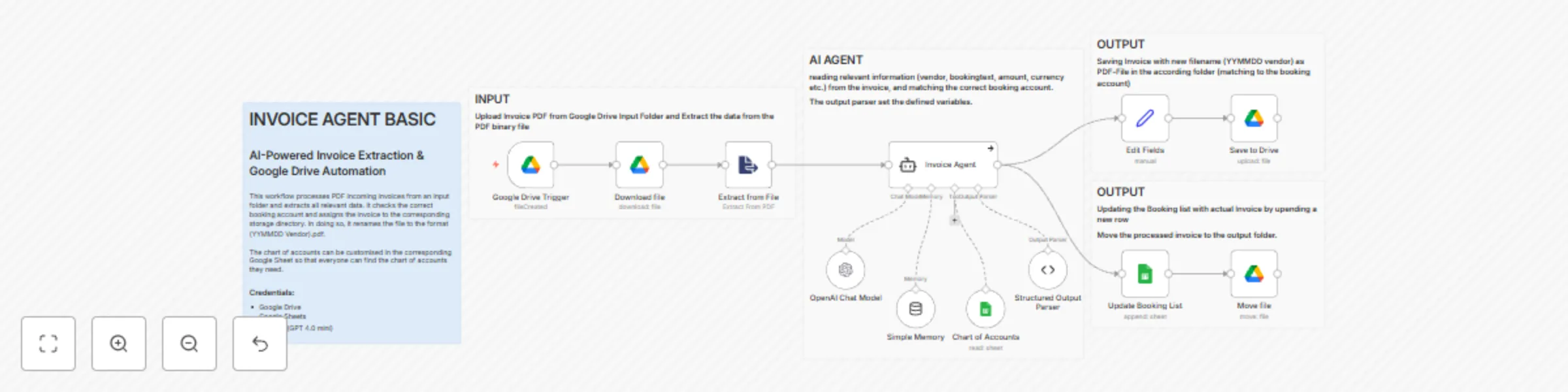
Workflow preview: Extract and process invoices with GPT-4, Google Drive, and Google Sheets
Free advanced

Extract and process invoices with GPT-4, Google Drive, and Google Sheets

![Bildschirmfoto 20251208 um 19.25.48.heic](fileId:3572) This template is a fully automated AI invoice processing workflow for n8n. It watches a Google Drive folder for new invoice PDFs, extracts all key information using an AI Agent, assigns the correct booking account, saves the renamed invoice in the right Drive folder, and updates your Google Sheets booking list. A perfect starter template if you want to build your own AI-powered accounting automation. ## What this workflow does - Monitors a Google Drive folder for new invoice PDFs. - Downloads and extracts invoice text from the uploaded PDF. - Uses an AI Agent (OpenAI + Structured Output Parser) to extract: - invoice date - vendor - currency - total amount - invoice number - booking text - booking account - matching Google Drive folder ID - Automatically renames the PDF to a clean, consistent format (e.g. 250912 Vendor.pdf). - Saves the invoice into the correct accounting folder in Google Drive. - Updates your booking list in Google Sheets with all extracted fields. - Moves the processed invoice to an output folder to avoid duplicates. Everything runs hands-free after setup. ## Key features - 🧠 AI Invoice Reading using OpenAI + LangChain - 📑 Structured Output Parser guarantees clean, validated fields - 📁 Automated Google Drive File Routing - 📊 Google Sheets logging for accounting records - 🔄 File movement logic to keep input/output folders organized - ⚙️ Chart of Accounts integration from your Google Sheet - 🟦 Works out of the box with Invoice Agent – Folder Structure Setup (recommended) ## Typical use cases - Automated accounting workflows - Pre-processing invoices before importing into ERP or sevDesk - AI-powered invoice extraction for small businesses or freelancers - Structured archiving of invoices for tax and audit requirements - Fully automated Google Drive invoice inbox ## How to use this template 1. Connect your Google Drive & Sheets credentials in all relevant nodes. 2. Select your: • Input folder (where invoices are uploaded) • Output folder (where processed invoices go) • Folder structure sheet + booking accounts sheet 3. Upload any invoice PDF into the input folder. 4. The workflow starts automatically and processes the invoice end-to-end. ⸻ ## Requirements • Google Drive OAuth2 • Google Sheets OAuth2 • OpenAI API key • A Google Sheet containing your chart of accounts • A prepared folder structure (use the “Google Drive Structure Setup” template)

W
Wolfgang Renner
Invoice Processing
21 Nov 2025
201
0
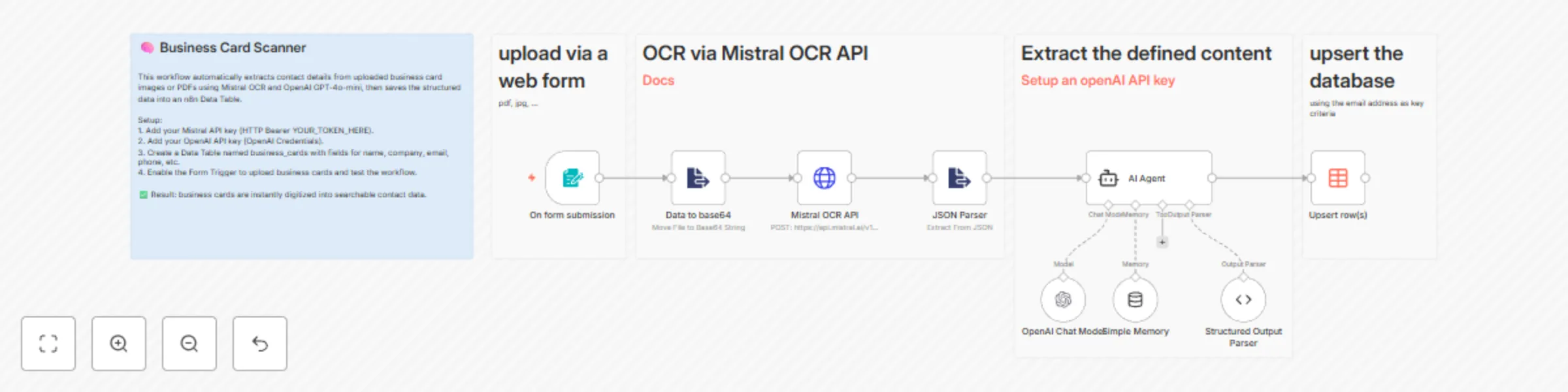
Workflow preview: Extract contact information from business cards with Mistral OCR and GPT-4o-mini
Free intermediate

Extract contact information from business cards with Mistral OCR and GPT-4o-mini

![Bildschirmfoto 20251010 um 22.54.19.png](fileId:2819) # 🧠 Business Card Scanner – Automate Contact Extraction This workflow automates the process of extracting **contact details from business cards** (PDF or image) and saving them directly into an **n8n Data Table**. No more manual data entry — just upload a card and let AI do the rest. --- ## ⚙️ How It Works 1. **Upload the business card** via a web form (PDF or image). 2. The uploaded file is **converted to Base64** for processing. 3. The Base64 data is sent to the **Mistral OCR API**, which extracts text from the image. 4. The **OCR output** is parsed into JSON. 5. An **AI Agent (OpenAI GPT-4o-mini)** interprets the extracted text and converts it into structured business card information (e.g., name, company, email, phone). 6. The **Structured Output Parser** validates and aligns the data with a predefined schema. 7. The workflow **upserts** (inserts or updates) the contact details into an **n8n Data Table** named `business cards`, using the email address as the unique identifier. ✅ **Result:** Seamless digitization of business cards into structured, searchable contact data. --- ## 🧩 Prerequisites Before importing the workflow, make sure you have the following: 1. **n8n Instance** with access to the **Data Table** feature 2. **[OpenAI Platform](https://platform.openai.com/docs/overview)** account and API key (configured in n8n) 3. **[Mistral AI](https://console.mistral.ai/home)** account and API key (configured in n8n) --- ## 🛠️ Setup Steps 1. **Import the Workflow** - Download and import the JSON file into your n8n instance. 2. **Create a Data Table** - Name it `business_cards` (or adjust the workflow accordingly). - Add the following fields: ```text firstname name company jobdescription phone mobil email street postcode place web ``` 3. **Configure API Credentials** - **Mistral OCR API** → Add your API key under *HTTP Bearer Auth*. - **OpenAI API** → Add your API key under *OpenAI Credentials*. - Model: `gpt-4o-mini` (recommended for speed and low cost). 4. **Activate the Web Form Trigger** - Enable the trigger node to make the business card upload form accessible via a public URL. 5. **Test the Workflow** - Upload a sample business card. - Confirm that extracted contact data automatically appears in your Data Table. --- ## 💡 Example JSON Output ```json { "firstname": "Anna", "name": "Müller", "company": "NextGen Tech GmbH", "jobdescription": "Head of Marketing", "email": "[email protected]", "phone": "+49 821 1234567", "mobil": "+49 170 9876543", "street": "Schillerstraße 12", "postcode": "86150", "place": "Augsburg", "web": "https://nextgen.tech" }

W
Wolfgang Renner
Document Extraction
3 Oct 2025
584
0