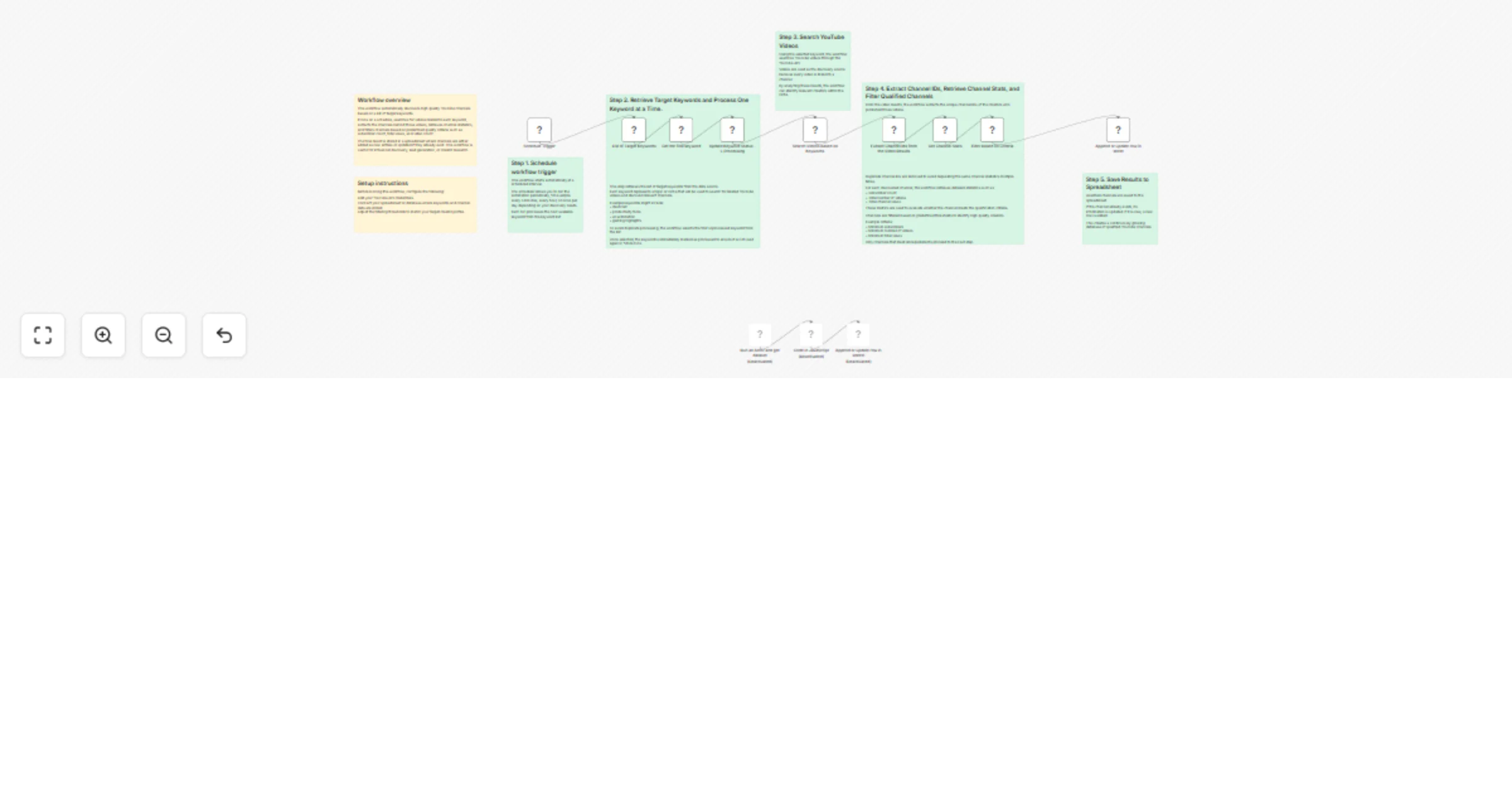
Discover YouTube channels from keywords and save leads to Google Sheets

Workflow preview

Workflow preview
100%
Discover YouTube channels from keywords and save leads to Google Sheets preview
Open on n8n.io

1. Workflow Overview

This workflow automatically searches YouTube Data API for videos related to specific keywords, extracts channel data, filters channels based on performance metrics, and saves the results into Googl...

Best for

  • Market Research automation workflows
  • advanced n8n builders looking for reusable templates

Tools used

n8n-nodes-base.googlesheets, n8n-nodes-base.scheduletrigger, n8n-nodes-base.code, @apify/n8n-nodes-apify.apify, n8n-nodes-base.stickynote, n8n-nodes-base.httprequest

Source and attribution

This workflow is cataloged by N8N Workflows and links back to its original n8n.io source page by Vonn.

Original n8n.io source

1.1 Workflow description

Title
Discover YouTube channels from keywords and save leads to Google Sheets
Workflow name
Discover YouTube channels from keywords and save leads to Google Sheets

This workflow automatically searches YouTube Data API for videos related to specific keywords, extracts channel data, filters channels based on performance metrics, and saves the results into Google Sheets.

Instead of manually searching YouTube and copying channel information, this workflow continuously discovers creators and builds a structured lead database. It is designed for marketers, researchers, agencies, and teams that need a reliable way to identify relevant YouTube channels in specific niches.

Who this workflow is for

This workflow is ideal for:

  • influencer marketing teams discovering creators in specific niches
  • agencies building creator outreach lists
  • researchers analyzing YouTube channel growth and trends
  • startups building creator marketplaces
  • marketers identifying potential partners or competitors

If you regularly search YouTube for channels related to certain topics, this workflow automates that process.

How it works

The workflow runs on a schedule in n8n and processes keywords one at a time to avoid API limits.

The automation performs the following steps:

  1. A Schedule Trigger starts the workflow automatically.
  2. Keywords are retrieved from a keyword list.
  3. The workflow selects one keyword to process.
  4. The YouTube Data API searches for videos related to that keyword.
  5. Channel IDs are extracted from the video results.
  6. Channel statistics such as subscriber count, total views, and video count are retrieved.
  7. Channels are filtered using configurable thresholds.
  8. Qualified channels are saved or updated in Google Sheets.

The result is an automatically growing database of YouTube channels relevant to your target topics.

Requirements

To use this workflow you will need:

  • An instance of n8n
  • A YouTube Data API credential
  • A Google Sheets account
  • A spreadsheet where discovered channels will be stored

How to set up

  1. Create credentials for the YouTube Data API in n8n.
  2. Connect your Google Sheets account.
  3. Add your target keywords to your keyword source.
  4. Configure filtering rules such as minimum subscribers or views.
  5. Set the schedule trigger interval.

Once configured, the workflow will run automatically and populate your spreadsheet with newly discovered YouTube channels.

How to customize the workflow

You can adapt the workflow depending on your use case.

Common customizations include:

  • adjusting subscriber or view thresholds
  • discovering smaller emerging creators by lowering filters
  • adding additional data fields such as video titles or upload dates
  • integrating notification tools like Slack when new channels are discovered
  • exporting results to databases or CRM systems

Because the workflow is built in n8n, you can easily extend it to support more advanced creator discovery or automation pipelines.

1.2 Logical Blocks

This catalog entry is organized from the workflow JSON. The node-level section below shows the executable blocks available for review before importing the template.

2. Block-by-Block Analysis

Block 1 - Append or update row in sheet

Type / Role
n8n-nodes-base.googleSheets - googleSheets
Config choices
Version 4.7

Block 2 - Schedule Trigger

Type / Role
n8n-nodes-base.scheduleTrigger - scheduleTrigger
Config choices
Version 1.3

Block 3 - Update Keyword Status -> Processing

Type / Role
n8n-nodes-base.googleSheets - googleSheets
Config choices
Version 4.7

Block 4 - Get the first keyword

Type / Role
n8n-nodes-base.code - code
Config choices
Version 2

Block 5 - Run an Actor and get dataset

Type / Role
@apify/n8n-nodes-apify.apify - apify
Config choices
Version 1

Block 6 - Append or update row in sheet1

Type / Role
n8n-nodes-base.googleSheets - googleSheets
Config choices
Version 4.7

Block 7 - Code in JavaScript

Type / Role
n8n-nodes-base.code - code
Config choices
Version 2

Block 8 - Sticky Note

Type / Role
n8n-nodes-base.stickyNote - stickyNote
Config choices
Version 1

Block 9 - Search Videos based on Keywords

Type / Role
n8n-nodes-base.httpRequest - httpRequest
Config choices
Version 4.4

Block 10 - List of Target Keywords

Type / Role
n8n-nodes-base.googleSheets - googleSheets
Config choices
Version 4.7

Block 11 - Extract Channel Ids from the Video Results

Type / Role
n8n-nodes-base.code - code
Config choices
Version 2

Block 12 - Get Channel Stats

Type / Role
n8n-nodes-base.httpRequest - httpRequest
Config choices
Version 4.4

Block 13 - Filter based on Criteria

Type / Role
n8n-nodes-base.code - code
Config choices
Version 2

Block 14 - Sticky Note1

Type / Role
n8n-nodes-base.stickyNote - stickyNote
Config choices
Version 1

Block 15 - Sticky Note3

Type / Role
n8n-nodes-base.stickyNote - stickyNote
Config choices
Version 1

Block 16 - Sticky Note2

Type / Role
n8n-nodes-base.stickyNote - stickyNote
Config choices
Version 1

Block 17 - Sticky Note5

Type / Role
n8n-nodes-base.stickyNote - stickyNote
Config choices
Version 1

Block 18 - Sticky Note4

Type / Role
n8n-nodes-base.stickyNote - stickyNote
Config choices
Version 1

Block 19 - Sticky Note6

Type / Role
n8n-nodes-base.stickyNote - stickyNote
Config choices
Version 1

3. Summary Table

Workflow Discover YouTube channels from keywords and save leads to Google Sheets
Complexity advanced
Nodes 19
Categories Market Research
Author Vonn
Published 13 Mar 2026

4. Reproducing the Workflow from Scratch

  1. 1. Download the workflow JSON

    Use the JSON export at /data/workflows/14017/14017.json as the source template for this automation.

  2. 2. Import the template into n8n

    Open n8n, import the downloaded JSON, and review each node before activating the workflow.

  3. 3. Configure credentials and variables

    Replace placeholder credentials, API keys, webhook URLs, account IDs, and environment-specific values with your own settings.

  4. 4. Test with sample data

    Run the workflow manually or in a staging workspace, inspect node output, and confirm downstream systems receive the expected data.

  5. 5. Activate and monitor

    Enable the workflow only after testing, then monitor executions, errors, and rate limits during the first production runs.

5. General Notes & Resources

Review imported nodes carefully before activation. This catalog entry is intended to help you inspect the workflow structure, understand required services, and find related templates faster.

Node names, credentials, schedules, webhook paths, and external service limits may need adjustment for your workspace.

Frequently asked questions

What does Discover YouTube channels from keywords and save leads to Google Sheets do?

This workflow automatically searches YouTube Data API for videos related to specific keywords, extracts channel data, filters channels based on performance metrics, and saves the results into Googl...

What do I need before importing this workflow?

Review the workflow JSON, configure any required credentials in n8n, and test the automation in a safe workspace before using it in production.

Can I customize this workflow?

Yes. Use the block-by-block analysis and the downloadable JSON to inspect each node, then adjust credentials, prompts, schedules, filters, or destinations for your Market Research use case.