Digitize business cards to Notion database with Gemini Vision OCR
Workflow preview

$20/month : Unlimited workflows
2500 executions/month

THE #1 IN WEB SCRAPING
Scrape any website without limits
HOSTINGER  Early Deal
DISCOUNT 20% Try free
Early DealDISCOUNT 20%
Self-hosted n8n
Unlimited workflows - from $4.99/mo

#1 hub for scraping, AI & automation
6000+ actors - $5 credits/mo
Important notice
This workflow is provided as-is. Please review and test before using in production.
Overview
🧩 Summary
Easily digitize and organize your business cards!
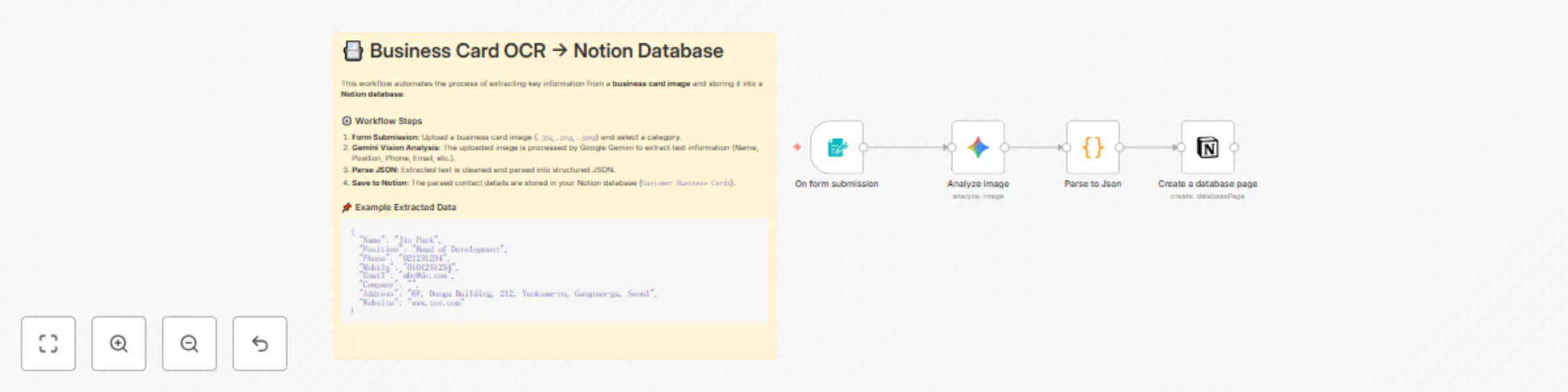
This workflow allows you to upload a business card image, automatically extract contact information using Google Gemini’s OCR & vision model, and save the structured data into a Notion database — no manual typing required.
Perfect for teams or individuals who want to centralize client contact info in Notion after networking events or meetings.
⚙️ How it works
Form Submission
- Upload a business card image (
.jpg,.png, or.jpeg) through an n8n form. - Optionally select a category (e.g., Partner, Client, Vendor).
- Upload a business card image (
AI-Powered OCR (Google Gemini)
- The uploaded image is sent to Google Gemini Vision for intelligent text recognition and entity extraction.
- Gemini returns structured text data such as:
{
  "Name": "Jung Hyun Park",
  "Position": "Head of Development",
  "Phone": "021231234",
  "Mobile": "0101231234",
  "Email": "[email protected]",
  "Company": "TOV",
  "Address": "6F, Donga Building, 212, Yeoksam-ro, Gangnam-gu, Seoul",
  "Website": "www.tov.com"
}
JSON Parsing & Cleanup
- The text response from Gemini is cleaned and parsed into a valid JSON object using a Code node.
Save to Notion
- The parsed data is automatically inserted into your Notion database (
Customer Business Cards). - Fields such as Name, Email, Phone, Address, and Company are mapped to Notion properties.
- The parsed data is automatically inserted into your Notion database (
🧠 Used Nodes
- Form Trigger – Captures uploaded business card and category input
- Google Gemini (Vision) – Extracts contact details from the image
- Code – Parses Gemini’s output into structured JSON
- Notion – Saves extracted contact info to your Notion database
📦 Integrations
| Service | Purpose | Node Type |
|---|---|---|
| Google Gemini (PaLM) | Image-to-text extraction (OCR + structured entity parsing) | @n8n/n8n-nodes-langchain.googleGemini |
| Notion | Contact data storage | n8n-nodes-base.notion |
🧰 Requirements
- A connected Google Gemini (PaLM) API credential
- A Notion integration with edit access to your database
🚀 Example Use Cases
- Digitize stacks of collected business cards after a conference
- Auto-save new partner contacts to your CRM database in Notion
- Build a searchable Notion-based contact directory
- Combine with Notion filters or rollups to manage client relationships
💡 Tips
- You can easily extend this workflow by adding an email notification node to confirm successful uploads.
- For multilingual cards, Gemini Vision handles mixed-language text recognition well.
- Adjust Gemini model (
gemini-1.5-flashorgemini-1.5-pro) based on your accuracy vs. speed needs.
🧾 Template Metadata
| Field | Value |
|---|---|
| Category | AI + Notion + OCR |
| Difficulty | Beginner–Intermediate |
| Trigger Type | Form Submission |
| Use Case | Automate business card digitization |
| Works with | Google Gemini, Notion |