Create & track LinkedIn posts with Google Sheets, GPT-5.1, Unsplash, and Sona

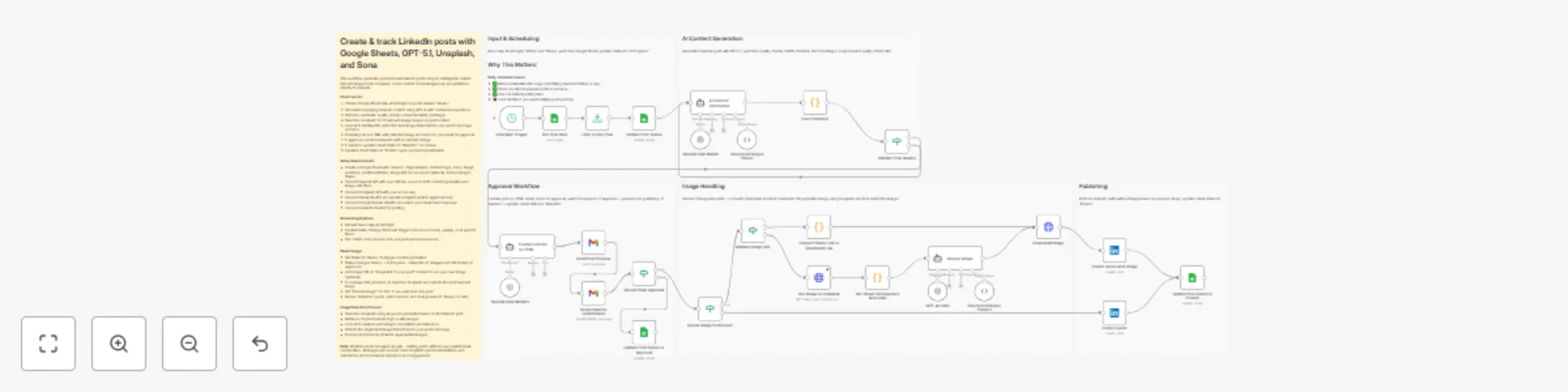
Workflow preview

Workflow preview
100%
Create & track LinkedIn posts with Google Sheets, GPT-5.1, Unsplash, and Sona preview
Open on n8n.io

Important notice

This workflow is provided as-is. Please review and test before using in production.

1. Workflow Overview

Automate LinkedIn content creation by managing ideas in Google Sheets, generating professional AI written posts, intelligently selecting relevant Unsplash images, sending drafts for email approval,...

Best for

  • Content Creation automation workflows
  • advanced n8n builders looking for reusable templates

Tools used

n8n-nodes-base.httprequest, n8n-nodes-base.stickynote, @n8n/n8n-nodes-langchain.lmchatopenai, @n8n/n8n-nodes-langchain.outputparserstructured, n8n-nodes-base.code, @n8n/n8n-nodes-langchain.agent, n8n-nodes-base.scheduletrigger, n8n-nodes-base.googlesheets

Source and attribution

This workflow is cataloged by N8N Workflows and links back to its original n8n.io source page by Sona Labs.

Original n8n.io source

1.1 Workflow description

Title
Create & track LinkedIn posts with Google Sheets, GPT-5.1, Unsplash, and Sona
Workflow name
Create & track LinkedIn posts with Google Sheets, GPT-5.1, Unsplash, and Sona

Automate LinkedIn content creation by managing ideas in Google Sheets, generating professional AI-written posts, intelligently selecting relevant Unsplash images, sending drafts for email approval, and publishing directly to LinkedIn.

How it works

Step 1: Scheduled Sheet Check

  • Workflow runs daily at midnight (customizable to hourly/weekly)
  • Fetches posts from Google Sheet marked with Status = "Ready"
  • Processes one post per run, updates status to "In Progress"

Step 2: AI Content Generation

  • GPT-5.1 creates engaging LinkedIn post based on your inputs
  • Generates content with proper hashtags, formatting, and tone
  • Follows your specified content type (tip, story, announcement, etc.)

Step 3: Quality Validation

  • Automatically checks character limits (3000 max)
  • Validates minimum hashtag requirements (3+)
  • Loops back to regenerate if quality checks fail

Step 4: Email Approval Workflow

  • Formats post as HTML email with professional styling
  • Sends preview to your Gmail for review
  • Waits for your approval response before proceeding
  • Nothing posts without explicit confirmation

Step 5: Smart Image Handling

  • If you provided image URL: Downloads from Google Drive, Dropbox, or direct links
  • If no URL is provided: Fetch 10 images from Unsplash and use AI to select the best one.
  • If "Include Image?" is "No": Posts text-only content
  • Automatically converts share links to downloadable formats

Step 6: LinkedIn Publishing & Tracking

  • Posts approved content directly to your LinkedIn profile
  • Uses appropriate API endpoint based on whether image is included
  • Updates Google Sheet status to "Posted" for successful posts
  • Marks "Rejected" posts in sheet for review and editing

What you'll get

  • Batch content planning: Queue multiple posts in advance via Google Sheets
  • Consistent posting schedule: Automated daily publishing without manual work
  • Professional AI content: GPT-5.1 generates engaging, platform-optimized posts
  • Full approval control: Review every post before it goes live
  • Flexible image options: Your images, AI-generated, or text-only
  • Quality assurance: Built-in checks prevent poorly formatted posts
  • Status tracking: Monitor what's ready, in progress, rejected, or posted
  • Smart link conversion: Automatically handles Google Drive and Dropbox share links

Requirements

Accounts & credentials:

  • OpenAI API key (requires paid plan for GPT-5.1)
  • Gmail account (for approval workflow)
  • Google account (for Sheets integration)
  • LinkedIn account (for publishing)
  • Unsplash API key (for getting images)

Google Sheet setup: Create a sheet with these columns:

  • Topic/Subject (required) - Main idea for the post
  • Content Type (required) - e.g., "Tip", "Story", "Announcement"
  • Tone (required) - e.g., "Professional", "Casual", "Inspirational"
  • Target Audience (optional) - Who you're writing for
  • Additional Notes (optional) - Specific points to include
  • Image link for your post (optional) - URL to your image
  • Include Image? (required) - "Yes" or "No"
  • Status (required) - "Ready" to trigger workflow

Setup steps

  1. Import workflow - Click "Use workflow" to add to your n8n instance

  2. Connect credentials:

    • Google Sheets: Authenticate and select your sheet from dropdown
    • OpenAI: Add your API key in both AI nodes
    • Gmail: Authenticate and update recipient email in approval node
    • LinkedIn: Authenticate (your profile auto-populates)
  3. Create your content sheet - Add the required columns and fill with post ideas

  4. Test the workflow:

    • Add one test row with Status = "Ready"
    • Run workflow manually
    • Check email for approval
    • Verify post appears on LinkedIn
  5. Configure schedule - Default is daily at midnight; adjust Schedule Trigger node for different frequency

  6. Start batching - Add multiple ideas to your sheet and let automation handle the rest

Tips for best results

  • Be specific in Topic/Subject: "5 ways to improve team productivity" beats "productivity tips"
  • Mix content types and tones to keep your feed engaging
  • Use Additional Notes for data points, statistics, or specific examples. You can also include links that the AI can use for the posts.
  • Start with text-only posts to validate content quality before adding images
  • Review rejected posts carefully and refine your inputs
  • Batch 10-20 ideas at once for weeks of automated content

1.2 Logical Blocks

This catalog entry is organized from the workflow JSON. The node-level section below shows the executable blocks available for review before importing the template.

2. Block-by-Block Analysis

Block 1 - Get Image in Unsplash

Type / Role
n8n-nodes-base.httpRequest - httpRequest
Config choices
Version 4.2

Block 2 - Sticky Note4

Type / Role
n8n-nodes-base.stickyNote - stickyNote
Config choices
Version 1

Block 3 - OpenAI Chat Model

Type / Role
@n8n/n8n-nodes-langchain.lmChatOpenAi - lmChatOpenAi
Config choices
Version 1.2

Block 4 - Structured Output Parser

Type / Role
@n8n/n8n-nodes-langchain.outputParserStructured - outputParserStructured
Config choices
Version 1.3

Block 5 - Post Formatter

Type / Role
n8n-nodes-base.code - code
Config choices
Version 2

Block 6 - AI Content Generation

Type / Role
@n8n/n8n-nodes-langchain.agent - agent
Config choices
Version 2.1

Block 7 - OpenAI Chat Model1

Type / Role
@n8n/n8n-nodes-langchain.lmChatOpenAi - lmChatOpenAi
Config choices
Version 1.2

Block 8 - Format Content to HTML

Type / Role
@n8n/n8n-nodes-langchain.agent - agent
Config choices
Version 2.1

Block 9 - Schedule Trigger

Type / Role
n8n-nodes-base.scheduleTrigger - scheduleTrigger
Config choices
Version 1.2

Block 10 - Get Post Idea

Type / Role
n8n-nodes-base.googleSheets - googleSheets
Config choices
Version 4.6

Block 11 - Update Post Status

Type / Role
n8n-nodes-base.googleSheets - googleSheets
Config choices
Version 4.6

Block 12 - Download Image

Type / Role
n8n-nodes-base.httpRequest - httpRequest
Config choices
Version 4.2

Block 13 - Convert Share Link to Download Link

Type / Role
n8n-nodes-base.code - code
Config choices
Version 2

Block 14 - Create a post with image

Type / Role
n8n-nodes-base.linkedIn - linkedIn
Config choices
Version 1

Block 15 - Update Post Status to Posted

Type / Role
n8n-nodes-base.googleSheets - googleSheets
Config choices
Version 4.6

Block 16 - Create a post

Type / Role
n8n-nodes-base.linkedIn - linkedIn
Config choices
Version 1

Block 17 - Sticky Note5

Type / Role
n8n-nodes-base.stickyNote - stickyNote
Config choices
Version 1

Block 18 - Sticky Note6

Type / Role
n8n-nodes-base.stickyNote - stickyNote
Config choices
Version 1

Block 19 - Sticky Note7

Type / Role
n8n-nodes-base.stickyNote - stickyNote
Config choices
Version 1

Block 20 - Sticky Note8

Type / Role
n8n-nodes-base.stickyNote - stickyNote
Config choices
Version 1

Block 21 - Sticky Note9

Type / Role
n8n-nodes-base.stickyNote - stickyNote
Config choices
Version 1

Block 22 - Limit to One Post

Type / Role
n8n-nodes-base.limit - limit
Config choices
Version 1

Block 23 - Validate Post Quality

Type / Role
n8n-nodes-base.if - if
Config choices
Version 2.2

Block 24 - Check Email Approval

Type / Role
n8n-nodes-base.if - if
Config choices
Version 2.2

Showing the first 24 of 33 workflow blocks. Download the JSON for the full node graph.

3. Summary Table

Workflow Create & track LinkedIn posts with Google Sheets, GPT-5.1, Unsplash, and Sona
Complexity advanced
Nodes 33
Categories Content Creation
Author Sona Labs
Published 30 Dec 2025

4. Reproducing the Workflow from Scratch

  1. 1. Download the workflow JSON

    Use the JSON export at /data/workflows/12325/12325.json as the source template for this automation.

  2. 2. Import the template into n8n

    Open n8n, import the downloaded JSON, and review each node before activating the workflow.

  3. 3. Configure credentials and variables

    Replace placeholder credentials, API keys, webhook URLs, account IDs, and environment-specific values with your own settings.

  4. 4. Test with sample data

    Run the workflow manually or in a staging workspace, inspect node output, and confirm downstream systems receive the expected data.

  5. 5. Activate and monitor

    Enable the workflow only after testing, then monitor executions, errors, and rate limits during the first production runs.

5. General Notes & Resources

Review imported nodes carefully before activation. This catalog entry is intended to help you inspect the workflow structure, understand required services, and find related templates faster.

Node names, credentials, schedules, webhook paths, and external service limits may need adjustment for your workspace.

Frequently asked questions

What does Create & track LinkedIn posts with Google Sheets, GPT-5.1, Unsplash, and Sona do?

Automate LinkedIn content creation by managing ideas in Google Sheets, generating professional AI written posts, intelligently selecting relevant Unsplash images, sending drafts for email approval,...

What do I need before importing this workflow?

Review the workflow JSON, configure any required credentials in n8n, and test the automation in a safe workspace before using it in production.

Can I customize this workflow?

Yes. Use the block-by-block analysis and the downloadable JSON to inspect each node, then adjust credentials, prompts, schedules, filters, or destinations for your Content Creation use case.