S

Sona Labs

7
Workflows

Workflows by Sona Labs

Workflow preview: Generate Sora v2 ASMR clips with GPT-5.1, stitch via Cloudinary, and post to Twitter/X
Free advanced

Generate Sora v2 ASMR clips with GPT-5.1, stitch via Cloudinary, and post to Twitter/X

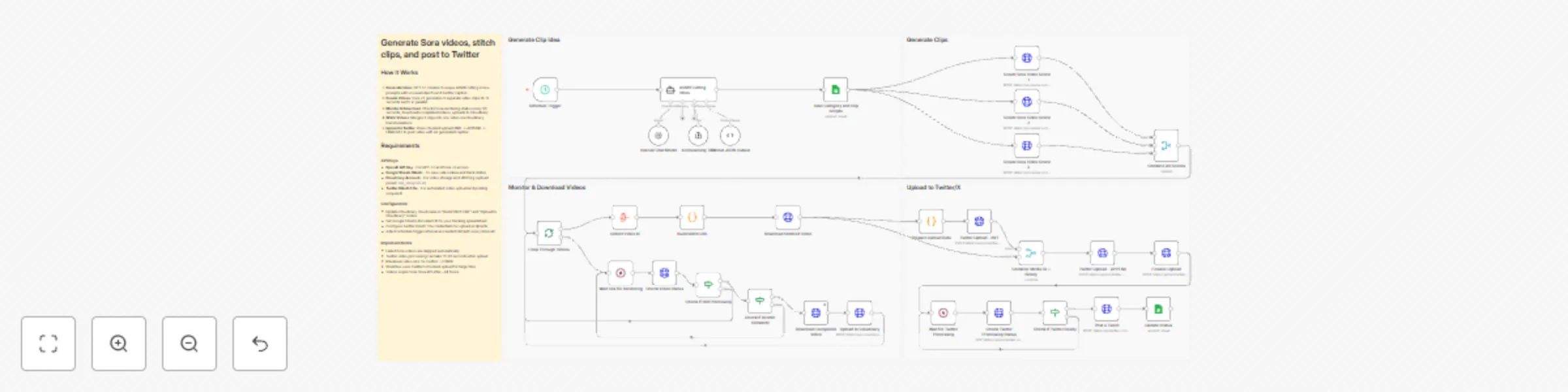
# Generate Sora videos, stitch clips, and post to Twitter Generate creative ASMR cutting video concepts with GPT-5.1, create high-quality video clips using Sora v2, stitch them together with Cloudinary, and automatically post to Twitter/X—transforming ideas into viral content without manual video editing. ## **How it works** **Step 1: Generate Video Concepts** - Schedule Trigger activates the workflow automatically - GPT-5.1 AI agent generates 3 unique ASMR cutting scene prompts with unusual objects - Creates structured video prompts optimized for Sora v2 (frontal camera angle, cutting actions) - Generates Twitter-ready captions with relevant hashtags - Saves all concepts and scripts to Google Sheets for tracking **Step 2: Create Video Clips with Sora v2** - Generates 3 separate Sora v2 video clips in parallel (8-12 seconds each) - Each clip uses unique prompts from GPT-5.1 output - Videos render at 720x1280 resolution (vertical format for social media) - System waits 30 seconds for rendering to complete **Step 3: Monitor & Download Videos** - Loops through all 3 video generation requests - Checks Sora API status every 30 seconds until rendering completes - Automatically skips failed renders (continues workflow with successful videos) - Downloads completed videos from Sora API - Uploads each clip to Cloudinary for storage and processing **Step 4: Stitch Videos Together** - Collects all uploaded Cloudinary video IDs - Builds Cloudinary transformation URL to stitch 3 clips into one seamless video - Applies Twitter-compatible encoding (H.264 baseline, AAC audio, MP4 format) - Downloads the final stitched video **Step 5: Upload to Twitter/X** - Prepares video file data and calculates total file size - Uses Twitter's chunked upload API (INIT → APPEND → FINALIZE) - Waits for Twitter's video processing to complete - Checks processing status until video is ready - Posts tweet with AI-generated caption and attached video - Updates Google Sheets status to "Posted" ## **What you'll get** - **AI-Generated Concepts**: Creative ASMR cutting ideas with unusual objects (glass avocados, lava rocks, rainbow soap) - **Professional Video Clips**: Three 8-12 second Sora v2 videos per concept with 720x1280 resolution - **Seamless Stitching**: Single combined video optimized for Twitter/X specifications - **Engaging Captions**: GPT-5.1 generated tweets with hashtags designed for virality - **Automated Posting**: Direct upload to Twitter/X without manual intervention - **Cloud Backup**: All videos stored in Cloudinary with metadata - **Progress Tracking**: Google Sheets integration shows workflow status (In Progress → Posted) - **Error Handling**: Failed Sora renders are automatically skipped ## **Why use this** - **Save 4+ hours per video**: Eliminate scripting, shooting, editing, and posting time - **Consistent posting schedule**: Set it and forget it with the Schedule Trigger - **Scale content creation**: Generate multiple video variations in 20-30 minutes - **Professional quality**: Leverage Sora v2's AI video generation for realistic cutting scenes - **Optimize for virality**: GPT-5.1 creates concepts and captions designed for engagement - **Reduce creative burnout**: AI handles ideation, execution, and distribution - **No video editing skills needed**: Complete automation from concept to post - **Test multiple concepts**: Generate 3 variations per run to see what resonates ## **Setup instructions** ### **Required accounts and credentials:** 1. **OpenAI API Key** (GPT-5.1 and Sora v2 access required) - Sign up at https://platform.openai.com - Ensure your account has Sora v2 API access enabled - Generate API key from API Keys section - Note: Sora v2 is currently in limited beta 2. **Google Sheets OAuth** (for tracking video ideas and status) - Free Google account required - Create a spreadsheet with columns: Category, Scene 1, Scene 2, Scene 3, Status - n8n will request OAuth permissions during setup 3. **Cloudinary Account** (for video storage and stitching) - Sign up at https://cloudinary.com (free tier available) - Note your cloud name from the dashboard - Create an upload preset named `n8n_integration` - Enable unsigned uploads for the preset 4. **Twitter OAuth 1.0a Credentials** (for automated posting) - Apply for Twitter Developer access at https://developer.twitter.com - Create a new app in the Developer Portal - Generate: API Key, API Secret, Access Token, Access Token Secret - Enable "Read and Write" permissions (not just Read) - OAuth 1.0a is required for media uploads (OAuth 2.0 won't work) ### **Configuration steps:** 1. **Update OpenAI API Key**: - Add your OpenAI API key to these nodes: - "OpenAI Chat Model" credentials - "Create Sora Video Scene - 1" (Authorization header) - "Create Sora Video Scene - 2" (Authorization header) - "Create Sora Video Scene - 3" (Authorization header) - "Check Video Status" (Authorization header) - "Download Completed Video" (Authorization header) - Replace `Bearer API KEY` with `Bearer YOUR_ACTUAL_API_KEY` 2. **Configure Google Sheets**: - Open "Save Category and Clip Scripts" and "Update Status" nodes - Authenticate with your Google account (OAuth 2.0) - Select your spreadsheet and sheet name - Ensure columns match: Category, Scene 1, Scene 2, Scene 3, Status - The workflow will update Status from "In Progress" to "Posted" 3. **Update Cloudinary Settings**: - In "Upload to Cloudinary" node: - Replace `{Cloud name here}` in the URL with your Cloudinary cloud name - Verify upload preset is set to `n8n_integration` - In "Build Stitch URL" node: - Open the Code node - Replace `dph9n4uei` on line 1 with your cloud name - This builds the video stitching transformation URL 4. **Add Twitter OAuth 1.0a Credentials**: - Configure OAuth 1.0a in these nodes: - "Twitter Upload - INIT" - "Twitter Upload - APPEND" - "Finalize Upload" - "Check Twitter Processing Status" - "Post a Tweet" - Use the same OAuth 1.0a credential for all nodes - Ensure your Twitter app has "Read and Write" permissions 5. **Adjust Schedule Trigger** (optional): - Default: Runs on every interval - Modify in "Schedule Trigger" node to set specific times - Recommended: Once per day or every few hours to avoid rate limits 6. **Test the workflow**: - Click "Execute Workflow" to test manually first - Verify GPT-5.1 generates 3 video concepts - Check that Sora v2 creates all 3 videos - Confirm Cloudinary stitches videos correctly - Ensure Twitter post appears with video and caption ### **Important notes:** - **Sora API Rate Limits**: Sora v2 may have rendering quotas. Monitor your usage - **Video Rendering Time**: Each Sora clip takes 2-5 minutes. Total workflow: 15-25 minutes - **Failed Videos**: The workflow automatically skips failed renders and continues - **Twitter Video Limits**: Maximum 512MB per video, MP4 format required - **Cloudinary Free Tier**: 25 credits/month includes video transformations - **Cost Estimate**: ~$1-3 per run (Sora API pricing varies) ### **Troubleshooting:** - **"Sora API access required"**: Contact OpenAI to enable Sora v2 API on your account - **Twitter upload fails**: Verify OAuth 1.0a credentials have "Read and Write" permissions - **Cloudinary upload fails**: Check cloud name and ensure upload preset exists - **Videos don't stitch**: Verify all 3 videos uploaded successfully to Cloudinary - **Google Sheets not updating**: Confirm OAuth permissions and sheet column names match ### **Next steps:** 1. Enable the Schedule Trigger to automate daily/weekly posts 2. Monitor Google Sheets to track posted content 3. Adjust GPT-5.1 prompts in "ASMR Cutting Ideas" for different content themes 4. Experiment with different video durations (8 vs 12 seconds) 5. Add error notifications using Email or Slack nodes

S
Sona Labs
Content Creation
9 Jan 2026
79
0
Workflow preview: Create & track LinkedIn posts with Google Sheets, GPT-5.1, Unsplash, and Sona
Free advanced

Create & track LinkedIn posts with Google Sheets, GPT-5.1, Unsplash, and Sona

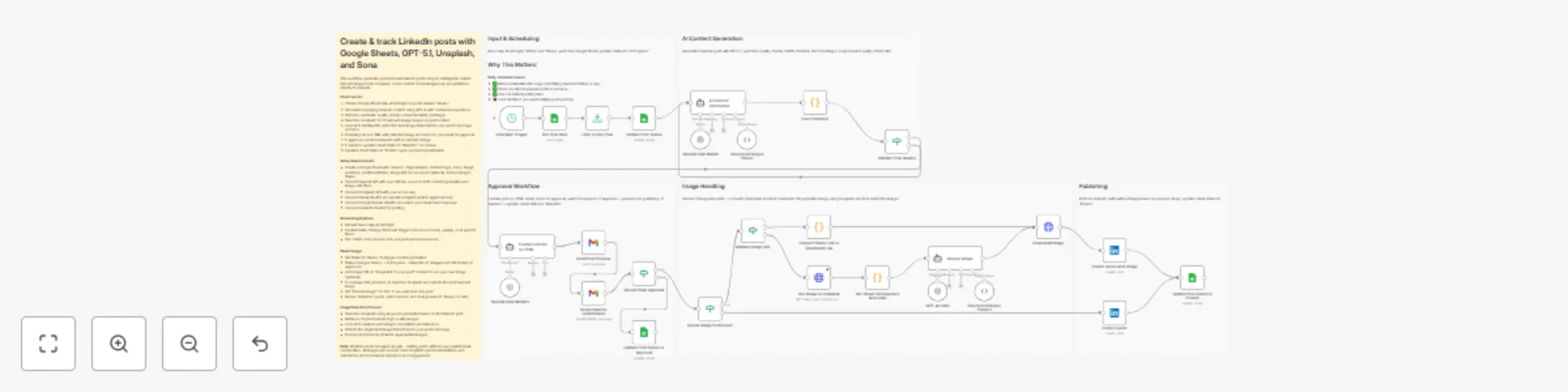
Automate LinkedIn content creation by managing ideas in Google Sheets, generating professional AI-written posts, intelligently selecting relevant Unsplash images, sending drafts for email approval, and publishing directly to LinkedIn. ## **How it works** **Step 1: Scheduled Sheet Check** - Workflow runs daily at midnight (customizable to hourly/weekly) - Fetches posts from Google Sheet marked with Status = "Ready" - Processes one post per run, updates status to "In Progress" **Step 2: AI Content Generation** - GPT-5.1 creates engaging LinkedIn post based on your inputs - Generates content with proper hashtags, formatting, and tone - Follows your specified content type (tip, story, announcement, etc.) **Step 3: Quality Validation** - Automatically checks character limits (3000 max) - Validates minimum hashtag requirements (3+) - Loops back to regenerate if quality checks fail **Step 4: Email Approval Workflow** - Formats post as HTML email with professional styling - Sends preview to your Gmail for review - Waits for your approval response before proceeding - Nothing posts without explicit confirmation **Step 5: Smart Image Handling** - If you provided image URL: Downloads from Google Drive, Dropbox, or direct links - If no URL is provided: Fetch 10 images from Unsplash and use AI to select the best one. - If "Include Image?" is "No": Posts text-only content - Automatically converts share links to downloadable formats **Step 6: LinkedIn Publishing & Tracking** - Posts approved content directly to your LinkedIn profile - Uses appropriate API endpoint based on whether image is included - Updates Google Sheet status to "Posted" for successful posts - Marks "Rejected" posts in sheet for review and editing ## **What you'll get** - **Batch content planning**: Queue multiple posts in advance via Google Sheets - **Consistent posting schedule**: Automated daily publishing without manual work - **Professional AI content**: GPT-5.1 generates engaging, platform-optimized posts - **Full approval control**: Review every post before it goes live - **Flexible image options**: Your images, AI-generated, or text-only - **Quality assurance**: Built-in checks prevent poorly formatted posts - **Status tracking**: Monitor what's ready, in progress, rejected, or posted - **Smart link conversion**: Automatically handles Google Drive and Dropbox share links ## **Requirements** **Accounts & credentials:** - OpenAI API key (requires paid plan for GPT-5.1) - Gmail account (for approval workflow) - Google account (for Sheets integration) - LinkedIn account (for publishing) - Unsplash API key (for getting images) **Google Sheet setup:** Create a sheet with these columns: - Topic/Subject (required) - Main idea for the post - Content Type (required) - e.g., "Tip", "Story", "Announcement" - Tone (required) - e.g., "Professional", "Casual", "Inspirational" - Target Audience (optional) - Who you're writing for - Additional Notes (optional) - Specific points to include - Image link for your post (optional) - URL to your image - Include Image? (required) - "Yes" or "No" - Status (required) - "Ready" to trigger workflow ## **Setup steps** 1. **Import workflow** - Click "Use workflow" to add to your n8n instance 2. **Connect credentials**: - Google Sheets: Authenticate and select your sheet from dropdown - OpenAI: Add your API key in both AI nodes - Gmail: Authenticate and update recipient email in approval node - LinkedIn: Authenticate (your profile auto-populates) 3. **Create your content sheet** - Add the required columns and fill with post ideas 4. **Test the workflow**: - Add one test row with Status = "Ready" - Run workflow manually - Check email for approval - Verify post appears on LinkedIn 5. **Configure schedule** - Default is daily at midnight; adjust Schedule Trigger node for different frequency 6. **Start batching** - Add multiple ideas to your sheet and let automation handle the rest ## **Tips for best results** - Be specific in Topic/Subject: "5 ways to improve team productivity" beats "productivity tips" - Mix content types and tones to keep your feed engaging - Use Additional Notes for data points, statistics, or specific examples. You can also include links that the AI can use for the posts. - Start with text-only posts to validate content quality before adding images - Review rejected posts carefully and refine your inputs - Batch 10-20 ideas at once for weeks of automated content

S
Sona Labs
Content Creation
31 Dec 2025
578
0
Workflow preview: Send weekly Google Ads performance reports with GPT-5.1 and Gmail
Free advanced

Send weekly Google Ads performance reports with GPT-5.1 and Gmail

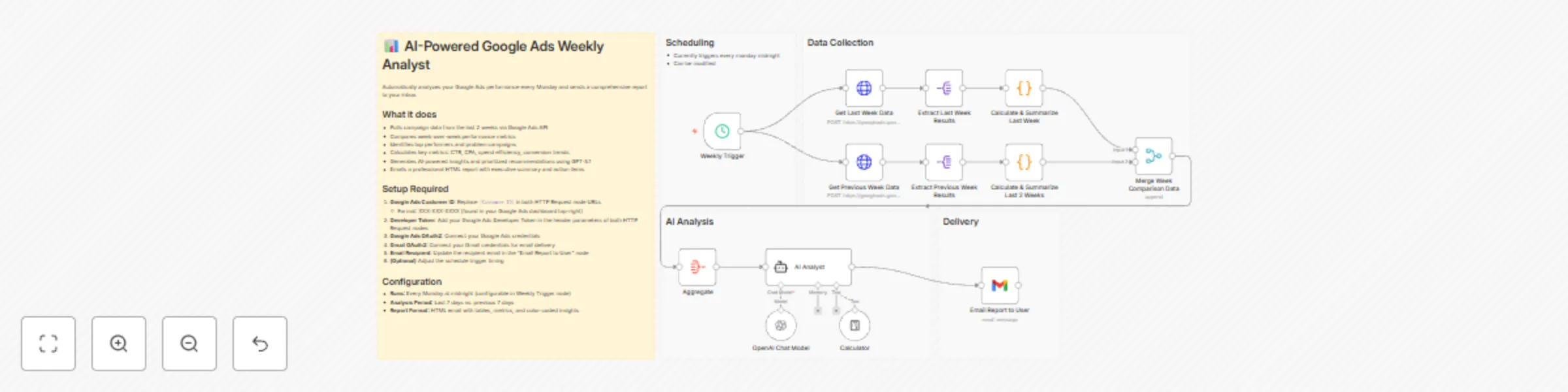
Automatically analyzes your Google Ads performance every Monday and sends a comprehensive report to your inbox with AI-powered insights, week-over-week comparisons, and prioritized recommendations to optimize your campaigns. ## **How it works** **Step 1: Schedule Weekly Analysis** - Triggers automatically every Monday at midnight - Can be customized to your preferred schedule - Initiates the entire data collection and analysis process **Step 2: Collect Performance Data** - Fetches last 7 days of Google Ads data via API - Retrieves previous 7 days of data (days 8-14) for comparison - Extracts key metrics including impressions, clicks, cost, conversions, CTR, and CPA - Calculates and summarizes performance for each week - Identifies top performers, problem campaigns, and efficiency trends - Merges data to create comprehensive week-over-week comparison **Step 3: AI-Powered Analysis** - Aggregates all performance data into a single view - Sends data to AI Analyst powered by GPT-5.1 - AI analyzes trends, identifies insights, and spots anomalies - Diagnoses root causes of performance changes - Generates actionable, prioritized recommendations based on business impact - Calculates efficiency metrics and budget optimization opportunities **Step 4: Deliver Insights Report** - Formats analysis into a professional HTML report - Emails comprehensive insights directly to your inbox - Includes executive summary, week-over-week comparison tables, and color-coded metrics - Provides high/medium/low priority action items - Ready for immediate action and strategy adjustments ## **What you'll get** The workflow delivers a comprehensive weekly analysis with: - **Performance Metrics**: Impressions, clicks, CTR, conversions, cost, CPA, and efficiency trends - **Week-over-Week Comparison**: Side-by-side analysis with percentage changes and visual indicators - **Top Performers Analysis**: Detailed breakdown of your best-performing campaigns - **Issues & Performance Risks**: Identification of campaigns with high spend but zero conversions, declining CTR, or rising CPA - **AI-Generated Insights**: Intelligent pattern recognition and trend analysis with root cause diagnosis - **Actionable Recommendations**: Prioritized action items (high/medium/low) with expected impact and risk levels - **Budget Efficiency Analysis**: Spend allocation recommendations and wasted spend identification - **Campaign Intelligence**: Clear understanding of what's working and what needs attention - **Data Confidence Assessment**: Commentary on sample size adequacy and metric reliability - **Automated Delivery**: Weekly HTML report sent directly to your email without manual effort ## **Why use this** - **Save time on reporting**: Eliminate 2-3 hours of manual weekly analysis and report creation - **Never miss insights**: AI catches trends and patterns humans might overlook - **Consistent monitoring**: Automated weekly reviews ensure you stay on top of performance - **Data-driven decisions**: Make strategic adjustments based on comprehensive analysis with clear priorities - **Early problem detection**: Spot performance issues and wasted spend before they impact your budget - **Optimize continuously**: Regular insights enable ongoing campaign refinement - **Focus on strategy**: Spend less time analyzing data, more time implementing improvements - **Scalable intelligence**: Works whether you manage 1 campaign or 100 - **Executive-ready reports**: Professional HTML format suitable for sharing with stakeholders ## **Setup instructions** Before you start, you'll need: 1. **Google Ads Account & API Access** - Go to your Google Ads account at [https://ads.google.com](https://ads.google.com/) - Find your Customer ID (XXX-XXX-XXXX format in top-right corner) - Get a Developer Token from Google Ads API Center - Enable API access for your account 2. **OpenAI API Key** (for GPT-5.1 AI analysis) - Sign up at [https://platform.openai.com](https://platform.openai.com/) - Navigate to API keys section and create a new key - Ensure you have access to GPT-5.1 model 3. **Gmail Account** (for receiving reports) - OAuth2 authentication will be used - No app password needed ## **Configuration steps:** 1. **Replace Google Ads Customer ID**: - Open both "Get Last Week Data" and "Get Previous Week Data" HTTP Request nodes - In the URL field, replace `[Customer ID]` with your actual Customer ID (format: XXX-XXX-XXXX) 2. **Add Developer Token**: - In both HTTP Request nodes, add your Google Ads Developer Token to the header parameters 3. **Connect Google Ads OAuth2**: - In both HTTP Request nodes, authenticate with your Google Ads credentials - Select your ad account 4. **Connect OpenAI credentials**: - In the "OpenAI Chat Model" node, add your OpenAI API key - Verify GPT-5.1 model is selected 5. **Configure email delivery**: - In the "Email Report to User" node, connect your Gmail OAuth2 credentials - Update the recipient email address (default: [email protected]) - Customize subject line if desired 6. **Set your schedule** (optional): - In the "Weekly Trigger" node, configure your preferred day and time - Default is Monday at midnight 7. **Test the workflow**: - Click "Execute Workflow" to run manually - Verify data pulls correctly from Google Ads - Check that AI analysis provides meaningful insights - Confirm email report arrives formatted correctly 8. **Customize analysis focus** (optional): - Open the "AI Analyst" node - Adjust the prompt to prioritize specific metrics or goals for your business - Modify thresholds for "problem campaigns" in the calculation nodes 9. **Activate automation**: - Enable the workflow to run automatically every Monday - Monitor the first few reports to ensure accuracy --- **Note:** The workflow analyzes the last 7 days vs. the previous 7 days, giving you rolling two-week comparisons every Monday. Adjust the date ranges in the HTTP Request nodes if you need different time periods.

S
Sona Labs
Market Research
30 Dec 2025
26
0
Workflow preview: Generate Sora videos from Google Sheets and save results to Google Drive
Free advanced

Generate Sora videos from Google Sheets and save results to Google Drive

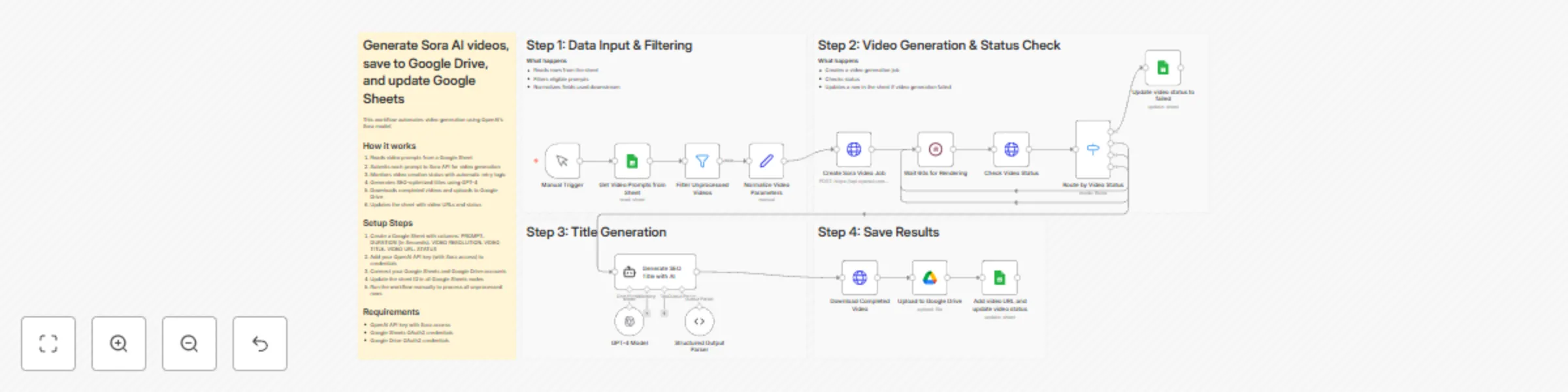
# Generate Sora AI videos, save to Google Drive, and update Google Sheets This workflow automates video generation using OpenAI's Sora model: **How it works:** 1. Reads video prompts from a Google Sheet 2. Submits each prompt to Sora API for video generation 3. Monitors video creation status with automatic retry logic 4. Generates SEO-optimized titles using GPT-4 5. Downloads completed videos and uploads to Google Drive 6. Updates the sheet with video URLs and status **Setup Steps:** 1. Create a Google Sheet with columns: PROMPT, DURATION (In Seconds), VIDEO RESOLUTION, VIDEO TITLE, VIDEO URL, STATUS 2. Add your OpenAI API key (with Sora access) to credentials 3. Connect your Google Sheets and Google Drive accounts 4. Update the sheet ID in all Google Sheets nodes 5. Run the workflow manually to process all unprocessed rows **Requirements:** - OpenAI API key with Sora access - Google Sheets OAuth2 credentials - Google Drive OAuth2 credentials#Header 4

S
Sona Labs
Content Creation
30 Dec 2025
22
0
Workflow preview: Automate B2B sales research & email personalization with Sona and GPT-4
Free advanced

Automate B2B sales research & email personalization with Sona and GPT-4

# Sona-Powered AI Sales Research & Personalized Email Automation ## 🎯 Overview Automatically research B2B leads and generate personalized outreach emails by reading prospects from Google Sheets, enriching with company data from Sona Enrich, analyzing insights with AI, and creating custom emails — so you can scale personalized outreach to target accounts. You'll be able to automatically enrich company data for target accounts, use AI to identify pain points and opportunities, generate personalized email copy, and sync everything back to your sheet with ready-to-send Gmail compose links. ## ✨ What This Workflow Does 1. **Smart Lead Processing** - Reads leads from Google Sheets and filters unprocessed contacts 2. **Deep Company Intelligence** - Enriches each lead using Sona's API (industry, tech stack, revenue, employee count, social profiles) 3. **AI-Powered Research** - GPT-4 analyzes company data to identify pain points, growth opportunities, and personalization hooks 4. **Email Generation** - Creates 120-150 word personalized emails with curiosity-driven subject lines 5. **Automated Sync** - Updates Google Sheets with research insights and one-click Gmail compose links ## 🔥 Key Features - **Structured AI Output** - Consistent, high-quality research and copy generation - **Zero Manual Work** - Processes 20-50 leads per hour completely hands-free - **Email Generation - Creates 120-150 word personalized emails with curiosity-driven subject lines - **Gmail Integration** - Pre-filled send links for instant outreach - **Progress Tracking** - Real-time status updates in Google Sheets ## 💼 Perfect For - Sales teams doing cold outreach - SDRs needing personalized emails at scale - Agencies managing client prospecting - Founders building their pipeline ## 📋 What You'll Need ### 1. Sona API Key - Get yours at [sonalabs.com](https://sonalabs.com) - Provides company data enrichment - Add to HTTP Request node header: `x-api-key: YOUR_KEY` ### 2. OpenAI API Key - Get from [platform.openai.com](https://platform.openai.com) - Uses GPT-4.1-mini for research and email generation - Add credentials in n8n ### 3. Google Sheets Setup Create a spreadsheet with these columns: - **Input columns:** `Website Domain`, `Company Name`, `Contact Name`, `Email`, `Industry` - **Status column:** `Research Status` (leave empty for new leads) - **Auto-populated:** `Pain Points`, `Key Insight`, `Email Subject`, `Email Body`, `Send Email Link`, `Generated Date`, `Sent Status` ### 4. Google Sheets API - Enable in Google Cloud Console - Set up OAuth2 with spreadsheets permission - Add your spreadsheet ID to workflow nodes ## 🚀 Setup Instructions 1. **Import workflow** into n8n 2. **Add credentials:** - Sona API key (HTTP Request node) - OpenAI API credentials - Google Sheets OAuth2 3. **Update spreadsheet ID** in all Google Sheets nodes 4. **Customize AI prompts** (optional) to match your offering 5. **Test with 2-3 leads** before running full list 6. **Execute workflow** - it processes leads automatically in batches ## 📊 Expected Output Each processed lead gets: - **Pain points** (3-5 identified challenges) - **Growth opportunities** (2-3 actionable insights) - **Personalization hooks** (3-4 talking points) - **Email subject line** (max 8 words, curiosity-driven) - **Email body** (120-150 words, consultative tone) - **Gmail compose link** (one-click to send) - **Fit score** (High/Medium/Low) **Processing time:** 30-60 seconds per lead ## 🎓 How It Works ### Step 1: Data Input & Filtering Reads all leads from Google Sheets and filters out already-processed leads (those with a value in "Research Status" column). ### Step 2: Company Data Enrichment - Updates status to "Pending" in Google Sheets - Searches Sona database using domain or email - 5-tier smart matching algorithm finds best company match - Retrieves firmographic data and technology stack ### Step 3: AI Company Research GPT-4.1-mini analyzes company data to generate: - Specific pain points based on industry, size, tech stack - Growth opportunities and market positioning - Personalization hooks from company description - Recommended outreach tone and CTA - One-liner insight for email opening ### Step 4: Personalized Email Generation AI crafts cold email following best practices: - Curiosity-driven subject line (max 8 words) - Opens with personalization hook showing research - References ONE specific pain point - Focuses on tangible outcomes (not product features) - Natural CTA without being pushy - Professional but conversational tone ### Step 5: Data Output & Loop - Formats all data for Google Sheets - Creates Gmail compose link with pre-filled content - Updates sheet with complete results - Sets status to "Completed" - Waits 2 seconds, then processes next lead ## ⚡ Pro Tips - **Start small:** Test with 5-10 leads to validate personalization quality - **Review first emails:** Adjust AI prompts if tone needs calibration - **Clean your data:** Better input domains = better Sona matches - **Monitor fit scores:** Focus manual review on High/Medium fits - **Use status column:** Easily re-run workflow for new leads only - **Connect CRM:** Use webhooks to push data to Salesforce/HubSpot ## 🎯 Use Cases ### Sales Team Automation Process 100+ leads overnight with personalized research and emails ready by morning. ### Agency Client Work Deliver custom prospecting campaigns with unique emails for each client's target accounts. ### Founder Outreach Build pipeline systematically with AI-researched, personalized emails at scale. ### SDR Productivity Give SDRs pre-researched talking points and draft emails to speed up their workflow 10x. ## 📈 Expected Results - **Email personalization:** 10x better than templates - **Time saved:** 5-10 minutes per lead → 30 seconds automated - **Response rates:** 2-3x higher with AI-researched insights - **Scalability:** Process 50-100 leads per day hands-free ## 🔧 Customization Options - **Change AI model:** Swap GPT-4.1-mini for GPT-4 or other models - **Adjust email length:** Modify prompt to generate shorter/longer emails - **Add more enrichment:** Chain additional API calls (Clearbit, Apollo, etc.) - **Multi-language:** Update prompts for outreach in other languages - **Custom tone:** Adjust system prompts for industry-specific voice - **Webhook triggers:** Replace manual trigger with scheduled runs or form submissions ## 🐛 Troubleshooting **No Sona data found?** - Verify API key is correct - Check domain format (remove http://, trailing slashes) - Fallback uses first search result if no exact match **AI output not formatted correctly?** - Structured Output Parser ensures valid JSON - Check OpenAI API key and model availability **Google Sheets not updating?** - Verify OAuth2 credentials are connected - Check spreadsheet ID matches your sheet - Ensure column names match exactly (case-sensitive) **Rate limits?** - Sona: 3 second delay between requests (built-in) - OpenAI: Adjust batch size or add longer waits - Google Sheets: No limit for standard usage ## 📝 Template Information - **Category:** Sales & Marketing - **Difficulty:** Intermediate - **Setup Time:** 5-10 minutes - **Run Time:** 30-60 seconds per lead - **Cost:** Pay-per-use (Sona API + OpenAI tokens) - **Updated:** December 2025

S
Sona Labs
Lead Generation
27 Dec 2025
149
0
Workflow preview: Automate company data enrichment with HubSpot, Sona & Google Sheets
Free advanced

Automate company data enrichment with HubSpot, Sona & Google Sheets

Automatically enrich company records with comprehensive firmographic data by pulling domains from Google Sheets, setting up custom HubSpot fields, enriching through Sona API, and syncing complete profiles to HubSpot CRM with custom property mapping. Import company domains from a Google Sheet, configure custom HubSpot fields for Sona data, automatically enrich domains with detailed firmographic intelligence, and create fully populated company records in HubSpot—so you can build rich prospect databases without manual research. ## **How it works** **Step 1: Get Company List** - Reads company domains from your Google Sheet - Aggregates all domains into a single array - Prepares data for batch processing **Step 2: Setup HubSpot Fields** - Creates custom Sona fields in HubSpot CRM - Defines all enrichment data fields needed - Ensures proper field mapping for incoming data **Step 3: Prepare for Processing** - Converts aggregated domains into individual items - Sets data for batch loop processing - Readies each company for enrichment **Step 4: Enrich & Sync to HubSpot** - Loops through each company domain - Calls Sona API for enrichment data - Creates company in HubSpot with standard fields - Formats and updates custom Sona properties - Combines firmographics + tech data in one profile - Includes 2-second wait between operations for rate limiting ## **What you'll get** The workflow enriches each company record with: - **Firmographic Data**: Company size, employee count, revenue estimates, headquarters location, and founding year - **Contact Information**: Phone numbers, social media profiles, and timezone details - **Business Intelligence**: Company descriptions and industry positioning - **Custom HubSpot Properties**: All Sona data mapped to dedicated custom fields - **Organized CRM Records**: All data automatically synced to HubSpot for immediate use - **Domain Tracking**: Companies linked to their websites for future reference ## **Why use this** - **Eliminate manual research**: Save 10-15 minutes per company by automating firmographic lookups - **Build rich databases**: Transform basic domain lists into comprehensive company profiles - **Custom field management**: Automatically creates and populates HubSpot custom properties - **Improve targeting**: Segment and prioritize accounts based on size, location, and other firmographics - **Keep data current**: Run scheduled enrichments to maintain up-to-date company information - **Scale your prospecting**: Process hundreds of companies in minutes instead of days - **Better lead qualification**: Make informed decisions with complete company intelligence - **Streamlined workflow**: One-click enrichment from spreadsheet to CRM with custom field setup ## **Setup instructions** Before you start, you'll need: 1. **Google Sheets** with a column named `website_Domain` containing company domains (e.g., example.com) 2. **HubSpot Account & App Token** - Get an app token by creating a legacy app: - Go to HubSpot Settings → Integrations → Legacy Apps - Click Create Legacy App - Select Private (for one account) - In the scopes section, enable the following permissions: - `crm.schemas.companies.write` - `crm.objects.companies.write` - `crm.schemas.companies.read` - `crm.objects.companies.read` - Click Create - Copy the access token from the Auth tab 3. **Sona API Key** (for company enrichment) - Sign up at [https://app.sonalabs.com](https://app.sonalabs.com/) - Free tier available for testing ## **Configuration steps:** 1. **Prepare your data**: Create a Google Sheet with a "website_Domain" column and add 2-3 test companies (e.g., example.com, anthropic.com) 2. **Connect Google Sheets**: In the "Get Company List from Sheet" node, authenticate with Google and select your spreadsheet and sheet name 3. **Configure HubSpot field creation**: In the "Create Custom HubSpot Fields" node (Step 2), authenticate with your HubSpot access token and review the custom Sona fields that will be created 4. **Add Sona credentials**: In the "Sona Enrich" node, authenticate with your Sona API key 5. **Connect HubSpot for company creation**: In the "Create HubSpot Company" and "Update Company with AI Data" nodes, authenticate using your HubSpot access token 6. **Test with sample data**: Run the workflow with 2-3 test companies and verify: - Custom fields are created in HubSpot - Company records appear correctly in HubSpot - All firmographic data is populated in custom properties 7. **Add error handling**: Configure notifications for failed enrichments or API errors (optional but recommended) 8. **Scale and automate**: Process your full company list, then optionally add a Schedule Trigger for automatic daily or weekly enrichment to keep your CRM data fresh

S
Sona Labs
Lead Generation
27 Dec 2025
43
0
Workflow preview: Automate company data enrichment with HubSpot, Sona, OpenAI & Google Sheets
Free advanced

Automate company data enrichment with HubSpot, Sona, OpenAI & Google Sheets

## Automatically identify ICP matches by enriching basic company records with Sona Enrich data—combining web scraping, AI analysis, and the structured attributes that define your ideal customer. Import company domains from a Google Sheet, automatically analyze their websites with AI, enrich them with firmographic data via Sona Enrich, and sync the results to HubSpot—so you can quickly discover and target your ideal customers. ## How it works **Step 1: Data Input & Web Scraping** - Reads company domains from your Google Sheet - Scrapes each website's content via HTTP requests - Extracts and cleans HTML content - Removes navigation, footers, and noise **Step 2: AI Analysis** - Sends cleaned content to OpenAI Chat Model - Extracts structured company intelligence (industry, positioning, features, personas) - Captures and analyzes pricing, pros/cons, and value propositions - Aggregates all AI results into standardized format - Advanced users: You can modify the data that's generated and then add custom fields to HubSpot **Step 3: HubSpot Preparation** - Creates custom fields in HubSpot CRM - Prepares AI-extracted data for import - Splits aggregated data into individual company records - Ready for batch processing **Step 4: Enrich & Sync to HubSpot** - Loops through each company one by one - Enriches with the Sona API (firmographics, revenue, employees, funding, and more) - Creates company record in HubSpot - Formats and populates all custom fields - Combines AI insights + Sona data in one complete profile ## What you'll get The workflow enriches each company record with: - **Web-Scraped Intelligence**: Business descriptions, features, and positioning directly from their website - **AI-Analyzed Insights**: Value propositions, target personas, pricing models, and competitive advantages interpreted by AI - **Firmographic Data**: Company size, employee count, revenue estimates, headquarters location, and more via Sona Enrich - **Technographic Data**: Technology stack, platforms, and tools the company uses - **Industry Classification**: Precise industry categorization and market type (B2B/B2C) - **Funding & Growth**: Investment rounds, funding status, and growth indicators - **Custom HubSpot Properties**: All data automatically mapped and synced to your CRM for immediate use ## Why use this - **Complete intelligence gathering**: Combines three powerful data sources (web scraping, AI, and Sona enrichment) for maximum insight depth - **Personalize at scale**: Leverage actual company intelligence to craft relevant, informed outreach that resonates - **Intelligent segmentation**: Build precise account lists by industry, tech stack, business model, or company size - **Accelerate research**: Eliminate hours of manual company investigation—save 15-30 minutes per prospect - **Improve conversion**: Engage prospects with context-rich conversations that demonstrate deep understanding - **Enhanced lead scoring**: Build sophisticated scoring models with comprehensive firmographic and technographic signals - **Automated updates**: Keep HubSpot records current with scheduled enrichment runs (daily/weekly) ## Setup instructions **Before you start, you'll need:** - Google Sheet with company websites (column named "Website Domain") - OpenAI API key for AI analysis ([sign up here](https://platform.openai.com/)) - Sona API credentials ([get access here](https://platform.sonalabs.com/onboardingv2)) - Get an app token from HubSpot by creating a legacy app: 1. Go to HubSpot **Settings** > **Integrations** > **Legacy Apps** 2. Click **Create Legacy App** 3. Select **Private** (for one account) 4. In the scopes section, enable the following permissions: - `crm.schemas.companies.write` - `crm.objects.companies.write` - `crm.schemas.companies.read` 5. Click **Create** 6. Copy the access token from the **Auth** tab - n8n cloud or self-hosted instance **Configuration steps:** 1. **Prepare your data**: Create a Google Sheet with a "Website Domain" column and add 2-3 test companies (e.g., example.com) 2. **Connect Google Sheets**: In the "Get row(s) in sheet" node, authenticate and select your spreadsheet and sheet name 3. **Configure web scraping**: Update the HTTP Request node with your preferred scraping method or data source URL 4. **Set up AI Agent**: Add your OpenAI API key and customize the extraction prompt to define which company fields you want (industry, personas, features, etc.) 5. **Create HubSpot custom fields**: Review the "Create Custom HubSpot Fields" node and adjust property names to match your CRM structure 6. **Add Sona credentials**: In the "Sona Enrich" node within the loop, authenticate with your Sona API key 7. **Connect HubSpot**: Authenticate in both "Create a Company" nodes using your HubSpot API key or OAuth2 8. **Map enriched data**: In the "Format Custom Properties" node, configure how Sona and AI data maps to your HubSpot fields 9. **Test with sample data**: Run the workflow with 2-3 test companies and verify records appear correctly in HubSpot with all custom properties populated 10. **Add error handling**: Configure notifications for failed enrichments or API errors (optional but recommended) 11. **Scale and automate**: Process your full company list, then optionally add a Schedule Trigger for automatic daily or weekly enrichment

S
Sona Labs
Lead Generation
19 Dec 2025
24
0