Create stunning CGI videos with Sora 2 API and Google Drive integration

Workflow preview

Workflow preview
100%
Create stunning CGI videos with Sora 2 API and Google Drive integration preview
Open on n8n.io

Important notice

This workflow is provided as-is. Please review and test before using in production.

1. Workflow Overview

Create Stunning CGI Videos with Sora 2 API and Google Drive Integration The Sora 2 API allows seamless generation of CGI ads, turning text pr...

Best for

  • Content Creation automation workflows
  • Multimodal AI automation workflows
  • advanced n8n builders looking for reusable templates

Tools used

n8n-nodes-base.formtrigger, n8n-nodes-base.wait, n8n-nodes-base.httprequest, n8n-nodes-base.switch, n8n-nodes-base.emailsend, n8n-nodes-base.googledrive, n8n-nodes-base.stickynote, n8n-nodes-base.if

Source and attribution

This workflow is cataloged by N8N Workflows and links back to its original n8n.io source page by Sk developer .

Original n8n.io source

1.1 Workflow description

Title
Create stunning CGI videos with Sora 2 API and Google Drive integration
Workflow name
Create stunning CGI videos with Sora 2 API and Google Drive integration

Create Stunning CGI Videos with Sora 2 API and Google Drive Integration

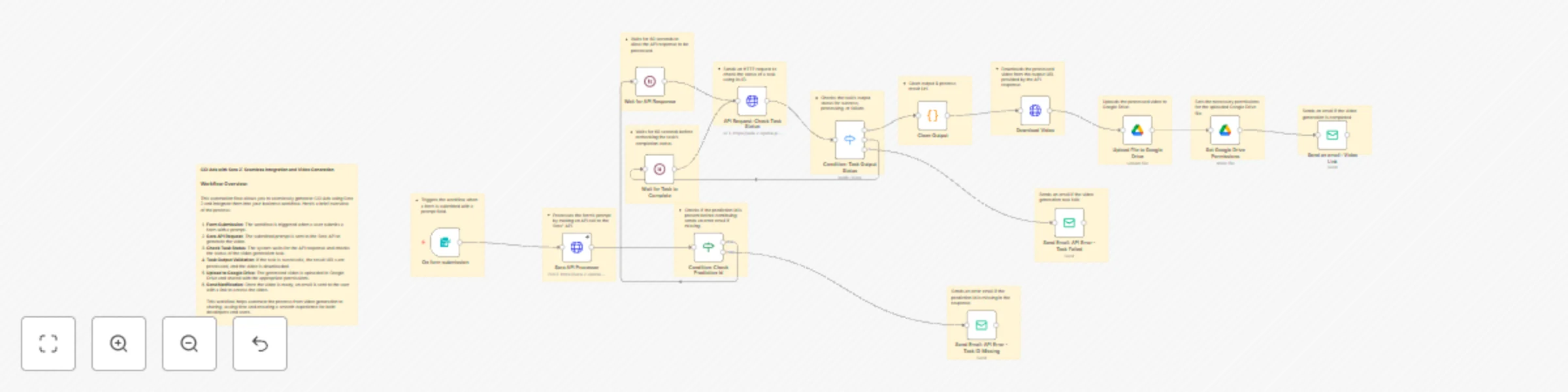
The Sora 2 API allows seamless generation of CGI ads, turning text prompts into stunning videos. This workflow automates the entire process from video generation to upload, notification, and file sharing via Google Drive.


Node-by-Node Explanation

  1. On form submission: Triggers the workflow when a form with a prompt is submitted.
  2. Sora API Processor: The prompt is sent to the Sora 2 API's txttovideo.php endpoint to initiate video generation. (This step calls the API where the magic of turning text into video happens.)
  3. Wait for API Response: Pauses for 60 seconds before checking the API response.
  4. API Request: Check Task Status: Sends an HTTP request to check the status of the CGI ad generation task.
  5. Condition: Task Output Status: Validates the task status (success, processing, failed).
  6. Wait for Task to Complete: Waits for another 60 seconds to recheck the task completion status.
  7. Send Email: API Error - Task ID Missing: Sends an email if the prediction ID is missing in the response.
  8. Upload File to Google Drive: Uploads the CGI ad video to Google Drive.
  9. Set Google Drive Permissions: Configures file permissions for sharing.
  10. Send an email: Video Link: Notifies the user with a link to the uploaded video.
  11. Sticky Notes: Annotates and documents each step in the process for clarity.

How to Obtain API Key

  1. Go to Sora 2 API on RapidAPI.
  2. Sign up or log in to RapidAPI.
  3. Subscribe to the API plan that suits your needs.
  4. Copy the API key from the dashboard under "Endpoints" or "Security" sections.

How to Configure Google Drive

  1. Go to the Google Developer Console.
  2. Create a new project or select an existing one.
  3. Enable the Google Drive API for the project.
  4. Set up OAuth 2.0 credentials.
  5. Authorize the app in n8n by connecting your Google account with the credentials.

Use Case

This workflow is perfect for businesses looking to automate CGI ad generation, reducing the time and effort required to create videos from textual prompts. It is ideal for digital marketers, content creators, or any business that needs video content quickly and efficiently.


Benefits

  • Automates video generation: Streamlines the creation of CGI ads.
  • Efficient content sharing: Automatically uploads to Google Drive and configures permissions.
  • Error handling: Sends notifications if anything goes wrong.
  • Time-saving: Reduces manual effort with automated API interactions.
  • Easy to use: Simple form submission to generate high-quality videos.

Who is this for?

  • Digital Marketers: Automates video content creation for ads and campaigns.
  • Content Creators: Quickly generates high-quality CGI ads for social media or websites.
  • Businesses: Small to medium businesses looking for cost-effective video creation solutions.
  • Developers: Looking for an automated workflow to integrate CGI video generation into their applications or services.

1.2 Logical Blocks

This catalog entry is organized from the workflow JSON. The node-level section below shows the executable blocks available for review before importing the template.

2. Block-by-Block Analysis

Block 1 - On form submission

Type / Role
n8n-nodes-base.formTrigger - formTrigger
Config choices
Version 2.2

Block 2 - Wait for API Response

Type / Role
n8n-nodes-base.wait - wait
Config choices
Version 1.1

Block 3 - API Request: Check Task Status

Type / Role
n8n-nodes-base.httpRequest - httpRequest
Config choices
Version 4.2

Block 4 - Condition: Task Output Status

Type / Role
n8n-nodes-base.switch - switch
Config choices
Version 3.2

Block 5 - Wait for Task to Complete

Type / Role
n8n-nodes-base.wait - wait
Config choices
Version 1.1

Block 6 - Send Email: API Error - Task ID Missing

Type / Role
n8n-nodes-base.emailSend - emailSend
Config choices
Version 2.1

Block 7 - Upload File to Google Drive

Type / Role
n8n-nodes-base.googleDrive - googleDrive
Config choices
Version 3

Block 8 - Send Email: API Error - Task Failed

Type / Role
n8n-nodes-base.emailSend - emailSend
Config choices
Version 2.1

Block 9 - Set Google Drive Permissions

Type / Role
n8n-nodes-base.googleDrive - googleDrive
Config choices
Version 3

Block 10 - Sticky Note8

Type / Role
n8n-nodes-base.stickyNote - stickyNote
Config choices
Version 1

Block 11 - Sticky Note9

Type / Role
n8n-nodes-base.stickyNote - stickyNote
Config choices
Version 1

Block 12 - Sticky Note10

Type / Role
n8n-nodes-base.stickyNote - stickyNote
Config choices
Version 1

Block 13 - Sticky Note11

Type / Role
n8n-nodes-base.stickyNote - stickyNote
Config choices
Version 1

Block 14 - Sticky Note

Type / Role
n8n-nodes-base.stickyNote - stickyNote
Config choices
Version 1

Block 15 - Send an email : Video Link

Type / Role
n8n-nodes-base.emailSend - emailSend
Config choices
Version 2.1

Block 16 - Download Video

Type / Role
n8n-nodes-base.httpRequest - httpRequest
Config choices
Version 4.2

Block 17 - Sticky Note1

Type / Role
n8n-nodes-base.stickyNote - stickyNote
Config choices
Version 1

Block 18 - Sticky Note2

Type / Role
n8n-nodes-base.stickyNote - stickyNote
Config choices
Version 1

Block 19 - Sticky Note3

Type / Role
n8n-nodes-base.stickyNote - stickyNote
Config choices
Version 1

Block 20 - Sticky Note4

Type / Role
n8n-nodes-base.stickyNote - stickyNote
Config choices
Version 1

Block 21 - Sticky Note5

Type / Role
n8n-nodes-base.stickyNote - stickyNote
Config choices
Version 1

Block 22 - Sticky Note6

Type / Role
n8n-nodes-base.stickyNote - stickyNote
Config choices
Version 1

Block 23 - Sticky Note7

Type / Role
n8n-nodes-base.stickyNote - stickyNote
Config choices
Version 1

Block 24 - Sticky Note12

Type / Role
n8n-nodes-base.stickyNote - stickyNote
Config choices
Version 1

Showing the first 24 of 29 workflow blocks. Download the JSON for the full node graph.

3. Summary Table

Workflow Create stunning CGI videos with Sora 2 API and Google Drive integration
Complexity advanced
Nodes 29
Categories Content Creation, Multimodal AI
Author Sk developer
Published 15 Nov 2025

4. Reproducing the Workflow from Scratch

  1. 1. Download the workflow JSON

    Use the JSON export at /data/workflows/10861/10861.json as the source template for this automation.

  2. 2. Import the template into n8n

    Open n8n, import the downloaded JSON, and review each node before activating the workflow.

  3. 3. Configure credentials and variables

    Replace placeholder credentials, API keys, webhook URLs, account IDs, and environment-specific values with your own settings.

  4. 4. Test with sample data

    Run the workflow manually or in a staging workspace, inspect node output, and confirm downstream systems receive the expected data.

  5. 5. Activate and monitor

    Enable the workflow only after testing, then monitor executions, errors, and rate limits during the first production runs.

5. General Notes & Resources

Review imported nodes carefully before activation. This catalog entry is intended to help you inspect the workflow structure, understand required services, and find related templates faster.

Node names, credentials, schedules, webhook paths, and external service limits may need adjustment for your workspace.

Frequently asked questions

What does Create stunning CGI videos with Sora 2 API and Google Drive integration do?

Create Stunning CGI Videos with Sora 2 API and Google Drive Integration The Sora 2 API allows seamless generation of CGI ads, turning text pr...

What do I need before importing this workflow?

Review the workflow JSON, configure any required credentials in n8n, and test the automation in a safe workspace before using it in production.

Can I customize this workflow?

Yes. Use the block-by-block analysis and the downloadable JSON to inspect each node, then adjust credentials, prompts, schedules, filters, or destinations for your Content Creation, Multimodal AI use case.