Block 1 - Get Stripe Customer
- Type / Role
- n8n-nodes-base.httpRequest - httpRequest
- Config choices
- Version 4.2


 Early Deal
This workflow is provided as-is. Please review and test before using in production.
Save hours of manual billing work with this Stripe automation workflow! Designed for entrepreneurs, SaaS founders, and online business owners, this template checks if a customer already exists in S...
n8n-nodes-base.httprequest, n8n-nodes-base.if, n8n-nodes-base.manualtrigger, n8n-nodes-base.set, n8n-nodes-base.stickynote
This workflow is cataloged by N8N Workflows and links back to its original n8n.io source page by Audun.
Original n8n.io sourceSave hours of manual billing work with this Stripe automation workflow!
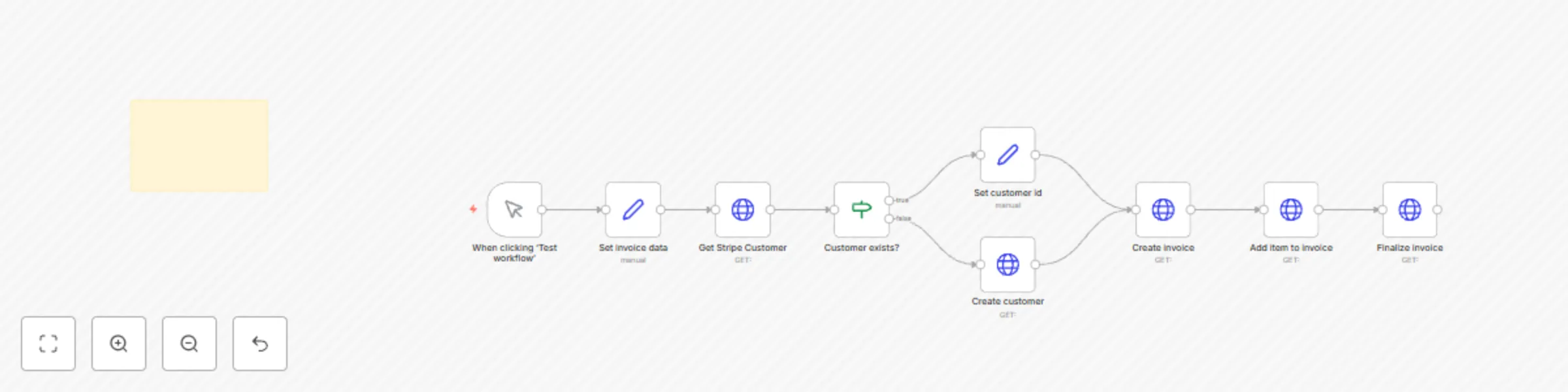
Designed for entrepreneurs, SaaS founders, and online business owners, this template checks if a customer already exists in Stripe based on their email. If no customer is found, it automatically creates a new one, generates a draft invoice, adds a product line item using a Stripe Price ID, and finalizes the invoice — making it ready for payment.
This workflow helps ensure clean customer data and efficient billing without manual input.
Stripe account setup:
read and write Customers, Invoices, and Invoice Items.Connect Stripe to n8n:
Customize dynamic data:
[email protected]) with your real dynamic customer email input. price_fromStripeDashboard) with your actual product Price ID from the Stripe dashboard.Test your workflow:
Deploy to production:
Invalid API Key:
Double-check that your Stripe API key is active and has the necessary permissions. Test it by making a simple API call manually if needed.
Invoice Creation Fails:
Make sure you are using a valid Price ID from Stripe. The price must be active and available for the correct product.
Customer Not Found Error:
If the search fails due to formatting issues, ensure emails are valid and the query syntax matches Stripe's customer search format.
Authentication Errors:
If authentication fails, ensure you have selected HTTP Basic Auth in the HTTP Request nodes and left the username field empty.
This catalog entry is organized from the workflow JSON. The node-level section below shows the executable blocks available for review before importing the template.
| Workflow | Create or find Stripe customers and automatically generate invoices |
|---|---|
| Complexity | intermediate |
| Nodes | 10 |
| Categories | Invoice Processing |
| Author | Audun |
| Published | 26 Apr 2025 |
Use the JSON export at /data/workflows/3723/3723.json as the source template for this automation.
Open n8n, import the downloaded JSON, and review each node before activating the workflow.
Replace placeholder credentials, API keys, webhook URLs, account IDs, and environment-specific values with your own settings.
Run the workflow manually or in a staging workspace, inspect node output, and confirm downstream systems receive the expected data.
Enable the workflow only after testing, then monitor executions, errors, and rate limits during the first production runs.
Review imported nodes carefully before activation. This catalog entry is intended to help you inspect the workflow structure, understand required services, and find related templates faster.
Node names, credentials, schedules, webhook paths, and external service limits may need adjustment for your workspace.
Save hours of manual billing work with this Stripe automation workflow! Designed for entrepreneurs, SaaS founders, and online business owners, this template checks if a customer already exists in S...
Review the workflow JSON, configure any required credentials in n8n, and test the automation in a safe workspace before using it in production.
Yes. Use the block-by-block analysis and the downloadable JSON to inspect each node, then adjust credentials, prompts, schedules, filters, or destinations for your Invoice Processing use case.