Block 1 - Workflow Description
- Type / Role
- n8n-nodes-base.stickyNote - stickyNote
- Config choices
- Version 1


 Early Deal
This workflow is provided as-is. Please review and test before using in production.
Title Create Google Calendar events from labeled Gmail emails using AI Description Who is it for? This template is for anyone who frequently receives unstructured event or task information via emai...
n8n-nodes-base.stickynote, n8n-nodes-base.googlecalendar, n8n-nodes-base.gmail, n8n-nodes-base.gmailtrigger, @n8n/n8n-nodes-langchain.agent, @n8n/n8n-nodes-langchain.outputparserstructured, @n8n/n8n-nodes-langchain.lmchatgooglegemini
This workflow is cataloged by N8N Workflows and links back to its original n8n.io source page by nobu.
Original n8n.io sourceTitle Create Google Calendar events from labeled Gmail emails using AI
Description Who is it for? This template is for anyone who frequently receives unstructured event or task information via email and wants to quickly add it to their Google Calendar without manual data entry. It's perfect for busy professionals, personal productivity enthusiasts, and anyone looking to streamline their scheduling.
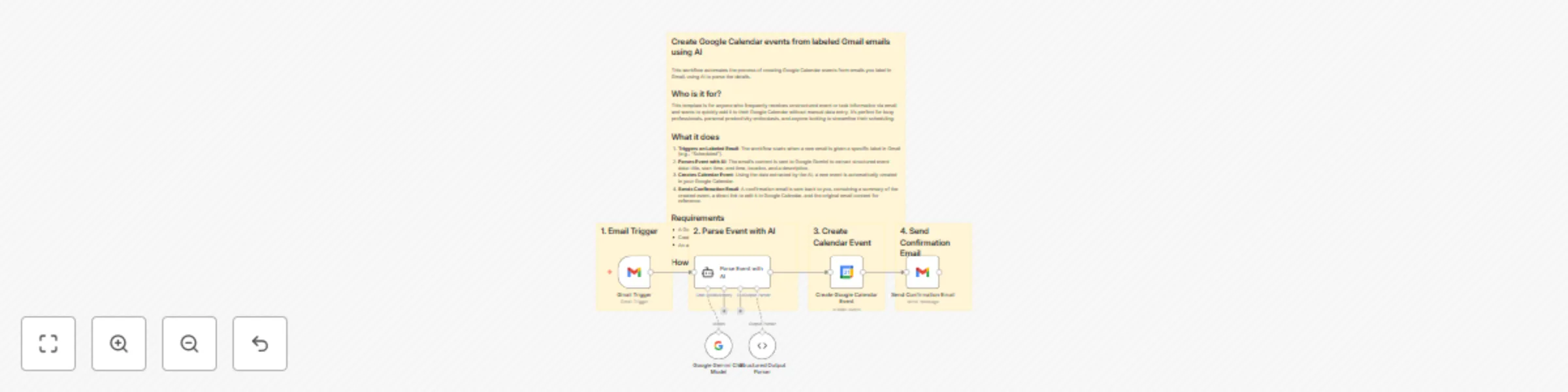
What it does This workflow automates the process of creating Google Calendar events from emails you label in Gmail, using AI to parse the details.
Triggers on Labeled Email: The workflow starts when a new email is given a specific label in Gmail (e.g., "Scheduled").
Parses Event with AI: The email's content is sent to Google Gemini to extract structured event data: title, start time, end time, location, and a description.
Creates Calendar Event: Using the data extracted by the AI, a new event is automatically created in your Google Calendar.
Sends Confirmation Email: A confirmation email is sent back to you, containing a summary of the created event and a direct link to edit it in Google Calendar.
Requirements An active n8n instance.
A Google account for Gmail and Google Calendar.
Credentials for the Google Gemini API.
How to set up Credentials: Configure your credentials for the 'Gmail Trigger', 'Google Gemini Chat Model', 'Create Google Calendar Event', and 'Send Confirmation Email' nodes.
Gmail Trigger: Select the 'Gmail Trigger' node. In the 'Label Ids' field, choose the Gmail label you want to use to trigger the workflow (e.g., a label named Scheduled).
Confirmation Email: Select the 'Send Confirmation Email' node. In the 'Send To' field, enter the email address where you want to receive the confirmation email.
Activate Workflow: Save and activate the workflow.
How to customize AI Prompt: You can modify the prompt in the 'Parse Event with AI' node to better suit your needs. For example, you can change the default timezone or add rules for how to handle recurring events.
Email Content: Customize the subject and body of the confirmation email in the 'Send Confirmation Email' node.
Calendar Options: In the 'Create Google Calendar Event' node, you can add more event details, such as attendees or reminders.
This catalog entry is organized from the workflow JSON. The node-level section below shows the executable blocks available for review before importing the template.
| Workflow | Create Google Calendar events from labeled Gmail emails with Google Gemini AI |
|---|---|
| Complexity | intermediate |
| Nodes | 11 |
| Categories | Personal Productivity, Multimodal AI |
| Author | nobu |
| Published | 13 Aug 2025 |
Use the JSON export at /data/workflows/7340/7340.json as the source template for this automation.
Open n8n, import the downloaded JSON, and review each node before activating the workflow.
Replace placeholder credentials, API keys, webhook URLs, account IDs, and environment-specific values with your own settings.
Run the workflow manually or in a staging workspace, inspect node output, and confirm downstream systems receive the expected data.
Enable the workflow only after testing, then monitor executions, errors, and rate limits during the first production runs.
Review imported nodes carefully before activation. This catalog entry is intended to help you inspect the workflow structure, understand required services, and find related templates faster.
Node names, credentials, schedules, webhook paths, and external service limits may need adjustment for your workspace.
Title Create Google Calendar events from labeled Gmail emails using AI Description Who is it for? This template is for anyone who frequently receives unstructured event or task information via emai...
Review the workflow JSON, configure any required credentials in n8n, and test the automation in a safe workspace before using it in production.
Yes. Use the block-by-block analysis and the downloadable JSON to inspect each node, then adjust credentials, prompts, schedules, filters, or destinations for your Personal Productivity, Multimodal AI use case.