Create daily newsletter digests from Gmail using GPT-4.1-mini

Workflow preview

Workflow preview
100%
Create daily newsletter digests from Gmail using GPT-4.1-mini preview
Open on n8n.io

Important notice

This workflow is provided as-is. Please review and test before using in production.

1. Workflow Overview

Summary Every day at a set time, this workflow fetches yesterday’s newsletters from Gmail, summarizes each email into concise topics with an LLM, merges all topics, renders a clean HTML digest, and...

Best for

  • Personal Productivity automation workflows
  • Multimodal AI automation workflows
  • intermediate n8n builders looking for reusable templates

Tools used

n8n-nodes-base.gmail, n8n-nodes-base.splitinbatches, n8n-nodes-base.code, n8n-nodes-base.scheduletrigger, n8n-nodes-base.stickynote, @n8n/n8n-nodes-langchain.openai

Source and attribution

This workflow is cataloged by N8N Workflows and links back to its original n8n.io source page by Vlad Arbatov.

Original n8n.io source

1.1 Workflow description

Title
Create daily newsletter digests from Gmail using GPT-4.1-mini
Workflow name
Create daily newsletter digests from Gmail using GPT-4.1-mini

Summary

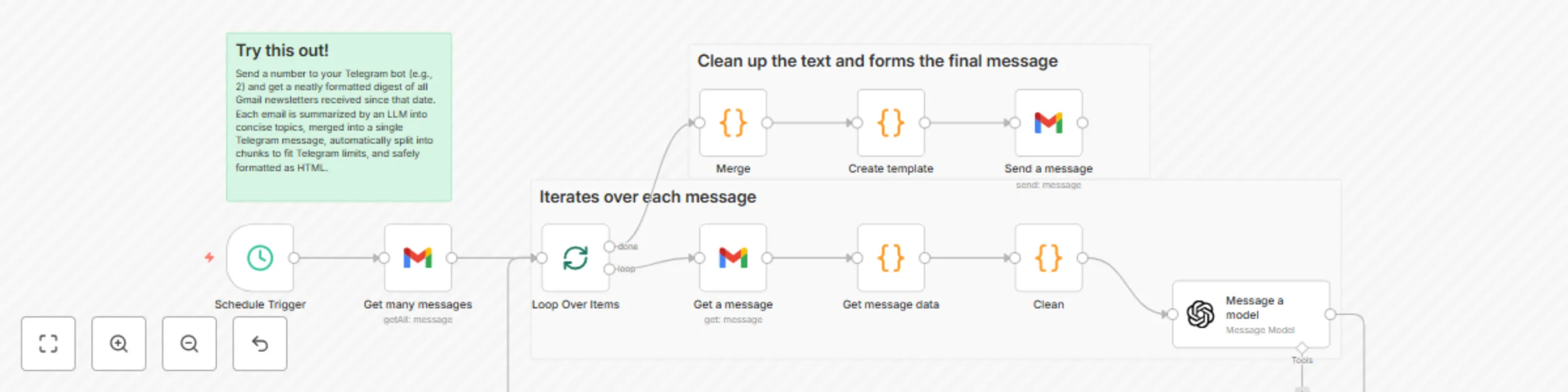
Every day at a set time, this workflow fetches yesterday’s newsletters from Gmail, summarizes each email into concise topics with an LLM, merges all topics, renders a clean HTML digest, and emails it to your inbox.

What this workflow does

  • Triggers on a daily schedule (default 16:00, server time)
  • Fetches Gmail messages since yesterday using a custom search query with optional sender filters
  • Retrieves and decodes each email’s HTML, subject, sender name, and date
  • Prompts an LLM (GPT‑4.1‑mini) to produce a consistent JSON summary of topics per email
  • Merges topics from all emails into a single list
  • Renders a styled HTML email with enumerated items
  • Sends the HTML digest to a specified recipient via Gmail

Apps and credentials

  • Gmail OAuth2: Gmail account (read and send)
  • OpenAI: OpenAi account

Typical use cases

  • Daily/weekly newsletter rollups delivered as one email
  • Curated digests from specific media or authors
  • Team briefings that are easy to read and forward

How it works (node-by-node)

  • Schedule Trigger
    • Fires at the configured hour (default 16:00).
  • Get many messages (Gmail → getAll, returnAll: true)
    • Uses a filter like: =(from:@.com) OR (from:@.com) OR (from:@.com -"____") after:{{ $now.minus({ days: 1 }).toFormat('yyyy/MM/dd') }}
    • Returns a list of message IDs from the past day.
  • Loop Over Items (Split in Batches)
    • Iterates through each message ID.
  • Get a message (Gmail → get)
    • Retrieves the full message/payload for the current email.
  • Get message data (Code)
    • Extracts HTML from Gmail’s MIME parts.
    • Normalizes the sender to just the display name.
    • Formats the date as DD.MM.YYYY.
    • Passes html, subject, from, date forward.
  • Clean (Code)
    • Converts DD.MM.YYYY → MM.DD (for prompt brevity).
    • Passes html, subject, from, date to the LLM.
  • Message a model (OpenAI, model: gpt‑4.1‑mini, JSON output)
    • Prompt instructs: - Produce JSON: { "topics": [ { "title", "descr", "subject", "from", "date" } ] } - Split multi-news blocks into separate topics - Combine or ignore specific blocks for particular senders (placeholders ____) - Keep subject untranslated; other values in ____ language - Injects subject/from/date/html from the current email
  • Loop Over Items (continues)
    • Processes all emails for the time window.
  • Merge (Code)
    • Flattens the topics arrays from all processed emails into one combined topics list.
  • Create template (Code)
    • Builds a complete HTML email: - Enumerated items with title, one-line description - Original subject and “from — date” - Safely escapes HTML and preserves line breaks - Inline, email-friendly styles
  • Send a message (Gmail → send)
    • Sends the final HTML to your recipient with a custom subject.

Node map

Node Type Purpose
Schedule Trigger Trigger Run at a specific time each day
Get many messages Gmail (getAll) Search emails since yesterday with filters
Loop Over Items Split in Batches Iterate messages one-by-one
Get a message Gmail (get) Fetch full message payload
Get message data Code Extract HTML/subject/from/date; normalize sender and date
Clean Code Reformat date and forward fields to LLM
Message a model OpenAI Summarize email into JSON topics
Merge Code Merge topics from all emails
Create template Code Render a styled HTML email digest
Send a message Gmail (send) Deliver the digest email

Before you start

  • Connect Gmail OAuth2 in n8n (ensure it has both read and send permissions)
  • Add your OpenAI API key
  • Import the provided workflow JSON into n8n

Setup instructions

  1. Schedule
  • Schedule Trigger node:
  • Set your preferred hour (server time). Default is 16:00.
  1. Gmail
  • Get many messages:
    • Adjust filters.q to your senders/labels and window: - Example: =(from:[email protected]) OR (from:[email protected] -"promo") after:{{ $now.minus({ days: 1 }).toFormat('yyyy/MM/dd') }}
    • You can use label: or category: to narrow scope.
  • Send a message:
    • sendTo = your email
    • subject = your subject line
    • message = set to {{ $json.htmlBody }} (already produced by Create template)
    • The HTML body uses inline styles for broad email client support.
  1. OpenAI
  • Message a model:
    • Model: gpt‑4.1‑mini (swap to gpt‑4o‑mini or your preferred)
    • Update prompt placeholders: - ____ language → your target language - ____ sender rules → special cases (combine blocks, ignore sections)

How to use

  • The workflow runs daily at the scheduled time, compiling a digest from yesterday’s emails.
  • You’ll receive one HTML email with all topics neatly listed.
  • Adjust the time window or filters to change what gets included.

Customization ideas

  • Time window control:
    • after: {{ $now.minus({ days: X }) }} and/or add before:
  • Filter by labels:
    • q = label:Newsletters after:{{ $now.minus({ days: 1 }).toFormat('yyyy/MM/dd') }}
  • Language:
    • Set the ____ language in the LLM prompt
  • Template:
    • Edit “Create template” to add a header, footer, hero section, logo/branding
    • Include links parsed from HTML (add an HTML parser step in “Get message data”)
  • Subject line:
    • Make dynamic, e.g., “Digest for {{ $now.toFormat('dd.MM.yyyy') }}”
  • Sender:
    • Use a dedicated Gmail account or alias for deliverability and separation

Limits and notes

  • Gmail size limit for outgoing emails is ~25 MB; large digests may need pruning
  • LLM usage incurs cost and latency proportional to email size and count
  • HTML rendering varies across clients; inline styles are used for compatibility
  • Schedule uses the n8n server’s timezone; adjust if your server runs in a different TZ

Privacy and safety

  • Emails are sent to OpenAI for summarization—ensure this aligns with your data policies
  • Limit the Gmail search scope to only the newsletters you want processed
  • Avoid including sensitive emails in the search window

Sample output (email body)

  • Title 1
    • One-sentence description
    • Original Subject
    • → Sender — DD.MM.YYYY
  • Title 2
    • One-sentence description
    • Original Subject
    • → Sender — DD.MM.YYYY

Tips and troubleshooting

  • No emails found? Check filters.q and the time window (after:)
  • Model returns empty JSON? Simplify the prompt or try another model
  • Odd characters in output? The template escapes HTML and preserves line breaks; verify your input encoding
  • Delivery issues? Use a verified sender, set a clear subject, and avoid spammy keywords

Tags

  • gmail, openai, llm, newsletters, digest, summarization, email, automation

Changelog

  • v1: Initial release with scheduled time window, sender filters, LLM summarization, topic merging, and HTML email template rendering

1.2 Logical Blocks

This catalog entry is organized from the workflow JSON. The node-level section below shows the executable blocks available for review before importing the template.

2. Block-by-Block Analysis

Block 1 - Get many messages

Type / Role
n8n-nodes-base.gmail - gmail
Config choices
Version 2.1

Block 2 - Loop Over Items

Type / Role
n8n-nodes-base.splitInBatches - splitInBatches
Config choices
Version 3

Block 3 - Get a message

Type / Role
n8n-nodes-base.gmail - gmail
Config choices
Version 2.1

Block 4 - Get message data

Type / Role
n8n-nodes-base.code - code
Config choices
Version 2

Block 5 - Merge

Type / Role
n8n-nodes-base.code - code
Config choices
Version 2

Block 6 - Clean

Type / Role
n8n-nodes-base.code - code
Config choices
Version 2

Block 7 - Create template

Type / Role
n8n-nodes-base.code - code
Config choices
Version 2

Block 8 - Send a message

Type / Role
n8n-nodes-base.gmail - gmail
Config choices
Version 2.1

Block 9 - Schedule Trigger

Type / Role
n8n-nodes-base.scheduleTrigger - scheduleTrigger
Config choices
Version 1.2

Block 10 - Sticky Note

Type / Role
n8n-nodes-base.stickyNote - stickyNote
Config choices
Version 1

Block 11 - Sticky Note1

Type / Role
n8n-nodes-base.stickyNote - stickyNote
Config choices
Version 1

Block 12 - Sticky Note2

Type / Role
n8n-nodes-base.stickyNote - stickyNote
Config choices
Version 1

Block 13 - Message a model

Type / Role
@n8n/n8n-nodes-langchain.openAi - openAi
Config choices
Version 1.8

3. Summary Table

Workflow Create daily newsletter digests from Gmail using GPT-4.1-mini
Complexity intermediate
Nodes 13
Categories Personal Productivity, Multimodal AI
Author Vlad Arbatov
Published 11 Aug 2025

4. Reproducing the Workflow from Scratch

  1. 1. Download the workflow JSON

    Use the JSON export at /data/workflows/7255/7255.json as the source template for this automation.

  2. 2. Import the template into n8n

    Open n8n, import the downloaded JSON, and review each node before activating the workflow.

  3. 3. Configure credentials and variables

    Replace placeholder credentials, API keys, webhook URLs, account IDs, and environment-specific values with your own settings.

  4. 4. Test with sample data

    Run the workflow manually or in a staging workspace, inspect node output, and confirm downstream systems receive the expected data.

  5. 5. Activate and monitor

    Enable the workflow only after testing, then monitor executions, errors, and rate limits during the first production runs.

5. General Notes & Resources

Review imported nodes carefully before activation. This catalog entry is intended to help you inspect the workflow structure, understand required services, and find related templates faster.

Node names, credentials, schedules, webhook paths, and external service limits may need adjustment for your workspace.

Frequently asked questions

What does Create daily newsletter digests from Gmail using GPT-4.1-mini do?

Summary Every day at a set time, this workflow fetches yesterday’s newsletters from Gmail, summarizes each email into concise topics with an LLM, merges all topics, renders a clean HTML digest, and...

What do I need before importing this workflow?

Review the workflow JSON, configure any required credentials in n8n, and test the automation in a safe workspace before using it in production.

Can I customize this workflow?

Yes. Use the block-by-block analysis and the downloadable JSON to inspect each node, then adjust credentials, prompts, schedules, filters, or destinations for your Personal Productivity, Multimodal AI use case.