Create Bosta shipping orders from Odoo invoices using OpenAI GPT models

Workflow preview

Workflow preview
100%
Create Bosta shipping orders from Odoo invoices using OpenAI GPT models preview
Open on n8n.io

Important notice

This workflow is provided as-is. Please review and test before using in production.

1. Workflow Overview

What Problem Does It Solve? Manual Data Entry Bottlenecks: Moving shipping data from Odoo to Bosta manually is slow and prone to errors, especially during high volume periods. Address Mismatches: O...

Best for

  • CRM automation workflows
  • AI RAG automation workflows
  • advanced n8n builders looking for reusable templates

Tools used

n8n-nodes-base.stickynote, n8n-nodes-base.webhook, n8n-nodes-base.odoo, n8n-nodes-base.code, n8n-nodes-base.httprequest, n8n-nodes-base.set, n8n-nodes-base.datatable, @n8n/n8n-nodes-langchain.lmchatopenai

Source and attribution

This workflow is cataloged by N8N Workflows and links back to its original n8n.io source page by Abdullah Alshiekh.

Original n8n.io source

1.1 Workflow description

Title
Create Bosta shipping orders from Odoo invoices using OpenAI GPT models
Workflow name
Create Bosta shipping orders from Odoo invoices using OpenAI GPT models

What Problem Does It Solve?

  • Manual Data Entry Bottlenecks: Moving shipping data from Odoo to Bosta manually is slow and prone to errors, especially during high-volume periods.
  • Address Mismatches: Odoo stores addresses as unstructured text, while Bosta requires strict Zone/District IDs. Mismatches lead to failed deliveries and returns.
  • Messy Labels: Long ERP product names look unprofessional on shipping labels.
  • This workflow solves these by:
    • Instantly creating the shipping order in Bosta when an Odoo invoice is confirmed.
    • Using an AI Agent to intelligently parse raw addresses and map them to the exact Bosta ID.
    • Ensuring the high operational standards required by automating data cleaning and COD rounding.

How to Configure It

1. Odoo Setup

  • Create an Automation Rule in Odoo that sends a POST request to this workflow's Webhook URL when an invoice state changes to "Confirmed".

2. Credentials

  • Connect your Odoo, OpenAI, and Telegram accounts in the respective n8n nodes.
  • Add your Bosta API Key in the Header parameters of the Create Bosta Order node.

3. Product Mapping

  • Open the Summarize Items code node and update the NAME_MAP object to link your Odoo product names to short shipping labels.

4. Data Table

  • Ensure the Fetch Zones node is connected to your Bosta Zones/Districts data table in n8n.

How It Works

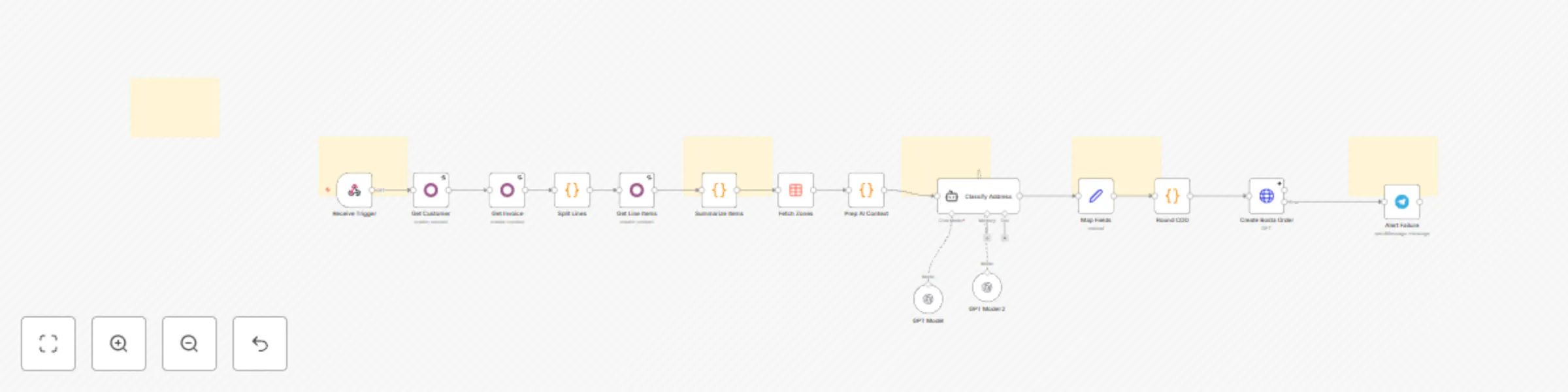
  • Trigger: The workflow starts automatically when an invoice is confirmed in Odoo.
  • Fetch & Process: It pulls customer details and invoice items, then aggregates quantities (e.g., turning 3 lines of "Shampoo" into "Shampoo (3)").
  • AI Analysis: The AI Agent cross-references the raw address with the official Bosta zones list to strictly select the correct IDs.
  • Execution: The order is created in Bosta. If successful, the process is complete.
  • Error Handling: If any step fails, a Telegram message is sent immediately with the invoice number to alert the operations team.

Customization Ideas

  • Write Back: Add a node to update the Odoo invoice with the generated Bosta tracking number.
  • Multi-Courier: Add a switch node to route orders to different couriers (e.g., Aramex, Mylerz) based on the city.
  • Campaign Logging: Log successful shipments to a spreadsheet to track fulfillment metrics.
  • Notification Channels: Change the error alert from Telegram to Slack or Email.

If you need any help Get in Touch

1.2 Logical Blocks

This catalog entry is organized from the workflow JSON. The node-level section below shows the executable blocks available for review before importing the template.

2. Block-by-Block Analysis

Block 1 - Main Documentation

Type / Role
n8n-nodes-base.stickyNote - stickyNote
Config choices
Version 1

Block 2 - Section 1

Type / Role
n8n-nodes-base.stickyNote - stickyNote
Config choices
Version 1

Block 3 - Section 2

Type / Role
n8n-nodes-base.stickyNote - stickyNote
Config choices
Version 1

Block 4 - Section 3

Type / Role
n8n-nodes-base.stickyNote - stickyNote
Config choices
Version 1

Block 5 - Section 4

Type / Role
n8n-nodes-base.stickyNote - stickyNote
Config choices
Version 1

Block 6 - Section 5

Type / Role
n8n-nodes-base.stickyNote - stickyNote
Config choices
Version 1

Block 7 - Receive Trigger

Type / Role
n8n-nodes-base.webhook - webhook
Config choices
Version 2.1

Block 8 - Get Invoice

Type / Role
n8n-nodes-base.odoo - odoo
Config choices
Version 1

Block 9 - Get Customer

Type / Role
n8n-nodes-base.odoo - odoo
Config choices
Version 1

Block 10 - Get Line Items

Type / Role
n8n-nodes-base.odoo - odoo
Config choices
Version 1

Block 11 - Split Lines

Type / Role
n8n-nodes-base.code - code
Config choices
Version 2

Block 12 - Create Bosta Order

Type / Role
n8n-nodes-base.httpRequest - httpRequest
Config choices
Version 4.3

Block 13 - Map Fields

Type / Role
n8n-nodes-base.set - set
Config choices
Version 3.4

Block 14 - Fetch Zones

Type / Role
n8n-nodes-base.dataTable - dataTable
Config choices
Version 1

Block 15 - Prep AI Context

Type / Role
n8n-nodes-base.code - code
Config choices
Version 2

Block 16 - GPT Model

Type / Role
@n8n/n8n-nodes-langchain.lmChatOpenAi - lmChatOpenAi
Config choices
Version 1.3

Block 17 - Classify Address

Type / Role
@n8n/n8n-nodes-langchain.agent - agent
Config choices
Version 3

Block 18 - GPT Model 2

Type / Role
@n8n/n8n-nodes-langchain.lmChatOpenAi - lmChatOpenAi
Config choices
Version 1.3

Block 19 - Round COD

Type / Role
n8n-nodes-base.code - code
Config choices
Version 2

Block 20 - Summarize Items

Type / Role
n8n-nodes-base.code - code
Config choices
Version 2

Block 21 - Alert Failure

Type / Role
n8n-nodes-base.telegram - telegram
Config choices
Version 1.2

3. Summary Table

Workflow Create Bosta shipping orders from Odoo invoices using OpenAI GPT models
Complexity advanced
Nodes 21
Categories CRM, AI RAG
Author Abdullah Alshiekh
Published 11 Jan 2026

4. Reproducing the Workflow from Scratch

  1. 1. Download the workflow JSON

    Use the JSON export at /data/workflows/12641/12641.json as the source template for this automation.

  2. 2. Import the template into n8n

    Open n8n, import the downloaded JSON, and review each node before activating the workflow.

  3. 3. Configure credentials and variables

    Replace placeholder credentials, API keys, webhook URLs, account IDs, and environment-specific values with your own settings.

  4. 4. Test with sample data

    Run the workflow manually or in a staging workspace, inspect node output, and confirm downstream systems receive the expected data.

  5. 5. Activate and monitor

    Enable the workflow only after testing, then monitor executions, errors, and rate limits during the first production runs.

5. General Notes & Resources

Review imported nodes carefully before activation. This catalog entry is intended to help you inspect the workflow structure, understand required services, and find related templates faster.

Node names, credentials, schedules, webhook paths, and external service limits may need adjustment for your workspace.

Frequently asked questions

What does Create Bosta shipping orders from Odoo invoices using OpenAI GPT models do?

What Problem Does It Solve? Manual Data Entry Bottlenecks: Moving shipping data from Odoo to Bosta manually is slow and prone to errors, especially during high volume periods. Address Mismatches: O...

What do I need before importing this workflow?

Review the workflow JSON, configure any required credentials in n8n, and test the automation in a safe workspace before using it in production.

Can I customize this workflow?

Yes. Use the block-by-block analysis and the downloadable JSON to inspect each node, then adjust credentials, prompts, schedules, filters, or destinations for your CRM, AI RAG use case.