Create and publish SEO blog posts using Google Sheets, Gemini/OpenAI, Ideogram, and WordPress

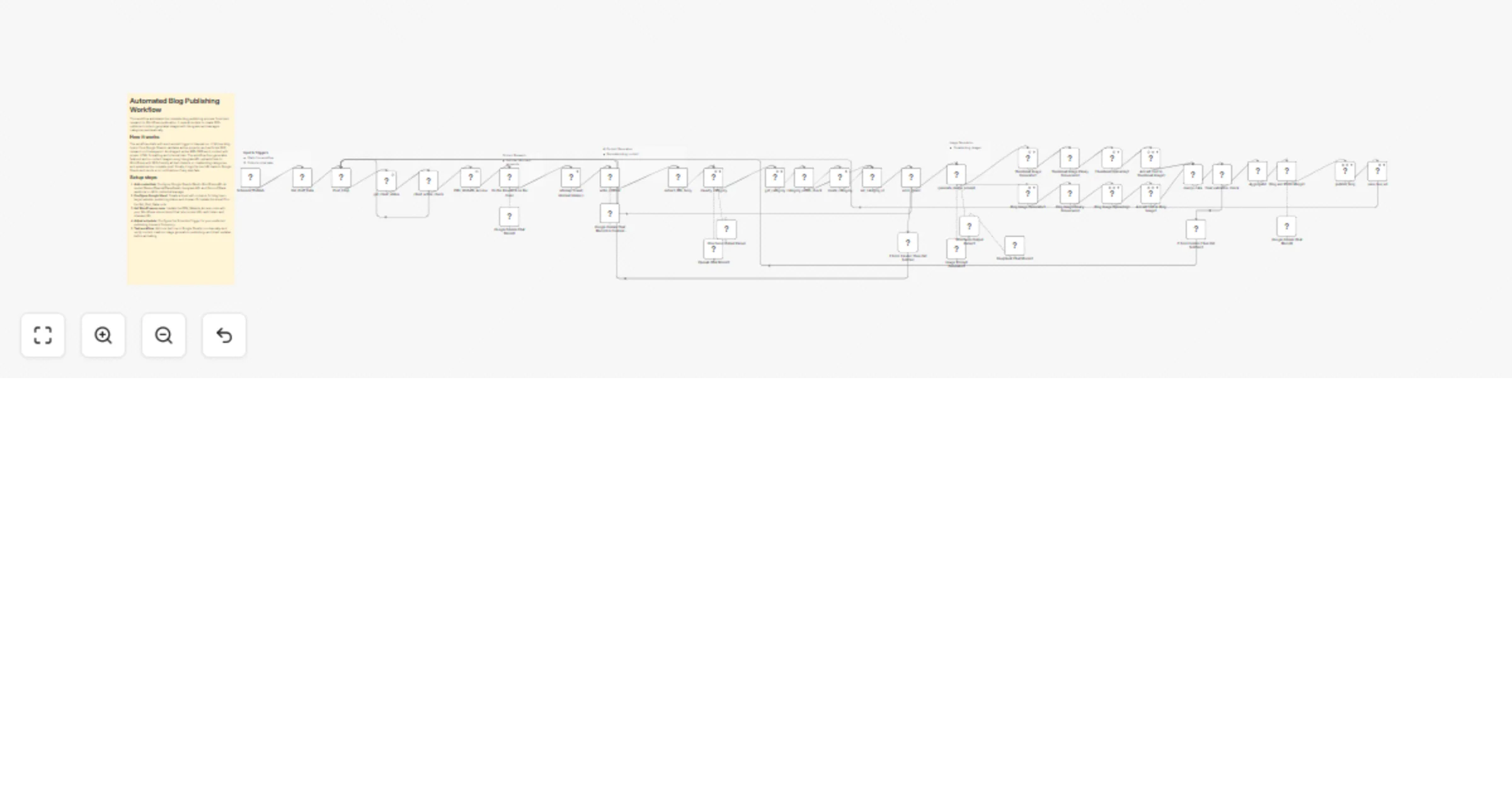
Workflow preview

Workflow preview
100%
Create and publish SEO blog posts using Google Sheets, Gemini/OpenAI, Ideogram, and WordPress preview
Open on n8n.io

1. Workflow Overview

This workflow automates the complete blog publishing process. It removes manual work from content creation, image generation, category management, and WordPress publishing by using AI and n8n. It h...

Best for

  • Content Creation automation workflows
  • Multimodal AI automation workflows
  • advanced n8n builders looking for reusable templates

Tools used

@n8n/n8n-nodes-langchain.lmchatgooglegemini, @n8n/n8n-nodes-langchain.outputparserstructured, @n8n/n8n-nodes-langchain.lmchatdeepseek, @n8n/n8n-nodes-langchain.agent, n8n-nodes-base.aggregate, n8n-nodes-base.httprequest, n8n-nodes-base.stickynote, n8n-nodes-base.discord

Source and attribution

This workflow is cataloged by N8N Workflows and links back to its original n8n.io source page by Incrementors.

Original n8n.io source

1.1 Workflow description

Title
Create and publish SEO blog posts using Google Sheets, Gemini/OpenAI, Ideogram, and WordPress
Workflow name
Create and publish SEO blog posts using Google Sheets, Gemini/OpenAI, Ideogram, and WordPress

This workflow automates the complete blog publishing process. It removes manual work from content creation, image generation, category management, and WordPress publishing by using AI and n8n. It helps agencies, SEO teams, and content creators manage blogs at scale.

Key Features

  • Scheduled or manual blog publishing
  • Automated topic research and content writing
  • AI-generated featured and in-content images using Ideogram
  • Dynamic WordPress category detection and creation
  • Automatic media upload with SEO-friendly alt text
  • Internal linking using sitemap data
  • Google Sheets logging for published URLs
  • Error notifications for failed executions

What This Workflow Does

Input

  • Blog topics or keywords stored in Google Sheets
  • Target WordPress site details
  • Publishing rules and schedule

Processing

  1. Triggers the workflow on a schedule or manual run
  2. Fetches blog posting data from Google Sheets
  3. Validates active projects or websites
  4. Performs topic and SEO research
  5. Writes long-form, SEO-optimized blog content
  6. Generates image prompts and creates images using Ideogram
  7. Uploads images to WordPress with alt text
  8. Detects or creates blog categories dynamically
  9. Publishes the blog post to WordPress

Output

  • Live published blog post URL
  • Updated Google Sheet with publishing details
  • Notification alerts if any step fails

Setup Instructions

Prerequisites

  • n8n instance (cloud or self-hosted)
  • WordPress site with REST API access
  • Google Sheets access
  • AI model credentials (Google Gemini, OpenAI, or DeepSeek)
  • Ideogram API access
  • Notification service (Discord or Slack)

Step 1: Import the Workflow

  1. Download or copy the workflow JSON
  2. In n8n, go to Workflows → Import from file / JSON
  3. Import the workflow

Step 2: Configure Credentials

Set up the required credentials inside n8n's credential manager:

  • Google Sheets OAuth: For reading posting data and saving URLs
  • WordPress API: For publishing posts and uploading media
  • AI Model: Connect Google Gemini, OpenAI, or DeepSeek
  • Ideogram API: For AI image generation
  • Discord/Slack Webhook: For error notifications

Important: No credentials are hardcoded. All must be connected via n8n's credential manager.

Step 3: Configure Google Sheets

Prepare a Google Sheet containing:

  • Blog topic or keyword
  • Target website or domain
  • Publishing status fields
  • Domain ID for tracking

Update the Sheet ID inside the Get_Post_Data node after import.

Step 4: Configure Website Access

Update the PBN_Website_Access node with your WordPress site access endpoint or API. This node should return:

  • Complete WordPress URL
  • Basic authentication token
  • Sitemap post URL

Step 5: Configure Publishing & Schedule

  • Adjust the Schedule Trigger if auto-publishing is required
  • Modify publishing frequency or time zone
  • Review WordPress post status (draft or publish)

Step 6: Test & Activate

  1. Add one test row in Google Sheets
  2. Run the workflow manually
  3. Verify:
  • Content creation
  • Image generation
  • WordPress publishing
  • Sheet updates
  1. Activate the workflow

Usage Guide

Adding New Blog Posts

Add a new row in the connected Google Sheet with the required blog topic and website details. The workflow will automatically process and publish the post on the next execution.

Understanding the Output

After execution, the workflow:

  • Publishes a complete blog post on WordPress
  • Attaches featured and in-content images
  • Assigns the correct category
  • Logs the live URL back to Google Sheets

Workflow Node Breakdown

Get_Post_Data

Fetches blog posting details from Google Sheets based on the current day. It pulls keywords, landing pages, domain IDs, and posting websites.

get_client_status

Checks the client's project status from the project sheet. It verifies whether the client is active or inactive before proceeding further. This prevents publishing content for paused or stopped clients.

PBN_Website_Access

Fetches WordPress website access details such as site URL, authentication token, and sitemap URL. These details are required for publishing posts, uploading images, and managing categories.

Do the Research on the Topic

Performs deep SEO research on the target keyword. It analyzes search intent, content gaps, and audience needs. This ensures the generated content is informative, relevant, and SEO-optimized.

sitemap_crawl (internal_linking)

Crawls the website sitemap to collect internal URLs. These URLs are later used for internal linking inside the blog content. Internal links help improve SEO and site structure.

write_content

Uses AI to write an 800-1000 word SEO-optimized blog article based on research data. The content includes proper HTML formatting, internal links, and anchor keyword placement.

extract_title_body

Separates the H1 title from the blog body content for proper WordPress publishing format.

classify_category

Automatically determines the most suitable category for the blog post by analyzing the blog title and content context. This keeps the website's category structure clean and relevant.

get_category & create_category

Checks if the determined category exists in WordPress. If not, it creates a new category automatically.

generate_image_prompt

Analyzes the blog content and generates AI prompts for creating relevant images including thumbnail and in-content images.

Thumbnail Image Generator & Blog Image Generator

Generate high-quality images using Ideogram API based on AI-generated prompts. Images are created with proper resolution and rendering settings.

Thumbnail Uploading & Blog Image Uploading

Upload generated images to WordPress media library and retrieve media IDs for post attachment.

Add Alt Text in Images

Adds SEO-friendly alt text to uploaded images to improve accessibility and search engine optimization.

Blog and Photo Merge

Merges the generated images into the blog content at appropriate positions within the article.

publish_blog

Publishes the complete blog post to WordPress with title, content, category, featured image, and publish status.

save_live_url

Saves the live published blog URL back into Google Sheets along with keyword, website URL, and timestamp for tracking and reporting.

If Error Existed Then Get Notified

Sends instant Discord or Slack notifications when any error occurs during workflow execution, ensuring no failure goes unnoticed.

Customization Options

  • Change blog length or tone in the content generation node
  • Modify image style or resolution in Ideogram nodes
  • Add multi-site publishing using Switch nodes
  • Replace notification channel (Discord to Slack or Email)
  • Extend workflow to social media posting

Troubleshooting

Blog not published Check WordPress credentials and REST API permissions.

Images not generated Verify Ideogram API credentials and prompt formatting.

Sheet not updating Ensure correct Sheet ID and OAuth permissions.

Workflow stopped Review execution logs and error notification messages.

Use Cases

  • SEO blog automation for agencies
  • Content publishing for niche websites
  • Scalable blog management
  • AI-assisted content operations
  • Hands-free WordPress publishing

Final Notes

This workflow is designed to be reusable, scalable, and creator-friendly. It follows n8n best practices, avoids hardcoded credentials, and is suitable for public sharing as a workflow template.

For any questions or support, please contact: [email protected] or fill out this form: https://www.incrementors.com/contact-us/

1.2 Logical Blocks

This catalog entry is organized from the workflow JSON. The node-level section below shows the executable blocks available for review before importing the template.

2. Block-by-Block Analysis

Block 1 - Google Gemini Chat Model1

Type / Role
@n8n/n8n-nodes-langchain.lmChatGoogleGemini - lmChatGoogleGemini
Config choices
Version 1

Block 2 - Image Prompt Generator1

Type / Role
@n8n/n8n-nodes-langchain.lmChatGoogleGemini - lmChatGoogleGemini
Config choices
Version 1

Block 3 - Google Gemini Chat Model6

Type / Role
@n8n/n8n-nodes-langchain.lmChatGoogleGemini - lmChatGoogleGemini
Config choices
Version 1

Block 4 - Structured Output Parser2

Type / Role
@n8n/n8n-nodes-langchain.outputParserStructured - outputParserStructured
Config choices
Version 1.3

Block 5 - DeepSeek Chat Model2

Type / Role
@n8n/n8n-nodes-langchain.lmChatDeepSeek - lmChatDeepSeek
Config choices
Version 1

Block 6 - Blog and Photo Merge1

Type / Role
@n8n/n8n-nodes-langchain.agent - agent
Config choices
Version 2.2

Block 7 - Aggregate1

Type / Role
n8n-nodes-base.aggregate - aggregate
Config choices
Version 1

Block 8 - Google Gemini Chat Model For Content Writing1

Type / Role
@n8n/n8n-nodes-langchain.lmChatGoogleGemini - lmChatGoogleGemini
Config choices
Version 1

Block 9 - Thumbnail Image Generator1

Type / Role
n8n-nodes-base.httpRequest - httpRequest
Config choices
Version 4.2

Block 10 - Blog Image Generator1

Type / Role
n8n-nodes-base.httpRequest - httpRequest
Config choices
Version 4.2

Block 11 - Blog Image Binary Conversion1

Type / Role
n8n-nodes-base.httpRequest - httpRequest
Config choices
Version 4.2

Block 12 - Thumbnail Image Binary Conversion1

Type / Role
n8n-nodes-base.httpRequest - httpRequest
Config choices
Version 4.2

Block 13 - Thumbnail Uploading1

Type / Role
n8n-nodes-base.httpRequest - httpRequest
Config choices
Version 4.2

Block 14 - Blog Image Uploading1

Type / Role
n8n-nodes-base.httpRequest - httpRequest
Config choices
Version 4.2

Block 15 - Add Alt Text in Blog Image1

Type / Role
n8n-nodes-base.httpRequest - httpRequest
Config choices
Version 4.2

Block 16 - Add Alt Text in Thumbnail Image1

Type / Role
n8n-nodes-base.httpRequest - httpRequest
Config choices
Version 4.2

Block 17 - Sticky Note4

Type / Role
n8n-nodes-base.stickyNote - stickyNote
Config choices
Version 1

Block 18 - If Error Existed Then Get Notified1

Type / Role
n8n-nodes-base.discord - discord
Config choices
Version 2

Block 19 - OpenAI Chat Model1

Type / Role
@n8n/n8n-nodes-langchain.lmChatOpenAi - lmChatOpenAi
Config choices
Version 1.2

Block 20 - Structured Output Parser

Type / Role
@n8n/n8n-nodes-langchain.outputParserStructured - outputParserStructured
Config choices
Version 1.3

Block 21 - If Error Existed Then Get Notified

Type / Role
n8n-nodes-base.discord - discord
Config choices
Version 2

Block 22 - Schedule_Publish

Type / Role
n8n-nodes-base.scheduleTrigger - scheduleTrigger
Config choices
Version 1.2

Block 23 - Get_Post_Data

Type / Role
n8n-nodes-base.googleSheets - googleSheets
Config choices
Version 4.7

Block 24 - Post_Loop

Type / Role
n8n-nodes-base.splitInBatches - splitInBatches
Config choices
Version 3

Showing the first 24 of 46 workflow blocks. Download the JSON for the full node graph.

3. Summary Table

Workflow Create and publish SEO blog posts using Google Sheets, Gemini/OpenAI, Ideogram, and WordPress
Complexity advanced
Nodes 46
Categories Content Creation, Multimodal AI
Author Incrementors
Published 23 Jan 2026

4. Reproducing the Workflow from Scratch

  1. 1. Download the workflow JSON

    Use the JSON export at /data/workflows/12939/12939.json as the source template for this automation.

  2. 2. Import the template into n8n

    Open n8n, import the downloaded JSON, and review each node before activating the workflow.

  3. 3. Configure credentials and variables

    Replace placeholder credentials, API keys, webhook URLs, account IDs, and environment-specific values with your own settings.

  4. 4. Test with sample data

    Run the workflow manually or in a staging workspace, inspect node output, and confirm downstream systems receive the expected data.

  5. 5. Activate and monitor

    Enable the workflow only after testing, then monitor executions, errors, and rate limits during the first production runs.

5. General Notes & Resources

Review imported nodes carefully before activation. This catalog entry is intended to help you inspect the workflow structure, understand required services, and find related templates faster.

Node names, credentials, schedules, webhook paths, and external service limits may need adjustment for your workspace.

Frequently asked questions

What does Create and publish SEO blog posts using Google Sheets, Gemini/OpenAI, Ideogram, and WordPress do?

This workflow automates the complete blog publishing process. It removes manual work from content creation, image generation, category management, and WordPress publishing by using AI and n8n. It h...

What do I need before importing this workflow?

Review the workflow JSON, configure any required credentials in n8n, and test the automation in a safe workspace before using it in production.

Can I customize this workflow?

Yes. Use the block-by-block analysis and the downloadable JSON to inspect each node, then adjust credentials, prompts, schedules, filters, or destinations for your Content Creation, Multimodal AI use case.