Block 1 - When clicking ‘Execute workflow’
- Type / Role
- n8n-nodes-base.manualTrigger - manualTrigger
- Config choices
- Version 1


 Early Deal
This workflow is provided as-is. Please review and test before using in production.
This workflow demonstrates how to create viral AI generated selfie videos featuring famous characters using a fully automated and platform independent approach. The process is designed to replicate...
n8n-nodes-base.manualtrigger, n8n-nodes-base.wait, n8n-nodes-base.if, n8n-nodes-base.splitinbatches, n8n-nodes-base.httprequest, n8n-nodes-base.googledrive, n8n-nodes-base.stickynote, n8n-nodes-base.googlesheets
This workflow is cataloged by N8N Workflows and links back to its original n8n.io source page by Davide.
Original n8n.io sourceThis workflow demonstrates how to create viral AI-generated selfie videos featuring famous characters using a fully automated and platform-independent approach.
The process is designed to replicate the kind of celebrity selfie videos that are currently going viral on social media and YouTube, where a realistic selfie-style video appears to show the creator together with a well-known public figure.
Instead of relying on a proprietary or closed platform, the workflow explains how to build the entire pipeline using direct access to Google Veo 3.1 APIs, giving full control over generation, orchestration, and distribution.
From prompt to final published video, the entire process runs without manual intervention.
Non-technical users can manage video production simply by editing Google Sheets:
One generated video can be reused for:
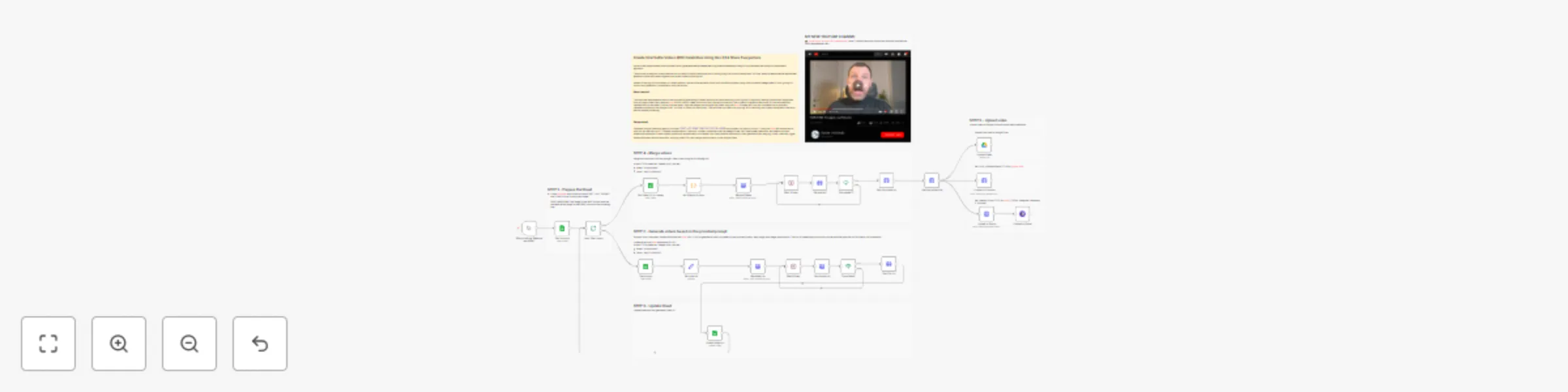
This workflow automates the generation of short video clips using AI, merges them into a final video, and optionally uploads the result to multiple platforms.
Trigger & Data Fetching
The workflow starts with a manual trigger. It reads a Google Sheet containing prompts, image URLs (first and last frames), and duration settings for each video clip to be generated.
Video Clip Generation
For each row in the sheet, the workflow calls the fal.ai VEO 3.1 API to generate a video clip based on the provided prompt, start image, end image, and duration. The clip is created asynchronously, so the workflow polls the API for status until completion.
Status Polling & URL Retrieval
Once a clip is marked as COMPLETED, its video URL is fetched and written back to the Google Sheet in the corresponding row.
Video Merging
After all clips are generated, the workflow collects the video URLs from rows marked for merging and sends them to the fal.ai FFmpeg API to be combined into a single video.
Final Video Processing
The merged video is polled until ready, then its final URL is retrieved. The video file is downloaded via HTTP request.
Upload & Distribution
The final video can be uploaded to:
WARNING It may happen that the workflow stops at the video generation node with the following message:
> Your request is invalid or could not be processed by the service [item 0] > The content could not be processed because it contained material flagged by a content checker.
This occurs because images are checked both before and after the video generation process. If this happens, you can either use less restrictive video models while keeping the same workflow structure, or change the source images in the Google Sheets file.
Google Sheets Setup
START, LAST, PROMPT, DURATION, VIDEO URL, MERGEFal.ai API Configuration
Upload Services Configuration
Enable Required Nodes
Upload Video, Upload to Youtube, Upload to Postiz, Upload to Social) once credentials are configured.Adjust Polling Intervals
Wait 30 sec., Wait 60 sec.) as needed based on video processing times.Test Execution
This workflow is designed for batch video creation and merging, ideal for content pipelines involving AI-generated media.
👉 Subscribe to my new YouTube channel. Here I’ll share videos and Shorts with practical tutorials and FREE templates for n8n.
Contact me for consulting and support or add me on Linkedin.
This catalog entry is organized from the workflow JSON. The node-level section below shows the executable blocks available for review before importing the template.
Showing the first 24 of 33 workflow blocks. Download the JSON for the full node graph.
| Workflow | Create AI Viral Selfie videos 🎬 with celebrities 😎 using Google Veo 3.1 |
|---|---|
| Complexity | advanced |
| Nodes | 33 |
| Categories | Content Creation, Multimodal AI |
| Author | Davide |
| Published | 07 Jan 2026 |
Use the JSON export at /data/workflows/12536/12536.json as the source template for this automation.
Open n8n, import the downloaded JSON, and review each node before activating the workflow.
Replace placeholder credentials, API keys, webhook URLs, account IDs, and environment-specific values with your own settings.
Run the workflow manually or in a staging workspace, inspect node output, and confirm downstream systems receive the expected data.
Enable the workflow only after testing, then monitor executions, errors, and rate limits during the first production runs.
Review imported nodes carefully before activation. This catalog entry is intended to help you inspect the workflow structure, understand required services, and find related templates faster.
Node names, credentials, schedules, webhook paths, and external service limits may need adjustment for your workspace.
This workflow demonstrates how to create viral AI generated selfie videos featuring famous characters using a fully automated and platform independent approach. The process is designed to replicate...
Review the workflow JSON, configure any required credentials in n8n, and test the automation in a safe workspace before using it in production.
Yes. Use the block-by-block analysis and the downloadable JSON to inspect each node, then adjust credentials, prompts, schedules, filters, or destinations for your Content Creation, Multimodal AI use case.