Block 1 - AI Agent2
- Type / Role
- @n8n/n8n-nodes-langchain.agent - agent
- Config choices
- Version 2.2


 Early Deal
This workflow is provided as-is. Please review and test before using in production.
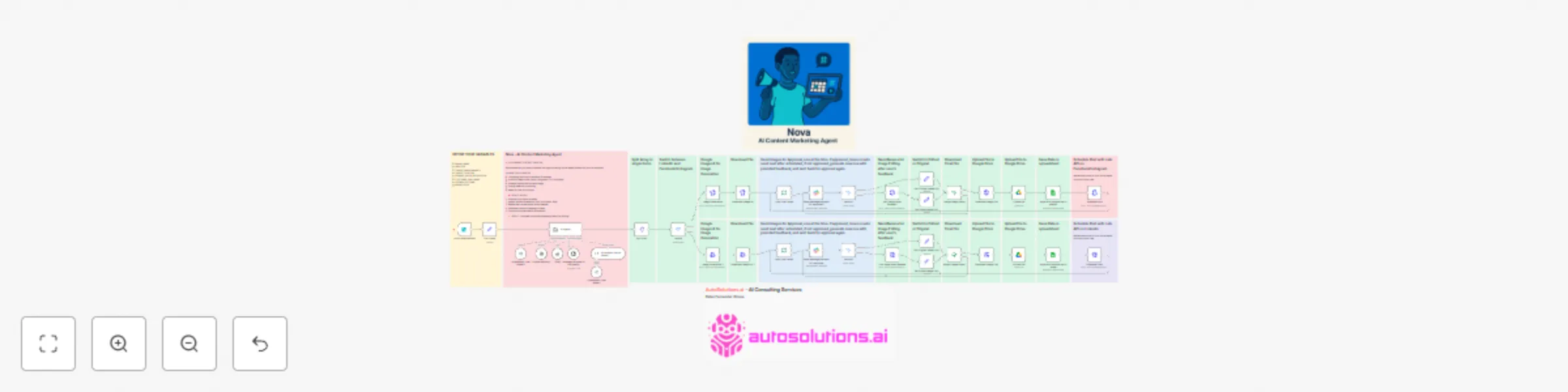
Nova AI Content Marketing Agent LinkedIn & Facebook Automation This n8n template demonstrates how to create a complete AI powered social media content creation and scheduling system that generates ...
@n8n/n8n-nodes-langchain.agent, @n8n/n8n-nodes-langchain.outputparserstructured, @n8n/n8n-nodes-langchain.lmchatopenrouter, @n8n/n8n-nodes-langchain.memorybufferwindow, n8n-nodes-base.perplexitytool, @n8n/n8n-nodes-langchain.toolthink, n8n-nodes-base.splitout, n8n-nodes-base.set
This workflow is cataloged by N8N Workflows and links back to its original n8n.io source page by Didac Fernandez.
Original n8n.io sourceNova AI Content Marketing Agent - LinkedIn & Facebook Automation This n8n template demonstrates how to create a complete AI-powered social media content creation and scheduling system that generates platform-optimized posts for LinkedIn and Facebook with custom images and human approval workflows. Possible use cases:
Generate a full week of social media content from a single brand brief Create platform-specific content that maintains brand voice consistency Automate image generation with AI while maintaining quality control Schedule approved content across multiple social platforms Track and organize all content in centralized spreadsheets
How it works
The automation starts with a form submission collecting 10 brand variables (name, industry, demographics, etc.) Nova AI Agent analyzes the brand information and generates 6 distinct social media posts (3 LinkedIn professional, 3 Facebook community-focused) Content is split by platform and routed to separate image generation workflows Google Imagen 4 Ultra creates custom visuals for each post with platform-specific aspect ratios Each generated image is sent to Slack for human approval via interactive forms If feedback is provided, NanoBanana AI edits the image based on natural language instructions Approved images are uploaded to Google Drive with organized naming conventions All content data is logged to Google Sheets with image URLs and scheduling information Final posts are scheduled via Late API to respective social platforms The workflow loops through each post individually for quality control
Requirements
OpenRouter API credentials for GPT-5 Mini access Replicate API key for Google Imagen 4 Ultra and NanoBanana Slack OAuth2 credentials with bot permissions Google Drive OAuth2 credentials Google Sheets API access GetLate API key connected to LinkedIn and Facebook accounts Perplexity API for research enhancement (optional)
HOW TO USE STEP 1 - Setup Form and Brand Variables
Configure the Form Trigger webhook URL for brand data collection Update the 10 form fields with your specific industry placeholders Test the form submission to ensure data flows correctly
STEP 2 - Configure AI Services
Add your OpenRouter API credentials to both Chat Model nodes Add your Replicate API key to the HTTP Header Auth credential Configure Perplexity API credentials for research functionality Set up custom session keys for memory management
STEP 3 - Setup Approval Workflow
Add Slack OAuth2 credentials to both "Send message and wait" nodes Update the Slack channel ID to your preferred approval channel Configure the custom form fields for approval/feedback collection
STEP 4 - Configure Storage and Scheduling
Add Google Drive OAuth2 credentials and update the target folder ID Add Google Sheets credentials and update the spreadsheet ID Get your Late API key from getlate.dev and add to HTTP Header Auth Update the Late accountId in both Schedule Post nodes with your platform IDs
STEP 5 - Customize Content Strategy
Modify the Nova system prompt to match your brand voice requirements Adjust the visual style requirements in the AI Agent configuration Update posting date logic and timezone settings as needed Test the complete workflow with sample brand data
This catalog entry is organized from the workflow JSON. The node-level section below shows the executable blocks available for review before importing the template.
Showing the first 24 of 63 workflow blocks. Download the JSON for the full node graph.
| Workflow | Create AI-powered social media content for LinkedIn & Facebook with image generation & human approval |
|---|---|
| Complexity | advanced |
| Nodes | 63 |
| Categories | Social Media, Multimodal AI |
| Author | Didac Fernandez |
| Published | 09 Sept 2025 |
Use the JSON export at /data/workflows/8398/8398.json as the source template for this automation.
Open n8n, import the downloaded JSON, and review each node before activating the workflow.
Replace placeholder credentials, API keys, webhook URLs, account IDs, and environment-specific values with your own settings.
Run the workflow manually or in a staging workspace, inspect node output, and confirm downstream systems receive the expected data.
Enable the workflow only after testing, then monitor executions, errors, and rate limits during the first production runs.
Review imported nodes carefully before activation. This catalog entry is intended to help you inspect the workflow structure, understand required services, and find related templates faster.
Node names, credentials, schedules, webhook paths, and external service limits may need adjustment for your workspace.
Nova AI Content Marketing Agent LinkedIn & Facebook Automation This n8n template demonstrates how to create a complete AI powered social media content creation and scheduling system that generates ...
Review the workflow JSON, configure any required credentials in n8n, and test the automation in a safe workspace before using it in production.
Yes. Use the block-by-block analysis and the downloadable JSON to inspect each node, then adjust credentials, prompts, schedules, filters, or destinations for your Social Media, Multimodal AI use case.