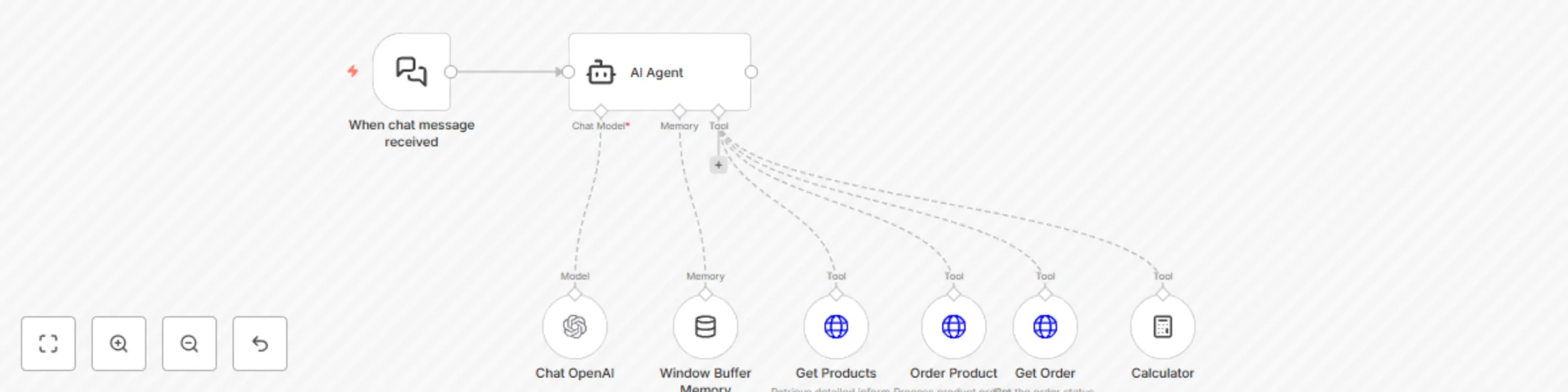
Create a pizza ordering chatbot with GPT-3.5 - Menu, orders & status tracking

Workflow preview

Workflow preview
100%
Create a pizza ordering chatbot with GPT-3.5 - Menu, orders & status tracking preview
Open on n8n.io

Important notice

This workflow is provided as-is. Please review and test before using in production.

1. Workflow Overview

Pizza Ordering Chatbot with OpenAI Menu, Orders & Status Tracking Introduction This workflow template is designed to automate order processing for a pizza store using OpenAI and n8n. The chatbot ac...

Best for

  • Support Chatbot automation workflows
  • AI Chatbot automation workflows
  • intermediate n8n builders looking for reusable templates

Tools used

@n8n/n8n-nodes-langchain.toolcalculator, @n8n/n8n-nodes-langchain.lmchatopenai, @n8n/n8n-nodes-langchain.memorybufferwindow, @n8n/n8n-nodes-langchain.toolhttprequest, @n8n/n8n-nodes-langchain.chattrigger, @n8n/n8n-nodes-langchain.agent

Source and attribution

This workflow is cataloged by N8N Workflows and links back to its original n8n.io source page by Irfan Handoko.

Original n8n.io source

1.1 Workflow description

Title
Create a pizza ordering chatbot with GPT-3.5 - Menu, orders & status tracking
Workflow name
Create a pizza ordering chatbot with GPT-3.5 - Menu, orders & status tracking

Pizza Ordering Chatbot with OpenAI - Menu, Orders & Status Tracking

Introduction

This workflow template is designed to automate order processing for a pizza store using OpenAI and n8n. The chatbot acts as a virtual assistant to handle customer inquiries related to menu details, order placement, and order status tracking.

Features

The chatbot provides an interactive experience for customers by performing the following functions:

  1. Menu Inquiry: When a customer asks about the menu, the chatbot responds with a list of available pizzas, prices, and additional options.
  2. Order Placement: If a customer places an order, the chatbot confirms order details, provides a summary, informs the customer that the order is being processed, and expresses gratitude.
  3. Order Status Tracking: If a customer asks about their order status, the chatbot retrieves details such as order date, pizza type, and quantity, providing real-time updates.

Prerequisites

Before setting up the workflow, ensure you have the following:

Configuration Steps

Step 1: Set Up OpenAI API Credentials

  1. Log in to OpenAI's website.
  2. Navigate to API Keys under your account settings.
  3. Click Create API Key and copy the key for later use.

Step 2: Configure OpenAI Node in n8n

  1. Open n8n and create a new workflow.
  2. Click Add Node and search for OpenAI.
  3. Select OpenAI from the list.
  4. In the OpenAI node settings, click "Create New" under the Credentials section.
  5. Enter a name for the credentials (e.g., "PizzaBot OpenAI Key").
  6. Paste your API Key into the field.
  7. Click Save.

Step 3: Set Up the Chatbot Logic

  1. Connect the AI Agent Builder Node to the OpenAI Node and HTTP Request Node.
  2. Configure the OpenAI Node with the following settings:
    • Model: gpt-3.5-turbo
    • Prompt: Provide dynamic text based on customer inquiries (e.g., "List available pizzas," "Place an order for Margherita pizza," "Check my order status").
    • Temperature: Adjust based on desired creativity (recommended: 0.7).
    • Max Tokens: Limit response length (recommended: 150).
  3. Add multiple HTTP Request Node:
    • For Get Products: Fetch stored menu data and return details.
    • For Order Product: Capture order details, generate an order ID, and confirm with the customer.
    • For Get Order: Retrieve order details based on the order ID and display progress.

Step 4: Testing and Deployment

  1. Click Execute Workflow to test the chatbot.
  2. Open the Chat Message node, then copy the chat URL to access the chatbot in your browser.
  3. Interact with the chatbot by asking different queries (e.g., "What pizzas do you have?" or "I want to order a Pepperoni pizza").
  4. Verify responses and adjust prompts or configurations as needed.
  5. Deploy the workflow and integrate it with a messaging platform (e.g., Telegram, WhatsApp, or a website chatbot).

Conclusion

This n8n workflow enables a fully functional pizza ordering chatbot using OpenAI's GPT-3.5. Customers can view menus, place orders, and track their order status efficiently. You can further customize the chatbot by refining prompts, adding new features, or integrating with external databases for order management.

πŸš€ Happy automating!

1.2 Logical Blocks

This catalog entry is organized from the workflow JSON. The node-level section below shows the executable blocks available for review before importing the template.

2. Block-by-Block Analysis

Block 1 - Calculator

Type / Role
@n8n/n8n-nodes-langchain.toolCalculator - toolCalculator
Config choices
Version 1

Block 2 - Chat OpenAI

Type / Role
@n8n/n8n-nodes-langchain.lmChatOpenAi - lmChatOpenAi
Config choices
Version 1

Block 3 - Window Buffer Memory

Type / Role
@n8n/n8n-nodes-langchain.memoryBufferWindow - memoryBufferWindow
Config choices
Version 1.2

Block 4 - Get Products

Type / Role
@n8n/n8n-nodes-langchain.toolHttpRequest - toolHttpRequest
Config choices
Version 1.1

Block 5 - Order Product

Type / Role
@n8n/n8n-nodes-langchain.toolHttpRequest - toolHttpRequest
Config choices
Version 1.1

Block 6 - Get Order

Type / Role
@n8n/n8n-nodes-langchain.toolHttpRequest - toolHttpRequest
Config choices
Version 1.1

Block 7 - When chat message received

Type / Role
@n8n/n8n-nodes-langchain.chatTrigger - chatTrigger
Config choices
Version 1.1

Block 8 - AI Agent

Type / Role
@n8n/n8n-nodes-langchain.agent - agent
Config choices
Version 1.6

3. Summary Table

Workflow Create a pizza ordering chatbot with GPT-3.5 - Menu, orders & status tracking
Complexity intermediate
Nodes 8
Categories Support Chatbot, AI Chatbot
Author Irfan Handoko
Published 01 Mar 2025

4. Reproducing the Workflow from Scratch

  1. 1. Download the workflow JSON

    Use the JSON export at /data/workflows/3049/3049.json as the source template for this automation.

  2. 2. Import the template into n8n

    Open n8n, import the downloaded JSON, and review each node before activating the workflow.

  3. 3. Configure credentials and variables

    Replace placeholder credentials, API keys, webhook URLs, account IDs, and environment-specific values with your own settings.

  4. 4. Test with sample data

    Run the workflow manually or in a staging workspace, inspect node output, and confirm downstream systems receive the expected data.

  5. 5. Activate and monitor

    Enable the workflow only after testing, then monitor executions, errors, and rate limits during the first production runs.

5. General Notes & Resources

Review imported nodes carefully before activation. This catalog entry is intended to help you inspect the workflow structure, understand required services, and find related templates faster.

Node names, credentials, schedules, webhook paths, and external service limits may need adjustment for your workspace.

Frequently asked questions

What does Create a pizza ordering chatbot with GPT-3.5 - Menu, orders & status tracking do?

Pizza Ordering Chatbot with OpenAI Menu, Orders & Status Tracking Introduction This workflow template is designed to automate order processing for a pizza store using OpenAI and n8n. The chatbot ac...

What do I need before importing this workflow?

Review the workflow JSON, configure any required credentials in n8n, and test the automation in a safe workspace before using it in production.

Can I customize this workflow?

Yes. Use the block-by-block analysis and the downloadable JSON to inspect each node, then adjust credentials, prompts, schedules, filters, or destinations for your Support Chatbot, AI Chatbot use case.