Convert PDF to HTML using PDF.co and Google Drive

Workflow preview

Workflow preview
100%
Convert PDF to HTML using PDF.co and Google Drive preview
Open on n8n.io

Important notice

This workflow is provided as-is. Please review and test before using in production.

1. Workflow Overview

This n8n workflow automates the process of converting a newly stored PDF file from Google Drive into an HTML file and saving it back to Google Drive. The workflow is triggered whenever a new PDF is...

Best for

  • Document Extraction automation workflows
  • Multimodal AI automation workflows
  • intermediate n8n builders looking for reusable templates

Tools used

n8n-nodes-base.googledrivetrigger, n8n-nodes-base.if, n8n-nodes-base.httprequest, n8n-nodes-base.googledrive, n8n-nodes-base.code, n8n-nodes-base.stickynote

Source and attribution

This workflow is cataloged by N8N Workflows and links back to its original n8n.io source page by WeblineIndia.

Original n8n.io source

1.1 Workflow description

Title
Convert PDF to HTML using PDF.co and Google Drive
Workflow name
Convert PDF to HTML using PDF.co and Google Drive

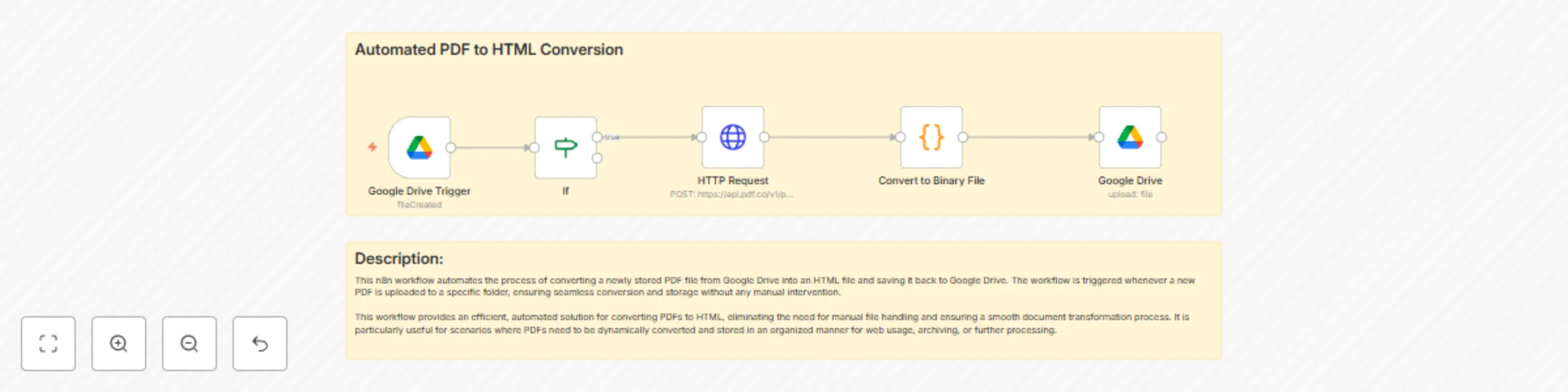
This n8n workflow automates the process of converting a newly stored PDF file from Google Drive into an HTML file and saving it back to Google Drive. The workflow is triggered whenever a new PDF is uploaded to a specific folder, ensuring seamless conversion and storage without any manual intervention.

This workflow provides an efficient, automated solution for converting PDFs to HTML, eliminating the need for manual file handling and ensuring a smooth document transformation process. It is particularly useful for scenarios where PDFs need to be dynamically converted and stored in an organised manner for web usage, archiving, or further processing.

Prerequisites :

Before setting up this workflow, ensure the following:

  • PDF.co API Key: Sign up at PDF.co and obtain an API key for PDF to HTML conversion.
  • Proper Authentication: Ensure authentication is configured for Google Drive in n8n.

Customisation Options :

  • Modify the API request to convert PDFs to other formats like Text, CSV, or XML.
  • Extend the IF Node to reject files based on size or other properties.
  • Send a notification once the conversion is complete using an Email or Telegram Node.

Steps :

Step 1: Google Drive Trigger Node (Watch for New Files)

  • Click "Add Node" and search for Google Drive.
  • Select "Google Drive Trigger" and add it to the workflow.
  • Authenticate with your Google Account.
  • Select the folder to monitor.
  • Set the trigger to activate whenever a new file is added.
  • Click "Execute Node" to test.
  • Click "Save".

Step 2: IF Node (Check if File is a PDF)

  • Click "Add Node" and search for IF.
  • Add a condition to check if the file extension is .pdf
  • If true → Send the file to the next step.
  • If false → Stop the workflow.
  • Click "Execute Node" to test.
  • Click "Save".

Step 3: HTTP Request Node (Convert PDF to HTML)

  • Click "Add Node" and search for HTTP Request.
  • Set the Method to POST.
  • Enter the PDF.co API endpoint for PDF to HTML conversion.
  • In the Headers, add API key which we have get from pdf.co
  • Send the binary PDF data as the request body.
  • Click "Execute Node" to test.
  • Click "Save".

Step 4: Function Node (Convert Response to Binary)

  • Click "Add Node" and search for Function.
  • Write a JavaScript function to transform the API response into a binary file.
  • Click "Execute Node" to test.
  • Click "Save".

Step 5: Google Drive Node (Save Converted HTML File)

  • Click "Add Node" and search for Google Drive.
  • Select "Upload File" as the action.
  • Authenticate with your Google Account.
  • Set the destination folder for storing the HTML file.
  • Map the binary data from the Function Node.
  • Click "Execute Node" to test.
  • Click "Save".

Step 6: Connect & Test the Workflow

  • Link the nodes in this order (Google Drive Trigger → IF Node → HTTP Request → Function Node → Google Drive Upload)
  • Run the workflow manually.
  • Upload a test PDF to Google Drive.
  • Check Google Drive for the converted HTML file.

Who’s behind this?

WeblineIndia’s AI development team.

We've delivered 3500+ software projects across 25+ countries since 1999. From no-code automations to complex AI systems — our AI team builds tools that drive results.

Looking to hire AI developers? Start with us.

1.2 Logical Blocks

This catalog entry is organized from the workflow JSON. The node-level section below shows the executable blocks available for review before importing the template.

2. Block-by-Block Analysis

Block 1 - Google Drive Trigger

Type / Role
n8n-nodes-base.googleDriveTrigger - googleDriveTrigger
Config choices
Version 1

Block 2 - If

Type / Role
n8n-nodes-base.if - if
Config choices
Version 2.2

Block 3 - HTTP Request

Type / Role
n8n-nodes-base.httpRequest - httpRequest
Config choices
Version 4.2

Block 4 - Google Drive

Type / Role
n8n-nodes-base.googleDrive - googleDrive
Config choices
Version 3

Block 5 - Convert to Binary File

Type / Role
n8n-nodes-base.code - code
Config choices
Version 2

Block 6 - Sticky Note

Type / Role
n8n-nodes-base.stickyNote - stickyNote
Config choices
Version 1

Block 7 - Sticky Note1

Type / Role
n8n-nodes-base.stickyNote - stickyNote
Config choices
Version 1

3. Summary Table

Workflow Convert PDF to HTML using PDF.co and Google Drive
Complexity intermediate
Nodes 7
Categories Document Extraction, Multimodal AI
Author WeblineIndia
Published 21 Mar 2025

4. Reproducing the Workflow from Scratch

  1. 1. Download the workflow JSON

    Use the JSON export at /data/workflows/3275/3275.json as the source template for this automation.

  2. 2. Import the template into n8n

    Open n8n, import the downloaded JSON, and review each node before activating the workflow.

  3. 3. Configure credentials and variables

    Replace placeholder credentials, API keys, webhook URLs, account IDs, and environment-specific values with your own settings.

  4. 4. Test with sample data

    Run the workflow manually or in a staging workspace, inspect node output, and confirm downstream systems receive the expected data.

  5. 5. Activate and monitor

    Enable the workflow only after testing, then monitor executions, errors, and rate limits during the first production runs.

5. General Notes & Resources

Review imported nodes carefully before activation. This catalog entry is intended to help you inspect the workflow structure, understand required services, and find related templates faster.

Node names, credentials, schedules, webhook paths, and external service limits may need adjustment for your workspace.

Frequently asked questions

What does Convert PDF to HTML using PDF.co and Google Drive do?

This n8n workflow automates the process of converting a newly stored PDF file from Google Drive into an HTML file and saving it back to Google Drive. The workflow is triggered whenever a new PDF is...

What do I need before importing this workflow?

Review the workflow JSON, configure any required credentials in n8n, and test the automation in a safe workspace before using it in production.

Can I customize this workflow?

Yes. Use the block-by-block analysis and the downloadable JSON to inspect each node, then adjust credentials, prompts, schedules, filters, or destinations for your Document Extraction, Multimodal AI use case.