Block 1 - Start Workflow
- Type / Role
- n8n-nodes-base.manualTrigger - manualTrigger
- Config choices
- Version 1


 Early Deal
This workflow is provided as-is. Please review and test before using in production.
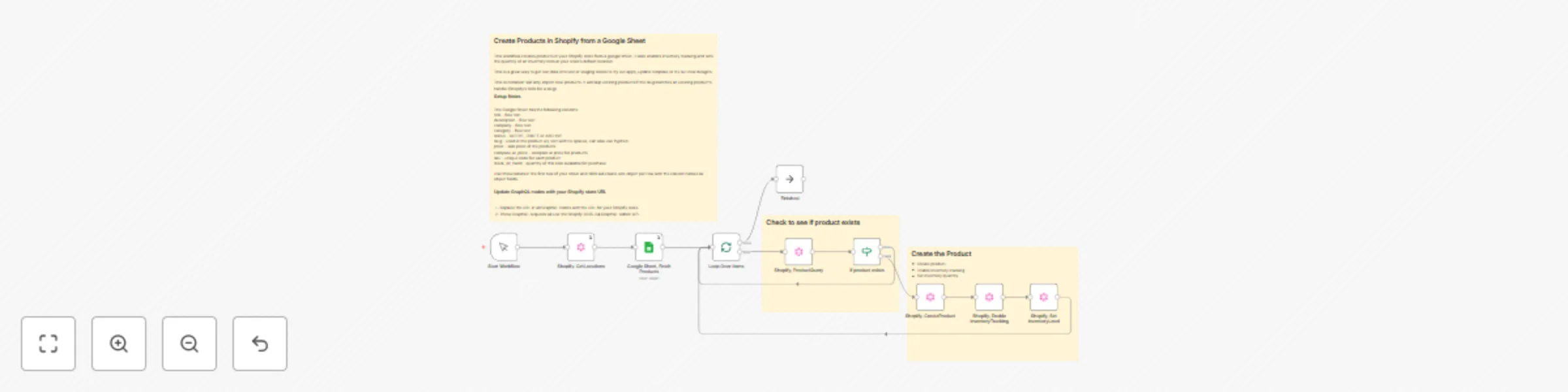
Create Products in Shopify from a Google Sheet This workflow creates products in your Shopify store from a google sheet. It also enables inventory tracking and sets the quantity of an inventory ite...
n8n-nodes-base.manualtrigger, n8n-nodes-base.googlesheets, n8n-nodes-base.graphql, n8n-nodes-base.if, n8n-nodes-base.splitinbatches, n8n-nodes-base.noop, n8n-nodes-base.stickynote
This workflow is cataloged by N8N Workflows and links back to its original n8n.io source page by Richard Uren.
Original n8n.io sourceThis workflow creates products in your Shopify store from a google sheet. It also enables inventory tracking and sets the quantity of an inventory item at your store's default location.
This is a great way to get test data into test or staging stores to try out apps, update templates or try out new designs.
This Automation will only import new products. It will skip existing products if the slug matches an existing product's handle (Shopify's term for a slug).
The Google Sheet has the following columns : title - free text description - free text company - free text category - free text status - ACTIVE, DRAFT or ARCHIVE slug - used in the product url, text with no spaces, can also use hyphen. price - sale price of the products compare_at_price - compare at price for products sku - unique code for each product stock_on_hand - quantity of this item available for purchase.
Use those labels in the first row of your sheet and N8N will create one object per row with the column names as object fields.
This flow is updated to use Airtable at Sync Products between Airtable and Shopify with Inventory Management
This catalog entry is organized from the workflow JSON. The node-level section below shows the executable blocks available for review before importing the template.
| Workflow | Bulk create Shopify products with inventory management from Google Sheets |
|---|---|
| Complexity | intermediate |
| Nodes | 13 |
| Categories | CRM |
| Author | Richard Uren |
| Published | 04 Jul 2025 |
Use the JSON export at /data/workflows/5664/5664.json as the source template for this automation.
Open n8n, import the downloaded JSON, and review each node before activating the workflow.
Replace placeholder credentials, API keys, webhook URLs, account IDs, and environment-specific values with your own settings.
Run the workflow manually or in a staging workspace, inspect node output, and confirm downstream systems receive the expected data.
Enable the workflow only after testing, then monitor executions, errors, and rate limits during the first production runs.
Review imported nodes carefully before activation. This catalog entry is intended to help you inspect the workflow structure, understand required services, and find related templates faster.
Node names, credentials, schedules, webhook paths, and external service limits may need adjustment for your workspace.
Create Products in Shopify from a Google Sheet This workflow creates products in your Shopify store from a google sheet. It also enables inventory tracking and sets the quantity of an inventory ite...
Review the workflow JSON, configure any required credentials in n8n, and test the automation in a safe workspace before using it in production.
Yes. Use the block-by-block analysis and the downloadable JSON to inspect each node, then adjust credentials, prompts, schedules, filters, or destinations for your CRM use case.