Build an employee training video knowledge base using the WayinVideo summaries API
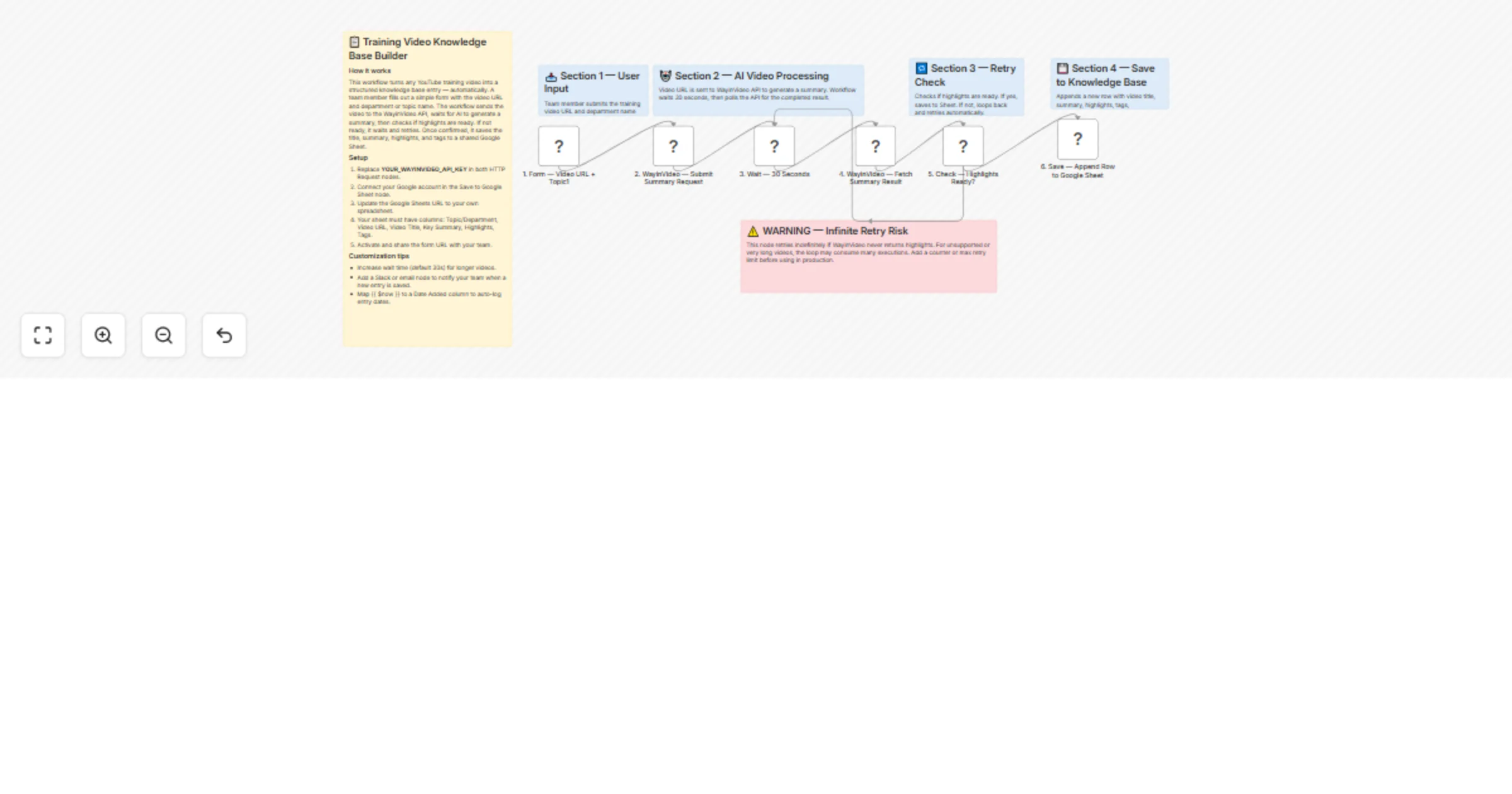
Workflow preview


 Early Deal
DISCOUNT 20%

Overview
Description
Paste any training video URL in the form — this n8n workflow automatically extracts AI-generated key summaries, highlights, and tags using WayinVideo, then saves everything directly into a shared Google Sheet knowledge base. No manual note-taking, no video scrubbing, no copy-paste. Just submit and done.
Built for HR teams, L&D managers, content teams, and agencies who want to turn training videos into searchable, structured knowledge — on autopilot.
What This Workflow Does
This automation handles your complete video-to-knowledge-base pipeline:
Form-triggered — Team member submits any YouTube training video URL + department name via a simple web form and the workflow starts instantly
AI summary generation — WayinVideo AI automatically extracts the key summary, highlights, and topic tags from the video
Smart polling loop — Waits and retries every 30 seconds until AI processing is fully complete
Auto-save to Google Sheets — Saves video title, key summary, highlights, tags, department, and original URL as a new row in your shared knowledge base sheet
Zero manual work — No editing, no copy-paste, no summarising. Just submit the URL and the knowledge base builds itself
Setup Requirements
Tools You'll Need:
- Active n8n instance (self-hosted or n8n Cloud)
- WayinVideo account with API access
- Google account with Google Sheets access
Estimated Setup Time: 10–15 minutes
Step-by-Step Setup
1. Get Your WayinVideo API Key
WayinVideo is the AI engine that extracts summaries and highlights from your training videos.
- Go to WayinVideo and create a free or paid account
- Navigate to Dashboard → API section
- Copy your Bearer API token
- Open the "2. WayinVideo — Submit Summary Request" node in n8n
- Replace
YOUR_WAYINVIDEO_API_KEYwith your actual token in the Authorization header - Do the same in the "4. WayinVideo — Fetch Summary Result" node — replace the same placeholder there too
> ⚠️ The API key appears in two places — Submit node and Fetch node. Replace both or the workflow will fail.
2. Connect Google Sheets
- In n8n: Go to Credentials → Add Credential → Google Sheets OAuth2 API
- Complete the Google OAuth authentication flow
- Open the "6. Save — Append Row to Google Sheet" node
- Select your Google Sheets credential
- Replace
YOUR_GOOGLE_SHEET_URLwith your actual Google Sheets URL
How to find your Google Sheet URL:
- Open Google Sheets in your browser
- Navigate to your target sheet
- Copy the full URL from the address bar (e.g.
https://docs.google.com/spreadsheets/d/YOUR_SHEET_ID/edit) - Paste it into the node
Required columns in your Google Sheet:
Your sheet must have exactly these column headers (copy-paste to avoid typos):
| Topic/Department | Video URL | Video Title | Key Summary | Highlights | Tags |
|---|
3. Activate the Workflow and Share the Form
- Toggle the workflow Active at the top of the editor ✅
- Click the "1. Form — Video URL + Topic" node
- Copy the Production Form URL
- Share this URL with your team — anyone on the team can now submit training videos directly
How It Works (Step by Step)
Step 1 — Web Form Trigger A team member opens the form, pastes a YouTube training video URL, and selects their Topic or Department. Clicking submit triggers the entire workflow instantly.
Step 2 — Submit Video to WayinVideo API
The workflow sends a POST request to the WayinVideo Summaries API (/api/v2/summaries) with the video URL. The API returns a Job ID which is used to track processing status.
Step 3 — Wait 30 Seconds The workflow pauses for 30 seconds to give WayinVideo time to start processing. This prevents hitting the API too early with an empty or incomplete response.
Step 4 — Poll for Summary Result
Using the Job ID from Step 2, the workflow calls:
GET /api/v2/summaries/results/{job_id}
to check if the AI summary is complete.
Step 5 — Highlights Ready? (Smart Retry Loop) The IF node checks whether the highlights array in the API response is non-empty:
- YES (highlights ready) → Moves forward to save the data to Google Sheets
- NO (still processing) → Loops back to "Wait 30 Seconds" and tries again automatically
> This smart retry loop runs automatically every 30 seconds until processing is complete. No manual retries needed.
Step 6 — Save to Google Sheet Once highlights are confirmed, the workflow appends a new row to your Google Sheet with:
- Video Title — AI-extracted from the video
- Key Summary — Full AI-generated summary
- Highlights — Numbered list of key moments and events
- Tags — Topic tags generated by AI
- Topic/Department — As entered in the form by the team member
- Video URL — Original URL submitted
Key Features
✅ Zero manual work — AI handles all summarising, highlight extraction, and tagging
✅ Smart polling loop — Auto-retries every 30s, no timeout issues, no manual re-runs
✅ Structured knowledge base — Every video becomes a searchable, organised row in Google Sheets
✅ Team-ready form — Share one URL with your whole team, no n8n access needed
✅ Department tagging — Filter and sort your knowledge base by team or topic
✅ AI-generated tags — Every entry is auto-tagged for easy search and categorisation
✅ Highlights as numbered list — Key moments saved in a clean, readable format
Customisation Options
Add a Date Added column:
Map {{ $now }} to a new "Date Added" column in the Google Sheets node to automatically log when each entry was created.
Send a Slack or email notification: Add a Slack or Gmail node after the Google Sheets node to notify your team that a new training video summary has been saved.
Increase wait time for longer videos:
Change the amount in the "3. Wait — 30 Seconds" node from 30 to 60 or 90 for longer videos that take more time to process.
Add more videos in bulk: Modify the form to accept multiple URLs and add a Split node to process each video in sequence automatically.
Export knowledge base to PDF weekly: Add a scheduled trigger to pull your Google Sheet data and generate a weekly PDF training digest using a PDF generation node.
Support
Need help setting this up or want a custom version built for your team or agency?
📧 Email: [email protected] 🌐 Website: https://isawow.com
> Pro Tip: Pin this workflow's Google Sheet link to your team Slack channel or Notion page so everyone can search the knowledge base instantly after any training session.