Build a self-updating RAG system with OpenAI, Google Gemini, Qdrant and Google Drive

Workflow preview

Workflow preview
100%
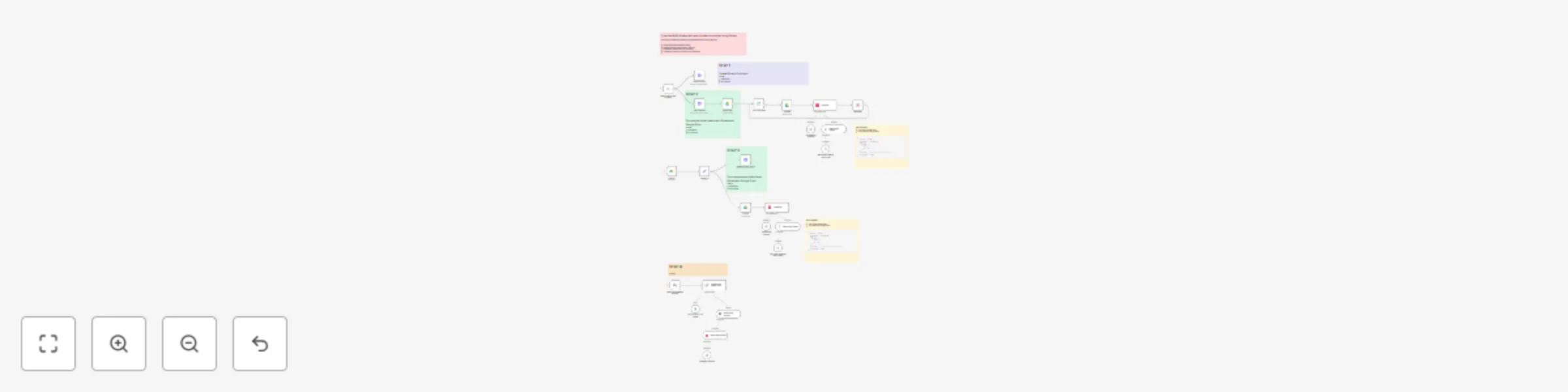
Build a self-updating RAG system with OpenAI, Google Gemini, Qdrant and Google Drive preview
Open on n8n.io

Important notice

This workflow is provided as-is. Please review and test before using in production.

1. Workflow Overview

This workflow implements a Retrieval Augmented Generation (RAG) system that integrates Google Drive and Qdrant . This setup creates a powerful, self updating knowledge base that provides accurate, ...

Best for

  • AI RAG automation workflows
  • Multimodal AI automation workflows
  • advanced n8n builders looking for reusable templates

Tools used

n8n-nodes-base.manualtrigger, @n8n/n8n-nodes-langchain.embeddingsopenai, @n8n/n8n-nodes-langchain.documentdefaultdataloader, n8n-nodes-base.httprequest, @n8n/n8n-nodes-langchain.textsplitterrecursivecharactertextsplitter, n8n-nodes-base.splitinbatches, n8n-nodes-base.set, n8n-nodes-base.googledrive

Source and attribution

This workflow is cataloged by N8N Workflows and links back to its original n8n.io source page by Davide.

Original n8n.io source

1.1 Workflow description

Title
Build a self-updating RAG system with OpenAI, Google Gemini, Qdrant and Google Drive
Workflow name
Build a self-updating RAG system with OpenAI, Google Gemini, Qdrant and Google Drive

This workflow implements a Retrieval-Augmented Generation (RAG) system that integrates Google Drive and Qdrant.

This setup creates a powerful, self-updating knowledge base that provides accurate, context-aware answers to user queries.


Key Advantages

  • Automated Knowledge Base Updates No manual intervention is required—documents in Google Drive are automatically synchronized with Qdrant.

  • Efficient Search and Retrieval Vector embeddings enable fast and precise retrieval of relevant information.

  • Scalable and Flexible Works with multiple documents and supports continuous growth of your dataset.

  • Seamless AI Integration Combines OpenAI embeddings for vectorization and Google Gemini for high-quality natural language answers.

  • Metadata-Enhanced Storage Each document stores metadata (file ID and name), making it easy to manage and track document versions.

  • End-to-End RAG Pipeline From document ingestion to AI-powered Q&A, everything is handled inside one n8n workflow.


How It Works

This workflow implements a Retrieval-Augmented Generation (RAG) system that automatically processes, stores, and retrieves document information for AI-powered question answering. Here’s how it functions:

  1. Document Processing & Vectorization:

    • The system monitors a specified Google Drive folder for new or updated files.
    • When a file is added or modified, it is downloaded and split into manageable chunks using a Recursive Character Text Splitter.
    • Each chunk is converted into vector embeddings using OpenAI's embedding model.
    • These vectors, along with metadata (file ID, file name), are stored in a Qdrant vector database.
  2. Automatic Updates:

    • The workflow includes a mechanism to delete old vectors associated with an updated file before inserting the new ones, ensuring the knowledge base remains current.
  3. Query Handling & Response Generation:

    • When a user sends a chat message (via a chat trigger), the system:
      • Retrieves the most relevant document chunks from Qdrant based on the query's semantic similarity.
      • Uses a Google Gemini language model to generate a context-aware answer grounded in the retrieved documents.
    • This provides accurate, source-based responses instead of relying solely on the AI's internal knowledge.
  4. Initial Setup & Maintenance:

    • The workflow can be triggered manually to create the Qdrant collection or clear all existing data.
    • It processes all existing files in the Drive folder during initial setup, populating the vector store.

Set Up Steps

To configure this workflow, follow these steps:

STEP 1: Create Qdrant Collection

  • Replace QDRANTURL in the "Create collection" and "Clear collection" nodes with your Qdrant instance URL (e.g., http://your-qdrant-host:6333).
  • Replace COLLECTION with your desired collection name.
  • Ensure the Qdrant API credentials are correctly set in the respective HTTP Request nodes.

STEP 2: Configure Google Drive Access

  • Set up OAuth credentials for Google Drive to allow the workflow to:
    • Read files from a specific folder .
    • Download files for processing.
  • Update the Folder ID in the "Search files" and "Update?" trigger nodes to point to your target Google Drive folder.

STEP 3: Set Up AI Models

  • Configure the OpenAI API credentials in the Embeddings nodes for generating text embeddings.
  • Configure the Google Gemini (PaLM) API credentials in the Google Gemini Chat Model node for generating answers.

STEP 4: Configure Metadata

  • The system automatically attaches metadata (file_id, file_name) to each document chunk. This is set in the Default Data Loader nodes.
  • This metadata is crucial for identifying the source of information and for the update mechanism.

STEP 5: Test the RAG System

  • The workflow includes a chat trigger ("When chat message received") for testing.
  • Send a query to test the retrieval and answer generation process.

Need help customizing?

Contact me for consulting and support or add me on Linkedin.

1.2 Logical Blocks

This catalog entry is organized from the workflow JSON. The node-level section below shows the executable blocks available for review before importing the template.

2. Block-by-Block Analysis

Block 1 - When clicking ‘Test workflow’

Type / Role
n8n-nodes-base.manualTrigger - manualTrigger
Config choices
Version 1

Block 2 - Embeddings OpenAI1

Type / Role
@n8n/n8n-nodes-langchain.embeddingsOpenAi - embeddingsOpenAi
Config choices
Version 1.1

Block 3 - Default Data Loader1

Type / Role
@n8n/n8n-nodes-langchain.documentDefaultDataLoader - documentDefaultDataLoader
Config choices
Version 1

Block 4 - Create collection

Type / Role
n8n-nodes-base.httpRequest - httpRequest
Config choices
Version 4.2

Block 5 - Recursive Character Text Splitter

Type / Role
@n8n/n8n-nodes-langchain.textSplitterRecursiveCharacterTextSplitter - textSplitterRecursiveCharacterTextSplitter
Config choices
Version 1

Block 6 - Loop Over Items

Type / Role
n8n-nodes-base.splitInBatches - splitInBatches
Config choices
Version 3

Block 7 - Embeddings OpenAI2

Type / Role
@n8n/n8n-nodes-langchain.embeddingsOpenAi - embeddingsOpenAi
Config choices
Version 1.1

Block 8 - Default Data Loader

Type / Role
@n8n/n8n-nodes-langchain.documentDefaultDataLoader - documentDefaultDataLoader
Config choices
Version 1

Block 9 - Recursive Character Text Splitter1

Type / Role
@n8n/n8n-nodes-langchain.textSplitterRecursiveCharacterTextSplitter - textSplitterRecursiveCharacterTextSplitter
Config choices
Version 1

Block 10 - Set file_id

Type / Role
n8n-nodes-base.set - set
Config choices
Version 3.4

Block 11 - Clear collection

Type / Role
n8n-nodes-base.httpRequest - httpRequest
Config choices
Version 4.2

Block 12 - Delete points by file_id

Type / Role
n8n-nodes-base.httpRequest - httpRequest
Config choices
Version 4.2

Block 13 - Search files

Type / Role
n8n-nodes-base.googleDrive - googleDrive
Config choices
Version 3

Block 14 - Wait 5 sec.

Type / Role
n8n-nodes-base.wait - wait
Config choices
Version 1.1

Block 15 - Update file

Type / Role
@n8n/n8n-nodes-langchain.vectorStoreQdrant - vectorStoreQdrant
Config choices
Version 1

Block 16 - Insert file

Type / Role
@n8n/n8n-nodes-langchain.vectorStoreQdrant - vectorStoreQdrant
Config choices
Version 1

Block 17 - Get file

Type / Role
n8n-nodes-base.googleDrive - googleDrive
Config choices
Version 3

Block 18 - Get files

Type / Role
n8n-nodes-base.googleDrive - googleDrive
Config choices
Version 3

Block 19 - Sticky Note2

Type / Role
n8n-nodes-base.stickyNote - stickyNote
Config choices
Version 1

Block 20 - When chat message received

Type / Role
@n8n/n8n-nodes-langchain.chatTrigger - chatTrigger
Config choices
Version 1.1

Block 21 - Question and Answer Chain

Type / Role
@n8n/n8n-nodes-langchain.chainRetrievalQa - chainRetrievalQa
Config choices
Version 1.5

Block 22 - Google Gemini Chat Model

Type / Role
@n8n/n8n-nodes-langchain.lmChatGoogleGemini - lmChatGoogleGemini
Config choices
Version 1

Block 23 - Vector Store Retriever

Type / Role
@n8n/n8n-nodes-langchain.retrieverVectorStore - retrieverVectorStore
Config choices
Version 1

Block 24 - Qdrant Vector Store1

Type / Role
@n8n/n8n-nodes-langchain.vectorStoreQdrant - vectorStoreQdrant
Config choices
Version 1.1

Showing the first 24 of 32 workflow blocks. Download the JSON for the full node graph.

3. Summary Table

Workflow Build a self-updating RAG system with OpenAI, Google Gemini, Qdrant and Google Drive
Complexity advanced
Nodes 32
Categories AI RAG, Multimodal AI
Author Davide
Published 20 Aug 2025

4. Reproducing the Workflow from Scratch

  1. 1. Download the workflow JSON

    Use the JSON export at /data/workflows/7647/7647.json as the source template for this automation.

  2. 2. Import the template into n8n

    Open n8n, import the downloaded JSON, and review each node before activating the workflow.

  3. 3. Configure credentials and variables

    Replace placeholder credentials, API keys, webhook URLs, account IDs, and environment-specific values with your own settings.

  4. 4. Test with sample data

    Run the workflow manually or in a staging workspace, inspect node output, and confirm downstream systems receive the expected data.

  5. 5. Activate and monitor

    Enable the workflow only after testing, then monitor executions, errors, and rate limits during the first production runs.

5. General Notes & Resources

Review imported nodes carefully before activation. This catalog entry is intended to help you inspect the workflow structure, understand required services, and find related templates faster.

Node names, credentials, schedules, webhook paths, and external service limits may need adjustment for your workspace.

Frequently asked questions

What does Build a self-updating RAG system with OpenAI, Google Gemini, Qdrant and Google Drive do?

This workflow implements a Retrieval Augmented Generation (RAG) system that integrates Google Drive and Qdrant . This setup creates a powerful, self updating knowledge base that provides accurate, ...

What do I need before importing this workflow?

Review the workflow JSON, configure any required credentials in n8n, and test the automation in a safe workspace before using it in production.

Can I customize this workflow?

Yes. Use the block-by-block analysis and the downloadable JSON to inspect each node, then adjust credentials, prompts, schedules, filters, or destinations for your AI RAG, Multimodal AI use case.