Batch upload Instagram Reels to YouTube with scheduled delays

Workflow preview

Workflow preview
100%
Batch upload Instagram Reels to YouTube with scheduled delays preview
Open on n8n.io

1. Workflow Overview

Automatically upload your Instagram videos to YouTube with configurable time gaps between each upload, using n8n Tables for deduplication. How it works 1. Fetches recent Instagram posts via the Met...

Best for

  • Social Media automation workflows
  • Multimodal AI automation workflows
  • advanced n8n builders looking for reusable templates

Tools used

n8n-nodes-base.scheduletrigger, n8n-nodes-base.set, n8n-nodes-base.httprequest, n8n-nodes-base.splitout, n8n-nodes-base.filter, n8n-nodes-base.splitinbatches, n8n-nodes-base.datatable, n8n-nodes-base.if

Source and attribution

This workflow is cataloged by N8N Workflows and links back to its original n8n.io source page by Lucio.

Original n8n.io source

1.1 Workflow description

Title
Batch upload Instagram Reels to YouTube with scheduled delays
Workflow name
Batch upload Instagram Reels to YouTube with scheduled delays

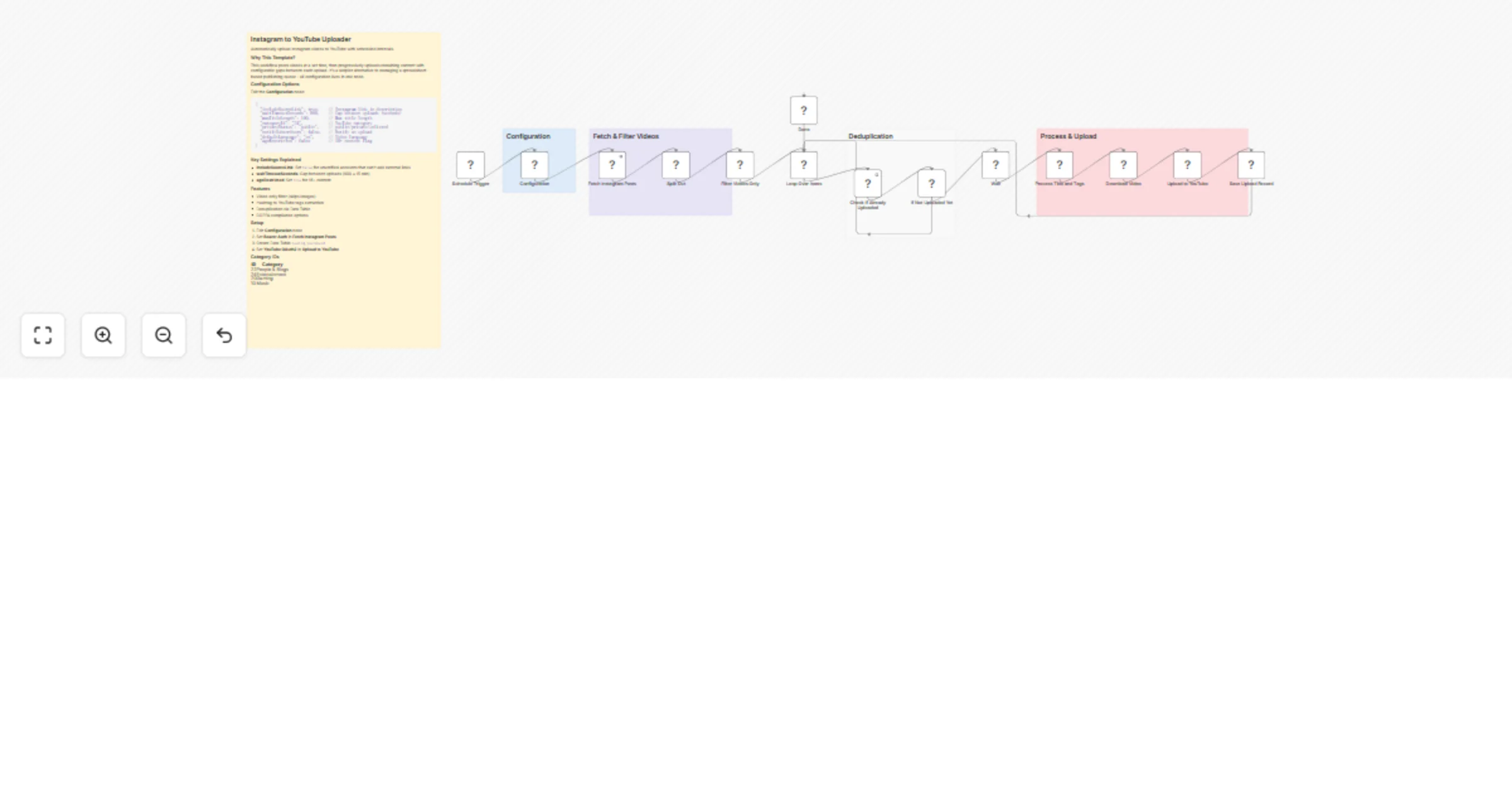
Automatically upload your Instagram videos to YouTube with configurable time gaps between each upload, using n8n Tables for deduplication.


How it works

  1. Fetches recent Instagram posts via the Meta Graph API and filters to only video content (VIDEO/REELS)
  2. Checks each video against an n8n Table to skip already-uploaded content
  3. Waits a configurable delay between uploads to space out your publishing schedule
  4. Processes metadata - extracts title from caption, converts hashtags to YouTube tags
  5. Uploads to YouTube with your configured privacy, category, and safety settings
  6. Records the upload in the n8n Table to prevent duplicates on future runs

Set up steps

Time estimate: 10-15 minutes

  1. Create an n8n Table with two text fields: postId and youtubeId
  2. Connect your Instagram credentials (Meta Developer Bearer Token)
  3. Connect your YouTube OAuth2 account
  4. Edit the Configuration node to set your preferred upload delay, privacy status, and category
  5. Activate the workflow

Detailed setup instructions and configuration options are documented in the sticky notes inside the workflow.


Required n8n Table

Field Type Purpose
postId String Stores the Instagram post ID to prevent re-uploading
youtubeId String Stores the resulting YouTube video ID for reference

How to create:

  1. Go to n8n Tables in your n8n instance
  2. Create a new table named "Instagram To YouTube"
  3. Add two columns: postId (text) and youtubeId (text)
  4. Select this table in both the "Check If Already Uploaded" and "Save Upload Record" nodes

Configuration Options

Edit the Configuration node to customize:

{
 "includeSourceLink": true, // Include Instagram link in description
 "waitTimeoutSeconds": 900, // Delay between uploads (900 = 15 min)
 "maxTitleLength": 100, // Maximum YouTube title length
 "categoryId": "24", // YouTube category (24 = Entertainment)
 "privacyStatus": "public", // public, private, or unlisted
 "notifySubscribers": false, // Send notifications to subscribers
 "defaultLanguage": "en", // Video language code
 "ageRestricted": false // Mark as 18+ content
}

Key Settings Explained

Setting Default Description
includeSourceLink true Set to false if your YouTube account can't add external links (unverified accounts)
waitTimeoutSeconds 900 Gap between uploads in seconds. 900 = 15 minutes, 3600 = 1 hour
ageRestricted false Set to true if your content is for mature audiences (18+)
notifySubscribers false Set to true to notify subscribers on each upload

Requirements

  • n8n version: 1.0+
  • Instagram: Meta Developer account with Graph API access and Bearer Token
  • YouTube: Google Cloud project with YouTube Data API v3 enabled and OAuth2 credentials

Features

  • Filters to VIDEO and REELS only (skips images)
  • Smart title extraction from captions
  • Hashtag to YouTube tags conversion
  • Deduplication via n8n Tables
  • COPPA compliance options (madeForKids settings)
  • Configurable upload delays for drip-feeding content

Category IDs Reference

ID Category
1 Film & Animation
10 Music
17 Sports
20 Gaming
22 People & Blogs
23 Comedy
24 Entertainment
25 News & Politics
27 Education
28 Science & Technology

1.2 Logical Blocks

This catalog entry is organized from the workflow JSON. The node-level section below shows the executable blocks available for review before importing the template.

2. Block-by-Block Analysis

Block 1 - Schedule Trigger

Type / Role
n8n-nodes-base.scheduleTrigger - scheduleTrigger
Config choices
Version 1.2

Block 2 - Configuration

Type / Role
n8n-nodes-base.set - set
Config choices
Version 3.4

Block 3 - Fetch Instagram Posts

Type / Role
n8n-nodes-base.httpRequest - httpRequest
Config choices
Version 4.2

Block 4 - Split Out

Type / Role
n8n-nodes-base.splitOut - splitOut
Config choices
Version 1

Block 5 - Filter Videos Only

Type / Role
n8n-nodes-base.filter - filter
Config choices
Version 2.2

Block 6 - Loop Over Items

Type / Role
n8n-nodes-base.splitInBatches - splitInBatches
Config choices
Version 3

Block 7 - Check If Already Uploaded

Type / Role
n8n-nodes-base.dataTable - dataTable
Config choices
Version 1

Block 8 - If Not Uploaded Yet

Type / Role
n8n-nodes-base.if - if
Config choices
Version 2.2

Block 9 - Wait

Type / Role
n8n-nodes-base.wait - wait
Config choices
Version 1.1

Block 10 - Process Title and Tags

Type / Role
n8n-nodes-base.code - code
Config choices
Version 2

Block 11 - Download Video

Type / Role
n8n-nodes-base.httpRequest - httpRequest
Config choices
Version 4.3

Block 12 - Upload to YouTube

Type / Role
n8n-nodes-base.youTube - youTube
Config choices
Version 1

Block 13 - Save Upload Record

Type / Role
n8n-nodes-base.dataTable - dataTable
Config choices
Version 1

Block 14 - Done

Type / Role
n8n-nodes-base.set - set
Config choices
Version 3.4

Block 15 - Sticky Note - Instructions

Type / Role
n8n-nodes-base.stickyNote - stickyNote
Config choices
Version 1

Block 16 - Sticky Note - Config

Type / Role
n8n-nodes-base.stickyNote - stickyNote
Config choices
Version 1

Block 17 - Sticky Note - Fetch

Type / Role
n8n-nodes-base.stickyNote - stickyNote
Config choices
Version 1

Block 18 - Sticky Note - Check

Type / Role
n8n-nodes-base.stickyNote - stickyNote
Config choices
Version 1

Block 19 - Sticky Note - Upload

Type / Role
n8n-nodes-base.stickyNote - stickyNote
Config choices
Version 1

3. Summary Table

Workflow Batch upload Instagram Reels to YouTube with scheduled delays
Complexity advanced
Nodes 19
Categories Social Media, Multimodal AI
Author Lucio
Published 17 Jan 2026

4. Reproducing the Workflow from Scratch

  1. 1. Download the workflow JSON

    Use the JSON export at /data/workflows/12773/12773.json as the source template for this automation.

  2. 2. Import the template into n8n

    Open n8n, import the downloaded JSON, and review each node before activating the workflow.

  3. 3. Configure credentials and variables

    Replace placeholder credentials, API keys, webhook URLs, account IDs, and environment-specific values with your own settings.

  4. 4. Test with sample data

    Run the workflow manually or in a staging workspace, inspect node output, and confirm downstream systems receive the expected data.

  5. 5. Activate and monitor

    Enable the workflow only after testing, then monitor executions, errors, and rate limits during the first production runs.

5. General Notes & Resources

Review imported nodes carefully before activation. This catalog entry is intended to help you inspect the workflow structure, understand required services, and find related templates faster.

Node names, credentials, schedules, webhook paths, and external service limits may need adjustment for your workspace.

Frequently asked questions

What does Batch upload Instagram Reels to YouTube with scheduled delays do?

Automatically upload your Instagram videos to YouTube with configurable time gaps between each upload, using n8n Tables for deduplication. How it works 1. Fetches recent Instagram posts via the Met...

What do I need before importing this workflow?

Review the workflow JSON, configure any required credentials in n8n, and test the automation in a safe workspace before using it in production.

Can I customize this workflow?

Yes. Use the block-by-block analysis and the downloadable JSON to inspect each node, then adjust credentials, prompts, schedules, filters, or destinations for your Social Media, Multimodal AI use case.