Block 1 - Parameters
- Type / Role
- n8n-nodes-base.set - set
- Config choices
- Version 3.4


 Early Deal
This workflow is provided as-is. Please review and test before using in production.
This workflow automates the backup of your n8n workflows data to Google Drive every day. It ensures that important configurations and execution logs are securely stored, reducing the risk of data l...
n8n-nodes-base.set, n8n-nodes-base.scheduletrigger, n8n-nodes-base.stickynote, n8n-nodes-base.code, n8n-nodes-base.n8n, n8n-nodes-base.googledrive
This workflow is cataloged by N8N Workflows and links back to its original n8n.io source page by phil.
Original n8n.io sourceThis workflow automates the backup of your n8n workflows data to Google Drive every day.
It ensures that important configurations and execution logs are securely stored, reducing the risk of data loss and improving workflow resilience.
✅ Automates routine backups effortlessly. ✅ Reduces manual intervention and potential data loss. ✅ Securely stores critical workflow configurations in Google Drive.
With this workflow, you can focus on innovation while n8n takes care of your backups. 🔐✨
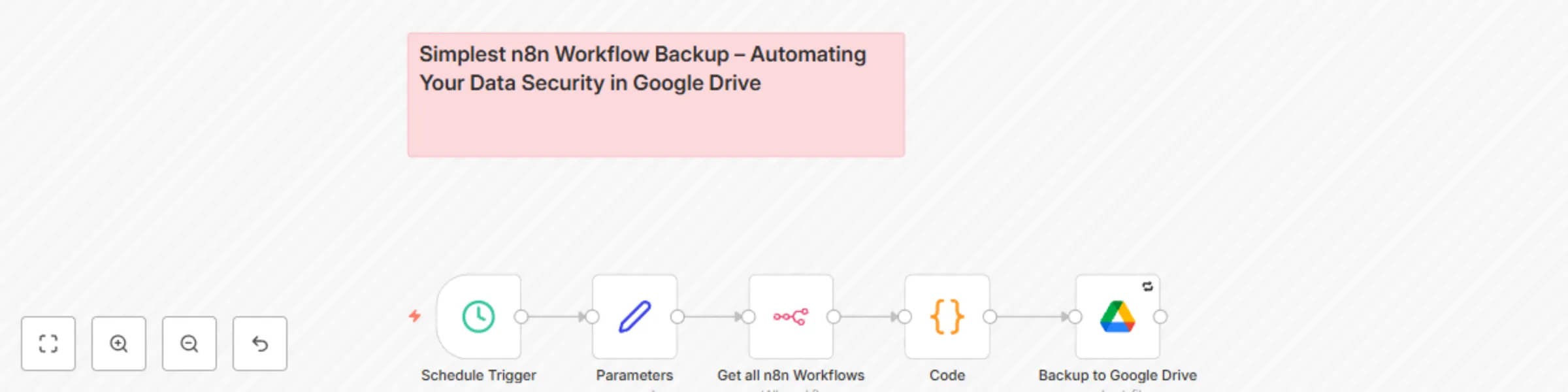
This workflow operates seamlessly with a combination of scheduled triggers, JSON data transformation, and secure cloud storage.
🛠 Setup Steps 1. Trigger the backup – Choose between manual execution or automated scheduling at 1:30 AM daily. 2. Data preparation – Your workflow parameters define the backup location and organize files effectively. 3. Transformation & Encoding – The data is processed and converted into a JSON file in base64 format. 4. Cloud Storage – The backup is securely uploaded to your designated Google Drive folder.
You can modify various aspects of the backup workflow to better suit your needs:
1️⃣ Adjusting Backup Frequency
By default, the workflow runs daily at 1:30 AM. To change this:
Open the Trigger Node in n8n.
Modify the Cron Expression or select a different frequency (e.g., hourly, weekly, or custom intervals).
2️⃣ Selecting Specific Workflows to Backup
Instead of backing up all workflows, you can filter which ones to include:
Add a Filter Node before exporting data.
Define specific workflow IDs or names to include in the backup.
3️⃣ Changing the Backup Destination
The default destination is Google Drive, but you can change this:
Replace the Google Drive Node with a different storage provider (e.g., Dropbox, AWS S3, or local storage via FTP/SFTP).
Configure authentication for the new destination.
4️⃣ Modifying Data Format
By default, the workflow stores data in JSON format. If you need a different format:
Convert JSON to CSV using the Spreadsheet File Node.
Store backups in a compressed format (ZIP) by adding a Compression Node.
5️⃣ Encrypting the Backup for Extra Security
For added protection:
Use the Crypto Node to encrypt the JSON file before uploading.
Set up an Access-Controlled Folder in Google Drive with limited permissions.
Before relying on this workflow for your automated backups, make sure it works correctly by performing a quick test: 1. Manually trigger the workflow in n8n and check if the backup file appears in your Google Drive. 2. Open Google Drive, navigate to the backup folder, and download the JSON file. 3. Verify its content by checking if the data matches your workflow’s execution logs. 4. Try to import the JSON file back into n8n using the “Import File” function to ensure the workflow structure is intact. 5. Alternatively, copy and paste a test file into Google Drive and confirm that it appears correctly in your workflow logs.
This quick test will confirm that your backup is running smoothly and that your data is retrievable whenever needed.
To ensure that the backup is uploaded to the correct folder, you need to retrieve your Google Drive Directory ID. Follow these simple steps:
Example: 📌 If your folder URL is:
https://drive.google.com/drive/folders/14oUlH_LW_NT0Xb2woZWvuzRncV-bhla Then, your Directory ID is:
14oUlH_LW_NT0Xb2woZWvuzRncV-bhla Copy this Directory ID and use it in the workflow's parameters to ensure the backup is saved in the correct location.
.
🇫🇷 Contactez nous pour automatiser vos processus
This catalog entry is organized from the workflow JSON. The node-level section below shows the executable blocks available for review before importing the template.
| Workflow | Backup n8n workflows to Google Drive |
|---|---|
| Complexity | intermediate |
| Nodes | 6 |
| Categories | DevOps |
| Author | phil |
| Published | 09 Mar 2025 |
Use the JSON export at /data/workflows/3112/3112.json as the source template for this automation.
Open n8n, import the downloaded JSON, and review each node before activating the workflow.
Replace placeholder credentials, API keys, webhook URLs, account IDs, and environment-specific values with your own settings.
Run the workflow manually or in a staging workspace, inspect node output, and confirm downstream systems receive the expected data.
Enable the workflow only after testing, then monitor executions, errors, and rate limits during the first production runs.
Review imported nodes carefully before activation. This catalog entry is intended to help you inspect the workflow structure, understand required services, and find related templates faster.
Node names, credentials, schedules, webhook paths, and external service limits may need adjustment for your workspace.
This workflow automates the backup of your n8n workflows data to Google Drive every day. It ensures that important configurations and execution logs are securely stored, reducing the risk of data l...
Review the workflow JSON, configure any required credentials in n8n, and test the automation in a safe workspace before using it in production.
Yes. Use the block-by-block analysis and the downloadable JSON to inspect each node, then adjust credentials, prompts, schedules, filters, or destinations for your DevOps use case.