P

phil

14
Workflows

Workflows by phil

Workflow preview: Scrape hotel listings with prices from Booking.com using Brightdata & AI
Free advanced

Scrape hotel listings with prices from Booking.com using Brightdata & AI

This workflow automates the search and extraction of hotel data from **Booking.com**. Triggered by a chat message, it uses a combination of web scraping with **[Bright Data's](https://get.brightdata.com/unstoppable)** Web Scraper and AI-powered data processing with **OpenRouter** to deliver a concise, human-friendly list of hotels. The final output is a clean and formatted report, making it a valuable tool for travelers, event planners, and business professionals who need to quickly find accommodation options. --- ## Who's it for This template is ideal for: - **Event Planners:** Quickly identify and compare hotel options for conferences, meetings, or group travel. - **Travel Agents:** Efficiently research and provide clients with a curated list of accommodations based on their specified destination. - **Business Travelers:** Instantly find and assess hotel availability and pricing for upcoming trips. - **Individuals:** Streamline the hotel search process for personal vacations or short-term stays. --- ## How it works 1. The workflow is triggered by a chat message containing a city name from an n8n chat application. 2. It uses Bright Data to initiate a web scraping job on Booking.com for the specified city. 3. The workflow continuously checks the status of the scraping job. Once the data is ready, it downloads the snapshot. 4. The extracted data is then passed to a custom AI agent powered by OpenRouter. 5. This AI agent uses a calculator tool to convert prices and an instruction prompt to refine and format the raw data. 6. The final output is a well-presented list of hotels, ready for display in the chat application. --- ## How to set up 1. **Bright Data Credentials:** Sign up for a Bright Data account and create a Web Scraper dataset. In n8n, create new [Bright Data API credentials](https://get.brightdata.com/unstoppable) and copy your API key. 2. **OpenRouter Credentials:** Create an account on OpenRouter and get your API key. In n8n, create new OpenRouter API credentials and paste your key. 3. **Chat Trigger Node:** Configure the "When chat message received" node. Copy the production webhook URL to integrate with your preferred chat platform. --- ## Requirements - An active n8n instance. - A [Bright Data](https://get.brightdata.com/unstoppable) account with a Web Scraper dataset. - An OpenRouter account with API access. --- ## How to customize this workflow - **Search Parameters:** The "Initiate batch extraction from URL" node can be modified to change search criteria, such as check-in/check-out dates, number of adults and children, or property type. - **Output Format:** Edit the "Human Friendly Results" node's system message to change the format of the final report. You can modify the prompt to generate a JSON object, a CSV, or a different text format. - **Price Conversion:** The "Calculator" tool can be adjusted to perform different mathematical operations or currency conversions by modifying the AI agent's prompt. . --- [Phil | Inforeole](https://inforeole.fr) | [Linkedin](https://www.linkedin.com/in/philippe-eveilleau-inforeole/) 🇫🇷 Contactez nous pour automatiser vos processus

p
phil
Market Research
22 Sep 2025
644
0
Workflow preview: Create custom ASMR sound effects with ElevenLabs API and Google Drive
Free intermediate

Create custom ASMR sound effects with ElevenLabs API and Google Drive

Generate **royalty-free** sound effects for all your projects: **ASMR**, YouTube videos, podcasts, and more. This workflow generates unique AI-powered **sound effects** using the [ElevenLabs Sound Effects API](https://try.elevenlabs.io/sound-fx). Enter a text description of the sound you envision, and the workflow will generate it, save the **MP3** file to your Google Drive, and instantly provide a link to listen to your creation. It is a powerful tool for quickly producing unique ASMR triggers, ambient sounds, or specific audio textures without any complex software. ## Who's it for This template is ideal for: - **Content Creators**: Generate royalty-free sound effects for videos, podcasts, and games on the fly. - **Sound Designers & Foley Artists**: Quickly prototype and generate specific audio clips for projects from a simple text prompt. - **Developers & Hobbyists**: Integrate AI sound effect generation into projects or simply experiment with the capabilities of the ElevenLabs API. ## How to set up 1. **Configure API Key**: - Sign up for an [ElevenLabs account](https://try.elevenlabs.io/sound-fx) and get your API key. - In the "ElevenLabs API" node, create new credentials and add your ElevenLabs API key. 2. **Connect Google Drive**: - Select the "Upload mp3" node. - Create new credentials to connect your Google Drive account. 3. **Activate the Workflow**: - Save and activate the workflow. - Use the Form Trigger's production URL to access the AI ASMR Sound Generator web form. ## Requirements - An active n8n instance. - An [ElevenLabs account](https://try.elevenlabs.io/sound-fx) for the API key. - A Google Drive account. ## How to customize this workflow - **Change Storage**: Replace the Google Drive node with another storage service node like Dropbox, AWS S3, or an FTP server to save your sound effects elsewhere. - **Modify Sound Parameters**: In the "elevenlabs_api" node, you can adjust the JSON body to control the output. Key parameters include: - `loop` (boolean, optional, default: `false`): Creates a sound effect that loops smoothly. Note: Only available for the ‘eleven_text_to_sound_v2’ model. - `duration_seconds` (number, optional, default: auto): Sets the sound's duration in seconds (from 0.5 to 30). If not set, the AI guesses the optimal duration from the prompt. - `prompt_influence` (number, optional, default: `0.3`): A value between 0 and 1 that controls how strictly the generation follows the prompt. Higher values result in less variation. - **Customize Confirmation Page**: Edit the "prepare reponse" node to change the design and text of the final page shown to the user. . --- [Phil | Inforeole](https://inforeole.fr) | [Linkedin](https://www.linkedin.com/in/philippe-eveilleau-inforeole/) 🇫🇷 Contactez nous pour automatiser vos processus

p
phil
Content Creation
10 Sep 2025
142
0
Workflow preview: Generate B2B lead opportunities from websites with Brightdata & OpenRouter AI
Free advanced

Generate B2B lead opportunities from websites with Brightdata & OpenRouter AI

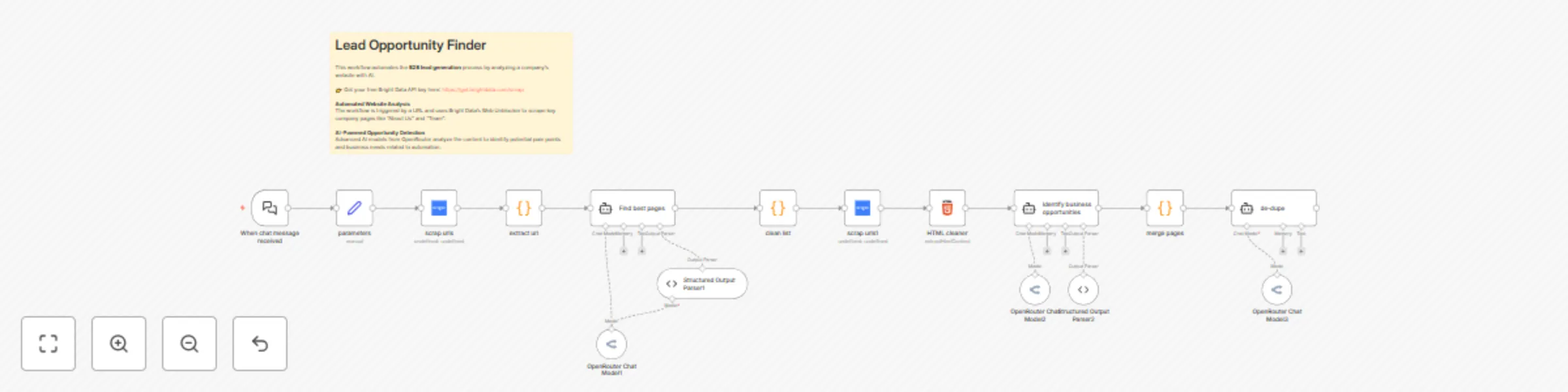
This workflow is designed for B2B professionals to automatically identify and summarize **business opportunities** from a company's website. By leveraging **[Bright Data's](https://get.brightdata.com/unstoppable)** Web Unblocker and advanced AI models from OpenRouter, it scrapes relevant company pages ("About Us", "Team", "Contact"), analyzes the content for potential pain points and needs, and synthesizes a concise, actionable report. The final output is formatted for direct use in documents, making it an ideal tool for sales, marketing, and business development teams to prepare for prospecting calls or personalize outreach. --- ## Who's it for This template is ideal for: - **B2B Sales Teams:** Quickly find and qualify leads by identifying specific business needs before a cold call. - **Marketing Agencies:** Develop personalized content and value propositions based on a prospect's public website information. - **Business Development Professionals:** Efficiently research potential partners or clients and discover collaboration opportunities. - **Entrepreneurs:** Gain a competitive edge by understanding a competitor's strategy or a potential client's operations. --- ## How it works 1. The workflow is triggered by a chat message, typically a URL from an n8n chat application. 2. It uses Bright Data to scrape the website's sitemap and extract all anchor links from the homepage. 3. An AI agent analyzes the extracted URLs to filter for pages relevant to company information (e.g., "about-us," "team," "contact"). 4. The workflow then scrapes the content of these specific pages. 5. A second AI agent summarizes the content of each page, looking for business opportunities related to AI-powered automation. 6. The summaries are merged and a final AI agent synthesizes them into a single, cohesive report, formatted for easy reading in a Google Doc. --- ## How to set up 1. **Bright Data Credentials:** Sign up for a Bright Data account and create a Web Unblocker zone. In n8n, create new [Bright Data API credentials](https://get.brightdata.com/unstoppable) and copy your API key. 2. **OpenRouter Credentials:** Create an account on OpenRouter and get your API key. In n8n, create new OpenRouter API credentials and paste your key. 3. **Chat Trigger Node:** Configure the "When chat message received" node. Copy the production webhook URL to integrate with your preferred chat platform. --- ## Requirements - An active n8n instance. - A [Bright Data](https://get.brightdata.com/unstoppable) account with a Web Unblocker zone. - An OpenRouter account with API access. --- ## How to customize this workflow - **AI Prompting:** Edit the "systemMessage" parameters in the "AI Agent", "AI Agent1", and "AI Agent2" nodes to change the focus of the opportunity analysis. For example, modify the prompts to search for specific technologies, industry jargon, or different types of business challenges. - **Model Selection:** The workflow uses `openai/o4-mini` and `openai/gpt-5`. You can change these to other models available on OpenRouter by editing the `model` parameter in the OpenRouter Chat Model nodes. - **Scraping Logic:** The `extract url` node uses a regular expression to find `<a>` tags. This can be modified or replaced with an HTML Extraction node to target different elements or content on a website. - **Output Format:** The final output is designed for Google Docs. You can modify the last "AI Agent2" node's prompt to generate the output in a different format, such as a simple JSON object or a markdown list. --- [Phil | Inforeole](https://inforeole.fr) 🇫🇷 Contactez nous pour automatiser vos processus

p
phil
Lead Generation
31 Aug 2025
442
0
Workflow preview: Create data-driven SEO content briefs with AI analysis of SERP data using Bright Data
Free advanced

Create data-driven SEO content briefs with AI analysis of SERP data using Bright Data

This workflow is your all-in-one **AI Content Strategist**, designed to generate comprehensive, data-driven **content briefs** by analyzing top-ranking competitors. It operates through a simple **chat interface**. You provide a target **keyword**, and the workflow automates the entire research process. First, it scrapes the **top 10 Google search results** using the powerful **[Bright Data SERP API](https://get.brightdata.com/unstoppable)**. Then, for each of those results, it performs a deep dive, using the **Bright Data Web Unblocker** to reliably extract the full content from each page, bypassing any **anti-bot measures**. Finally, all the gathered data—titles, headings, word counts, and page summaries—is synthesized by a **Large Language Model (LLM)** to produce a **strategic content plan**. This plan identifies **search intent**, **core topics**, and crucial **content gaps**, giving you a clear roadmap to **outrank the competition**. This template is indispensable for **SEO specialists**, **content marketers**, and **digital agencies** looking to scale their content production with strategies that are proven to work. --- ## Why Use This AI Content Strategist Workflow ? * **Data-Driven Insights**: Base your content strategy on what is actually ranking on **Google**, not guesswork. * **Automated Competitive Analysis**: Instantly understand the structure, length, and key themes of the **top-performing articles** for any keyword. * **Strategic Gap Detection**: The **AI analysis** highlights poorly covered topics and **missed opportunities**, allowing you to create content that provides **unique value**. * **Massive Time Savings**: Condenses hours of **manual research** into a fully automated process that runs in minutes. --- ## How It Works 1. **Chat Interaction Begins**: The workflow is initiated via a **chat UI**. The user enters a target **keyword** to start the analysis. 2. **Google SERP Scraping (Bright Data)**: The "**Google SERP**" node uses **Bright Data's SERP API** to fetch the **top 10 organic results**, providing the URLs for the next stage. 3. **Individual Page Scraping (Bright Data)**: The workflow loops through each URL. The "**Access and extract data**" node uses the **Bright Data Web Unblocker** to ensure **successful and complete HTML scraping** of every competitor's page. 4. **Content Extraction & Aggregation**: A series of `Code` nodes **clean the raw HTML** and **extract structured data** (title, meta description, headings, word count). The `Aggregate` node then **compiles the data** from all 10 pages into a single dataset. 5. **AI Synthesis (OpenRouter)**: The "**Analysis**" node sends the entire compiled dataset to an **LLM** via **OpenRouter**. The **AI** performs a **holistic analysis** to identify **search intent**, **must-cover topics**, and **differentiation opportunities**. 6. **Strategic Brief Generation**: The "**Format Output**" node takes the AI's structured **JSON analysis** and transforms it into a clean, human-readable **Markdown report**, which is then delivered back to the user in the chat interface. --- ## 🔑 Prerequisites To use this workflow, you will need active accounts with both **[Bright Data](https://get.brightdata.com/unstoppable)** (for web scraping) and **OpenRouter** (for AI model access). ### Setting Up Your Credentials: 1. **Bright Data Account**: * Sign up for a free trial account on their [website](https://get.brightdata.com/unstoppable). * Inside your Bright Data dashboard, you will need to activate both the **SERP API** and the **Web Unblocker** products to create the necessary Zones. * In n8n, navigate to the **Credentials** section, add a new "**Brightdata API**" credential, and enter your API key. * In the workflow, select your newly created credential in both the "**Google SERP**" node and the "**Access and extract data from a specific URL**" node. 2. **OpenRouter Account**: * Sign up for an account at [OpenRouter.ai](https://openrouter.ai/). * Navigate to your account settings to find your **API Key**. * In n8n, go to **Credentials**, add a new "**OpenRouter API**" credential, and paste your key. * In the workflow, select this credential in all three "**OpenRouter Chat Model**" nodes. --- [Phil | Inforeole](https://inforeole.fr) 🇫🇷 Contactez nous pour automatiser vos processus

p
phil
Market Research
30 Aug 2025
468
0
Workflow preview: Generate AI music with the ElevenLabs API and upload to Google Drive
Free intermediate

Generate AI music with the ElevenLabs API and upload to Google Drive

This generate unique AI-powered **music** tracks using the [ElevenLabs Music API](https://try.elevenlabs.io/api-music). Enter a text description of the music you envision, and the workflow will compose it, save the **MP3** file to your Google Drive, and instantly provide a link to listen to your creation. It is a powerful tool for quickly producing background music, soundscapes, or musical ideas without any complex software. ## Who's it for This template is ideal for: - Content Creators: Generate royalty-free background music for videos, podcasts, and streams on the fly. - Musicians & Producers: Quickly brainstorm musical themes and ideas from a simple text prompt. - Developers & Hobbyists: Integrate AI music generation into projects or simply experiment with the capabilities of the ElevenLabs API. ## How to set up 1. Configure API Key: - Sign up for an [ElevenLabs account](https://try.elevenlabs.io/api-music) and get your API key. - In the "API Key" node, replace the placeholder value with your actual ElevenLabs API key. 2. Connect Google Drive: - Select the "Upload mp3" node. - Create new credentials to connect your Google Drive account. 3. Activate the Workflow: - Save and activate the workflow. - Use the Form Trigger's production URL to access the AI Music Generator web form. ## Requirements - An active n8n instance. - An [ElevenLabs account](https://try.elevenlabs.io/api-music) for the API key. - A Google Drive account. ## How to customize this workflow - Change Storage: Replace the Google Drive node with another storage service node like Dropbox, AWS S3, or an FTP server to save your music elsewhere. - Modify Music Quality: In the "elevenlabs_api" node, you can change the output_format in the body to adjust the MP3 quality. Refer to the ElevenLabs API documentation for available options. - Customize Confirmation Page: Edit the "prepare reponse" node to change the design and text of the final page shown to the user. . --- [Phil | Inforeole](https://inforeole.fr) | [Linkedin](https://www.linkedin.com/in/philippe-eveilleau-inforeole/) 🇫🇷 Contactez nous pour automatiser vos processus

p
phil
Content Creation
25 Aug 2025
727
0
Workflow preview: Automate SEO title & description updates for WordPress with Yoast SEO API
Free beginner

Automate SEO title & description updates for WordPress with Yoast SEO API

This workflow automates the update of Yoast SEO metadata for a specific post or product on a WordPress or WooCommerce site. It sends a `POST` request to a custom API endpoint exposed by the **Yoast SEO API Manager** plugin, allowing for programmatic changes to the SEO title and meta description. [Bulk version available here.](https://inforeole.gumroad.com/l/yoast-bulk-optimizer) ## Prerequisites * A WordPress site with administrator access. * The **Yoast SEO** plugin installed and activated. * The **Yoast SEO API Manager** companion plugin installed and activated to expose the required API endpoint. * WordPress credentials configured within your n8n instance. ## Setup Steps 1. **Configure the Settings Node**: In the `Settings` node, replace the value of the `wordpress URL` variable with the full URL of your WordPress site (e.g., `https://your-domain.com/`). 2. **Set Credentials**: In the `HTTP Request - Update Yoast Meta` node, select your pre-configured WordPress credentials from the **Credential for WordPress API** dropdown menu. 3. **Define Target and Content**: In the same `HTTP Request` node, navigate to the **Body Parameters** section and update the following values: * `post_id`: The ID of the WordPress post or WooCommerce product you wish to update. * `yoast_title`: The new SEO title. * `yoast_description`: The new meta description. ## How It Works 1. **Manual Trigger**: The workflow is initiated manually. This can be replaced by any trigger node for full automation. 2. **Settings Node**: This node defines the base URL of the target WordPress instance. This centralizes the configuration, making it easier to manage. 3. **HTTP Request Node**: This is the core component. It constructs and sends a `POST` request to the `/wp-json/yoast-api/v1/update-meta` endpoint. The request body contains the `post_id` and the new metadata, and it authenticates using the selected n8n WordPress credentials. ## Customization Guide * **Dynamic Inputs**: To update posts dynamically, replace the static values in the `HTTP Request` node with n8n expressions. For example, you can use data from a Google Sheets node by setting the `post_id` value to an expression like `{{ $json.column_name }}`. * **Update Additional Fields**: The underlying API may support updating other Yoast fields. Consult the **Yoast SEO API Manager** plugin's documentation to identify other available parameters (e.g., `yoast_canonical_url`) and add them to the **Body Parameters** section of the `HTTP Request` node. * **Change the Trigger**: Replace the `When clicking ‘Test workflow’` node with any other trigger node to fit your use case, such as: * **Schedule**: To run the update on a recurring basis. * **Webhook**: To trigger the update from an external service. * **Google Sheets**: To trigger the workflow whenever a row is added or updated in a specific sheet. *** ### **Yoast SEO API Manager Plugin for WordPress** ```language // ATTENTION: Replace the line below with &lt;?php - This is necessary due to display constraints in web interfaces. &lt;?php /** * Plugin Name: Yoast SEO API Manager v1.2 * Description: Manages the update of Yoast metadata (SEO Title, Meta Description) via a dedicated REST API endpoint. * Version: 1.2 * Author: Phil - https://inforeole.fr (Adapted by Expert n8n) */ if ( ! defined( 'ABSPATH' ) ) { exit; // Exit if accessed directly. } class Yoast_API_Manager { public function __construct() { add_action('rest_api_init', [$this, 'register_api_routes']); } /** * Registers the REST API route to update Yoast meta fields. */ public function register_api_routes() { register_rest_route( 'yoast-api/v1', '/update-meta', [ 'methods' =&gt; 'POST', 'callback' =&gt; [$this, 'update_yoast_meta'], 'permission_callback' =&gt; [$this, 'check_route_permission'], 'args' =&gt; [ 'post_id' =&gt; [ 'required' =&gt; true, 'validate_callback' =&gt; function( $param ) { $post = get_post( (int) $param ); if ( ! $post ) { return false; } $allowed_post_types = class_exists('WooCommerce') ? ['post', 'product'] : ['post']; return in_array($post-&gt;post_type, $allowed_post_types, true); }, 'sanitize_callback' =&gt; 'absint', ], 'yoast_title' =&gt; [ 'type' =&gt; 'string', 'sanitize_callback' =&gt; 'sanitize_text_field', ], 'yoast_description' =&gt; [ 'type' =&gt; 'string', 'sanitize_callback' =&gt; 'sanitize_text_field', ], ], ] ); } /** * Updates the Yoast meta fields for a specific post. * * @param WP_REST_Request $request The REST API request instance. * @return WP_REST_Response|WP_Error Response object on success, or WP_Error on failure. */ public function update_yoast_meta( WP_REST_Request $request ) { $post_id = $request-&gt;get_param('post_id'); if ( ! current_user_can('edit_post', $post_id) ) { return new WP_Error( 'rest_forbidden', 'You do not have permission to edit this post.', ['status' =&gt; 403] ); } // Map API parameters to Yoast database meta keys $fields_map = [ 'yoast_title' =&gt; '_yoast_wpseo_title', 'yoast_description' =&gt; '_yoast_wpseo_metadesc', ]; $results = []; $updated = false; foreach ( $fields_map as $param_name =&gt; $meta_key ) { if ( $request-&gt;has_param( $param_name ) ) { $value = $request-&gt;get_param( $param_name ); update_post_meta( $post_id, $meta_key, $value ); $results[$param_name] = 'updated'; $updated = true; } } if ( ! $updated ) { return new WP_Error( 'no_fields_provided', 'No Yoast fields were provided for update.', ['status' =&gt; 400] ); } return new WP_REST_Response( $results, 200 ); } /** * Checks if the current user has permission to access the REST API route. * * @return bool */ public function check_route_permission() { return current_user_can( 'edit_posts' ); } } new Yoast_API_Manager(); ``` [Bulk version available here](https://inforeole.gumroad.com/l/yoast-bulk-optimizer) : this bulk version, provided with a dedicated WordPress plugin, allows you to generate and bulk-update meta titles and descriptions for multiple articles simultaneously using artificial intelligence. It automates the entire process, from article selection to the final update in Yoast, offering considerable time savings. . --- [Phil | Inforeole](https://inforeole.fr) | [Linkedin](https://www.linkedin.com/in/philippe-eveilleau-inforeole/) 🇫🇷 Contactez nous pour automatiser vos processus

p
phil
Content Creation
8 Aug 2025
830
0
Workflow preview: Get any image: standard fetch with BrightData Web Unblocker failover
Free intermediate

Get any image: standard fetch with BrightData Web Unblocker failover

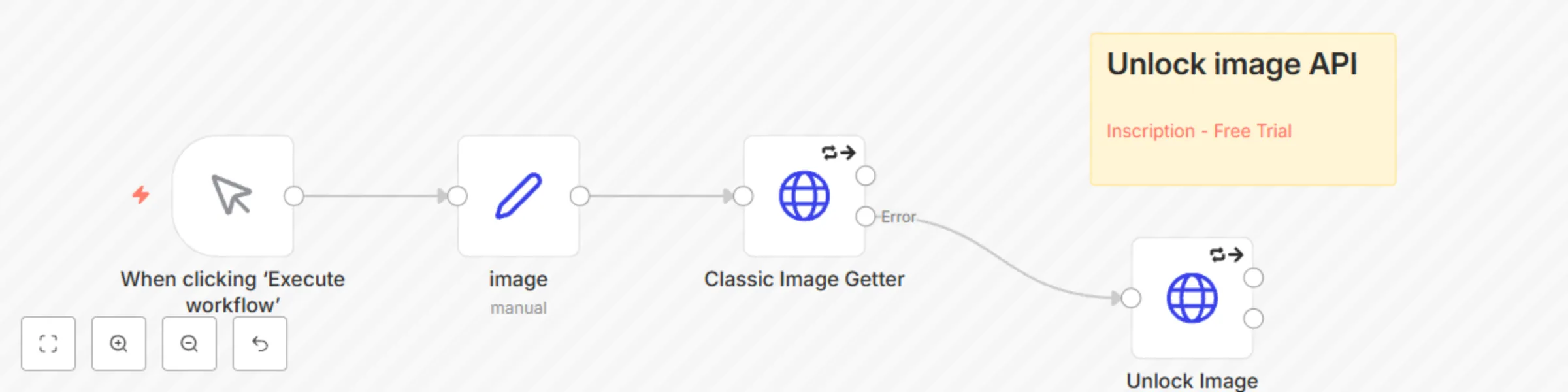
This workflow is your ultimate solution for **reliable image retrieval from any web source**, including those heavily protected. It operates with a smart, cost-effective strategy: it first attempts to fetch the image using a **Classic Image Getter** node (a standard, free HTTP request). In approximately **80% of cases**, this method will be sufficient. However, for the remaining instances where you encounter **IP blocking, CAPTCHAs, rate limiting, or other advanced anti-bot measures**, the workflow seamlessly switches to a robust **BrightData Web Unblocker** service as a fallback. It leverages [BrightData’s Image Unblocker](https://get.brightdata.com/image-unlocker) to retrieve these **blocked images**. This template is indispensable for anyone needing consistent and complete access to web images, ensuring you get the data you need without unnecessary overhead. --- ## Why Use This Image Scrapper Workflow? * **Maximum Success Rate**: Retrieves images even from the most challenging or protected websites. * **Cost-Optimized Strategy**: Prioritizes free, standard HTTP requests, only incurring costs when advanced unblocking is truly necessary. * **Automated Resilience**: Intelligently handles failed direct attempts by automatically engaging the BrightData failover via the "Unlock Image" node. * **Versatile Image Scraping**: Perfect for market research, content aggregation, or data enrichment that demands reliable image access. --- ## How It Works 1. **When clicking ‘Execute workflow’**: The workflow is initiated manually, allowing for easy testing and integration into larger processes. 2. **image**: A `Set` node defines the target image URL. This can be easily configured to accept dynamic URLs from preceding nodes. 3. **Classic Image Getter**: This `HTTP Request` node performs a direct image download. It's the primary, free, and efficient method for readily accessible images. 4. **Unlock Image (BrightData Web Unblocker)**: Configured as an **error handler** and **failover**, this `HTTP Request` node activates only if the "Classic Image Getter" encounters an error. It then routes the image URL through BrightData's Web Unblocker, designed to bypass advanced protective measures and successfully retrieve the image data. --- ## 🔑 Prerequisites To enable the advanced capabilities of this workflow, specifically the **BrightData Web Unblocker** functionality, you will need a BrightData account and a correctly configured Web Unblocker zone. ### Setting Up Your BrightData Web Unblocker: 1. **BrightData Account**: Ensure you have an active account with BrightData. If you don't, you can sign up on their [website](https://get.brightdata.com/image-unlocker). 2. **Create a Web Unblocker Zone**: * Log in to your BrightData dashboard. * Navigate to the "Proxy & Scraping Infrastructure" section, then "Zones." * Click "Add new zone." * Select "Web Unblocker" as the product type. * Give your zone a clear name (e.g., `n8n-image-unlocker`). * Confirm the creation of the zone. 3. **Retrieve API Key**: * Once your Web Unblocker zone is active, go to its settings. * Locate your API Key (often referred to as "password" for proxy access) within the "Access Parameters" or "Credentials" section. 4. **Configure in n8n**: * In the **Unlock Image** HTTP Request node within this workflow, update the `Authorization` header. Replace `"Bearer yourkey"` with `"Bearer YOUR_BRIGHTDATA_API_KEY"`. * **Important**: For production workflows, it's highly recommended to use [n8n credentials](https://docs.n8n.io/integrations/builtin/credentials/) to store your BrightData API key securely, rather than hardcoding it directly in the node. This template uses a placeholder for demonstration purposes. * **Crucially**, ensure that the `zone` parameter in the `Unlock Image` node matches the **exact Zone ID** you created in your BrightData account. You will need to replace the placeholder `web_unlocker` with your actual BrightData zone ID. --- [Phil | Inforeole](https://inforeole.fr) | [Linkedin](https://www.linkedin.com/in/philippe-eveilleau-inforeole/) 🇫🇷 Contactez nous pour automatiser vos processus

p
phil
Engineering
12 Jul 2025
248
0
Workflow preview: Rank Math bulk title & description optimizer for WordPress
Free advanced

Rank Math bulk title & description optimizer for WordPress

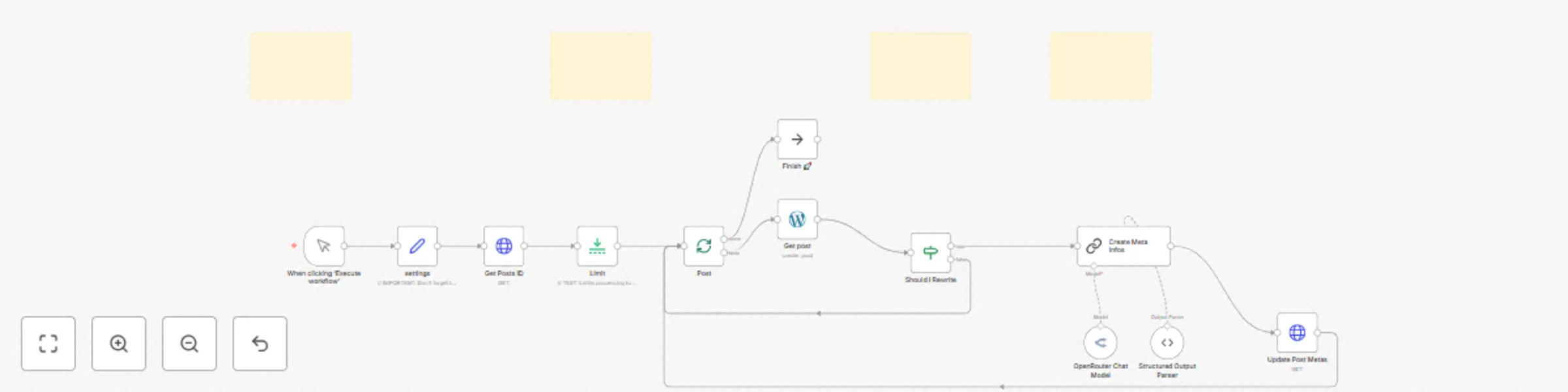
# Bulk WordPress SEO Meta Optimizer with Rank Math & AI This n8n workflow, along with its companion WordPress plugin (`rank_math_tools.zip`), automates the bulk optimization of your WordPress posts' Rank Math SEO titles and descriptions using AI. Stop manually crafting metas and let AI supercharge your SEO efforts efficiently! [free version here.](https://n8n.io/workflows/2836-automate-rank-math-seo-field-updates-for-posts-and-products/) **How it works:** This workflow streamlines your SEO process through several automated steps: * **Fetches Post IDs:** Retrieves all published post IDs from your WordPress site using a secure, custom API endpoint provided by the companion plugin. * **Gathers Post Content:** For each identified post, it accesses the existing title, slug, and main rendered content to provide context for the AI. * **AI-Powered Meta Generation:** Leverages an AI model of your choice via OpenRouter (defaulting to Claude 3.7 Sonnet) to generate an optimized SEO title and meta description. This generation is guided by a detailed, customizable prompt within the "Create Meta Infos" node, allowing you to define the style, tone, and SEO strategy. * **Updates WordPress Metas:** Sends the newly generated SEO title and description back to your WordPress site via another custom API endpoint. The companion plugin then updates the specific Rank Math fields for each post. * **Refreshes Modified Date:** The companion plugin automatically updates the post's 'last modified' date in WordPress whenever meta information is changed, which can be a positive signal for search engines. * **Selective Processing:** An "IF" node ("Should I Rewrite") intelligently determines whether a post's metas need updating based on predefined conditions (e.g., empty metas or placeholder content), optimizing resource usage. **Setup Steps:** Get up and running in approximately 15-25 minutes by following these high-level steps. Detailed instructions are available in the comprehensive documentation provided with your purchase and within the sticky notes inside the n8n workflow itself. 1. **Install the Companion WordPress Plugin:** * Download the `rank_math_tools.zip` file. * Upload and activate it on your WordPress site. * *(Estimated time: 2-5 minutes)* 2. **Configure WordPress API Authentication:** * In your WordPress admin area, go to your user profile and create a new Application Password. * Ensure the user has at least an "Editor" role. * Copy the generated password. * *(Estimated time: 2-5 minutes)* 3. **Set Up n8n Credentials:** * In n8n, create a new "WordPress API" credential using your WordPress username, the Application Password you just copied, and your site's Base URL. * Create a new "OpenRouter Api" credential using your OpenRouter API key. * *(Estimated time: 5-10 minutes, assuming you have your OpenRouter key ready)* 4. **Import and Configure the n8n Workflow:** * Download the `Bulk_Wordpress_Meta_Data_Optimizer_Gumroad.json` workflow file. * Import it into your n8n instance. * Link your newly created WordPress and OpenRouter credentials to the respective nodes in the workflow. * Verify and update your WordPress site URL in the "settings" node (ensure it has a trailing slash `/`). * Review the "Limit" node – it's pre-set to process only 5 items for safe initial testing. * *(Estimated time: 5-10 minutes)* **Benefits:** * **Full SEO Meta Automation:** Drastically reduce manual effort by automatically generating and updating SEO titles and descriptions for all your posts. * **Bulk Processing Power:** Efficiently handle meta optimization for hundreds or thousands of WordPress posts. * **Highly Customizable AI Output:** Fine-tune the AI's generation style, keyword focus, and direct response techniques by editing the detailed prompt within the "Create Meta Infos" node. * **Improved SEO Consistency & Quality:** Ensure all your articles have relevant, compelling, and optimized meta tags, adhering to best practices. * **Signal Freshness to Search Engines:** The automatic update of the post 'last modified' date upon meta change can help improve crawl frequency and SEO. * **Resource-Efficient Updates:** The "Should I Rewrite" node prevents unnecessary processing and API calls for posts that already have satisfactory meta information. * **Save Time & Focus on Content:** Free up valuable time to concentrate on creating great content, rather than on repetitive SEO tasks. --- To understand exactly how to use and customize this workflow in detail, please refer to the comprehensive step-by-step documentation provided with your purchase. For professional n8n automation services for your business, contact: [Phil | Inforeole](https://inforeole.fr)

p
phil
Content Creation
4 Jun 2025
660
0
Workflow preview: Amazon product search scraper with BrightData, GPT-4, and Google Sheets
Free intermediate

Amazon product search scraper with BrightData, GPT-4, and Google Sheets

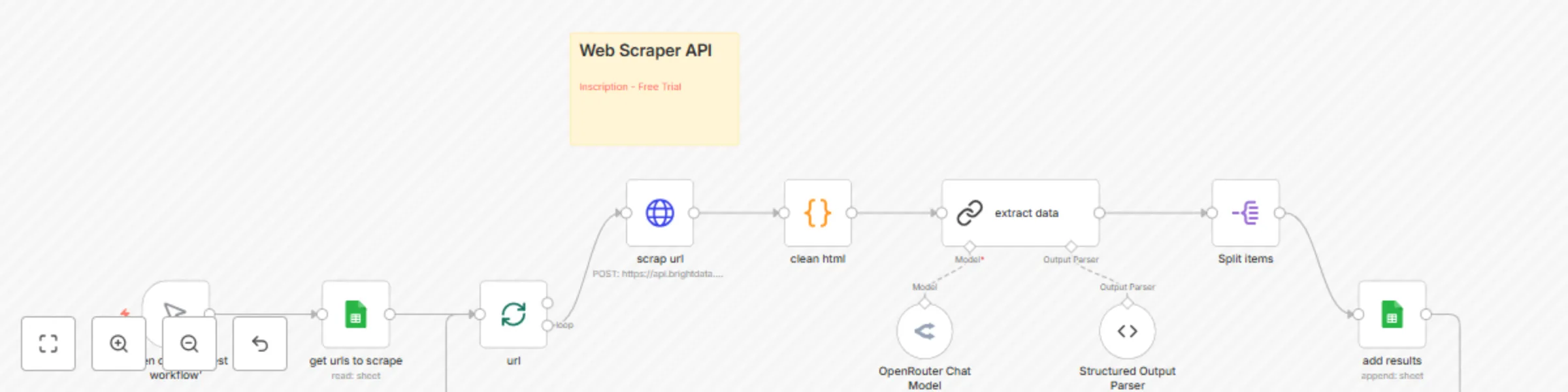
This workflow automates **web scraping** of Amazon search result pages by retrieving raw HTML, cleaning it to retain only the relevant product elements, and then using an LLM to **extract** structured product data (name, description, rating, reviews, and price), before **saving** the results back to Google Sheets. It integrates Google Sheets to supply and collect URLs, BrightData to fetch page HTML, a custom n8n Function node to sanitize the HTML, LangChain (OpenRouter GPT-4) to parse product details, and Google Sheets again to store the output. ![CleanShot 20250506 at 16.42.332x.png](fileId:1284) URL to scape . ![CleanShot 20250506 at 16.41.062x.png](fileId:1285) Result ## Who Needs Amazon Search Result Scraping? This scraping workflow is ideal for teams and businesses that need to monitor Amazon product listings at scale: - **E-commerce Analysts** – Track competitor pricing, ratings, and inventory trends. - **Market Researchers** – Collect data on product popularity and reviews for market analysis. - **Data Teams** – Automate ingestion of product metadata into BI pipelines or data lakes. - **Affiliate Marketers** – Keep affiliate catalogs up to date with latest product details and prices. If you need reliable, structured data from Amazon search results delivered directly into your spreadsheets, this workflow saves you hours of manual copy-and-paste. ## Why Use This Workflow? - **End-to-End Automation** – From URL list to clean JSON output in Sheets. - **Robust HTML Cleaning** – Strips scripts, styles, unwanted tags, and noise. - **Accurate Structured Parsing** – Leverages GPT-4 via LangChain for reliable extraction. - **Scalable & Repeatable** – Processes thousands of URLs in batches. ## Step-by-Step: How This Workflow Scrapes Amazon 1. **Get URLs from Google Sheets** – Reads a list of search result URLs. 2. **Loop Over Items** – Iterates through each URL in controlled batches. 3. **Fetch Raw HTML** – Uses [BrightData’s Web Unlocker proxy](https://get.brightdata.com/Unbreakable-Web-Scraper) to retrieve the page. 4. **Clean HTML** – A Function node removes doctype, scripts, styles, head, comments, classes, and non-whitelisted tags, collapsing extra whitespace. 5. **Extract with LLM** – Passes cleaned HTML into LangChain → GPT-4 to output JSON for each product: - `name`, `description`, `rating`, `reviews`, `price` 6. **Save Results** – Appends the JSON fields as columns back into a “results” sheet in Google Sheets. ## Customization: Tailor to Your Needs - **Adaptable Sites** – This workflow can be adapted to any e-commerce or other website, for example [Walmart](https://www.walmart.com) or [eBay](https://www.ebay.com). - **Whitelist Tags** – Modify the allowedTags array in the Code node to keep additional HTML elements. - **Schema Changes** – Update the Structured Output Parser schema to include more fields (e.g., availability, SKU). - **Alternate Data Sink** – Instead of Sheets, route output to a database, CSV file, or webhook. ## 🔑 Prerequisites - **Google Sheets Credentials** – OAuth credentials configured in n8n. - **[BrightData API token](https://get.brightdata.com/Unbreakable-Web-Scraper)** – Stored in n8n credentials as `BRIGHTDATA_TOKEN`. - **OpenRouter API Key** – Configured for the LangChain node to call GPT-4. - **n8n Instance** – Self-hosted or cloud with sufficient quota for HTTP requests and LLM calls. ## 🚀 Installation & Setup - **Configure Credentials** 1. In n8n, set up Google Sheets OAuth under “Credentials.” 2. Add BrightData token as a new HTTP Request credential. 3. Create an OpenRouter API key credential for the LangChain node. - **Import the Workflow** 1. Copy the JSON workflow into n8n’s “Import” dialog. 2. Map your Google Sheet IDs and GIDs to the `{{WEB_SHEET_ID}}`, `{{TRACK_SHEET_GID}}`, and `{{RESULTS_SHEET_GID}}` placeholders. 3. Ensure the `BRIGHTDATA_TOKEN` credential is selected on the HTTP Request node. - **Test & Run** 1. Add a few Amazon search URLs to your “track” sheet. 2. Execute the workflow and verify product data appears in your “results” sheet. 3. Tweak batch size or parser schema as needed. ### ⚠ Important - **API Rate Limits** – Monitor your BrightData and OpenRouter usage to avoid throttling. - **Amazon’s Terms** – Ensure your scraping complies with Amazon’s policies and legal requirements. ## Summary This workflow delivers a fully automated, scalable solution to extract structured product data from Amazon search pages directly into Google Sheets—streamlining your competitive analysis and data collection. 🚀 . --- [Phil | Inforeole](https://inforeole.fr) | [Linkedin](https://www.linkedin.com/in/philippe-eveilleau-inforeole/) 🇫🇷 Contactez nous pour automatiser vos processus

p
phil
Market Research
6 May 2025
12204
0
Workflow preview: Automated voice appointment reminders with Google Calendar GPT ElevenLabs Gmail
Free intermediate

Automated voice appointment reminders with Google Calendar GPT ElevenLabs Gmail

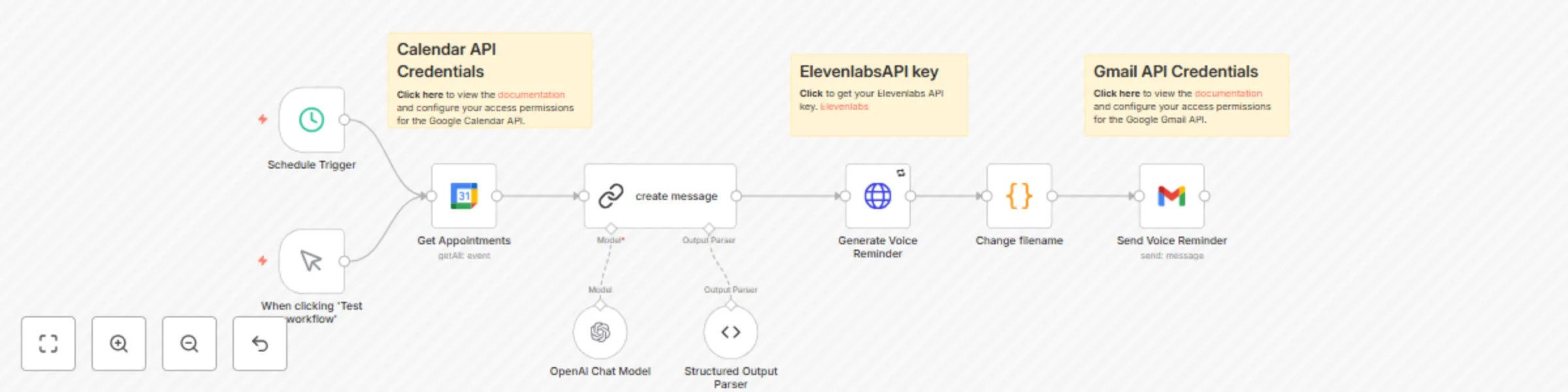
This workflow automates **voice reminders** for upcoming appointments by generating a professional audio message and **sending** it to clients **via email** with the voice file attached. It integrates Google Calendar to track appointments, ElevenLabs to generate high-quality voice messages, and Gmail to deliver them efficiently. ![CleanShot 20250320 at 09.17.232x.png](fileId:1025) ## Who Needs Automated Voice Appointment Reminders? This automated voice appointment reminder system is ideal for businesses that rely on scheduled appointments. It helps reduce no-shows, improve client engagement, and streamline communication. - Medical Offices & Clinics – Ensure patients receive timely appointment reminders. - Real Estate Agencies – Keep potential buyers and renters informed about property visits. - Service-Based Businesses – Perfect for salons, consultants, therapists, and coaches. - Legal & Financial Services – Help clients remember important meetings and consultations. If your business depends on scheduled appointments, this workflow saves time and enhances client satisfaction. 🚀 ## Why Use This Workflow? - Ensures clients receive timely reminders. - Reduces appointment no-shows and scheduling issues. - Automates the process with a personalized voice message. ## Step-by-Step: How This Workflow Automates Voice Reminders 1. Trigger the Workflow – The system runs manually or on a schedule to check upcoming appointments in **Google Calendar**. 2. Retrieve Appointment Data – It **fetches event details** (client name, time, and location) from Google Calendar. The workflow uses the summary, start.dateTime, location, and attendees[0].email fields from Google Calendar to personalize and send the voice reminders. 3. **Generate a Voice Reminder** – Using [ElevenLabs](https://try.elevenlabs.io/text-audio), the workflow converts the appointment details into a natural-sounding voice message. 4. **Send via Email** – The generated audio file is attached to an email and sent to the client as a reminder. ## Customization: Tailor the Workflow to Your Business Needs - Adjust Trigger Frequency – Modify the scheduling to run daily, hourly, or at specific intervals. - Customize Voice Message Format – Change the script structure and voice tone to match your business needs. - Change Notification Method – Instead of email, integrate SMS or WhatsApp for delivery. ## 🔑 Prerequisites - **Google Calendar Access** – Ensure you have access to the calendar with scheduled appointments. - [ElevenLabs API Key](https://try.elevenlabs.io/text-audio) – Required for generating voice messages (you can start for free). - **Gmail API Access** – Needed for sending reminder emails. - **n8n Setup** – The workflow runs on an n8n instance (self-hosted or cloud). ## 🚀 Step-by-Step Installation & Setup - **Set Up Google Calendar API** 1. Go to Google Cloud Console. 2. Create a new project and enable Google Calendar API. 3. Generate OAuth 2.0 credentials and save them for n8n. - **Get an ElevenLabs API Key** 1. Sign up at [ElevenLabs](https://try.elevenlabs.io/text-audio). 2. Retrieve your API key from the dashboard. - **Configure Gmail API** 1. Enable Gmail API in Google Cloud Console. 2. Create OAuth credentials and authorize your email address for sending. - **Deploy n8n & Install the Workflow** 1. Install n8n (Installation Guide). 2. Add the required Google Calendar, ElevenLabs, and Gmail nodes. 3. Import or build the workflow with the correct credentials. 4. Test and fine-tune as needed. ### ⚠ Important: The LangChain Community node used in this workflow only works on self-hosted n8n instances. It is not compatible with n8n Cloud. Please ensure you are running a self-hosted instance before using this workflow. ## Summary This workflow ensures a professional and seamless experience for your clients, keeping them informed and engaged. 🚀🔊 . --- [Phil | Inforeole](https://inforeole.fr) | [Linkedin](https://www.linkedin.com/in/philippe-eveilleau-inforeole/) 🇫🇷 Contactez nous pour automatiser vos processus

p
phil
Personal Productivity
17 Mar 2025
5909
0
Workflow preview: Backup n8n workflows to Google Drive
Free intermediate

Backup n8n workflows to Google Drive

This workflow automates the **backup** of your **n8n workflows** data to Google Drive every day. It ensures that important configurations and execution logs are securely stored, reducing the risk of data loss and improving workflow resilience. ## 🔹 Why Use This? ✅ Automates routine backups effortlessly. ✅ Reduces manual intervention and potential data loss. ✅ Securely stores critical workflow configurations in Google Drive. With this workflow, you can focus on innovation while n8n takes care of your backups. 🔐✨ ## 🚀 How It Works This workflow operates seamlessly with a combination of scheduled triggers, JSON data transformation, and secure cloud storage. 🛠 Setup Steps 1. **Trigger the backup** – Choose between manual execution or automated scheduling at 1:30 AM daily. 2. **Data preparation** – Your workflow parameters define the backup location and organize files effectively. 3. **Transformation & Encoding** – The data is processed and converted into a JSON file in base64 format. 4. **Cloud Storage** – The backup is securely uploaded to your designated Google Drive folder. ## 🔧 Customization Options You can modify various aspects of the backup workflow to better suit your needs: 1️⃣ Adjusting **Backup Frequency** By default, the workflow runs daily at 1:30 AM. To change this: Open the Trigger Node in n8n. Modify the Cron Expression or select a different frequency (e.g., hourly, weekly, or custom intervals). 2️⃣ Selecting **Specific Workflows** to Backup Instead of backing up all workflows, you can filter which ones to include: Add a Filter Node before exporting data. Define specific workflow IDs or names to include in the backup. 3️⃣ Changing the Backup **Destination** The default destination is Google Drive, but you can change this: Replace the Google Drive Node with a different storage provider (e.g., Dropbox, AWS S3, or local storage via FTP/SFTP). Configure authentication for the new destination. 4️⃣ Modifying Data Format By default, the workflow stores data in JSON format. If you need a different format: Convert JSON to CSV using the Spreadsheet File Node. Store backups in a compressed format (ZIP) by adding a Compression Node. 5️⃣ **Encrypting** the Backup for Extra Security For added protection: Use the Crypto Node to encrypt the JSON file before uploading. Set up an Access-Controlled Folder in Google Drive with limited permissions. ## ✅ Verify That Your Backup Works Before relying on this workflow for your automated backups, make sure it works correctly by performing a quick test: 1. Manually trigger the workflow in n8n and check if the backup file appears in your Google Drive. 2. Open Google Drive, navigate to the backup folder, and download the JSON file. 3. Verify its content by checking if the data matches your workflow’s execution logs. 4. Try to import the JSON file back into n8n using the “Import File” function to ensure the workflow structure is intact. 5. Alternatively, copy and paste a test file into Google Drive and confirm that it appears correctly in your workflow logs. This quick test will confirm that your backup is running smoothly and that your data is retrievable whenever needed. ## 📁 How to Find Your Google Drive Directory ID To ensure that the backup is uploaded to the correct folder, you need to retrieve your Google Drive Directory ID. Follow these simple steps: 1. Open Google Drive. 2. Navigate to the folder where you want to store your backups. 3. Click on the folder and check the URL in your browser. 4. The Directory ID is the long string of characters at the end of the URL after /folders/. **Example:** 📌 If your folder URL is: https://drive.google.com/drive/folders/14oUlH_LW_NT0Xb2woZWvuzRncV-bhla Then, your Directory ID is: 14oUlH_LW_NT0Xb2woZWvuzRncV-bhla Copy this Directory ID and use it in the workflow's parameters to ensure the backup is saved in the correct location. . --- [Phil | Inforeole](https://inforeole.fr) | [Linkedin](https://www.linkedin.com/in/philippe-eveilleau-inforeole/) 🇫🇷 Contactez nous pour automatiser vos processus

p
phil
DevOps
9 Mar 2025
6136
0
Workflow preview: Automate audio/video transcription in any language with the new ElevenLabs model
Free beginner

Automate audio/video transcription in any language with the new ElevenLabs model

## How it works 🗣️&gt; 📖 I set up this workflow to **convert** any **audio** or **video** file into structured **text** using the new ElevenLabs Scribe model, one of the **best Speech-to-Text AIs**, available in 99+ languages. This workflow integrates seamlessly with n8n and leverages the ElevenLabs Scribe **API** to: This workflow seamlessly integrates with n8n to: ✅ Upload audio/video files automatically ✅ Transcribe them with industry-leading accuracy in any language ✅ Export the text for further processing (summaries, subtitles, SEO content, etc.) 👉 Try the new [ElevenLabs Scribe model](https://try.elevenlabs.io/convert-speech-to-text) now: Convert speech to text instantly ## Business Cases 🔹 Podcast Transcriptions – Convert podcast episodes into blog posts for SEO and accessibility 🔹 YouTube Subtitles – Generate captions automatically for increased engagement 🔹 Legal & Compliance – Accurately transcribe meetings, interviews, or customer calls 🔹 E-learning – Turn lectures and webinars into structured course notes 🔹 SEO & Content Marketing – Repurpose videos into articles, quotes, and social media content 💡 Boost your productivity with the new Scribe model → Start with [ElevenLabs Scribe](https://try.elevenlabs.io/convert-speech-to-text) ## Set up steps 🚀 Quick & simple setup in n8n – Upload your file, select the model (scribe_v1), and let the AI handle the rest via the ElevenLabs API. ⸻ ## 📢 Why I Chose the New ElevenLabs Scribe Model? I wanted the most accurate and reliable transcription tool for my workflow. After testing different options, Scribe outperformed Google Gemini & OpenAI Whisper in independent benchmarks. It delivers high-quality transcriptions, even in underserved languages like Serbian, Mongolian, and many more. ✅ Transcribes in 99+ languages ✅ Fast, accurate, and easy to integrate ✅ Suitable for content creators, businesses, and professionals 🔗 Get started now and revolutionize your workflow with the new Scribe model → [Try Scribe AI today](https://try.elevenlabs.io/convert-speech-to-text) 🚀 [Phil | Inforeole](https://inforeole.fr) | [Linkedin](https://www.linkedin.com/in/philippe-eveilleau-inforeole/) 🇫🇷 Contactez nous pour automatiser vos processus

p
phil
Document Extraction
8 Mar 2025
8124
0
Workflow preview: Generate & upload an audio summary of a WordPress (or Woocommerce) article
Free intermediate

Generate & upload an audio summary of a WordPress (or Woocommerce) article

This workflow automates the process of summarizing or transcribing a WordPress article, **converting the text into speech** using Eleven Labs API, and uploading the resulting MP3 file back to WordPress. **How It Works** 1. Trigger – The workflow starts manually when the user clicks “Test Workflow”. 2. Retrieve Article – It fetches a WordPress article based on a given post ID. 3. Summarize or Transcribe – An LLM (GPT-4o-mini) generates either: • A summary of the article, or • A full transcription, depending on the chosen prompt. 4. Generate Speech – The processed text (summary or transcription) is converted into an MP3 audio file using Eleven Labs API. 5. Upload MP3 to WordPress – The generated MP3 file is uploaded to WordPress. 6. Update WordPress Post – The article is updated with an embedded audio player, allowing users to listen to the summary or transcription. **Set Up Steps** 1. WordPress API Credentials • Configure your WordPress API credentials in n8n. 2. [Eleven Labs](https://try.elevenlabs.io/text-audio) API Key • Obtain an API Key from Eleven Labs and configure it in n8n. 3. Choose Between Summary or Transcription • Modify the AI prompt to either generate a summary or keep the full transcription. 4. Test the Workflow • Run the workflow and ensure the MP3 file is correctly generated and uploaded. **💡 Customization Options** • Modify the AI prompt to switch between a summary and a transcription. • Change the voice model in Eleven Labs for different speech styles. • Adjust output format to higher/lower quality MP3. 🚀 This automation improves content accessibility and engagement by allowing users to listen to a summarized or full version of the article. . --- [Phil | Inforeole](https://inforeole.fr) | [Linkedin](https://www.linkedin.com/in/philippe-eveilleau-inforeole/) 🇫🇷 Contactez nous pour automatiser vos processus

p
phil
Content Creation
27 Feb 2025
3081
0
Workflow preview: Automate Rank Math SEO field updates for Wordpress or Woocommerce
Free beginner

Automate Rank Math SEO field updates for Wordpress or Woocommerce

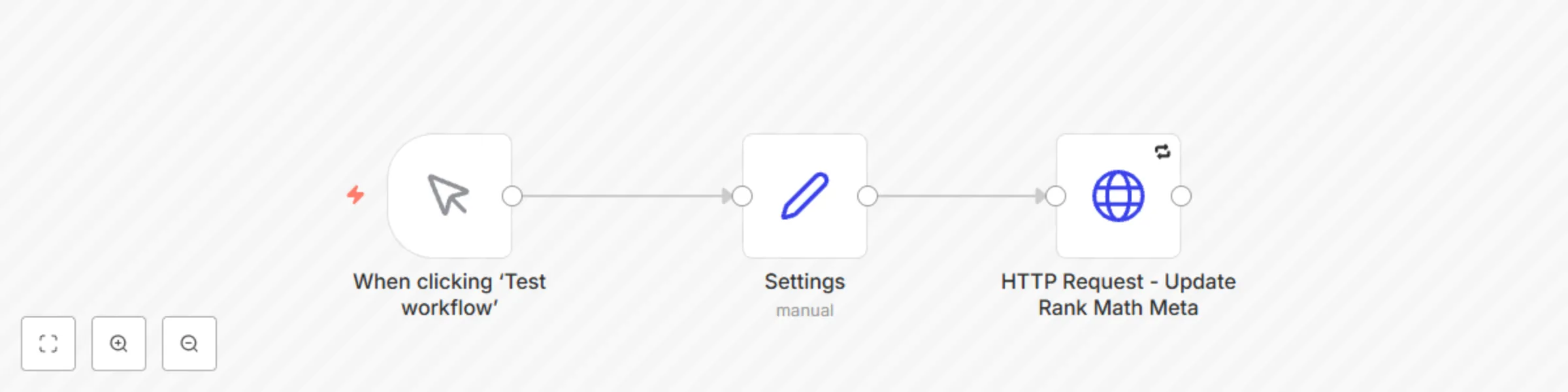
This workflow automates the process of updating important Rank Math SEO fields (SEO Title, Description, and Canonical URL) directly via n8n. By leveraging a custom WordPress plugin that extends the WordPress REST API, this workflow ensures that you can programmatically manage SEO metadata for your posts and WooCommerce products efficiently. [Bulk version available here.](https://n8n.io/workflows/4646-rank-math-bulk-title-and-description-optimizer-for-wordpress/) ## How it works: - Sends a POST request to a custom API endpoint exposed by the Rank Math plugin. - Updates SEO Title, Description, and Canonical URL fields for a specified post or product. ### Setup steps: - Install and activate the Rank Math API Manager Extended plugin on WordPress. - Provide the post or product ID you want to update in the workflow. - Run the workflow to update the metadata automatically. ### Benefits: - Full automation of SEO optimizations. - Works for both standard posts and WooCommerce products. - Simplifies large-scale SEO management tasks. To understand exactly how to use it in detail, check out my [comprehensive documentation here.](https://medium.com/@rentierdigital/supercharge-the-rank-math-wordpress-api-how-to-automatically-update-rank-math-seo-fields-with-n8n-6f9127ee0340) ## Rank Math API Manager Extended plugin on WordPress ```language // ATTENTION: Replace the line below with &lt;?php - This is necessary due to display constraints in web interfaces. &lt;?php /** * Plugin Name: Rank Math API Manager Extended v1.4 * Description: Manages the update of Rank Math metadata (SEO Title, SEO Description, Canonical URL) via a dedicated REST API endpoint for WordPress posts and WooCommerce products. * Version: 1.4 * Author: Phil - https://inforeole.fr */ if ( ! defined( 'ABSPATH' ) ) { exit; // Exit if accessed directly. } class Rank_Math_API_Manager_Extended { public function __construct() { add_action('rest_api_init', [$this, 'register_api_routes']); } /** * Registers the REST API route to update Rank Math meta fields. */ public function register_api_routes() { register_rest_route( 'rank-math-api/v1', '/update-meta', [ 'methods' =&gt; 'POST', 'callback' =&gt; [$this, 'update_rank_math_meta'], 'permission_callback' =&gt; [$this, 'check_route_permission'], 'args' =&gt; [ 'post_id' =&gt; [ 'required' =&gt; true, 'validate_callback' =&gt; function( $param ) { $post = get_post( (int) $param ); if ( ! $post ) { return false; } $allowed_post_types = class_exists('WooCommerce') ? ['post', 'product'] : ['post']; return in_array($post-&gt;post_type, $allowed_post_types, true); }, 'sanitize_callback' =&gt; 'absint', ], 'rank_math_title' =&gt; [ 'type' =&gt; 'string', 'sanitize_callback' =&gt; 'sanitize_text_field', ], 'rank_math_description' =&gt; [ 'type' =&gt; 'string', 'sanitize_callback' =&gt; 'sanitize_text_field', ], 'rank_math_canonical_url' =&gt; [ 'type' =&gt; 'string', 'sanitize_callback' =&gt; 'esc_url_raw', ], ], ] ); } /** * Updates the Rank Math meta fields for a specific post. * * @param WP_REST_Request $request The REST API request instance. * @return WP_REST_Response|WP_Error Response object on success, or WP_Error on failure. */ public function update_rank_math_meta( WP_REST_Request $request ) { $post_id = $request-&gt;get_param('post_id'); // Secondary, more specific permission check. if ( ! current_user_can('edit_post', $post_id) ) { return new WP_Error( 'rest_forbidden', 'You do not have permission to edit this post.', ['status' =&gt; 403] ); } $fields = ['rank_math_title', 'rank_math_description', 'rank_math_canonical_url']; $results = []; $updated = false; foreach ( $fields as $field ) { if ( $request-&gt;has_param( $field ) ) { $value = $request-&gt;get_param( $field ); $current_value = get_post_meta($post_id, $field, true); if ($current_value === $value) { $results[$field] = 'unchanged'; } else { $update_status = update_post_meta( $post_id, $field, $value ); if ($update_status) { $results[$field] = 'updated'; $updated = true; } else { // This case is rare but could indicate a DB error or other failure. $results[$field] = 'failed'; } } } } if ( ! $updated && empty($results) ) { return new WP_Error( 'no_fields_provided', 'No Rank Math fields were provided for update.', ['status' =&gt; 400] ); } return new WP_REST_Response( $results, 200 ); } /** * Checks if the current user has permission to access the REST API route. * * @return bool */ public function check_route_permission() { return current_user_can( 'edit_posts' ); } } new Rank_Math_API_Manager_Extended(); ``` [Bulk version available here.](https://n8n.io/workflows/4646-rank-math-bulk-title-and-description-optimizer-for-wordpress/) : this bulk version, provided with a dedicated WordPress plugin, allows you to generate and bulk-update meta titles and descriptions for multiple articles simultaneously using artificial intelligence. It automates the entire process, from article selection to the final update in Rank Math, offering considerable time savings. . --- [Phil | Inforeole](https://inforeole.fr) | [Linkedin](https://www.linkedin.com/in/philippe-eveilleau-inforeole/) 🇫🇷 Contactez nous pour automatiser vos processus

p
phil
Market Research
2 Feb 2025
6178
0