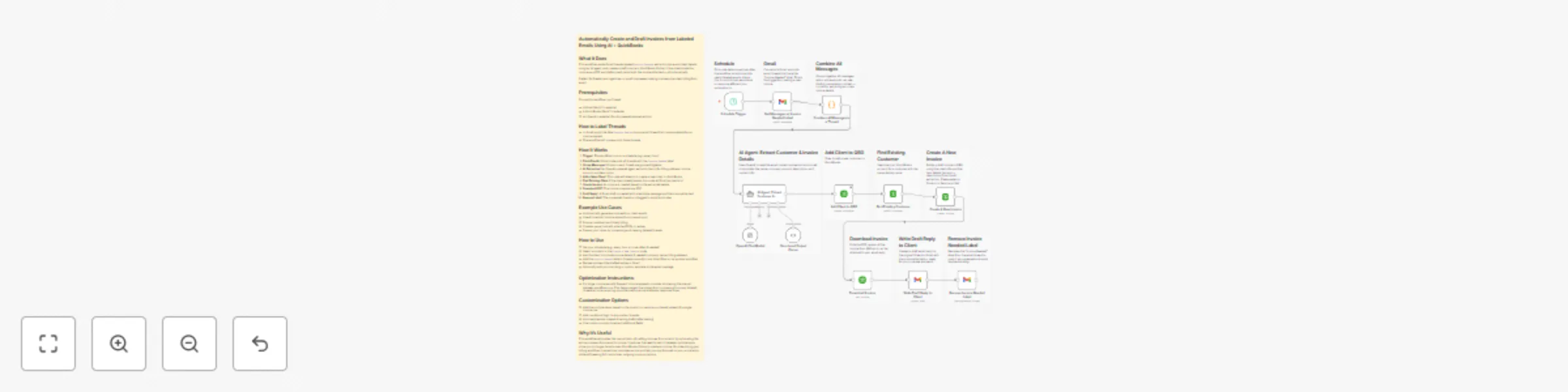
Automatically create invoices from Gmail labels with GPT-4O + QuickBooks

Workflow preview

Workflow preview
100%
Automatically create invoices from Gmail labels with GPT-4O + QuickBooks preview
Open on n8n.io

Important notice

This workflow is provided as-is. Please review and test before using in production.

1. Workflow Overview

What It Does This workflow reads Gmail threads labeled , extracts invoice and client details using an AI agent, and creates a draft invoice in QuickBooks Online. It then downloads the invoice as a ...

Best for

  • Invoice Processing automation workflows
  • AI Summarization automation workflows
  • advanced n8n builders looking for reusable templates

Tools used

n8n-nodes-base.quickbooks, n8n-nodes-base.gmail, @n8n/n8n-nodes-langchain.lmchatopenai, @n8n/n8n-nodes-langchain.outputparserstructured, n8n-nodes-base.scheduletrigger, @n8n/n8n-nodes-langchain.agent, n8n-nodes-base.stickynote, n8n-nodes-base.code

Source and attribution

This workflow is cataloged by N8N Workflows and links back to its original n8n.io source page by Rosh Ragel.

Original n8n.io source

1.1 Workflow description

Title
Automatically create invoices from Gmail labels with GPT-4O + QuickBooks
Workflow name
Automatically create invoices from Gmail labels with GPT-4O + QuickBooks

What It Does

This workflow reads Gmail threads labeled Invoice Needed, extracts invoice and client details using an AI agent, and creates a draft invoice in QuickBooks Online. It then downloads the invoice as a PDF and drafts a reply email with the invoice attached — all automatically.

Perfect for freelancers, agencies, or small businesses looking to streamline client billing from email.

Prerequisites

To use this workflow, you’ll need:

  • A Gmail OAuth2 credential
  • A QuickBooks OAuth2 credential
  • An OpenAI credential (for AI-powered data extraction)

How to Label Threads

  • In Gmail, apply the label Invoice Needed to any email thread that contains details for an invoice request.
  • The workflow will process only those threads.

How It Works

  1. Trigger: The workflow runs on a schedule (e.g., every hour)
  2. Fetch Emails: Gmail node pulls all threads with the Invoice Needed label
  3. Group Messages: Emails in each thread are grouped together
  4. AI Extraction: An OpenAI-powered agent extracts client info, billing address, invoice amount, and description
  5. Add a New Client: This node will attempt to create a new client in QuickBooks
  6. Find Existing Client If the client already exists, this node will find the client's id
  7. Create Invoice: An invoice is created based on the extracted details
  8. Download PDF: The invoice is saved as a PDF
  9. Draft Reply: A Gmail draft is created with a template message and the invoice attached
  10. Remove Label: The processed thread is untagged to avoid duplicates

Example Use Cases

  • Automatically generate invoices from client emails
  • Use AI to extract invoice data without manual input
  • Ensure consistent and timely billing
  • Create a paper trail with attached PDFs in replies
  • Free up your inbox by processing and clearing labeled threads

How to Use

  • Set your schedule (e.g., every hour or more often if needed)
  • Select a product in the Create A New Invoice node
  • Ask the client to provide invoice details if needed (company name, billing address)
  • Add the Invoice Needed label to threads manually, via a Gmail filter or via another workflow
  • Review and send the drafted replies in Gmail
  • Optionally, add your branding or custom template to the email message

Optimization Instructions:

  • For larger companies with frequent invoice requests, consider shortening the interval between workflow runs. This helps prevent the system from processing too many labeled threads at once, ensuring smoother performance and faster response times.

Customization Options

  • Add line multiple items based on the product or service purchased instead of a single invoice row
  • Add conditional logic to skip certain threads
  • Auto-send emails instead of saving drafts (after testing)
  • Use custom prompts to extract additional fields

Why It's Useful

This workflow eliminates the manual labor of crafting invoices from scratch by automating the entire process—from email to invoice. It reduces the need to switch between multiple apps, since you no longer have to open QuickBooks Online to create an invoice. By streamlining your billing workflow, it saves time, minimizes errors, and lets you stay focused on your actual work while still keeping full control over outgoing communications.

1.2 Logical Blocks

This catalog entry is organized from the workflow JSON. The node-level section below shows the executable blocks available for review before importing the template.

2. Block-by-Block Analysis

Block 1 - Add Client to QBO

Type / Role
n8n-nodes-base.quickbooks - quickbooks
Config choices
Version 1

Block 2 - Get Messages w/ Invoice Needed Label

Type / Role
n8n-nodes-base.gmail - gmail
Config choices
Version 2.1

Block 3 - OpenAI Chat Model

Type / Role
@n8n/n8n-nodes-langchain.lmChatOpenAi - lmChatOpenAi
Config choices
Version 1.2

Block 4 - Structured Output Parser

Type / Role
@n8n/n8n-nodes-langchain.outputParserStructured - outputParserStructured
Config choices
Version 1.2

Block 5 - Find Existing Customer

Type / Role
n8n-nodes-base.quickbooks - quickbooks
Config choices
Version 1

Block 6 - Create A New Invoice

Type / Role
n8n-nodes-base.quickbooks - quickbooks
Config choices
Version 1

Block 7 - Download Invoice

Type / Role
n8n-nodes-base.quickbooks - quickbooks
Config choices
Version 1

Block 8 - Write Draft Reply to Client

Type / Role
n8n-nodes-base.gmail - gmail
Config choices
Version 2.1

Block 9 - Schedule Trigger

Type / Role
n8n-nodes-base.scheduleTrigger - scheduleTrigger
Config choices
Version 1.2

Block 10 - AI Agent: Extract Customer & Invoice Details

Type / Role
@n8n/n8n-nodes-langchain.agent - agent
Config choices
Version 1.9

Block 11 - Remove Invoice Needed Label

Type / Role
n8n-nodes-base.gmail - gmail
Config choices
Version 2.1

Block 12 - Sticky Note

Type / Role
n8n-nodes-base.stickyNote - stickyNote
Config choices
Version 1

Block 13 - Sticky Note1

Type / Role
n8n-nodes-base.stickyNote - stickyNote
Config choices
Version 1

Block 14 - Sticky Note2

Type / Role
n8n-nodes-base.stickyNote - stickyNote
Config choices
Version 1

Block 15 - Sticky Note3

Type / Role
n8n-nodes-base.stickyNote - stickyNote
Config choices
Version 1

Block 16 - Combine all Messages in a Thread

Type / Role
n8n-nodes-base.code - code
Config choices
Version 2

Block 17 - Sticky Note4

Type / Role
n8n-nodes-base.stickyNote - stickyNote
Config choices
Version 1

Block 18 - Sticky Note5

Type / Role
n8n-nodes-base.stickyNote - stickyNote
Config choices
Version 1

Block 19 - Sticky Note6

Type / Role
n8n-nodes-base.stickyNote - stickyNote
Config choices
Version 1

Block 20 - Sticky Note7

Type / Role
n8n-nodes-base.stickyNote - stickyNote
Config choices
Version 1

Block 21 - Sticky Note8

Type / Role
n8n-nodes-base.stickyNote - stickyNote
Config choices
Version 1

Block 22 - Sticky Note9

Type / Role
n8n-nodes-base.stickyNote - stickyNote
Config choices
Version 1

Block 23 - Sticky Note10

Type / Role
n8n-nodes-base.stickyNote - stickyNote
Config choices
Version 1

3. Summary Table

Workflow Automatically create invoices from Gmail labels with GPT-4O + QuickBooks
Complexity advanced
Nodes 23
Categories Invoice Processing, AI Summarization
Author Rosh Ragel
Published 27 Jul 2025

4. Reproducing the Workflow from Scratch

  1. 1. Download the workflow JSON

    Use the JSON export at /data/workflows/6504/6504.json as the source template for this automation.

  2. 2. Import the template into n8n

    Open n8n, import the downloaded JSON, and review each node before activating the workflow.

  3. 3. Configure credentials and variables

    Replace placeholder credentials, API keys, webhook URLs, account IDs, and environment-specific values with your own settings.

  4. 4. Test with sample data

    Run the workflow manually or in a staging workspace, inspect node output, and confirm downstream systems receive the expected data.

  5. 5. Activate and monitor

    Enable the workflow only after testing, then monitor executions, errors, and rate limits during the first production runs.

5. General Notes & Resources

Review imported nodes carefully before activation. This catalog entry is intended to help you inspect the workflow structure, understand required services, and find related templates faster.

Node names, credentials, schedules, webhook paths, and external service limits may need adjustment for your workspace.

Frequently asked questions

What does Automatically create invoices from Gmail labels with GPT-4O + QuickBooks do?

What It Does This workflow reads Gmail threads labeled , extracts invoice and client details using an AI agent, and creates a draft invoice in QuickBooks Online. It then downloads the invoice as a ...

What do I need before importing this workflow?

Review the workflow JSON, configure any required credentials in n8n, and test the automation in a safe workspace before using it in production.

Can I customize this workflow?

Yes. Use the block-by-block analysis and the downloadable JSON to inspect each node, then adjust credentials, prompts, schedules, filters, or destinations for your Invoice Processing, AI Summarization use case.