Block 1 - Start AutoClip Workflow
- Type / Role
- n8n-nodes-base.manualTrigger - manualTrigger
- Config choices
- Version 1


 Early Deal
This workflow is provided as-is. Please review and test before using in production.
Who is this for? This workflow is perfect for digital content creators, marketers, and social media managers who regularly create engaging short form videos featuring inspirational or motivational ...
n8n-nodes-base.manualtrigger, n8n-nodes-base.googlesheets, n8n-nodes-base.googledrive, n8n-nodes-base.set, n8n-nodes-base.merge, n8n-nodes-base.code, n8n-nodes-base.stickynote, n8n-nodes-base.readwritefile
This workflow is cataloged by N8N Workflows and links back to its original n8n.io source page by Jaruphat J..
Original n8n.io sourceThis workflow is perfect for digital content creators, marketers, and social media managers who regularly create engaging short-form videos featuring inspirational or motivational quotes. While the workflow is universally applicable, it specifically highlights Thai as an example to demonstrate effective language and font integration.
Creating consistent and engaging multilingual video content manually, including attractive fonts and proper video formatting, is time-consuming and repetitive. Additionally, managing files, background music, and updating statuses manually can be tedious and prone to errors.
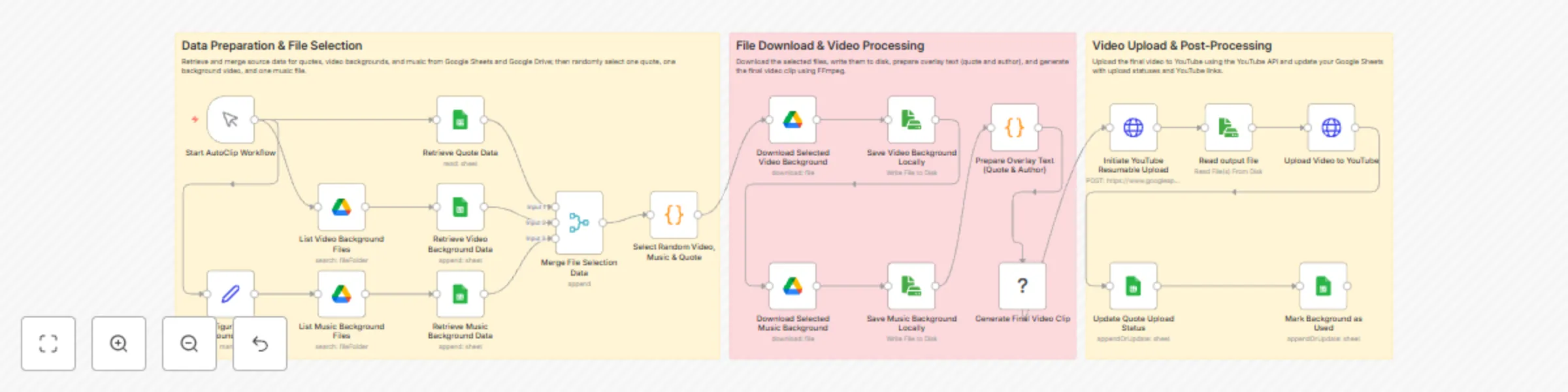
Automatically fetches background video and music files stored on Google Drive.
Randomly selects a quote (demonstrated with Thai language) and author information from Google Sheets.
Dynamically combines the selected quote and author text using appealing fonts, such as the Thai font "Kanit," directly onto the video using FFmpeg on your n8n local environment.
Creates visually engaging videos with a 9:16 aspect ratio, optimized for YouTube Shorts and other vertical video platforms.
Automatically uploads the finalized video to YouTube.
Updates the status and YouTube URL back into your Google Sheet, ensuring you have up-to-date records.
This workflow requires a self-hosted n8n instance, as the execution of FFmpeg commands is not supported on n8n Cloud. Ensure FFmpeg is installed on your self-hosted environment.
Your Google Sheet must include at least these columns:
To help you get started quickly, you can use this template spreadsheet.
Fonts: Adjust font styles and sizes within the workflow's code node. Ensure the fonts you choose fully support the language you wish to use.
Quote Management: Easily add or remove quotes and authors in your Google Sheets document.
Media Files: Change or update background videos and music by modifying the files in your Google Drive folders.
Video Specifications: Customize video dimensions, text positioning, opacity, and music volume directly in the provided FFmpeg commands.
Utilizing fonts specific to your target language, as demonstrated with Thai, significantly increases audience engagement by making your content more relatable, shareable, and visually appealing. Ensure you select fonts that properly support the language you're targeting.
This catalog entry is organized from the workflow JSON. The node-level section below shows the executable blocks available for review before importing the template.
| Workflow | Automatically create and upload YouTube videos with quotes in Thai using FFmpeg |
|---|---|
| Complexity | advanced |
| Nodes | 23 |
| Categories | Content Creation |
| Author | Jaruphat J. |
| Published | 26 Mar 2025 |
Use the JSON export at /data/workflows/3328/3328.json as the source template for this automation.
Open n8n, import the downloaded JSON, and review each node before activating the workflow.
Replace placeholder credentials, API keys, webhook URLs, account IDs, and environment-specific values with your own settings.
Run the workflow manually or in a staging workspace, inspect node output, and confirm downstream systems receive the expected data.
Enable the workflow only after testing, then monitor executions, errors, and rate limits during the first production runs.
Review imported nodes carefully before activation. This catalog entry is intended to help you inspect the workflow structure, understand required services, and find related templates faster.
Node names, credentials, schedules, webhook paths, and external service limits may need adjustment for your workspace.
Who is this for? This workflow is perfect for digital content creators, marketers, and social media managers who regularly create engaging short form videos featuring inspirational or motivational ...
Review the workflow JSON, configure any required credentials in n8n, and test the automation in a safe workspace before using it in production.
Yes. Use the block-by-block analysis and the downloadable JSON to inspect each node, then adjust credentials, prompts, schedules, filters, or destinations for your Content Creation use case.