Jaruphat J.
Workflows by Jaruphat J.
Automate product ad creation with Telegram, Fal.AI & Facebook posting
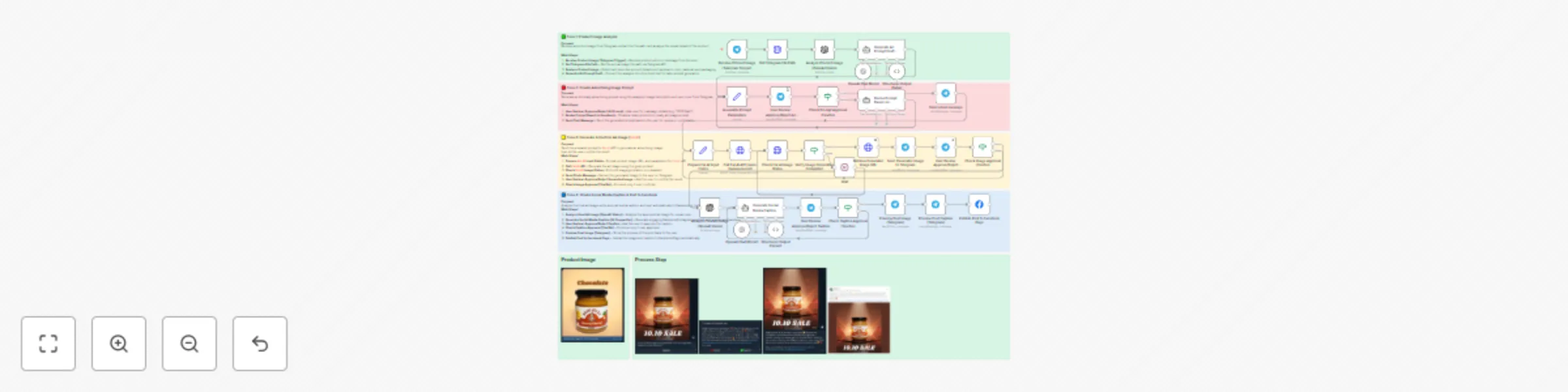
This workflow automates the entire process of creating and publishing social media ads — directly from Telegram. By simply sending a product photo to your Telegram bot, the system analyzes the image, generates an AI-based advertising prompt, creates a marketing image via Fal.AI, writes an engaging Facebook/Instagram caption, and posts it automatically. This template saves hours of manual work for marketers and small business owners who constantly need to design, write, and publish product campaigns. It eliminates repetitive steps like prompt writing, AI model switching, and post scheduling — letting you focus on strategy, not execution. The workflow integrates seamlessly with **Fal.AI** for image generation, **OpenAI Vision** for image analysis, and the **Facebook Graph API** for automated publishing. Whether you’re launching a 10.10 campaign or promoting a new product line, this template transforms your product photo into a ready-to-publish ad in just minutes. --- ## Who’s it for This workflow is designed for: - **Marketers and e-commerce owners** who need to create social content quickly. - **Agencies** managing multiple clients’ campaigns. - **Small business owners** who want to automate Facebook/Instagram posts. - **n8n creators** who want to learn AI-assisted content automation. --- ## What problem does this solve Manually creating ad images and captions is time-consuming and repetitive. You need to: 1. Edit the product photo. 2. Write a creative brief or prompt. 3. Generate an image in Fal.AI or Midjourney. 4. Write a caption. 5. Log into Facebook and post. This workflow combines all five steps into one automation — triggered directly by sending a Telegram message. It handles **AI analysis, image creation, caption writing, and posting**, removing human friction while maintaining quality and creative control. --- ## What this workflow does The workflow is divided into **four main zones**, color-coded inside the canvas: ### 🟩 Zone 1 – Product Image Analysis - Trigger: User sends a product image to a Telegram bot. - n8n retrieves the file path using Telegram API. - OpenAI Vision analyzes the product photo and describes color, material, and shape. - An AI agent converts this into structured data for generating ad prompts. ### 🟥 Zone 2 – Generate Ad Image Prompt - The AI agent creates a professional advertising prompt based on the product description and campaign (e.g., “10.10 Sale”). - The prompt is sent to the user for confirmation via Telegram before proceeding. ### 🟨 Zone 3 – Create Ad Image via Fal.AI - The confirmed prompt and image are sent to **Fal.AI**’s image generation API. - The system polls the generation status until completion. - The generated image is sent back to Telegram for user review and approval. ### 🟦 Zone 4 – Write Caption & Publish - The approved image is re-analyzed by AI to write a Facebook/Instagram caption. - The user confirms the text on Telegram. - Once approved, the workflow uploads the final post (image + caption) to Facebook automatically using the Graph API. --- ## Setup ### Prerequisites - **n8n self-hosted or Cloud account** - **Telegram Bot Token** (via @BotFather) - **Fal.AI API key** - **Facebook Page Access Token** with publishing permissions - **OpenAI API Key** for image analysis and text generation ### Steps 1. Create a **Telegram Bot** and paste its token into n8n Credentials. 2. Set up **Fal.AI Credentials** under HTTP Request → Authentication. 3. Connect your **Facebook Page** through Facebook Graph API credentials. 4. In the **HTTP Request node**, set: - URL: `https://fal.run/fal-ai/nano-banana` - Auth: Bearer {{ $credentials.FalAI.apiKey }} 5. Configure all LLM and Vision nodes using your **OpenAI credentials**. --- ## Node settings ### 🟩 Analyze Image (OpenAI Vision) ```json { "model": "gpt-4o-mini", "input": [ { "role": "user", "content": [ { "type": "image_url", "image_url": "{{$json.image_url}}" }, { "type": "text", "text": "Describe this product in detail for advertising context." } ] } ] } ``` --- ### 🟥 Set Node – Prepare Fal.AI Body ```json { "prompt": {{ JSON.stringify(($json.ad_prompt || '').replace(/\r?\n/g, ' ')) }}, "image_urls": [{{ JSON.stringify($json.image_url || '') }}], "num_images": 1, "output_format": "jpeg" } ``` --- ### 🟦 HTTP Request (Facebook Graph API) ```json { "method": "POST", "url": "https://graph.facebook.com/v19.0/me/photos", "body": { "caption": "{{ $json.caption_text }}", "url": "{{ $json.final_image_url }}", "access_token": "{{ $credentials.facebook.accessToken }}" } } ``` --- ## How to customize the workflow - **Change AI Models:** Swap Fal.AI for Flux, Veo3, or SDXL by adjusting API endpoints. - **Add Channels:** Extend the workflow to post on LINE OA or Instagram. - **Add Approval Logic:** Keep Telegram confirmation steps before every publish. - **Brand Rules:** Adjust AI prompt templates to enforce tone, logo, or color palette consistency. - **Multi-language Posts:** Add translation nodes for global campaigns. --- ## Troubleshooting | Problem | Cause | Solution | |----------|--------|-----------| | Telegram message not triggering | Webhook misconfigured | Reconnect Telegram Trigger | | Fal.AI API error | Invalid JSON or token | Use `JSON.stringify()` in Set node and check credentials | | Facebook upload fails | Missing permissions | Ensure Page Access Token has `pages_manage_posts` | | LLM parser error | Output not valid JSON | Add `Structured Output Parser` and enforce schema | --- ## ⚠️ Security Notes - **Do NOT hardcode API keys** in Set or HTTP Request nodes. - Always store credentials securely under **n8n Credentials Manager**. - For self-hosted setups, use `.env` variables for sensitive keys (OpenAI, Fal.AI, Facebook). --- ### 🏷️ Hashtags #n8n #Automation #AIworkflow #FalAI #FacebookAPI #TelegramBot #nanobanana #NoCode #MarketingAutomation #SocialMediaAI #JaruphatJ #WorkflowTemplate #OpenAI #LLM #ProductAds #CreativeAutomation ## Product Image  ## Process Step    
Generate AI product ad images from Google Sheets using Fal.ai and OpenAI
⚠️ **Note:** All sensitive credentials should be set via **n8n Credentials** or environment variables. Do **not** hardcode API keys in nodes. --- ## Who’s it for Marketers, creators, and automation builders who want to generate **UGC-style ad images** automatically from a Google Sheet. Ideal for e‑commerce SKUs, agencies, or teams that need many variations quickly. --- ## What it does (Overview) This template turns a spreadsheet row into **ad images** ready for campaigns. * **Zone 1 — Create Ad Image**: Reads product rows, downloads image, analyzes it, generates prompts, appends results back into Google Sheet. * **Zone 2 — Create Image (Fal nano‑banana)**: Generates ad image variations, polls Fal.ai API until done, uploads to Drive, and updates sheet with output URLs. --- ## Requirements * **Fal.ai API key** (env: FAL\_KEY) * **Google Sheets / Google Drive** OAuth2 credentials * **OpenAI (Vision/Chat)** for image analysis * A Google Sheet with columns for product and output * Google Drive files set to **Anyone with link → Viewer** so APIs can fetch them --- ## How to set up 1. **Credentials**: Add Google Sheets + Google Drive (OAuth2), Fal.ai (Header Auth with Authorization: Key {{\$env.FAL\_KEY}}), and OpenAI. 2. **Google Sheet**: Create sheets with the following headers. ### Sheet: `product` ``` product_id | product_name | product_image_url | product_description | campaign | brand_notes | constraints | num_variations | aspect_ratio | model_target | status ``` ### Sheet: `ad_image` ``` scene_ref | product_name | prompt | status | output_url ``` 3. **Import the workflow**: Use the provided JSON. Confirm node credentials resolve. 4. **Run**: Start with Zone 0 to verify prompt-only flow, then test Zone 1 for image generation. --- ## Zone 1 — Create Ad Image (Prompt-only) Reads product row, normalizes Drive link, analyzes image, generates structured ad prompts, appends to `ad_image` sheet. --- ## Zone 2 — Create Image (Fal nano‑banana) Reads product row, converts Drive link, generates image(s) with Fal nano‑banana, polls until complete, uploads to Drive, updates sheet. --- ## Node settings (high‑level) **Drive Link Parser (Set)** ```js {{ (() => { const u = $json.product || ''; const q = u.match(/[?&]id=([\-\w]{25,})/); const d = u.match(/\/d\/([\-\w]{25,})/); const any = u.match(/[\-\w]{25,}/); const id = q?.[1] || d?.[1] || (any ? any[0] : ''); return id ? 'https://drive.google.com/uc?export=view&id=' + id : ''; })() }} ``` --- ## How to customize the workflow * Adjust **AI prompts** to change ad style (luxury, cozy, techy). * Change **aspect ratio** for TikTok/IG/Shorts (`9:16`, `1:1`, `16:9`). * Extend Sheet schema for campaign labels, audiences, hashtags. * Add distribution (Slack/LINE/Telegram) after Drive upload. --- ## Troubleshooting * **JSON parameter needs to be valid JSON** → Ensure expressions return objects, not strings. * **403 on images** → Make Drive files public (Viewer) and convert links. * **Job never completes** → Check `status_url`, retry with `*-fast` models or off‑peak times. --- ## Template metadata * **Uses:** Google Sheets, Google Drive, HTTP Request, Wait/If/Switch, Code, OpenAI Vision/Chat, Fal.ai models (nano‑banana) --- ## Visuals ### Workflow Diagram  ### Example Product Image  ## Product Image - nano Banana    
Generate UGC ads from Google Sheets with Fal.ai models (nano-banana, WAN2.2, Veo3)
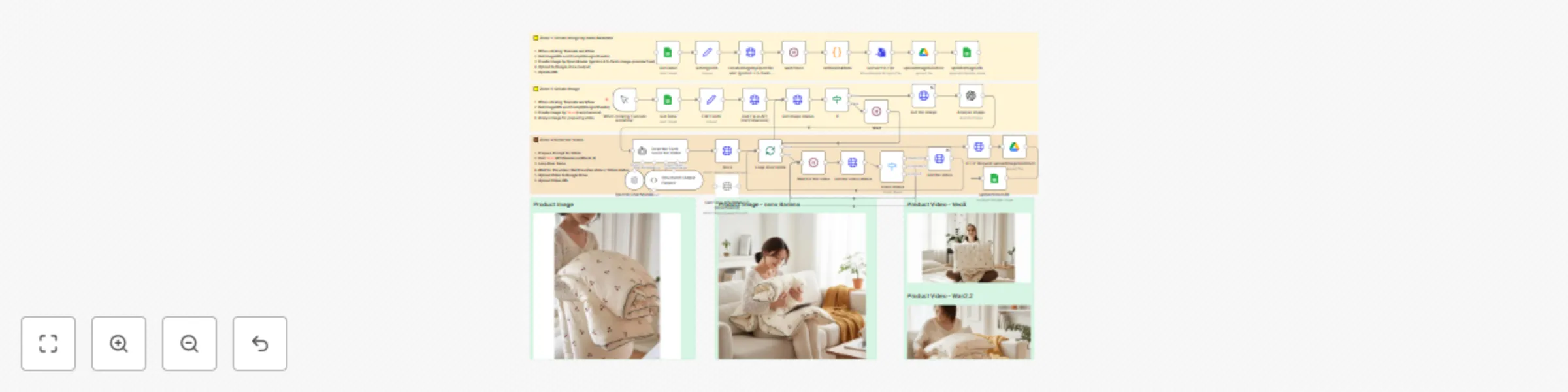
⚠️ **Note:** All sensitive credentials should be set via **n8n Credentials** or environment variables. Do **not** hardcode API keys in nodes. --- ## Who’s it for Marketers, creators, and automation builders who want to generate **UGC-style ad images and short videos** automatically from a Google Sheet. Ideal for e‑commerce SKUs, agencies, or teams that need many variations quickly. --- ## What it does (Overview) This template turns a spreadsheet row into **ad images** and optionally **5–8s videos**. - **Zone 0 — Image-only pipeline (Gemini/OpenRouter)**: Creates an ad image from a product link and prompt, uploads it to Drive, and updates the sheet (no video step). - **Zone 1 — Create image (Fal nano‑banana) + prepare for video**: Generates an image via Fal.ai, polls status, fetches URL, then analyzes the image with LLM to prepare scene prompts. - **Zone 2 — Generate video (WAN2.2 & Veo3)**: Uses the generated image + structured scene prompts to create short clips, uploads them to Drive, and writes the video URL back to the sheet. --- ## Requirements - **Fal.ai API key** (env: `FAL_KEY`) - **Google Sheets / Google Drive** OAuth2 credentials - **OpenAI / Gemini (via OpenRouter)** for image analysis or alternative image generation - A Google Sheet with columns, e.g.: `product | presenter | prompt | img_url | video_url` - Google Drive files set to **Anyone with link → Viewer** so APIs can fetch them --- ## How to set up 1. **Credentials**: Add Google Sheets + Google Drive (OAuth2), Fal.ai (Header Auth with `Authorization: Key {{$env.FAL_KEY}}`), and OpenAI/OpenRouter. 2. **Google Sheet**: Create the columns above. Paste product image Drive links (the workflow converts them to direct links automatically). 3. **Import the workflow**: Use the provided JSON. Confirm node credentials resolve. 4. **Run**: Start with Zone 0 to verify image-only flow, then test Zone 1 + Zone 2 for full image→video. --- ## Zone 0 — Create Ad Image (Image-only) This path is for creating **just an image** and stopping. It reads the **Gemini** tab in the Sheet, generates an image via OpenRouter/Gemini, converts base64 to a file, uploads to Drive, and writes back `img_url`. **Key nodes** - **Get Data1 (Google Sheets)** → reads `Gemini` tab - **setImgeURL (Set)** → converts Drive URLs to direct (`uc?export=view&id=...`) - **CreateImagebyOpernRouter (Gemini)** → calls `google/gemini-2.5-flash-image-preview:free` - **wait20sec (Wait)** → small delay - **setBase64data (Code)** → splits data URI into `{ data, mimeType, fileName }` - **Convert to File** → creates binary - **uploadImagetoGdrive (Google Drive)** → uploads image - **updateImageURL (Google Sheets)** → writes back `img_url` --- ## Zone 1 — Create Image (Fal nano‑banana) + Prepare for Video Reads product rows, normalizes Drive links, generates image with **Fal nano‑banana**, polls until complete, fetches the output image URL, then runs an **image analysis** (OpenAI Vision) to prepare structured text for the video step. **Key nodes** - **Get Data (Google Sheets)** → reads `nanoBanana` tab - **Edit Fields (Set)** → converts Drive links to direct (`uc?export=view&id=...`) - **Call Fal.ai API (nanoBanana)** → `POST https://queue.fal.run/fal-ai/nano-banana/edit` - **Get image status / If / Wait / Get the image** → job polling until complete - **Analyze image (OpenAI Vision)** → returns structured description (brand text, colors, type, short description) --- ## Zone 2 — Generate Video (WAN2.2 & Veo3) Creates a 5–8s UGC clip using the generated image + structured scene prompt. **Key nodes** - **Describe Each Scene for Video (AI Agent)** → expands analysis + user intent into detailed scene sections (Characters, Scene Background, Camera Movement, Movement in Scene, Sound Design) - **Structured Output Parser2 (Schema)** → enforces consistent JSON structure - **Veo3 (HTTP)** → `POST /fal-ai/veo3/image-to-video` with prompt + `image_url` - **Call Fal.ai API (WAN2.2) [Optional]** → `POST /fal-ai/wan/v2.2-a14b/image-to-video` - **Wait for the video / Get the video status / Video status / Get the video** → polling loop - **HTTP Request (Download File)** → downloads MP4 - **uploadImagetoGdrive1 (Google Drive)** → uploads video - **updateVideoURL (Google Sheets)** → writes back `video_url` --- ## Node settings (high‑level) - **Drive Link Parser (Set)** ```js {{ (() => { const u = $json.product || ''; const q = u.match(/[?&]id=([-\w]{25,})/); const d = u.match(/\/d\/([-\w]{25,})/); const any = u.match(/[-\w]{25,}/); const id = q?.[1] || d?.[1] || (any ? any[0] : ''); return id ? 'https://drive.google.com/uc?export=view&id=' + id : ''; })() }} --- ## How to customize the workflow * Adjust **AI prompts** to change ad style (funny, luxury, cozy, techy). * Change **video aspect ratio** for TikTok/IG/Shorts (`9:16`, `1:1`, `16:9`). * Extend Sheet schema for campaign labels, audiences, hashtags. * Add distribution (Slack/LINE/Telegram) after Drive upload. --- ## Troubleshooting * **JSON parameter needs to be valid JSON** → Ensure expressions return objects, not strings. * **403 on images** → Make Drive files public (Viewer) and convert links. * **Video never completes** → Check `status_url`, retry with `*-fast` models or off‑peak times. --- ## Template metadata * **Uses:** Google Sheets, Google Drive, HTTP Request, Wait/If/Switch, Code, Convert to File, OpenAI/Gemini (optional), Fal.ai models (nano‑banana, WAN2.2, Veo3) * **Source workflow JSON:** Gemini\_NanoBanana\_Template.json (node names and connections match) ## Product Image  ## Product Image - nano Banana  ## Product Video - Veo3  ## Product Video - Wan2.2 
Process Thai documents with TyphoonOCR & AI to Google Sheets (multi-page PDF)
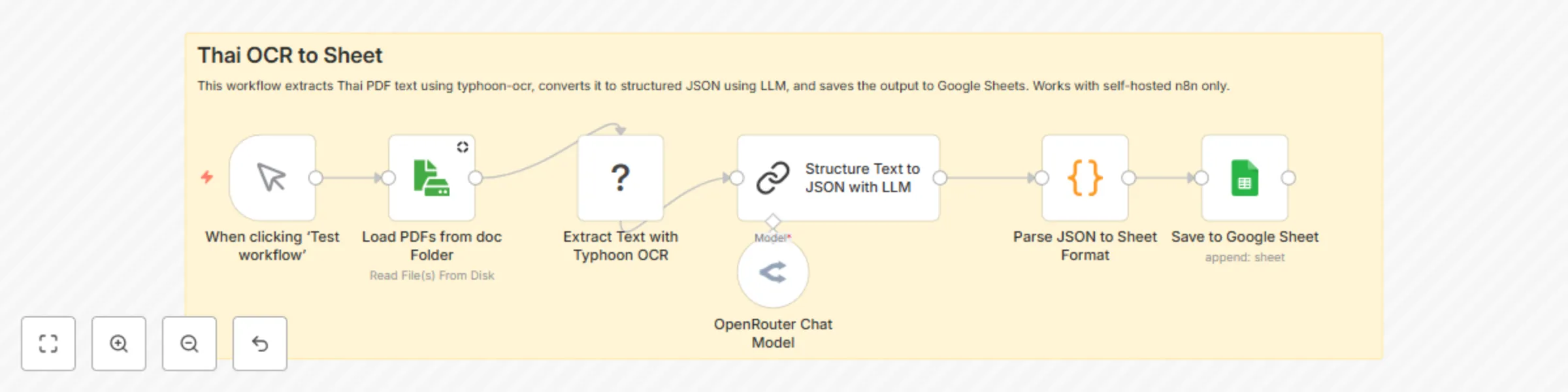
#### ⚠️ Note: This template requires a community node and works only on self-hosted n8n installations. It uses the Typhoon OCR Python package, `pdfseparate` from poppler-utils, and custom command execution. Make sure to install all required dependencies locally. --- ## Who is this for? This template is designed for developers, back-office teams, and automation builders (especially in Thailand or Thai-speaking environments) who need to process **multi-file, multi-page Thai PDFs** and automatically export structured results to Google Sheets. It is ideal for: - Government and enterprise document processing - Thai-language invoices, memos, and official letters - AI-powered automation pipelines that require Thai OCR --- ## What problem does this solve? Typhoon OCR is one of the most accurate OCR tools for Thai text, but integrating it into an end-to-end workflow usually requires manual scripting and handling multi-page PDFs. This template solves that by: - Splitting PDFs into individual pages - Running Typhoon OCR on each page - Aggregating text back into a single file - Using AI to extract structured fields - Automatically saving structured data into Google Sheets --- ## What this workflow does  - **Trigger:** Manual execution or any n8n trigger node - **Load Files:** Read PDFs from a local `doc/multipage` folder - **Split PDF Pages:** Use `pdfinfo` and `pdfseparate` to break PDFs into pages - **Typhoon OCR:** Run OCR on each page via Execute Command - **Aggregate:** Combine per-page OCR text - **LLM Extraction:** Use AI (e.g., GPT-4, OpenRouter) to extract fields into JSON - **Parse JSON:** Convert structured JSON into a tabular format - **Google Sheets:** Append one row per file into a Google Sheet - **Cleanup:** Delete temp split pages and move processed PDFs into a Completed folder --- ## Setup 1. **Install Requirements** - Python 3.10+ - `typhoon-ocr`: `pip install typhoon-ocr` - poppler-utils: provides `pdfinfo`, `pdfseparate` - qpdf: backup page counting 2. **Create folders** - `/doc/multipage` for incoming files - `/doc/tmp` for split pages - `/doc/multipage/Completed` for processed files 3. **Google Sheet** - Create a Google Sheet with column headers like: ``` book_id | date | subject | to | attach | detail | signed_by | signed_by2 | contact_phone | contact_email | contact_fax | download_url ``` 4. **API Keys** - Export your `TYPHOON_OCR_API_KEY` and `OPENAI_API_KEY` (or use credentials in n8n) --- ## How to customize this workflow - Replace the LLM provider in the “Structure Text to JSON with LLM” node (supports OpenRouter, OpenAI, etc.) - Adjust the JSON schema and parsing logic to match your documents - Update Google Sheets mapping to fit your desired fields - Add trigger nodes (Dropbox, Google Drive, Webhook) to automate file ingestion --- ## About Typhoon OCR Typhoon is a multilingual LLM and NLP toolkit optimized for Thai. It includes `typhoon-ocr`, a Python OCR package designed for Thai-centric documents. It is open-source, highly accurate, and works well in automation pipelines. Perfect for government paperwork, PDF reports, and multi-language documents in Southeast Asia. --- ## Deployment Option You can also deploy this workflow easily using the Docker image provided in my GitHub repository: [https://github.com/Jaruphat/n8n-ffmpeg-typhoon-ollama](https://github.com/Jaruphat/n8n-ffmpeg-typhoon-ollama) This Docker setup already includes n8n, ffmpeg, Typhoon OCR, and Ollama combined together, so you can run the whole environment without installing each dependency manually.
Extract data from Thai Government letters with Mistral OCR and store in Google Sheets
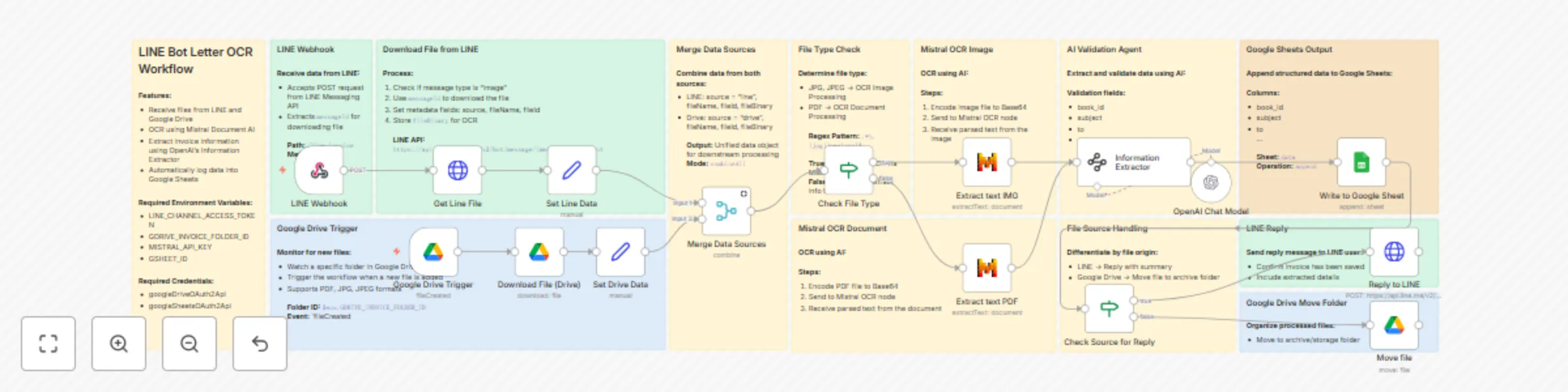
### LINE OCR Workflow to Extract and Save Thai Government Letters to Google Sheets This template automates the extraction of structured data from Thai government letters received via LINE or uploaded to Google Drive. It uses Mistral AI for OCR and OpenAI for information extraction, saving results to a Google Sheet. --- ## Who’s it for? - Thai government agencies or teams receiving official documents via LINE or Google Drive - Automation developers working with document intake and OCR - Anyone needing to extract fields from Thai scanned letters and store structured info --- ## What it does This n8n workflow: 1. **Receives documents** from two sources: - LINE webhook (via Messaging API) - Google Drive (new file trigger) 2. **Checks file type** (PDF or image) 3. **Runs OCR** with Mistral AI (Document or Image model) 4. **Uses OpenAI** to extract key metadata such as: - book_id - subject - recipient (to) - signatory - date, contact info, etc. 5. **Stores structured data** in Google Sheets 6. **Replies to LINE user** with extracted info or moves files into archive folders (Drive) --- ## How to Set It Up 1. Create a Google Sheet with a tab named `data` and the following columns [Example Google Sheet](https://docs.google.com/spreadsheets/d/1asLDGXnPA4K55RfLDGRkgQzOpnKezDoVibWgnGaGUJ0/edit?usp=sharing): - `book_id`, `date`, `subject`, `to`, `attach`, `detail`, `signed_by`, `signed_by_position`, `contact_phone`, `contact_email`, `download_url` 2. Set up required credentials: - `googleDriveOAuth2Api` - `googleSheetsOAuth2Api` - `httpHeaderAuth` for LINE Messaging API - `openAiApi` - `mistralCloudApi` 3. Define environment variables: - `LINE_CHANNEL_ACCESS_TOKEN` - `GDRIVE_INVOICE_FOLDER_ID` - `GSHEET_ID` - `MISTRAL_API_KEY` 4. Deploy webhook to receive files from LINE Messaging API (Path: `/line-invoice`) 5. Monitor Drive uploads using `Google Drive Trigger` --- ## How to Customize the Workflow - Adjust the **information extraction schema** in the OpenAI `Information Extractor` node to match your document layout - Add logic for different document types if you have more than one format - Modify the `LINE Reply` message format or use Flex Message - Update the `Move File` node if you want to archive to a different folder --- ## Requirements - n8n self-hosted or cloud instance - Google account with access to Drive and Sheets - LINE Developer Account - OpenAI API key - Mistral Cloud API key --- ## Notes - Community nodes used: `@n8n/n8n-nodes-base.mistralAi` - This workflow **supports both document images and PDF files** - File handling is done dynamically via MIME type
Generate cinematic videos from text prompts with GPT-4o, Fal.AI Seedance & Audio
### Who’s it for? This workflow is built for: - **AI storytellers**, **content creators**, **YouTubers**, and **short-form video marketers** - Anyone looking to transform text prompts into **cinematic AI-generated videos** fully automatically - **Educators**, **trainers**, or **agencies** creating story-based visual content at scale --- ### What It Does This n8n workflow allows you to automatically turn a **simple text prompt** into a **multi-scene cinematic video**, using the powerful **Fal.AI Seedance V1.0** model (developed by **ByteDance** — the creators of TikTok). It combines the creativity of **GPT-4o**, the motion synthesis of **Seedance**, and the automation power of **n8n** to generate AI videos with ambient sound and publish-ready format. --- ### How It Works 1. Accepts a prompt from **Google Sheets** (configurable fields like duration, aspect ratio, resolution, scene count) 2. Uses **OpenAI GPT-4o** to write a vivid cinematic **narrative** 3. Splits the story into **n separate scenes** 4. For each scene: - GPT generates a structured cinematic description (characters, camera, movement, sound) - The **Seedance V1.0 model (via Fal.AI API)** renders a 5s animated video - Optional: Adds ambient **audio via Fal’s MM-Audio model** 5. Finally: - Merges all scene videos using **Fal’s FFmpeg API** - Optionally **uploads to YouTube automatically** --- ### Why This Is Special - **Fal.AI Seedance V1.0** is a highly advanced motion video model developed by ByteDance, capable of generating expressive, stylized 5–6 second cinematic clips from text. - This workflow supports full looping, scene count validation, and wait-polling for long render jobs. - The entire story, breakdown, and scene design are AI-generated — no manual effort needed. - Output is export-ready: MP4 with sound, ideal for YouTube Shorts, Reels, or TikTok. --- ### Requirements - n8n (Self-hosted recommended) - API Keys: - `Fal.AI` (https://fal.ai) - `OpenAI` (GPT-4o or 3.5) - `Google Sheets` [Example Google Sheet](https://docs.google.com/spreadsheets/d/1FuDdvkzq5TZ3Evs92BxUxD4qOK0EDLAzB-SayKwpAdw) --- ### How to Set It Up 1. Clone the template into your n8n instance 2. Configure credentials: - Fal.AI Header Token - OpenAI API Key - Google Sheets OAuth2 - (Optional) YouTube API OAuth 3. Prepare a Google Sheet with these columns: - `story` (short prompt) - `number_of_scene` - `duration` (per clip) - `aspect_ratio`, `resolution`, `model` 4. Run manually or trigger on Sheet update. --- ### How to Customize - Modify the storytelling tone in GPT prompts (e.g., switch to fantasy, horror, sci-fi) - Change Seedance model params like style or seed - Add subtitles or branding overlays to final video - Integrate LINE, Notion, or Telegram for auto-sharing --- ### Example Output **Prompt**: *“A rabbit flies to the moon on a dragonfly and eats watermelon together”* → Result: 3 scenes, each 5s, cinematic camera pans, soft ambient audio, auto-uploaded to YouTube [Result](https://youtu.be/_PKvi0Sfs84)
Generate video from prompt using Vertex AI Veo 3 and upload to Google Drive
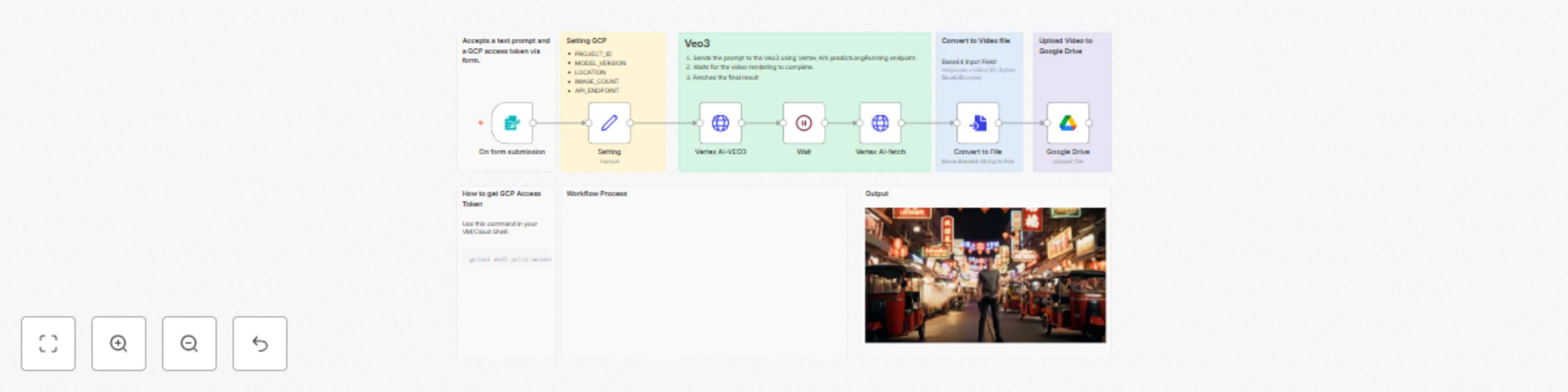
## Who’s it for This template is perfect for content creators, AI enthusiasts, marketers, and developers who want to automate the generation of cinematic videos using Google Vertex AI’s Veo 3 model. It’s also ideal for anyone experimenting with generative AI for video using n8n.  ## What it does This workflow: - Accepts a text prompt and a GCP access token via form. - Sends the prompt to the Veo 3 (preview model) using Vertex AI’s predictLongRunning endpoint. - Waits for the video rendering to complete. - Fetches the final result and converts the base64-encoded video to a file. - Uploads the resulting .mp4 to your Google Drive.  ### Output  ## How to set up 1. Enable Vertex AI API in your GCP project: [https://console.cloud.google.com/marketplace/product/google/aiplatform.googleapis.com](https://console.cloud.google.com/marketplace/product/google/aiplatform.googleapis.com) 2. Authenticate with GCP using Cloud Shell or local terminal: ``` gcloud auth login gcloud config set project [YOUR_PROJECT_ID] gcloud auth application-default set-quota-project [YOUR_PROJECT_ID] gcloud auth print-access-token ``` - Copy the token and use it in the form when running the workflow. - ⚠️ This token lasts ~1 hour. Regenerate as needed. 3. Connect your Google Drive OAuth2 credentials to allow file upload. 4. Import this workflow into n8n and execute it via form trigger. ## Requirements - **n8n (v1.94.1+)** - A **Google Cloud project** with: - Vertex AI API enabled - Billing enabled - A way to get **Access Token** ```gcloud auth print-access-token``` - A **Google Drive OAuth2 credential** connected to n8n ## How to customize the workflow - You can modify the - ```durationSeconds``` - ```aspectRatio``` - ```generateAudio``` - in the HTTP node to match your use case. - Replace the Google Drive upload node with alternatives like Dropbox, S3, or YouTube upload. - Extend the workflow to add subtitles, audio dubbing, or LINE/Slack alerts. Step-by-step for each major node: Prompt Input → Vertex Predict → Wait → Fetch Result → Convert to File → Upload ## Best Practices Followed - No hardcoded API tokens - Secure: GCP token is input via form, not stored in workflow - All nodes are renamed with clear purpose - All editable config grouped in Set node ## External References - GCP Veo API Docs: https://cloud.google.com/vertex-ai/docs/generative-ai/video/overview ## Disclaimer - This workflow uses official Google Cloud APIs and requires a valid GCP project. - Access token should be generated securely using gcloud CLI. - Do not embed tokens in the workflow itself. ### Notes on GCP Access Token To use the Vertex AI API in n8n securely: 1. Run the following on your local machine or GCP Cloud Shell: ``` gcloud auth login gcloud config set project your-project-id gcloud auth print-access-token ``` 2. Paste the token in the workflow form field ```YOUR_ACCESS_TOKEN``` when submitting. 3. **Do not hardcode the token** into HTTP nodes or Set nodes — input it each time or use a secure credential vault.
Extract and structure Thai documents to Google Sheets using Typhoon OCR and Llama 3.1
 ⚠️ **Note:** This template requires a community node and works **only on self-hosted** n8n installations. It uses the Typhoon OCR Python package and custom command execution. Make sure to install required dependencies locally. --- ## Who is this for? This template is for developers, operations teams, and automation builders in Thailand (or any Thai-speaking environment) who regularly process PDFs or scanned documents in Thai and want to extract structured text into a Google Sheet. ### It is ideal for: * Local government document processing * Thai-language enterprise paperwork * AI automation pipelines requiring Thai OCR --- ## What problem does this solve? Typhoon OCR is one of the most accurate OCR tools for Thai text. However, integrating it into an end-to-end workflow usually requires manual scripting and data wrangling. ### This template solves that by: * Running Typhoon OCR on PDF files * Using AI to extract structured data fields * Automatically storing results in Google Sheets --- ## What this workflow does 1. **Trigger**: Run manually or from any automation source 2. **Read Files**: Load local PDF files from a `doc/` folder 3. **Execute Command**: Run Typhoon OCR on each file using a Python command 4. **LLM Extraction**: Send the OCR markdown to an AI model (e.g., GPT-4 or OpenRouter) to extract fields 5. **Code Node**: Parse the LLM output as JSON 6. **Google Sheets**: Append structured data into a spreadsheet --- ## Setup ### 1. **Install Requirements** * Python 3.10+ * `typhoon-ocr`: `pip install typhoon-ocr` * Install [Poppler](https://github.com/oschwartz10612/poppler-windows/releases/) and add to system PATH (needed for `pdftoppm`, `pdfinfo`) ### 2. **Create folders** * Create a folder called `doc` in the same directory where n8n runs (or mount it via Docker) ### 3. **Google Sheet** Create a Google Sheet with the following column headers: | book\_id | date | subject | detail | signed\_by | signed\_by2 | contact | download\_url | | -------- | ---- | ------- | ------ | ---------- | ----------- | ------- | ------------- | You can use this [example Google Sheet](https://docs.google.com/spreadsheets/d/1h70cJyLj5i2j0Ag5kqp93ccZjjhJnqpLmz-ee5r4brU) as a reference. ### 4. **API Key** Export your `TYPHOON_OCR_API_KEY` and `OPENAI_API_KEY` in your environment (or set inside the command string in `Execute Command` node). --- ## How to customize this workflow * Replace the LLM provider in the `Basic LLM Chain` node (currently supports OpenRouter) * Change output fields to match your data structure (adjust the prompt and Google Sheet headers) * Add trigger nodes (e.g., Dropbox Upload, Webhook) to automate input --- ## About Typhoon OCR [Typhoon](https://docs.opentyphoon.ai/en/) is a multilingual LLM and toolkit optimized for Thai NLP. It includes `typhoon-ocr`, a Python OCR library designed for Thai-centric documents. It is open-source, highly accurate, and works well in automation pipelines. Perfect for government paperwork, PDF reports, and multilingual documents in Southeast Asia. ---
Automatically create cinematic quote videos with AI and upload to YouTube
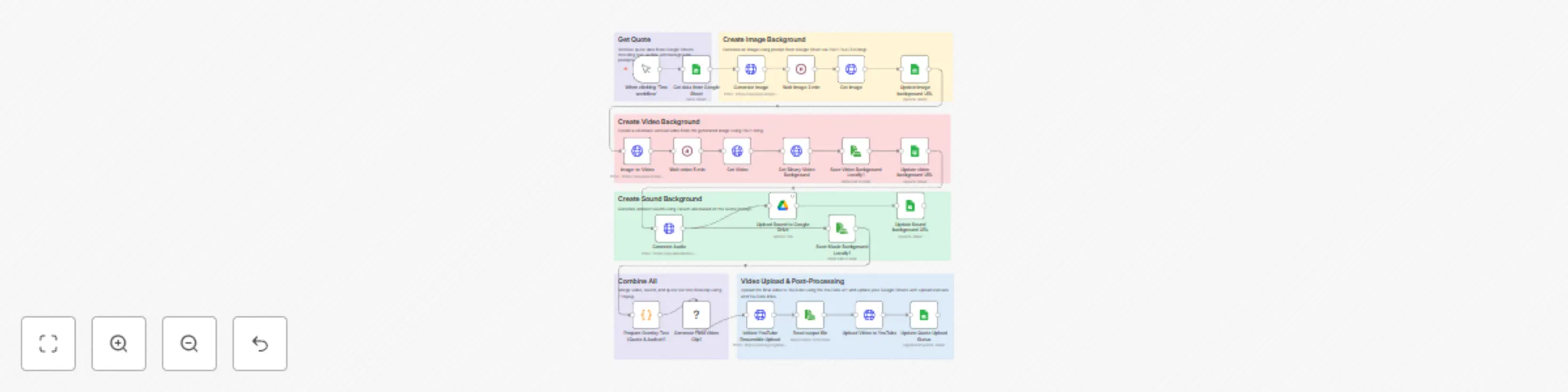
## **⚠️ Important Disclaimer:** This template is only compatible with a self-hosted n8n instance using a community node. ## Who is this for? This workflow is ideal for digital content creators, marketers, social media managers, and automation enthusiasts who want to produce fully automated vertical video content featuring inspirational or motivational quotes. Specifically tailored for Thai language, it effectively demonstrates integration of AI-generated imagery, video, ambient sound, and visually appealing quote overlays. ## What problem is this workflow solving? Manually creating high-quality, vertically formatted quote videos is often repetitive, time-consuming, and involves multiple tedious steps like selecting suitable visuals, editing audio tracks, and correctly overlaying text. Additionally, manual uploading to platforms like YouTube and maintaining accurate content records are prone to errors and inefficiencies. ## What this workflow does: - Fetches a quote, author, and scenic background description from a Google Sheet. - Automatically generates a vertical background image using the Flux AI (txt2img) API. - Transforms the AI-generated image into a subtly animated cinematic vertical video using the Kling video-generation API. - Generates an immersive, ambient background sound using ElevenLabs’ sound generation API. - Dynamically overlays the selected Thai-language quote and author text onto the generated video using FFmpeg, ensuring visually appealing typography (e.g., Kanit font). - Automatically uploads the final video to YouTube. - Updates the resulting YouTube video URL back to the Google Sheet, keeping your content records current and well-organized. ## Setup ### Requirements: - This workflow requires a **self-hosted n8n instance**, as the execution of FFmpeg commands is not supported on n8n Cloud. Ensure FFmpeg is installed on your self-hosted environment. - API keys and accounts setup for Flux, Kling, ElevenLabs, Google Sheets, Google Drive, and YouTube. ### Google Sheets Setup: Your Google Sheet must include these columns: - **Index** Unique identifier for each quote - **Quote (Thai)** Quote text in Thai language (or your chosen language) - **Pen Name (Thai)** Author or pen name of the quote's creator - **Background (EN)** Short English description of the scene (e.g., "sunrise over mountains") - **Prompt (EN)** Detailed English prompt describing the image/video scene (e.g., "peaceful sunrise with misty mountains") - **Background Image** URL of AI-generated image (updated automatically) - **Background Video** URL of generated video (updated automatically) - **Music Background** URL of generated ambient audio (updated automatically) - **Video Status** YouTube URL (updated automatically after upload) A ready-to-use Google Sheets template is provided [here (provide your actual link)]. To help you get started quickly, you can use [this template spreadsheet](https://docs.google.com/spreadsheets/d/1p1iPoiu2uI3qGbHi0diS7QwsMcLuzDIqwo3AeSUVrGQ/edit?usp=sharing). ### Next steps: - Authenticate Google Sheets, Google Drive, YouTube API, Flux AI, Kling API, and ElevenLabs API within n8n. - Ensure FFmpeg supports fonts compatible with your chosen language (for Thai, "Kanit" font is recommended). - Prepare your Google Sheets with desired quotes, authors, and image/video prompts. ### How to customize this workflow to your needs: - **Fonts:** Adjust font type, size, color, and positioning within the provided FFmpeg commands in the workflow’s code nodes. Verify that selected fonts properly support your target language. - **Media Customization:** Customize the scene descriptions in your Google Sheet to change image/video backgrounds automatically generated by AI. - **Quote Management:** Easily manage, add, or update quotes and associated details directly via Google Sheets without workflow modifications. - **Audio Ambiance:** Customize or adjust the ambient sound prompt for ElevenLabs within the workflow’s HTTP Request node to match your video's desired mood. ## Benefits of using AI-generated content and localized fonts: Leveraging AI-generated visual and audio elements along with localized fonts greatly enhances audience engagement by creating visually appealing, professional-quality content tailored specifically for your target audience. This automated workflow drastically reduces production time and manual effort, enabling rapid, consistent content creation optimized for platforms such as YouTube Shorts, Instagram Reels, and TikTok. 
Automatically create and upload YouTube videos with quotes in Thai using FFmpeg
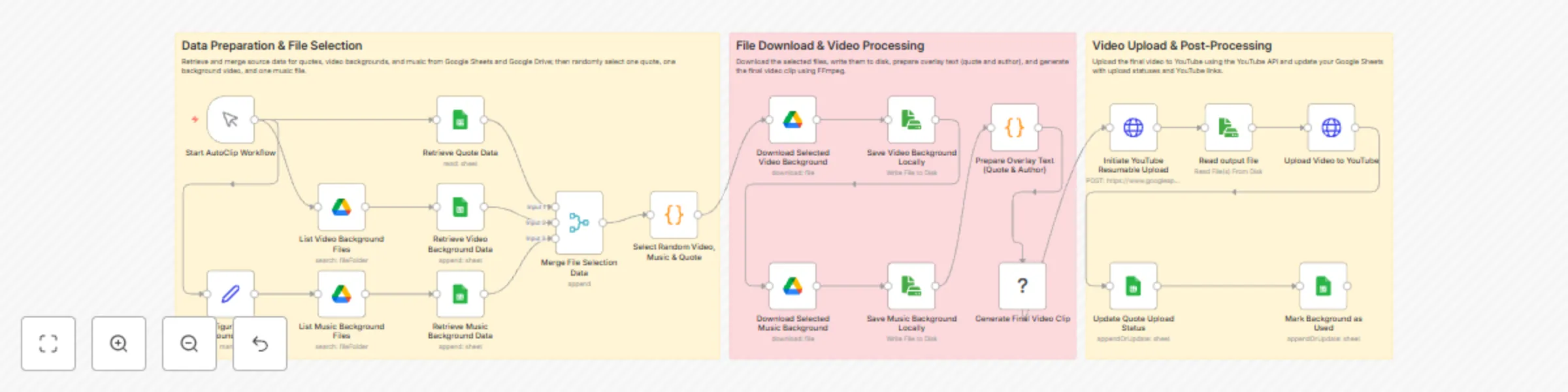
## Who is this for? This workflow is perfect for digital content creators, marketers, and social media managers who regularly create engaging short-form videos featuring inspirational or motivational quotes. While the workflow is universally applicable, it specifically highlights Thai as an example to demonstrate effective language and font integration. ## What problem is this workflow solving? Creating consistent and engaging multilingual video content manually, including attractive fonts and proper video formatting, is time-consuming and repetitive. Additionally, managing files, background music, and updating statuses manually can be tedious and prone to errors. ## What this workflow does - Automatically fetches background video and music files stored on Google Drive. - Randomly selects a quote (demonstrated with Thai language) and author information from Google Sheets. - Dynamically combines the selected quote and author text using appealing fonts, such as the Thai font "Kanit," directly onto the video using FFmpeg on your n8n local environment. - Creates visually engaging videos with a 9:16 aspect ratio, optimized for YouTube Shorts and other vertical video platforms. - Automatically uploads the finalized video to YouTube. - Updates the status and YouTube URL back into your Google Sheet, ensuring you have up-to-date records. ## Setup ### Requirements: This workflow requires a **self-hosted n8n instance**, as the execution of FFmpeg commands is not supported on n8n Cloud. Ensure FFmpeg is installed on your self-hosted environment. ### Google Sheets Setup: Your Google Sheet must include at least these columns: - Index: (Unique identifier for each quote) - Quote: (Text of the quote) - Author: (Author of the quote) - CreateStatus: (Track video creation status; values like 'DONE' or blank for pending) - YoutubeURL: (Automatically updated after upload) To help you get started quickly, you can use [this template spreadsheet](https://docs.google.com/spreadsheets/d/184-zcrfWSzQpDa-t57Oo_8DLyAF-2B_6yvGrybrcd5I/edit?usp=sharing). ### Next steps: 1. Organize your video and music files in separate folders in Google Drive. 2. Authenticate your Google Sheets, Google Drive, and YouTube accounts in n8n. 3. Ensure fonts compatible with your target languages (such as Kanit for Thai) are available in your FFmpeg installation. ## How to customize this workflow to your needs - **Fonts:** Adjust font styles and sizes within the workflow's code node. Ensure the fonts you choose fully support the language you wish to use. - **Quote Management:** Easily add or remove quotes and authors in your Google Sheets document. - **Media Files:** Change or update background videos and music by modifying the files in your Google Drive folders. - **Video Specifications:** Customize video dimensions, text positioning, opacity, and music volume directly in the provided FFmpeg commands. ## Benefits of Using Localized Fonts and Quotes Utilizing fonts specific to your target language, as demonstrated with Thai, significantly increases audience engagement by making your content more relatable, shareable, and visually appealing. Ensure you select fonts that properly support the language you're targeting.
Automatically save & organize LINE message files in Google Drive with Sheets logging
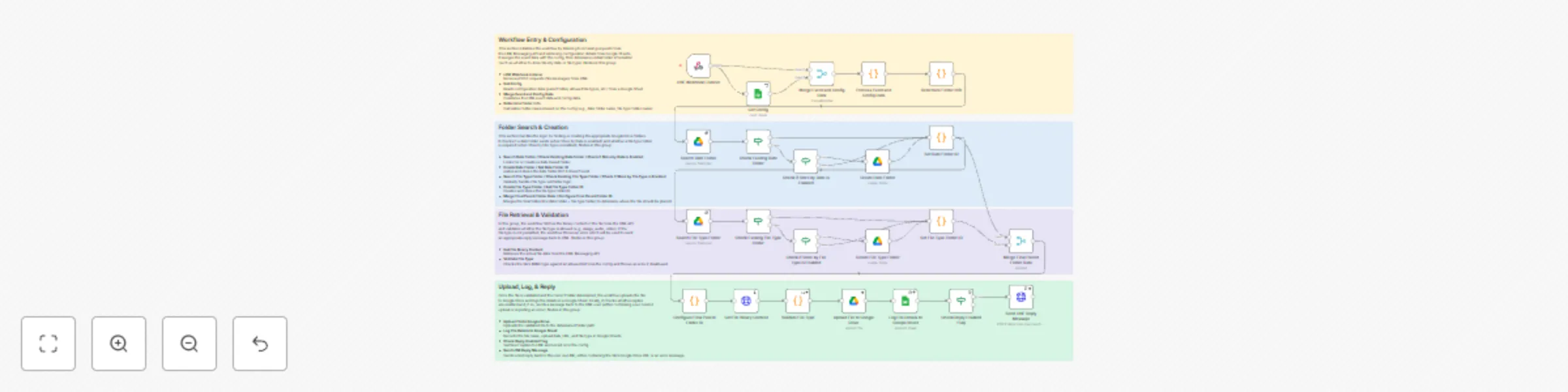
## Overview This workflow automatically saves files received via LINE Messaging API into Google Drive and logs the file details into a Google Sheet. It checks the file type against allowed types, organizes files into date-based folders and (optionally) file type–specific subfolders, and sends a reply message back to the LINE user with the file URL or an error message if the file type is not permitted. ## Who is this for? **Developers & IT Administrators:** Looking to integrate LINE with Google Drive and Sheets for automated file management. **Businesses & Marketing Teams:** That want to automatically archive media files and documents received from users via LINE. **Anyone Interested in No-Code Automation:** Users who want to leverage n8n’s capabilities without heavy coding. ## What Problem Does This Workflow Solve? **Automated File Organization:** Files received from LINE are automatically checked for allowed file types, then stored in a structured folder hierarchy in Google Drive (by date and/or file type). **Data Logging:** Each file upload is recorded in a Google Sheet, providing an audit trail with file names, upload dates, URLs, and types. **Instant Feedback:** Users receive an immediate reply via LINE confirming the file upload, or an error message if the file type is not allowed. ## What This Workflow Does **1. Receives Incoming Requests:** * A webhook node (*"LINE Webhook Listener"*) listens for POST requests from LINE, capturing file upload events and associated metadata. **2. Configuration Loading:** * A Google Sheets node (*"Get Config"*) reads configuration data (e.g., parent folder ID, allowed file types, folder organization settings, and credentials) from a pre-defined sheet. **Data Merging & Processing:** * The *"Merge Event and Config Data"* and *"Process Event and Config Data"* nodes merge and structure the event data with configuration settings. * A *"Determine Folder Info"* node calculates folder names based on the configuration. If Store by Date is enabled, it uses the current date (or a specified date) as the folder name. If Store by File Type is also enabled, it uses the file’s type (e.g., image) for a subfolder. **4. Folder Search & Creation:** * The workflow searches for an existing date folder (*"Search Date Folder"*). * If the date folder is not found, an IF node (*"Check Existing Date Folder"*) routes to a *"Create Date Folder"* node. * Similarly, for file type organization, the workflow uses a *"Search FileType Folder"* node (with appropriate conditions) to look for a subfolder, or creates it if not found. * The *"Set Date Folder ID"* and *"Set Image Folder ID"* nodes capture and merge the resulting folder IDs. * Finally, the *"Config final ParentId"* node sets the final target folder ID based on the configuration conditions: - **Store by Date: TRUE, Store by File Type: TRUE:** Use the file type folder (inside the date folder). - **Store by Date: TRUE, Store by File Type: FALSE:** Use the date folder. - **Store by Date: FALSE, Store by File Type: TRUE:** Use the file type folder. - **Store by Date: FALSE, Store by File Type: FALSE:** Use the Parent Folder ID from the configuration. **5. File Retrieval and Validation:** - A HTTP Request node (*"Get File Binary Content"*) fetches the file’s binary data from the LINE API. - A Function node (*"Validate File Type"*) checks if the file’s MIME type is included in the allowed list (e.g., "audio|image|video"). If not, it throws an error that is captured for the reply. **6. File Upload and Logging:** - The *"Upload File to Google Drive"* node uploads the validated binary file to the final target folder. - After a successful upload, the *"Log File Details to Google Sheet"* node logs details such as file name, upload date, Google Drive URL, and file type into a designated Google Sheet. **7. User Feedback:** - The *"Check Reply Enabled Flag"* node checks if the reply feature is enabled. - Finally, the *"Send LINE Reply Message"* node sends a reply message back to the LINE user with either the file URL (if the upload was successful) or an error message (if the file type was not allowed). ## Setup Instructions **1. Google Sheets Setup:** * **Create a Google Sheet with two sheets:** - **config:** Include columns for Parent Folder Path, Parent Folder ID, Store by Date (boolean), Store by File Type (boolean), Allow File Types (e.g., “audio|image|video”), CurrentDate, Reply Enabled, and CHANNEL ACCESS TOKEN. - **fileList:** Create headers for File Name, Date Uploaded, Google Drive URL, and File Type. For an example of the required format, check this Google Sheets template: [Google Sheet Template](https://docs.google.com/spreadsheets/d/1iO4ZHU7s0fe1Jn8jcScNDce7rFXQlkRBqsO8IFHbcSc/edit?usp=sharing) **2. Google Drive Credentials:** - Set up and authorize your Google Drive credentials in n8n. **3. LINE Messaging API:** * Configure your LINE Developer Console webhook to point to the n8n Webhook URL ("Line Chat Bot" node). * Ensure you have the proper Channel Access Token stored in your Google Sheet. **4. n8n Workflow Import:** * Import the provided JSON file into your n8n instance. * Verify node connections and update any credential references as needed. **5. Test the Workflow:** * Send a test message via LINE to confirm that files are properly validated, uploaded, logged, and that reply messages are sent. ## How to Customize This Workflow * Allowed File Types: Adjust the *"Validate File Type"* field in your config sheet to control which file types are accepted. * Folder Structure: Modify the logic in the "Determine Folder Info" and subsequent folder nodes to change how folders are structured (e.g., use different date formats or add additional categorization). * Logging: Update the *"Log File Details to Google Sheet"* node if you wish to log additional file metadata. * Reply Messages: Customize the reply text in the *"Send LINE Reply Message"* node to include more detailed information or instructions.
Extract Thai bank slip data from LINE using SpaceOCR and save to Google Sheets
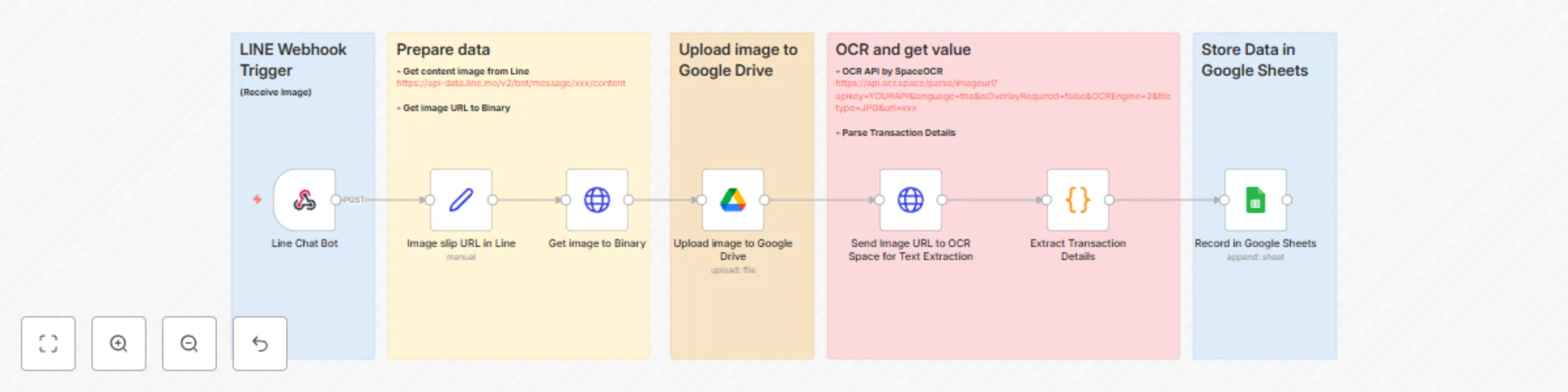
## Who is this for? This workflow is ideal for businesses, accountants, and finance teams who receive bank slip images via LINE and want to automate the extraction of transaction details. It eliminates manual data entry and speeds up financial tracking. What problem does this workflow solve? Many businesses receive bank transfer slips via LINE from customers, but manually recording transaction details into spreadsheets is time-consuming and error-prone. This workflow automates the entire process, extracting structured data from the bank slips and storing it in Google Sheets for seamless record-keeping. ## What this workflow does: - Receives bank slip images from LINE BOT - Extracts transaction details (sender, receiver, amount, transaction ID) using SpaceOCR - Automatically logs extracted data into Google Sheets - Works with Standard Bank Slips & PromptPay transactions - Eliminates manual data entry and reduces errors ## Setup Instructions: ### 1. Prerequisites - A **LINE BOT** with Messaging API enabled - A **SpaceOCR API Key** (Get from https://spaceocr.com/) - A **Google Sheets account** to store extracted data - An **n8n instance** running (Cloud or Self-hosted) ### 2. Setup Google Sheets Create a Google Sheet with the following structure: A (Date) B (Time) C (Sender) D (Receiver) E (Bank Name) F (Amount) G (Transaction ID) - Ensure your Google Sheets API is enabled and connected to n8n. For an example of the required format, check this Google Sheets template: [Google Sheets Template](https://docs.google.com/spreadsheets/d/1IpvzcnWmb-aLpSleTIF0xoF8xzbOOJQhuT6ITAeEQks/edit?usp=sharing) ### 3. Configure n8n Workflow #### 1. Webhook Node (Receives bank slip from LINE BOT) - **Set method:** ```POST``` - **Set Path:** ```/line-webhook``` #### 2. HTTP Request (Download Image from LINE Message) - Retrieves image URL from the LINE message payload #### 3. SpaceOCR Node (Extract Text from Bank Slip) - **Input:** ```image URL``` from LINE - **API Key:** ```Your SpaceOCR API Key``` #### 4. Google Sheets Node (Save Transaction Data) - Select your Google Sheet - Map extracted data (sender, receiver, amount, etc.) to the respective columns ### 4. Deploy & Test Activate the workflow in n8n Set Webhook URL in LINE Developer Console Send a test bank slip image to the LINE BOT Check Google Sheets for extracted transaction data
LINE BOT - Google Sheets file lookup with AI agent
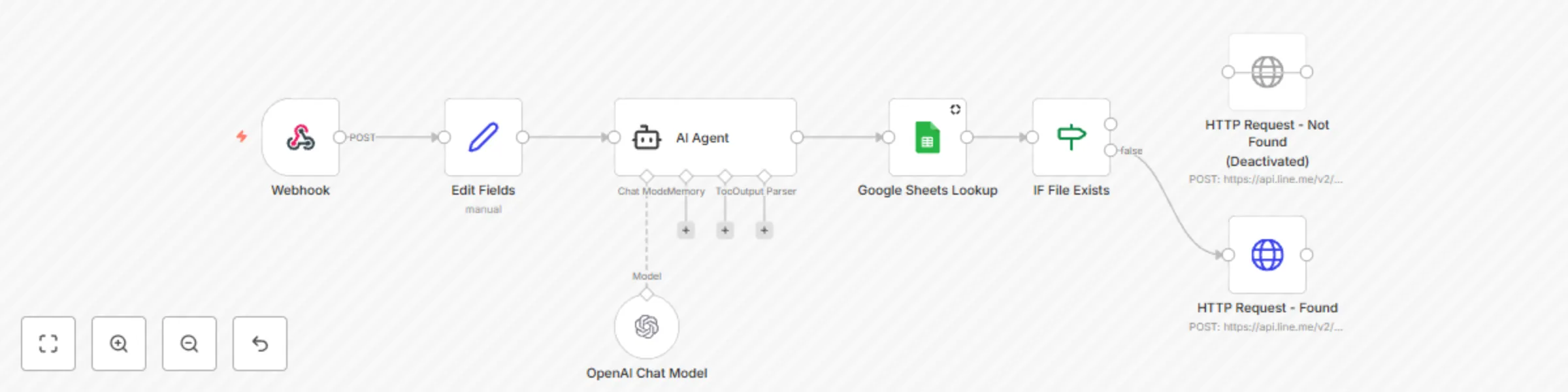
This workflow integrates LINE BOT, AI Agent (GPT), Google Sheets, and Google Drive to enable users to search for file URLs using natural language. The AI Agent extracts the filename from the message, searches for the file in Google Sheets, and returns the corresponding Google Drive URL via LINE BOT. - Supports natural language queries (e.g., "Find file 1.pdf for me") - AI-powered filename extraction - Google Sheets Lookup for file URLs - Auto-response via LINE BOT  ## How to Use This Template **1. Download & Import** - Copy and save the Template Code as a .json file. - Go to n8n Editor → Click Import → Upload the file. **2. Update Required Fields** - Replace YOUR_GOOGLE_SHEET_ID with your actual Google Sheet ID. - Replace YOUR_LINE_ACCESS_TOKEN with your LINE BOT Channel Access Token. **3. Activate & Test** - Click Execute Workflow to test manually. - Set Webhook URL in LINE Developer Console. ## Features of This Template - Supports Natural Language Queries (e.g., “Find file 1.pdf for me”) - AI-powered filename extraction using OpenAI (GPT-4/3.5) - Real-time file lookup in Google Sheets - Automatic LINE BOT Response - Fully Automated Workflow