Automatically add travel time blockers to calendar using Google Directions API

Workflow preview

Workflow preview
100%
Automatically add travel time blockers to calendar using Google Directions API preview
Open on n8n.io

Important notice

This workflow is provided as-is. Please review and test before using in production.

1. Workflow Overview

Automatically add Travel time blockers before Appointments This bot automatically adds Travel time blockers to your calendar, so you never come late to an appointment again. How it works Trigger : ...

Best for

  • Personal Productivity automation workflows
  • AI Chatbot automation workflows
  • advanced n8n builders looking for reusable templates

Tools used

n8n-nodes-base.scheduletrigger, @n8n/n8n-nodes-langchain.agent, @n8n/n8n-nodes-langchain.lmchatopenai, @n8n/n8n-nodes-langchain.memorybufferwindow, n8n-nodes-base.googlecalendartool, @n8n/n8n-nodes-langchain.toolworkflow, n8n-nodes-base.set, n8n-nodes-base.httprequest

Source and attribution

This workflow is cataloged by N8N Workflows and links back to its original n8n.io source page by Kevin Armbruster.

Original n8n.io source

1.1 Workflow description

Title
Automatically add travel time blockers to calendar using Google Directions API
Workflow name
Automatically add travel time blockers to calendar using Google Directions API

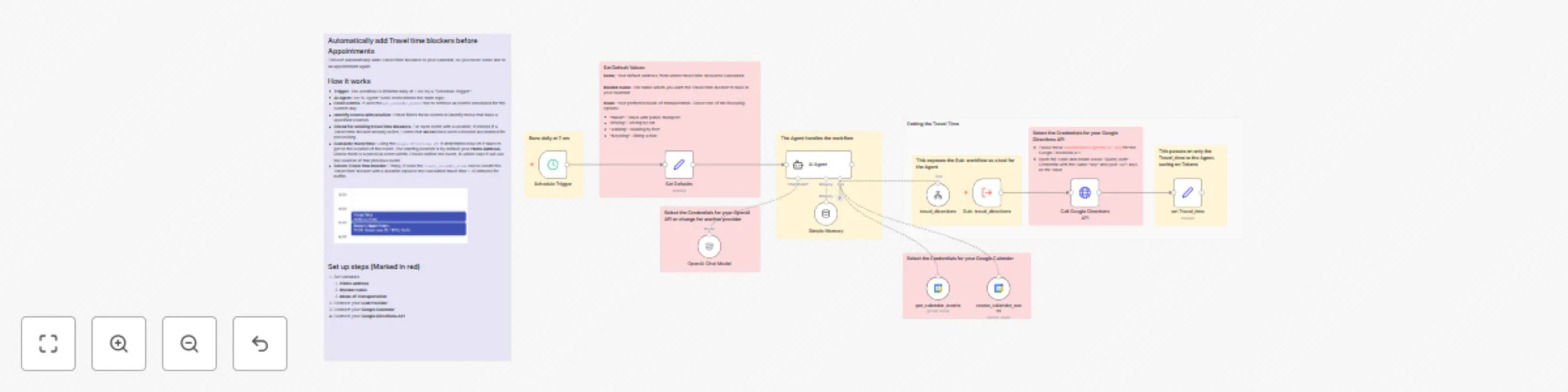
Automatically add Travel time blockers before Appointments

This bot automatically adds Travel time blockers to your calendar, so you never come late to an appointment again.

How it works

  • Trigger: The workflow is initiated daily at 7 AM by a "Schedule Trigger".
  • AI Agent: An "AI Agent" node orchestrates the main logic.
  • Fetch events: It uses the get_calendar_events tool to retrieve all events scheduled for the current day.
  • Identify events with location: It then filters these events to identify those that have a specified location.
  • Check for existing travel time Blockers: For each event with a location, it checks if a Travel time blocker already exists. Events that do not have such a blocker are marked for processing.
  • Calculate travel time: Using the Google Directions API it determines how lot it takes to get to the location of the event. The starting location is by default your Home Address, unless there is a previous event within 2 hours before the event, in which case it will use the location of that previous event.
  • Create Travel time blocker: Finally, it uses the create_calendar_event tool to create the Travel time blocker with a duration equal to the calculated travel time + 10 minutes for buffer.

Set up steps

  1. Set Variables
    1. Home address
    2. Blocker name
    3. Mode of Transportation
  2. Connect your LLM Provider
  3. Connect your Google Calendar
  4. Connect your Google Directions API

1.2 Logical Blocks

This catalog entry is organized from the workflow JSON. The node-level section below shows the executable blocks available for review before importing the template.

2. Block-by-Block Analysis

Block 1 - Schedule Trigger

Type / Role
n8n-nodes-base.scheduleTrigger - scheduleTrigger
Config choices
Version 1.2

Block 2 - AI Agent

Type / Role
@n8n/n8n-nodes-langchain.agent - agent
Config choices
Version 2.1

Block 3 - OpenAI Chat Model

Type / Role
@n8n/n8n-nodes-langchain.lmChatOpenAi - lmChatOpenAi
Config choices
Version 1.2

Block 4 - Simple Memory

Type / Role
@n8n/n8n-nodes-langchain.memoryBufferWindow - memoryBufferWindow
Config choices
Version 1.3

Block 5 - get_calendar_events

Type / Role
n8n-nodes-base.googleCalendarTool - googleCalendarTool
Config choices
Version 1.3

Block 6 - create_calendar_event

Type / Role
n8n-nodes-base.googleCalendarTool - googleCalendarTool
Config choices
Version 1.3

Block 7 - travel_directions

Type / Role
@n8n/n8n-nodes-langchain.toolWorkflow - toolWorkflow
Config choices
Version 2.2

Block 8 - set Travel_time

Type / Role
n8n-nodes-base.set - set
Config choices
Version 3.4

Block 9 - Call Google Directions API

Type / Role
n8n-nodes-base.httpRequest - httpRequest
Config choices
Version 4.2

Block 10 - Sub: travel_directions

Type / Role
n8n-nodes-base.executeWorkflowTrigger - executeWorkflowTrigger
Config choices
Version 1.1

Block 11 - Sticky Note

Type / Role
n8n-nodes-base.stickyNote - stickyNote
Config choices
Version 1

Block 12 - Sticky Note1

Type / Role
n8n-nodes-base.stickyNote - stickyNote
Config choices
Version 1

Block 13 - Sticky Note2

Type / Role
n8n-nodes-base.stickyNote - stickyNote
Config choices
Version 1

Block 14 - Sticky Note3

Type / Role
n8n-nodes-base.stickyNote - stickyNote
Config choices
Version 1

Block 15 - Sticky Note4

Type / Role
n8n-nodes-base.stickyNote - stickyNote
Config choices
Version 1

Block 16 - Set Defaults

Type / Role
n8n-nodes-base.set - set
Config choices
Version 3.4

Block 17 - Sticky Note5

Type / Role
n8n-nodes-base.stickyNote - stickyNote
Config choices
Version 1

Block 18 - Sticky Note6

Type / Role
n8n-nodes-base.stickyNote - stickyNote
Config choices
Version 1

Block 19 - Sticky Note7

Type / Role
n8n-nodes-base.stickyNote - stickyNote
Config choices
Version 1

Block 20 - Sticky Note8

Type / Role
n8n-nodes-base.stickyNote - stickyNote
Config choices
Version 1

Block 21 - Sticky Note9

Type / Role
n8n-nodes-base.stickyNote - stickyNote
Config choices
Version 1

3. Summary Table

Workflow Automatically add travel time blockers to calendar using Google Directions API
Complexity advanced
Nodes 21
Categories Personal Productivity, AI Chatbot
Author Kevin Armbruster
Published 30 Jul 2025

4. Reproducing the Workflow from Scratch

  1. 1. Download the workflow JSON

    Use the JSON export at /data/workflows/6700/6700.json as the source template for this automation.

  2. 2. Import the template into n8n

    Open n8n, import the downloaded JSON, and review each node before activating the workflow.

  3. 3. Configure credentials and variables

    Replace placeholder credentials, API keys, webhook URLs, account IDs, and environment-specific values with your own settings.

  4. 4. Test with sample data

    Run the workflow manually or in a staging workspace, inspect node output, and confirm downstream systems receive the expected data.

  5. 5. Activate and monitor

    Enable the workflow only after testing, then monitor executions, errors, and rate limits during the first production runs.

5. General Notes & Resources

Review imported nodes carefully before activation. This catalog entry is intended to help you inspect the workflow structure, understand required services, and find related templates faster.

Node names, credentials, schedules, webhook paths, and external service limits may need adjustment for your workspace.

Frequently asked questions

What does Automatically add travel time blockers to calendar using Google Directions API do?

Automatically add Travel time blockers before Appointments This bot automatically adds Travel time blockers to your calendar, so you never come late to an appointment again. How it works Trigger : ...

What do I need before importing this workflow?

Review the workflow JSON, configure any required credentials in n8n, and test the automation in a safe workspace before using it in production.

Can I customize this workflow?

Yes. Use the block-by-block analysis and the downloadable JSON to inspect each node, then adjust credentials, prompts, schedules, filters, or destinations for your Personal Productivity, AI Chatbot use case.