Automated weekly Google Calendar summary via email with AI βœ¨πŸ—“οΈπŸ“§

Workflow preview

Workflow preview
100%
Automated weekly Google Calendar summary via email with AI βœ¨πŸ—“οΈπŸ“§ preview
Open on n8n.io

Important notice

This workflow is provided as-is. Please review and test before using in production.

1. Workflow Overview

Workflow: Automated Weekly Google Calendar Summary via Email with AI ️ Get a personalized, AI powered summary of your upcoming week's Google Calendar events delivered straight to your inbox! T...

Best for

  • Personal Productivity automation workflows
  • AI Summarization automation workflows
  • advanced n8n builders looking for reusable templates

Tools used

n8n-nodes-base.scheduletrigger, n8n-nodes-base.googlecalendar, @n8n/n8n-nodes-langchain.lmchatgooglegemini, @n8n/n8n-nodes-langchain.agent, n8n-nodes-base.emailsend, n8n-nodes-base.set, n8n-nodes-base.code, n8n-nodes-base.aggregate

Source and attribution

This workflow is cataloged by N8N Workflows and links back to its original n8n.io source page by Jez.

Original n8n.io source

1.1 Workflow description

Title
Automated weekly Google Calendar summary via email with AI βœ¨πŸ—“οΈπŸ“§
Workflow name
Automated weekly Google Calendar summary via email with AI βœ¨πŸ—“οΈπŸ“§

Workflow: Automated Weekly Google Calendar Summary via Email with AI βœ¨πŸ—“οΈπŸ“§

Get a personalized, AI-powered summary of your upcoming week's Google Calendar events delivered straight to your inbox! This workflow automates the entire process, from fetching events to generating an intelligent summary and emailing it to you.

🌟 Overview

This n8n workflow connects to your Google Calendar, retrieves events for the upcoming week (Monday to Sunday, based on the day the workflow runs), uses Google Gemini AI to create a well-structured and insightful summary, and then emails this summary to you. It's designed to help you start your week organized and aware of your commitments.

Key Features:

  • Automated Weekly Summary: Runs on a schedule (default: weekly) to keep you updated.
  • AI-Powered Insights: Leverages Google Gemini to not just list events, but to identify important ones and offer a brief weekly outlook.
  • Personalized Content: Uses your specified timezone, locale, name, and city for accurate and relevant information.
  • Clear Formatting: Events are grouped by day and displayed chronologically with start and end times. Important events are highlighted.
  • Email Delivery: Receive your schedule directly in your inbox in a clean HTML format.
  • Customizable: Easily adapt to your specific calendar, AI preferences, and email settings.

βš™οΈ How It Works: Step-by-Step

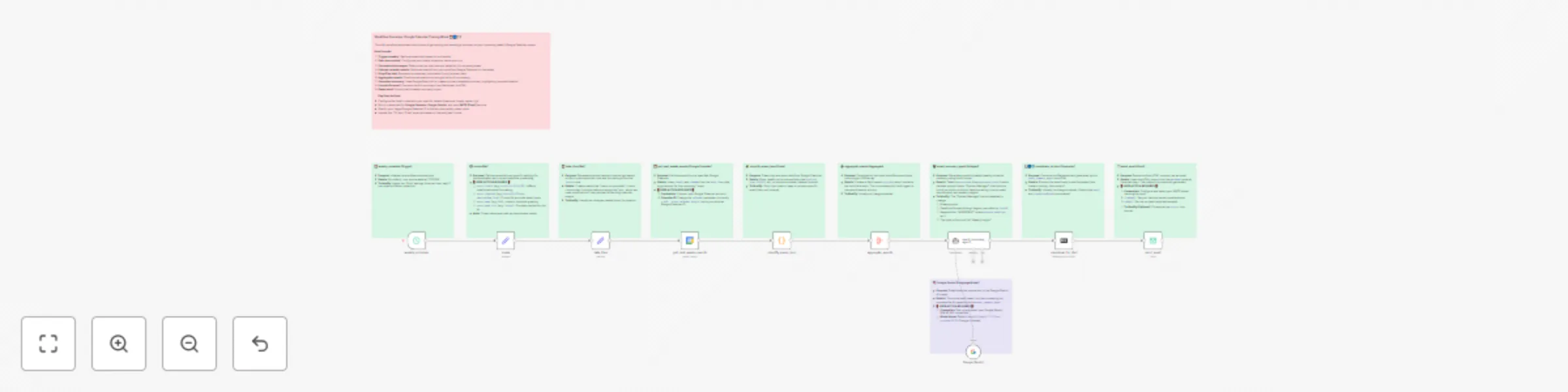
The workflow consists of the following nodes, working in sequence:

  1. weekly_schedule (Schedule Trigger):

    • What it does: Initiates the workflow.
    • Default: Triggers once a week at 12:00 PM. You can adjust this to your preference (e.g., Sunday evening or Monday morning).
  2. locale (Set Node):

    • What it does: This is a crucial node for you to configure! It sets user-specific parameters like your preferred language/region (users-locale), timezone (users-timezone), your name (users-name), and your home city (users-home-city). These are used throughout the workflow for correct date/time formatting and personalizing the AI prompt.
  3. date-time (Set Node):

    • What it does: Dynamically generates various date and time strings based on the current execution time and the locale settings. This is used to define the precise 7-day window (from the current day to 7 days ahead, ending at midnight) for fetching calendar events.
  4. get_next_weeks_events (Google Calendar Node):

    • What it does: Connects to your specified Google Calendar and fetches all events within the 7-day window calculated by the date-time node.
    • Requires: Google Calendar API credentials and the ID of the calendar you want to use.
  5. simplify_evens_json (Code Node):

    • What it does: Runs a small JavaScript snippet to clean up the raw event data from Google Calendar. It removes several fields that aren't needed for the summary (like htmlLink, etag, iCalUID), making the data more concise for the AI.
  6. aggregate_events (Aggregate Node):

    • What it does: Takes all the individual (and now simplified) event items and groups them into a single JSON array called eventdata. This is the format the AI agent expects for processing.
  7. Google Gemini (LM Chat Google Gemini Node):

    • What it does: This node is the connection point to the Google Gemini language model.
    • Requires: Google Gemini (or PaLM) API credentials.
  8. event_summary_agent (Agent Node):

    • What it does: This is where the magic happens! It uses the Google Gemini model and a detailed system prompt to generate the weekly schedule summary.
    • The Prompt Instructs the AI to:
      • Start with a friendly greeting.
      • Group events by day (Monday to Sunday) for the upcoming week, using the user's timezone and locale.
      • Format event times clearly (e.g., 09:30 AM - 10:30 AM: Event Summary).
      • Identify and prefix "IMPORTANT:" to events with keywords like "urgent," "deadline," "meeting," etc., in their summary or description.
      • Conclude with a 1-2 sentence helpful insight about the week's schedule.
      • Process the input eventdata (the JSON array of calendar events).
  9. Markdown (Markdown to HTML Node):

    • What it does: Converts the text output from the event_summary_agent (which is generated in Markdown format for easy structure) into HTML. This ensures the email body is well-formatted with proper line breaks, lists, and emphasis.
  10. send_email (Email Send Node):

    • What it does: Sends the final HTML summary to your specified email address.
    • Requires: SMTP (email sending) credentials and your desired "From" and "To" email addresses.

πŸš€ Getting Started: Setup Instructions

Follow these steps to get the workflow up and running:

  1. Import the Workflow:

    • Download the workflow JSON file.
    • In your n8n instance, go to "Workflows" and click the "Import from File" button. Select the downloaded JSON file.
  2. Configure Credentials: You'll need to set up credentials for three services. In n8n, go to "Credentials" on the left sidebar and click "Add credential."

    • Google Calendar API:
      • Search for "Google Calendar" and create new credentials using OAuth2. Follow the authentication flow.
      • Once created, select these credentials in the get_next_weeks_events node.
    • Google Gemini (PaLM) API:
      • Search for "Google Gemini" or "Google PaLM" and create new credentials. You'll typically need an API key from Google AI Studio or Google Cloud.
      • Once created, select these credentials in the Google Gemini node.
    • SMTP / Email:
      • Search for your email provider (e.g., "SMTP," "Gmail," "Outlook") and create credentials. This usually involves providing your email server details, username, and password/app password.
      • Once created, select these credentials in the send_email node.
  3. ‼️ IMPORTANT: Customize User Settings in the locale Node:

    • Open the locale node.
    • Update the following values in the "Assignments" section:
      • users-locale: Set your locale string (e.g., "en-AU" for English/Australia, "en-US" for English/United States, "de-DE" for German/Germany). This affects how dates, times, and numbers are formatted.
      • users-timezone: Set your timezone string (e.g., "Australia/Sydney", "America/New_York", "Europe/London"). This is critical for ensuring event times are displayed correctly for your location.
      • users-name: Enter your name (e.g., "Bob"). This is used to personalize the email greeting.
      • users-home-city: Enter your home city (e.g., "Sydney"). This can be used for additional context by the AI.
  4. Configure the get_next_weeks_events (Google Calendar) Node:

    • Open the node.
    • In the "Calendar" parameter, you need to specify which calendar to fetch events from.
      • The default might be a placeholder like c_4d9c2d4e139327143ee4a5bc4db531ffe074e98d21d1c28662b4a4d4da898866@group.calendar.google.com.
      • Change this to your primary calendar (often your email address) or the specific Calendar ID you want to use. You can find Calendar IDs in your Google Calendar settings.
  5. Configure the send_email Node:

    • Open the node.
    • Set the fromEmail parameter to the email address you want the summary to be sent from.
    • Set the toEmail parameter to the email address(es) where you want to receive the summary.
    • You can also customize the subject line if desired.
  6. (Optional) Customize the AI Prompt in event_summary_agent:

    • If you want to change how the AI summarizes events (e.g., different keywords for important events, a different tone, or specific formatting tweaks), you can edit the "System Message" within the event_summary_agent node's parameters.
  7. (Optional) Adjust the Schedule in weekly_schedule:

    • Open the weekly_schedule node.
    • Modify the "Rule" to change when and how often the workflow runs (e.g., a specific day of the week, a different time).
  8. Activate the Workflow:

    • Once everything is configured, toggle the "Active" switch in the top right corner of the workflow editor to ON.

πŸ“¬ What You Get

You'll receive an email (based on your schedule) with a subject like "Next Week Calendar Summary : [Start Date] - [End Date]". The email body will contain:

  • A friendly greeting.
  • Your schedule for the upcoming week (Monday to Sunday), with events listed chronologically under each day.
  • Event times displayed in your local timezone (e.g., 09:30 AM - 10:30 AM: Team Meeting).
  • Priority events clearly marked (e.g., IMPORTANT: 02:00 PM - 03:00 PM: Project Deadline Review).
  • A brief, insightful observation about your week's schedule.

πŸ› οΈ Troubleshooting & Notes

  • Timezone is Key: Ensure your users-timezone in the locale node is correct. This is the most common source of incorrect event times.
  • Google API Permissions: When setting up Google Calendar and Gemini credentials, make sure you grant the necessary permissions.
  • AI Output Varies: The AI-generated summary can vary slightly each time. The prompt is designed to guide it, but LLMs have inherent creativity.
  • Calendar Event Details: The quality of the summary (especially for identifying important events) depends on how detailed your calendar event titles and descriptions are. Including keywords like "meeting," "urgent," "prepare for," etc., in your events helps the AI.

πŸ’¬ Feedback & Contributions

Feel free to modify and enhance this workflow! If you have suggestions, improvements, or run into issues, please share them in the n8n community.

Happy scheduling!

1.2 Logical Blocks

This catalog entry is organized from the workflow JSON. The node-level section below shows the executable blocks available for review before importing the template.

2. Block-by-Block Analysis

Block 1 - weekly_schedule

Type / Role
n8n-nodes-base.scheduleTrigger - scheduleTrigger
Config choices
Version 1.2

Block 2 - get_next_weeks_events

Type / Role
n8n-nodes-base.googleCalendar - googleCalendar
Config choices
Version 1.3

Block 3 - Google Gemini

Type / Role
@n8n/n8n-nodes-langchain.lmChatGoogleGemini - lmChatGoogleGemini
Config choices
Version 1

Block 4 - event_summary_agent

Type / Role
@n8n/n8n-nodes-langchain.agent - agent
Config choices
Version 2

Block 5 - send_email

Type / Role
n8n-nodes-base.emailSend - emailSend
Config choices
Version 2.1

Block 6 - locale

Type / Role
n8n-nodes-base.set - set
Config choices
Version 3.4

Block 7 - simplify_evens_json

Type / Role
n8n-nodes-base.code - code
Config choices
Version 2

Block 8 - aggregate_events

Type / Role
n8n-nodes-base.aggregate - aggregate
Config choices
Version 1

Block 9 - Sticky Note

Type / Role
n8n-nodes-base.stickyNote - stickyNote
Config choices
Version 1

Block 10 - Sticky Note2

Type / Role
n8n-nodes-base.stickyNote - stickyNote
Config choices
Version 1

Block 11 - Sticky Note3

Type / Role
n8n-nodes-base.stickyNote - stickyNote
Config choices
Version 1

Block 12 - Sticky Note4

Type / Role
n8n-nodes-base.stickyNote - stickyNote
Config choices
Version 1

Block 13 - Sticky Note5

Type / Role
n8n-nodes-base.stickyNote - stickyNote
Config choices
Version 1

Block 14 - date_time

Type / Role
n8n-nodes-base.set - set
Config choices
Version 3.4

Block 15 - Sticky Note6

Type / Role
n8n-nodes-base.stickyNote - stickyNote
Config choices
Version 1

Block 16 - Sticky Note7

Type / Role
n8n-nodes-base.stickyNote - stickyNote
Config choices
Version 1

Block 17 - Sticky Note8

Type / Role
n8n-nodes-base.stickyNote - stickyNote
Config choices
Version 1

Block 18 - Sticky Note9

Type / Role
n8n-nodes-base.stickyNote - stickyNote
Config choices
Version 1

Block 19 - Sticky Note10

Type / Role
n8n-nodes-base.stickyNote - stickyNote
Config choices
Version 1

Block 20 - Sticky Note11

Type / Role
n8n-nodes-base.stickyNote - stickyNote
Config choices
Version 1

Block 21 - markdown_to_html

Type / Role
n8n-nodes-base.markdown - markdown
Config choices
Version 1

3. Summary Table

Workflow Automated weekly Google Calendar summary via email with AI βœ¨πŸ—“οΈπŸ“§
Complexity advanced
Nodes 21
Categories Personal Productivity, AI Summarization
Author Jez
Published 08 Jun 2025

4. Reproducing the Workflow from Scratch

  1. 1. Download the workflow JSON

    Use the JSON export at /data/workflows/4783/4783.json as the source template for this automation.

  2. 2. Import the template into n8n

    Open n8n, import the downloaded JSON, and review each node before activating the workflow.

  3. 3. Configure credentials and variables

    Replace placeholder credentials, API keys, webhook URLs, account IDs, and environment-specific values with your own settings.

  4. 4. Test with sample data

    Run the workflow manually or in a staging workspace, inspect node output, and confirm downstream systems receive the expected data.

  5. 5. Activate and monitor

    Enable the workflow only after testing, then monitor executions, errors, and rate limits during the first production runs.

5. General Notes & Resources

Review imported nodes carefully before activation. This catalog entry is intended to help you inspect the workflow structure, understand required services, and find related templates faster.

Node names, credentials, schedules, webhook paths, and external service limits may need adjustment for your workspace.

Frequently asked questions

What does Automated weekly Google Calendar summary via email with AI βœ¨πŸ—“οΈπŸ“§ do?

Workflow: Automated Weekly Google Calendar Summary via Email with AI ️ Get a personalized, AI powered summary of your upcoming week's Google Calendar events delivered straight to your inbox! T...

What do I need before importing this workflow?

Review the workflow JSON, configure any required credentials in n8n, and test the automation in a safe workspace before using it in production.

Can I customize this workflow?

Yes. Use the block-by-block analysis and the downloadable JSON to inspect each node, then adjust credentials, prompts, schedules, filters, or destinations for your Personal Productivity, AI Summarization use case.