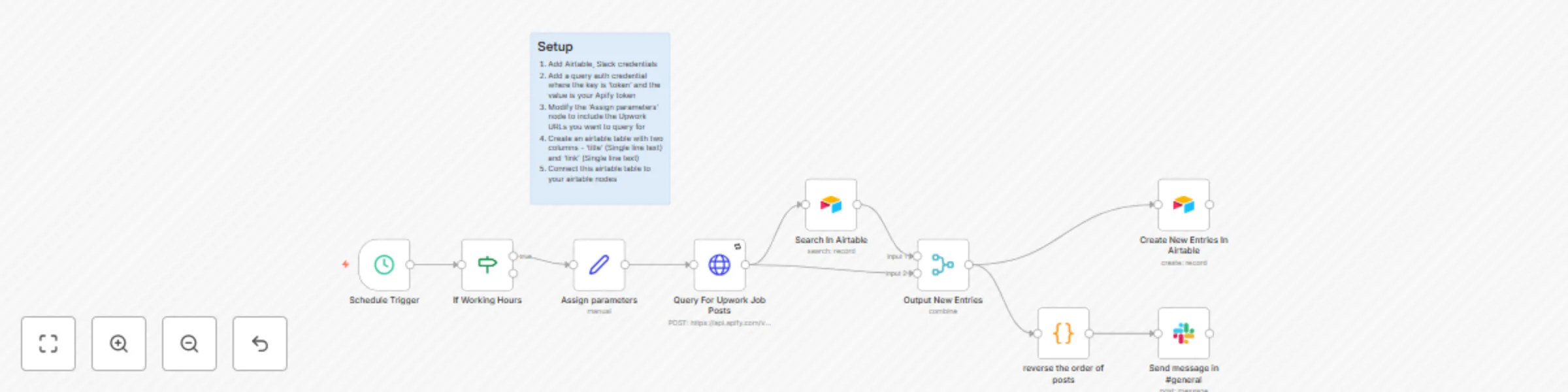
Automated Upwork job alerts with Airtable & Slack

Workflow preview

Workflow preview
100%
Automated Upwork job alerts with Airtable & Slack preview
Open on n8n.io

Important notice

This workflow is provided as-is. Please review and test before using in production.

1. Workflow Overview

This automated workflow fetches Upwork job postings using Apify , removes duplicate job listings via Airtable , and sends new job opportunities to Slack . Key Features: Automated job retrieval from...

Best for

  • Personal Productivity automation workflows
  • intermediate n8n builders looking for reusable templates

Tools used

n8n-nodes-base.scheduletrigger, n8n-nodes-base.if, n8n-nodes-base.set, n8n-nodes-base.httprequest, n8n-nodes-base.airtable, n8n-nodes-base.merge, n8n-nodes-base.stickynote, n8n-nodes-base.slack

Source and attribution

This workflow is cataloged by N8N Workflows and links back to its original n8n.io source page by Artur.

Original n8n.io source

1.1 Workflow description

Title
Automated Upwork job alerts with Airtable & Slack
Workflow name
Automated Upwork job alerts with Airtable & Slack

Overview

This automated workflow fetches Upwork job postings using Apify, removes duplicate job listings via Airtable, and sends new job opportunities to Slack.

Key Features:

  • Automated job retrieval from Upwork via Apify API
  • Duplicate filtering using Airtable to store only unique jobs
  • Slack notifications for new job postings
  • Runs every 30 minutes during working hours (9 AM - 5 PM)

This workflow requires an active Apify subscription to function, as it uses the Apify Upwork API to fetch job listings.

Who is This For?

This workflow is ideal for:

  • Freelancers looking to track Upwork jobs in real time
  • Recruiters automating job collection for analytics
  • Developers who want to integrate Upwork job data into their applications

What Problem Does This Solve?

Manually checking Upwork for jobs is time-consuming and inefficient. This workflow:

  • Automates job discovery based on your keywords
  • Filters out duplicate listings, ensuring only new jobs are stored
  • Notifies you on Slack when new jobs appear

How the Workflow Works

1. Schedule Trigger (Every 20 Minutes)

  • Triggers the workflow at 20-minute intervals
  • Ensures job searches are only executed during working hours (9 AM - 5 PM)

2. Query Upwork for Jobs

  • Uses Apify API to scrape Upwork job posts for specific keywords (e.g., "n8n", "Python")

3. Find Existing Jobs in Airtable

  • Searches Airtable to check if a job (based on title and link) already exists

4. Filter Out Duplicate Jobs

  • The Merge Node compares Upwork jobs with Airtable data
  • The IF Node filters out jobs that are already stored in the database

5. Save Only New Jobs in Airtable

  • The Insert Node adds only new job listings to the Airtable collection

6. Send a Slack Notification

  • If a new job is found, a Slack message is sent with job details

Setup Guide

Required API Keys

  • Upwork Scraper (Apify Token) – Get your token from Apify
  • Airtable Credentials
  • Slack API Token – Connect Slack to n8n and set the channel ID (default: #general)

Configuration Steps

  1. Modify search keywords in the 'Assign Parameters' node (startUrls)
  2. Adjust the Working Hours in the 'If Working Hours' node
  3. Set your Slack channel in the Slack node
  4. Ensure Airtable is connected properly - you'll need to create a table with 'title' and 'link' columns.
  5. Adjust the 'If Working Hours' node to match your timezone and hours, or remove it altogether to receive notifications and updates constantly.

How to Customize the Workflow

  • Change keywords: update the startUrls in the 'Assign Parameters' node to track different job categories
  • Change 'If Working Hours': Modify conditions in the IF Node to filter times based on your needs
  • Modify Slack Notifications: Adjust the Slack message format to include additional job details

Why Use This Workflow?

  • Automated job tracking without manual searches
  • Prevents duplicate entries in Airtable
  • Instant Slack notifications for new job opportunities
  • Customizable – adapt the workflow to different job categories

Next Steps

  1. Run the workflow and test with a small set of keywords
  2. Expand job categories for better coverage
  3. Enhance notifications by integrating Telegram, Email, or a dashboard

This workflow ensures real-time job tracking, prevents duplicates, and keeps you updated effortlessly.

1.2 Logical Blocks

This catalog entry is organized from the workflow JSON. The node-level section below shows the executable blocks available for review before importing the template.

2. Block-by-Block Analysis

Block 1 - Schedule Trigger

Type / Role
n8n-nodes-base.scheduleTrigger - scheduleTrigger
Config choices
Version 1.2

Block 2 - If Working Hours

Type / Role
n8n-nodes-base.if - if
Config choices
Version 2.2

Block 3 - Assign parameters

Type / Role
n8n-nodes-base.set - set
Config choices
Version 3.4

Block 4 - Query For Upwork Job Posts

Type / Role
n8n-nodes-base.httpRequest - httpRequest
Config choices
Version 4.2

Block 5 - Search In Airtable

Type / Role
n8n-nodes-base.airtable - airtable
Config choices
Version 2.1

Block 6 - Output New Entries

Type / Role
n8n-nodes-base.merge - merge
Config choices
Version 3

Block 7 - Create New Entries In Airtable

Type / Role
n8n-nodes-base.airtable - airtable
Config choices
Version 2.1

Block 8 - Sticky Note

Type / Role
n8n-nodes-base.stickyNote - stickyNote
Config choices
Version 1

Block 9 - Send message in #general

Type / Role
n8n-nodes-base.slack - slack
Config choices
Version 2.3

Block 10 - reverse the order of posts

Type / Role
n8n-nodes-base.code - code
Config choices
Version 2

3. Summary Table

Workflow Automated Upwork job alerts with Airtable & Slack
Complexity intermediate
Nodes 10
Categories Personal Productivity
Author Artur
Published 10 Mar 2025

4. Reproducing the Workflow from Scratch

  1. 1. Download the workflow JSON

    Use the JSON export at /data/workflows/3125/3125.json as the source template for this automation.

  2. 2. Import the template into n8n

    Open n8n, import the downloaded JSON, and review each node before activating the workflow.

  3. 3. Configure credentials and variables

    Replace placeholder credentials, API keys, webhook URLs, account IDs, and environment-specific values with your own settings.

  4. 4. Test with sample data

    Run the workflow manually or in a staging workspace, inspect node output, and confirm downstream systems receive the expected data.

  5. 5. Activate and monitor

    Enable the workflow only after testing, then monitor executions, errors, and rate limits during the first production runs.

5. General Notes & Resources

Review imported nodes carefully before activation. This catalog entry is intended to help you inspect the workflow structure, understand required services, and find related templates faster.

Node names, credentials, schedules, webhook paths, and external service limits may need adjustment for your workspace.

Frequently asked questions

What does Automated Upwork job alerts with Airtable & Slack do?

This automated workflow fetches Upwork job postings using Apify , removes duplicate job listings via Airtable , and sends new job opportunities to Slack . Key Features: Automated job retrieval from...

What do I need before importing this workflow?

Review the workflow JSON, configure any required credentials in n8n, and test the automation in a safe workspace before using it in production.

Can I customize this workflow?

Yes. Use the block-by-block analysis and the downloadable JSON to inspect each node, then adjust credentials, prompts, schedules, filters, or destinations for your Personal Productivity use case.