Automated podcast production & publishing with OpenAI, Airtable & Buzzsprout

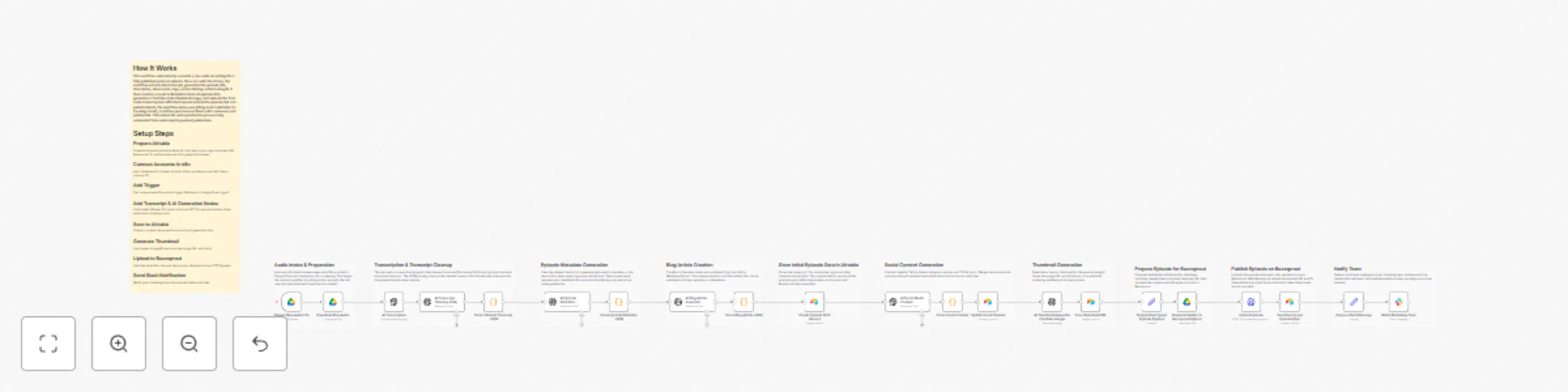
Workflow preview

Workflow preview
100%
Automated podcast production & publishing with OpenAI, Airtable & Buzzsprout preview
Open on n8n.io

Important notice

This workflow is provided as-is. Please review and test before using in production.

1. Workflow Overview

Automated Podcast Generation with n8n, OpenAI & Buzzsprout This workflow automatically turns any audio file uploaded to Google Drive into a complete podcast episode. It handles transcription, conte...

Best for

  • Content Creation automation workflows
  • Multimodal AI automation workflows
  • advanced n8n builders looking for reusable templates

Tools used

n8n-nodes-base.googledrivetrigger, n8n-nodes-base.googledrive, @n8n/n8n-nodes-langchain.openai, n8n-nodes-base.code, n8n-nodes-base.airtable, n8n-nodes-base.set, n8n-nodes-base.httprequest, n8n-nodes-base.slack

Source and attribution

This workflow is cataloged by N8N Workflows and links back to its original n8n.io source page by WeblineIndia.

Original n8n.io source

1.1 Workflow description

Title
Automated podcast production & publishing with OpenAI, Airtable & Buzzsprout
Workflow name
Automated podcast production & publishing with OpenAI, Airtable & Buzzsprout

Automated Podcast Generation with n8n, OpenAI & Buzzsprout

This workflow automatically turns any audio file uploaded to Google Drive into a complete podcast episode. It handles transcription, content generation, blog drafting, social copy creation, thumbnail generation, Airtable record updates, Buzzsprout publishing and finally notifies your team via Slack. It is a full “audio-to-published-podcast” automation that requires no manual editing.

⚡ Quick Start: 10-Step Fast Implementation

  1. Connect Google Drive, OpenAI, Airtable, Slack & Buzzsprout credentials.
  2. Upload an audio file to the Drive folder.
  3. Workflow triggers automatically.
  4. Audio → Text transcription via OpenAI Whisper.
  5. AI converts transcript into title, show notes, tags, publish date, etc.
  6. AI generates social content & blog article.
  7. AI generates YouTube thumbnail (URL saved).
  8. Data saved to Airtable.
  9. Episode uploaded to Buzzsprout.
  10. Slack receives final “Episode Published” notification.

What It Does

This workflow automates the complete lifecycle of podcast publishing. Once an audio file is placed inside a Google Drive folder, the system takes over: it transcribes the audio, generates structured metadata, creates rich content including a blog post and multiple social media captions and produces a YouTube-ready thumbnail.

Generated content is saved into Airtable, ensuring you always have a centralized database of episode metadata. The workflow then uploads the processed audio file to Buzzsprout, creating a ready-to-publish podcast entry. Finally, it sends a Slack notification summarizing the episode details.

This workflow eliminates hours of manual podcast editing, writing and uploading — providing a fast, reliable and repeatable content automation pipeline.

Who’s It For

  • Podcasters who want to automate production and publishing
  • Marketing teams managing multiple content channels
  • Creators who want to repurpose audio into blogs & social content
  • Agencies or studios producing podcasts for clients
  • Anyone wanting a hands-free “record → upload → publish” podcast system

Airtable Table Structure (Required Fields)

To run this workflow successfully, you must create one Airtable table that stores all generated podcast episode data.

Below is the exact list of fields (with correct Airtable field types) that the workflow expects.

Field Name Airtable Field Type Purpose
episode_title Single line text Title generated from the audio transcript
record_Id Auto number Automatically generated unique internal record identifier
episode_description Long text Description of the episode (AI-generated)
show_notes Long text Detailed show notes generated from transcript
suggested_publish_date Single line text Publish date suggested by AI
blog_draft_markdown Long text SEO-optimized full blog draft
linkedin_post Long text LinkedIn long-form post
instagram_caption Long text Instagram caption + hashtags
twitter_thread Long text Thread text (converted from array → single string)
tiktok_script Long text Short TikTok/Shorts script
youtube_thumbnail_url URL Thumbnail image URL generated by OpenAI
buzzsprout_episode_id Number Episode ID returned from Buzzsprout
audio_url Single line text Buzzsprout final audio file URL
published_at Single line text Actual published datetime returned by Buzzsprout
guid Single line text Unique GUID assigned by Buzzsprout

Notes for Users Setting Up the Table

  • Do not use array fields — arrays are converted into strings before saving.
  • record_Id is Airtable auto-number will generate it and it used for update record.
  • published_at, audio_url, guid and buzzsprout_episode_id are populated after Buzzsprout upload.
  • youtube_thumbnail_url is populated after the AI Image Generation node.

Requirements

To use this workflow, you need:

  • n8n self-hosted or cloud
  • Google Drive account (folder monitored for new audio uploads)
  • OpenAI API Key (Whisper + GPT + Image Generation)
  • Airtable Base & API Key
  • Buzzsprout Podcast ID & API Token
  • Slack App / Bot Token
  • Audio file in MP3/WAV/M4A format

How It Works & Setup Steps

Step 1 — Google Drive Trigger

  • Monitors a specific folder.
  • When an audio file is uploaded, the workflow starts.

Step 2 — Transcribe Audio with OpenAI

  • Uses Whisper model to convert speech → text.
  • Returned transcript is cleaned and extracted.

Step 3 — Extract Episode Metadata

  • Title
  • Description
  • Show notes
  • Episode tags
  • Suggested publish date
  • All parsed and structured via OpenAI.

Step 4 — Generate Social Media Content

  • LinkedIn article post
  • Twitter/X thread
  • Instagram caption
  • TikTok short script

Step 5 — Generate Blog Draft

  • Full SEO-optimized Markdown article created by OpenAI.

Step 6 — Create YouTube Thumbnail

  • OpenAI Image API
  • 1280×720 thumbnail
  • URL stored in Airtable.

Step 7 — Save Everything to Airtable

  • One single table
  • Stores episode title, description, tags, blog draft, social content, thumbnail URL, and transcript.

Step 8 — Upload Episode to Buzzsprout

  • Audio file from Google Drive → uploaded via multipart/form-data
  • Title & description set
  • Response returns audio URL and episode ID
  • These are stored in Airtable.

Step 9 — Slack Notification

Sends message containing:

  • Episode Title
  • Buzzsprout Episode ID
  • Published At Date
  • Thumbnail URL

How to Customize Nodes

Google Drive Trigger

Change the folder ID to monitor a different source directory.

OpenAI Metadata Prompt

Adjust tone, style, summarization level or tag generation.

Social Content Node

Modify the prompt to produce longer posts, more thread tweets or add new channels.

Image Generation

Customize thumbnail style: minimal, realistic, bold text, brand colors, etc.

Buzzsprout Upload Node

Set episode[published_at] to schedule future releases.

Slack Notification

Add more fields such as show notes or Airtable record links.

Add-Ons (Optional Enhancements)

You may extend the workflow with:

  • Auto-post to LinkedIn, X, Instagram, TikTok via Buffer API
  • Notion page creation for drafting content
  • Automatic transcript upload to Google Docs
  • Email notification to hosts or guests
  • Auto-publish YouTube video version (using static background + audio)

Use Case Examples

  1. Podcast Production Automation – Record audio, upload to Drive and get a fully published episode automatically.
  2. Content Repurposing Workflow – Turn one audio file into several content formats instantly.
  3. Marketing Team Efficiency – Auto-generate social posts for multiple platforms.
  4. Client Podcast Management – Agencies can manage episodes with zero manual work.
  5. Internal Communications – Convert internal voice memos into polished summaries and blogs.

(There can be many more such use cases depending on customization.)

Troubleshooting Guide

Issue Possible Cause Solution
Buzzsprout upload missing audio Wrong field name or missing binary Ensure file field is binary & set to correct Drive binary property
Episode title missing in Buzzsprout OpenAI JSON not parsed correctly Check parse code & that episode_title exists
Social content not stored in Airtable Airtable field type mismatch Convert arrays into strings before writing
Thumbnail not displaying Expired OpenAI image URL Regenerate or store static copy in Drive
Workflow not triggering Wrong Drive folder ID Update folder ID in trigger node

Need Help?

If you need assistance customizing this workflow, adding new features or building similar automations, WeblineIndia’s n8n automation developers can help you design, optimize and scale enterprise-grade n8n workflows.

Feel free to reach out for professional support anytime.

1.2 Logical Blocks

This catalog entry is organized from the workflow JSON. The node-level section below shows the executable blocks available for review before importing the template.

2. Block-by-Block Analysis

Block 1 - Trigger: New Audio File

Type / Role
n8n-nodes-base.googleDriveTrigger - googleDriveTrigger
Config choices
Version 1

Block 2 - Download Raw Audio

Type / Role
n8n-nodes-base.googleDrive - googleDrive
Config choices
Version 3

Block 3 - AI Transcription

Type / Role
@n8n/n8n-nodes-langchain.openAi - openAi
Config choices
Version 2

Block 4 - AI Transcript Cleaning & QA

Type / Role
@n8n/n8n-nodes-langchain.openAi - openAi
Config choices
Version 2

Block 5 - Parse Cleaned Transcript JSON

Type / Role
n8n-nodes-base.code - code
Config choices
Version 2

Block 6 - AI Episode Metadata Generator

Type / Role
@n8n/n8n-nodes-langchain.openAi - openAi
Config choices
Version 2

Block 7 - Parse Episode Metadata JSON

Type / Role
n8n-nodes-base.code - code
Config choices
Version 2

Block 8 - AI Blog Article Generator

Type / Role
@n8n/n8n-nodes-langchain.openAi - openAi
Config choices
Version 2

Block 9 - Parse Blog Article JSON

Type / Role
n8n-nodes-base.code - code
Config choices
Version 2

Block 10 - Create Episode Draft Record

Type / Role
n8n-nodes-base.airtable - airtable
Config choices
Version 2.1

Block 11 - AI Social Media Content Generator

Type / Role
@n8n/n8n-nodes-langchain.openAi - openAi
Config choices
Version 2

Block 12 - Parse Social Content

Type / Role
n8n-nodes-base.code - code
Config choices
Version 2

Block 13 - Update Social Content

Type / Role
n8n-nodes-base.airtable - airtable
Config choices
Version 2.1

Block 14 - Save Thumbnail URL

Type / Role
n8n-nodes-base.airtable - airtable
Config choices
Version 2.1

Block 15 - AI Thumbnail Generator (YouTube Image)

Type / Role
@n8n/n8n-nodes-langchain.openAi - openAi
Config choices
Version 2

Block 16 - Prepare Buzzsprout Episode Payload

Type / Role
n8n-nodes-base.set - set
Config choices
Version 3.4

Block 17 - Download Audio for Buzzsprout Upload

Type / Role
n8n-nodes-base.googleDrive - googleDrive
Config choices
Version 3

Block 18 - Upload Episode

Type / Role
n8n-nodes-base.httpRequest - httpRequest
Config choices
Version 4.3

Block 19 - Save Buzzsprout Episode Data

Type / Role
n8n-nodes-base.airtable - airtable
Config choices
Version 2.1

Block 20 - Notify Marketing Team

Type / Role
n8n-nodes-base.slack - slack
Config choices
Version 2.3

Block 21 - Prepare Slack Message

Type / Role
n8n-nodes-base.set - set
Config choices
Version 3.4

Block 22 - Sticky Note

Type / Role
n8n-nodes-base.stickyNote - stickyNote
Config choices
Version 1

Block 23 - Sticky Note3

Type / Role
n8n-nodes-base.stickyNote - stickyNote
Config choices
Version 1

Block 24 - Sticky Note1

Type / Role
n8n-nodes-base.stickyNote - stickyNote
Config choices
Version 1

Showing the first 24 of 32 workflow blocks. Download the JSON for the full node graph.

3. Summary Table

Workflow Automated podcast production & publishing with OpenAI, Airtable & Buzzsprout
Complexity advanced
Nodes 32
Categories Content Creation, Multimodal AI
Author WeblineIndia
Published 22 Dec 2025

4. Reproducing the Workflow from Scratch

  1. 1. Download the workflow JSON

    Use the JSON export at /data/workflows/12020/12020.json as the source template for this automation.

  2. 2. Import the template into n8n

    Open n8n, import the downloaded JSON, and review each node before activating the workflow.

  3. 3. Configure credentials and variables

    Replace placeholder credentials, API keys, webhook URLs, account IDs, and environment-specific values with your own settings.

  4. 4. Test with sample data

    Run the workflow manually or in a staging workspace, inspect node output, and confirm downstream systems receive the expected data.

  5. 5. Activate and monitor

    Enable the workflow only after testing, then monitor executions, errors, and rate limits during the first production runs.

5. General Notes & Resources

Review imported nodes carefully before activation. This catalog entry is intended to help you inspect the workflow structure, understand required services, and find related templates faster.

Node names, credentials, schedules, webhook paths, and external service limits may need adjustment for your workspace.

Frequently asked questions

What does Automated podcast production & publishing with OpenAI, Airtable & Buzzsprout do?

Automated Podcast Generation with n8n, OpenAI & Buzzsprout This workflow automatically turns any audio file uploaded to Google Drive into a complete podcast episode. It handles transcription, conte...

What do I need before importing this workflow?

Review the workflow JSON, configure any required credentials in n8n, and test the automation in a safe workspace before using it in production.

Can I customize this workflow?

Yes. Use the block-by-block analysis and the downloadable JSON to inspect each node, then adjust credentials, prompts, schedules, filters, or destinations for your Content Creation, Multimodal AI use case.