An automated PDF download and management system that collects PDFs from URLs, uploads them to Google Drive, extracts metadata, and maintains a searchable library with comprehensive error handling and status tracking.
What Makes This Different:
- Intelligent URL Validation - Validates PDF URLs before attempting download, extracting filenames from URLs and generating fallback names when needed, preventing wasted processing time
- Binary File Handling - Properly handles PDF downloads as binary files with appropriate headers (User-Agent, Accept), ensuring compatibility with various PDF hosting services
- Comprehensive Error Handling - Three-tier error handling: invalid URLs are marked immediately, failed downloads are logged with error messages, and all errors are tracked in a dedicated Error Log sheet
- Metadata Extraction - Automatically extracts file ID, size, MIME type, Drive view links, and download URLs from Google Drive responses, creating a complete file record
- Multiple Trigger Options - Supports manual execution, scheduled runs (every 12 hours), and workflow-to-workflow calls, making it flexible for different automation scenarios
- Status Tracking - Updates source spreadsheet with processing status (Downloaded, Failed, Invalid), enabling easy monitoring and retry logic for failed downloads
Key Benefits of Automated PDF Management:
- Centralized Storage - All PDFs are automatically organized in a Google Drive folder, making them easy to find and share across your organization
- Searchable Library - Metadata is stored in Google Sheets with file links, titles, sources, and download dates, enabling quick searches and filtering
- Error Recovery - Failed downloads are logged with error messages, allowing you to identify and fix issues (broken links, access permissions, etc.) and retry
- Automated Processing - Schedule-based execution keeps your PDF library updated without manual intervention, perfect for monitoring research sources
- Integration Ready - Can be called by other workflows, enabling complex automation chains (e.g., scrape URLs → download PDFs → process content)
- Bulk Processing - Processes multiple PDFs in sequence from a spreadsheet, handling large batches efficiently with proper error isolation
Who's it for
This template is designed for researchers, academic institutions, market research teams, legal professionals, compliance officers, and anyone who needs to systematically collect and organize PDF documents from multiple sources. It's perfect for organizations that need to build research libraries, archive regulatory documents, collect industry reports, maintain compliance documentation, or aggregate academic papers without manually downloading and organizing each file.
How it works / What it does
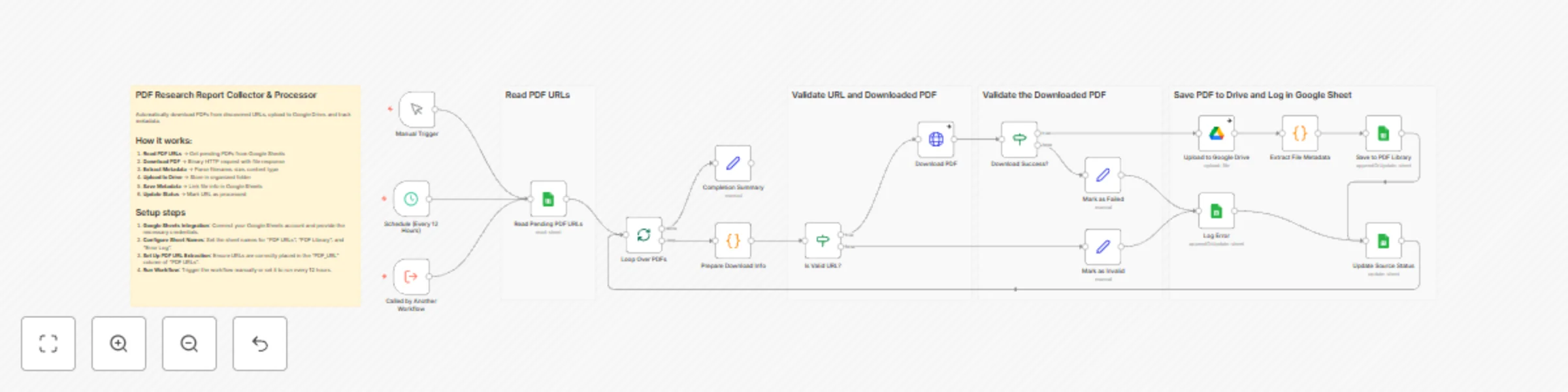
This workflow creates a PDF collection and management system that reads PDF URLs from Google Sheets, downloads the files, uploads them to Google Drive, extracts metadata, and maintains a searchable library. The system:
- Reads Pending PDF URLs - Fetches PDF URLs from Google Sheets "PDF URLs" sheet, processing entries that need to be downloaded
- Loops Through PDFs - Processes PDFs one at a time using Split in Batches, ensuring proper error isolation and preventing batch failures
- Prepares Download Info - Extracts filename from URL, decodes URL-encoded characters, validates PDF URL format, and generates fallback filenames with timestamps if needed
- Validates URL - Checks if URL is valid before attempting download, skipping invalid entries immediately
- Downloads PDF - Makes HTTP request with proper browser headers, downloads PDF as binary file with 60-second timeout, handles download errors gracefully
- Verifies Download - Checks if binary data was successfully received, routing to error handling if download failed
- Uploads to Google Drive - Uploads PDF file to specified Google Drive folder, preserving original filename or using generated name
- Extracts File Metadata - Extracts file ID, name, MIME type, file size, Drive view link, and download link from Google Drive API response
- Saves to PDF Library - Appends file metadata to Google Sheets "PDF Library" sheet with title, source, file links, and download timestamp
- Updates Source Status - Marks processed URLs as "Downloaded", "Failed", or "Invalid" in source sheet for tracking
- Logs Errors - Records failed downloads and invalid URLs in "Error Log" sheet with error messages for troubleshooting
- Tracks Completion - Generates completion summary with processing statistics and timestamp
Key Innovation: Error-Resilient Processing - Unlike simple download scripts that fail on the first error, this workflow isolates failures, continues processing remaining PDFs, and provides detailed error logging. This ensures maximum success rate and makes troubleshooting straightforward.
How to set up
1. Prepare Google Sheets
- Create a Google Sheet with three tabs: "PDF URLs", "PDF Library", and "Error Log"
- In "PDF URLs" sheet, create columns:
PDF_URL (or pdf_url), Title (optional), Source (optional), Status (optional - will be updated by workflow)
- Add sample PDF URLs in the
PDF_URL column (e.g., direct links to PDF files)
- The "PDF Library" sheet will be automatically populated with columns:
pdfUrl, title, source, fileName, fileId, mimeType, fileSize, driveUrl, downloadUrl, downloadedAt, status
- The "Error Log" sheet will record:
status, errorMessage, pdfUrl, title (for failed downloads)
- Verify your Google Sheets credentials are set up in n8n (OAuth2 recommended)
2. Configure Google Sheets Nodes
- Open the "Read Pending PDF URLs" node and select your spreadsheet from the document dropdown
- Set sheet name to "PDF URLs"
- Configure the "Save to PDF Library" node: select same spreadsheet, set sheet name to "PDF Library", operation should be "Append or Update"
- Configure the "Update Source Status" node: same spreadsheet, "PDF URLs" sheet, operation "Update"
- Configure the "Log Error" node: same spreadsheet, "Error Log" sheet, operation "Append or Update"
- Test connection by running the "Read Pending PDF URLs" node manually to verify it can access your sheet
3. Set Up Google Drive Folder
- Create a folder in Google Drive where you want PDFs stored (e.g., "PDF Reports" or "Research Library")
- Open the "Upload to Google Drive" node
- Select your Google Drive account (OAuth2 credentials)
- Choose the drive (usually "My Drive")
- Select the folder you created from the folder dropdown
- The filename will be automatically extracted from the URL or generated with timestamp
- Verify folder permissions allow the service account to upload files
- Test by manually uploading a file to ensure access works
4. Configure Download Settings
- The "Download PDF" node is pre-configured with appropriate headers and 60-second timeout
- If you encounter timeout issues with large PDFs, increase timeout in the node options
- The User-Agent header is set to mimic a browser to avoid blocking
- Accept header is set to
application/pdf,application/octet-stream,*/* for maximum compatibility
- For sites requiring authentication, you may need to add additional headers or use cookies
- Test with a sample PDF URL to verify download works correctly
5. Set Up Scheduling & Test
- The workflow includes Manual Trigger (for testing), Schedule Trigger (runs every 12 hours), and Execute Workflow Trigger (for calling from other workflows)
- To customize schedule: Open "Schedule (Every 12 Hours)" node and adjust interval (e.g., daily, weekly)
- For initial testing: Use Manual Trigger, add 2-3 test PDF URLs to your "PDF URLs" sheet
- Verify execution: Check that PDFs are downloaded, uploaded to Drive, and metadata saved to "PDF Library"
- Monitor execution logs: Check for any download failures, timeout issues, or Drive upload errors
- Review Error Log sheet: Verify failed downloads are properly logged with error messages
- Common issues: Invalid URLs (check URL format), access denied (check file permissions), timeout (increase timeout for large files), Drive quota (check Google Drive storage)
Requirements
- Google Sheets Account - Active Google account with OAuth2 credentials configured in n8n for reading and writing spreadsheet data
- Google Drive Account - Same Google account with OAuth2 credentials and sufficient storage space for PDF files
- Source Spreadsheet - Google Sheet with "PDF URLs", "PDF Library", and "Error Log" tabs, properly formatted with required columns
- Valid PDF URLs - Direct links to PDF files (not HTML pages that link to PDFs) - URLs should end in
.pdf or point directly to PDF content
- n8n Instance - Self-hosted or cloud n8n instance with access to external websites (HTTP Request node needs internet connectivity to download PDFs)


 Early Deal