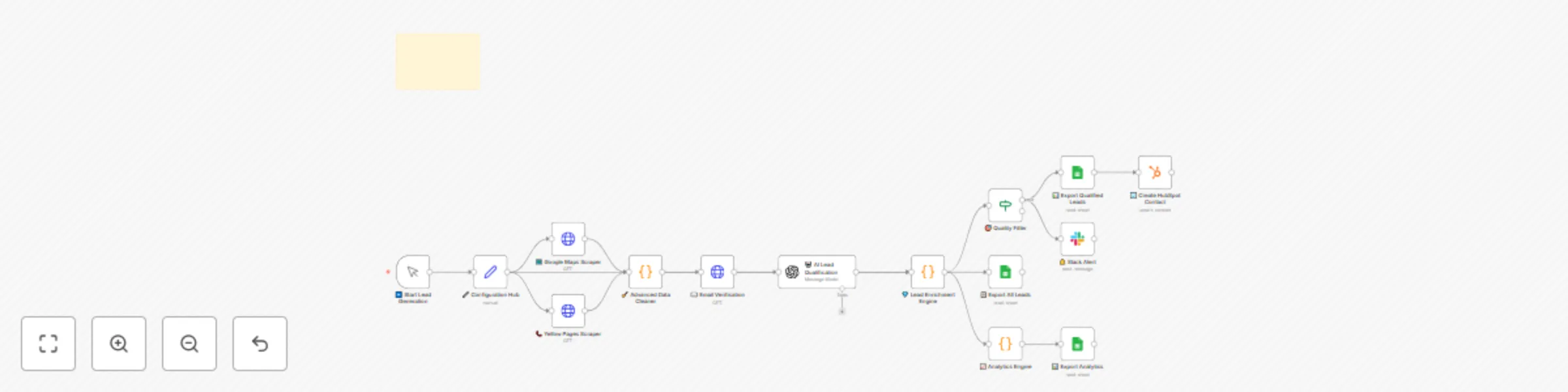
Automated lead generation & qualification with Google Maps, GPT-4 & HubSpot

Workflow preview

Workflow preview
100%
Automated lead generation & qualification with Google Maps, GPT-4 & HubSpot preview
Open on n8n.io

Important notice

This workflow is provided as-is. Please review and test before using in production.

1. Workflow Overview

This n8n workflow automates CVE tracking by retrieving vulnerability details from the NVD API ️, organizing and updating the data in Google Sheets , and optionally alerting teams via Slack or E...

Best for

  • SecOps automation workflows
  • advanced n8n builders looking for reusable templates

Tools used

n8n-nodes-base.stickynote, n8n-nodes-base.set, n8n-nodes-base.manualtrigger, n8n-nodes-base.httprequest, n8n-nodes-base.code, n8n-nodes-base.if, n8n-nodes-base.googlesheets, n8n-nodes-base.hubspot

Source and attribution

This workflow is cataloged by N8N Workflows and links back to its original n8n.io source page by David Olusola.

Original n8n.io source

1.1 Workflow description

Title
Automated lead generation & qualification with Google Maps, GPT-4 & HubSpot
Workflow name
Automated lead generation & qualification with Google Maps, GPT-4 & HubSpot

This n8n workflow automates CVE tracking by retrieving vulnerability details from the NVD API 🛡️, organizing and updating the data in Google Sheets 📊, and optionally alerting teams via Slack or Email 📩💬.


Who is this for?

This workflow is ideal for:

  • Security operations (SecOps) teams 🧑‍💻
  • DevSecOps engineers 🛠️
  • IT compliance officers 🧾
  • Vulnerability management analysts 🕵️
  • Sysadmins or cloud engineers in regulated industries 🏢

What problem does this workflow solve?

Manually checking for the latest CVE information is inefficient and error-prone. This automation:

  • Monitors NVD for CVE entries based on product or keyword filters 🔍
  • Tracks new vulnerabilities and changes to existing ones ⏱️
  • Logs all CVE data in a structured Google Sheet for ongoing review and audit 🧾
  • Can trigger alerts or actions for high-severity CVEs 🚨

What this workflow does

This workflow builds an automated CVE monitoring system that:

  • Queries the NVD API for vulnerability data matching keywords (e.g. "Apache", "Log4j") 📡
  • Extracts relevant fields: CVE ID, description, severity (CVSS scores), published/modified dates, and affected products 🗂️
  • Saves or updates the information in Google Sheets 📑
  • Optionally filters for critical severity (e.g., CVSS > 8.0) and sends Slack alerts or emails 📬
  • Supports historical tracking and change detection over time 🕒

Includes a Google Sheets template for tracking:

  • CVE IDs and metadata
  • Severity levels and scores
  • Product/component tags
  • Resolution/patch status tracking

Setup

Prerequisites

You'll need:

  • An n8n instance (cloud or self-hosted) ☁️
  • A Google account + Google Sheets API credentials 📑
  • (Optional) Slack webhook URL or email setup for notifications 💬
Step 1: Configure API Inputs

Open the 🔧 Configuration node and provide:

  • NVD API parameters (keyword filters, date ranges, etc.)
  • Google Sheet ID and tab name for output
  • Slack webhook URL (optional)
Step 2: Set Filters & Preferences

Define:

  • Target keywords or CPE filters (e.g. “Cisco ASA”, “Windows 10”) 🧩
  • CVSS threshold for high/critical alerts 🎚️
  • Update frequency (manual trigger, scheduled cron, webhook, etc.) 🔁
Step 3: Connect to Google Sheets
  • Update Sheet node with your destination Sheet ID
  • Ensure columns like CVE ID, Description, Severity, Last Updated exist
Step 4: Enable Alerts (Optional)
  • Set up Slack node with your webhook URL or connect SMTP/Email node
  • Format alert message with key CVE data
Step 5: Activate and Run
  • Save and activate the workflow 🔛
  • Run manually or schedule it to run periodically (e.g., every 6 hours) ⏱️

Customization Tips

  • Add deduplication logic to avoid reprocessing the same CVEs ♻️
  • Use filters to monitor only critical CVEs or specific vendors/vendors 🔍
  • Extend with GitHub Security Advisories or Exploit DB integration 🧩
  • Track remediation status and link to patch notes or fixes 🩹

Troubleshooting

Common Issues

  • Empty results from NVD: Check if your keywords are too narrow or if NVD API rate limits apply 📉
  • Google Sheets error: Ensure the Sheet ID and tab names are correct and accessible 🔑
  • Alerts not sending: Check Slack webhook or email configurations 🔧

Getting Help


This template was created by David Olusola. 🛡️

1.2 Logical Blocks

This catalog entry is organized from the workflow JSON. The node-level section below shows the executable blocks available for review before importing the template.

2. Block-by-Block Analysis

Block 1 - Pro Features Overview

Type / Role
n8n-nodes-base.stickyNote - stickyNote
Config choices
Version 1

Block 2 - 🔧 Configuration Hub

Type / Role
n8n-nodes-base.set - set
Config choices
Version 3.4

Block 3 - ▶️ Start Lead Generation

Type / Role
n8n-nodes-base.manualTrigger - manualTrigger
Config choices
Version 1

Block 4 - 🗺️ Google Maps Scraper

Type / Role
n8n-nodes-base.httpRequest - httpRequest
Config choices
Version 1

Block 5 - 📞 Yellow Pages Scraper

Type / Role
n8n-nodes-base.httpRequest - httpRequest
Config choices
Version 1

Block 6 - 🧹 Advanced Data Cleaner

Type / Role
n8n-nodes-base.code - code
Config choices
Version 2

Block 7 - ✉️ Email Verification

Type / Role
n8n-nodes-base.httpRequest - httpRequest
Config choices
Version 1

Block 8 - 💎 Lead Enrichment Engine

Type / Role
n8n-nodes-base.code - code
Config choices
Version 2

Block 9 - 🎯 Quality Filter

Type / Role
n8n-nodes-base.if - if
Config choices
Version 2

Block 10 - 📊 Export Qualified Leads

Type / Role
n8n-nodes-base.googleSheets - googleSheets
Config choices
Version 4.5

Block 11 - 📋 Export All Leads

Type / Role
n8n-nodes-base.googleSheets - googleSheets
Config choices
Version 4.5

Block 12 - 🏢 Create HubSpot Contact

Type / Role
n8n-nodes-base.hubspot - hubspot
Config choices
Version 2

Block 13 - 🔔 Slack Alert

Type / Role
n8n-nodes-base.slack - slack
Config choices
Version 2.2

Block 14 - 📈 Analytics Engine

Type / Role
n8n-nodes-base.code - code
Config choices
Version 2

Block 15 - 📊 Export Analytics

Type / Role
n8n-nodes-base.googleSheets - googleSheets
Config choices
Version 4.5

Block 16 - 🤖 AI Lead Qualification

Type / Role
@n8n/n8n-nodes-langchain.openAi - openAi
Config choices
Version 1.8

3. Summary Table

Workflow Automated lead generation & qualification with Google Maps, GPT-4 & HubSpot
Complexity advanced
Nodes 16
Categories SecOps
Author David Olusola
Published 09 Jun 2025

4. Reproducing the Workflow from Scratch

  1. 1. Download the workflow JSON

    Use the JSON export at /data/workflows/4824/4824.json as the source template for this automation.

  2. 2. Import the template into n8n

    Open n8n, import the downloaded JSON, and review each node before activating the workflow.

  3. 3. Configure credentials and variables

    Replace placeholder credentials, API keys, webhook URLs, account IDs, and environment-specific values with your own settings.

  4. 4. Test with sample data

    Run the workflow manually or in a staging workspace, inspect node output, and confirm downstream systems receive the expected data.

  5. 5. Activate and monitor

    Enable the workflow only after testing, then monitor executions, errors, and rate limits during the first production runs.

5. General Notes & Resources

Review imported nodes carefully before activation. This catalog entry is intended to help you inspect the workflow structure, understand required services, and find related templates faster.

Node names, credentials, schedules, webhook paths, and external service limits may need adjustment for your workspace.

Frequently asked questions

What does Automated lead generation & qualification with Google Maps, GPT-4 & HubSpot do?

This n8n workflow automates CVE tracking by retrieving vulnerability details from the NVD API ️, organizing and updating the data in Google Sheets , and optionally alerting teams via Slack or E...

What do I need before importing this workflow?

Review the workflow JSON, configure any required credentials in n8n, and test the automation in a safe workspace before using it in production.

Can I customize this workflow?

Yes. Use the block-by-block analysis and the downloadable JSON to inspect each node, then adjust credentials, prompts, schedules, filters, or destinations for your SecOps use case.