Automated Gmail classification and labeling with GPT-4, Sheets and Slack alerts

Workflow preview

Workflow preview
100%
Automated Gmail classification and labeling with GPT-4, Sheets and Slack alerts preview
Open on n8n.io

Important notice

This workflow is provided as-is. Please review and test before using in production.

1. Workflow Overview

This n8n template automates email labeling using AI enhanced classification and intelligent routing Gmail users report spending significant time manually sorting email, so this tool helps alleviate...

Best for

  • Ticket Management automation workflows
  • AI Summarization automation workflows
  • advanced n8n builders looking for reusable templates

Tools used

n8n-nodes-base.code, @n8n/n8n-nodes-langchain.lmchatopenai, @n8n/n8n-nodes-langchain.outputparserstructured, @n8n/n8n-nodes-langchain.agent, n8n-nodes-base.if, n8n-nodes-base.switch, n8n-nodes-base.gmail, n8n-nodes-base.googlesheets

Source and attribution

This workflow is cataloged by N8N Workflows and links back to its original n8n.io source page by Chris Mielke.

Original n8n.io source

1.1 Workflow description

Title
Automated Gmail classification and labeling with GPT-4, Sheets and Slack alerts
Workflow name
Automated Gmail classification and labeling with GPT-4, Sheets and Slack alerts

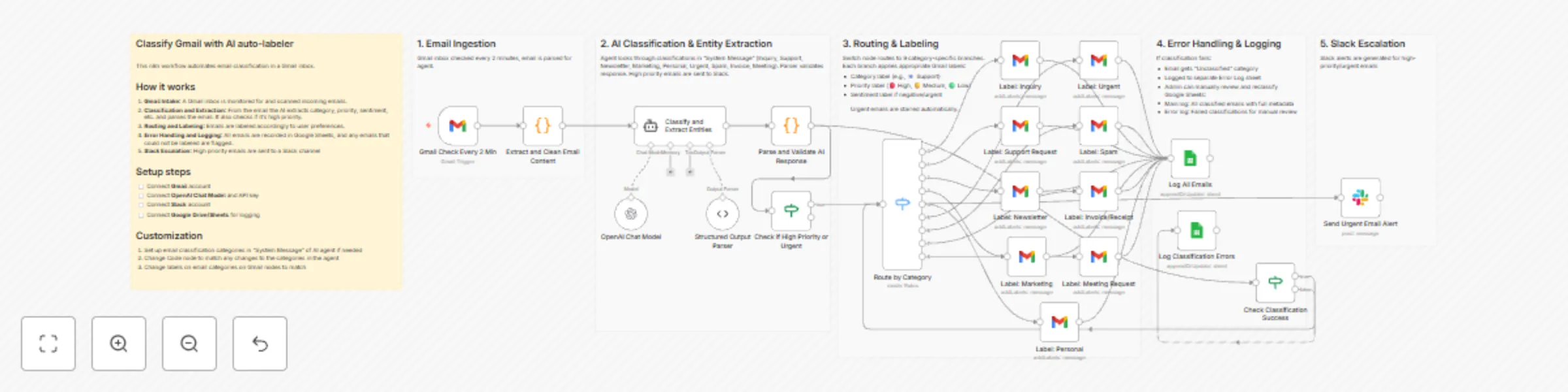
This n8n template automates email labeling using AI-enhanced classification and intelligent routing

Gmail users report spending significant time manually sorting email, so this tool helps alleviate that burden.

How it works

  • Gmail Trigger monitors unread emails every 2 minutes
  • Once an email arrives, the content is extracted with HTML cleaning
  • AI Agent (the node is set for Chat GPT-4) is used for classification & entity extraction
  • A Structured Output Parser parses the email to JSON
  • A 9-way category routing system categorizes the email (Inquiry, Support, Newsletter, Marketing, Personal, Urgent, Spam, Invoice, Meeting)
  • Gmail auto-labeling is used for each category
  • Google Sheets is used for logging (the main log that includes all emails and  an error log which are emails that cannot be classified)
  • Slack alerts are generated for high-priority/urgent emails
  • Error handling is done with separate error logging in Google Sheets

How to use

  • Set up credentials for Google Gmail, LLM (ChatGPT, Gemini, etc.), Google Sheets, and Slack
  • Modify the categories as needed per user preference

Requirements

  • Gmail 
  • Any LLM like ChatGPT or Google Gemini
  • Google Drive with Google Sheets is optional for logging and error handling
  • Slack is optional for high-priority messages

1.2 Logical Blocks

This catalog entry is organized from the workflow JSON. The node-level section below shows the executable blocks available for review before importing the template.

2. Block-by-Block Analysis

Block 1 - Extract and Clean Email Content

Type / Role
n8n-nodes-base.code - code
Config choices
Version 2

Block 2 - OpenAI Chat Model

Type / Role
@n8n/n8n-nodes-langchain.lmChatOpenAi - lmChatOpenAi
Config choices
Version 1.2

Block 3 - Structured Output Parser

Type / Role
@n8n/n8n-nodes-langchain.outputParserStructured - outputParserStructured
Config choices
Version 1.3

Block 4 - Classify and Extract Entities

Type / Role
@n8n/n8n-nodes-langchain.agent - agent
Config choices
Version 3

Block 5 - Parse and Validate AI Response

Type / Role
n8n-nodes-base.code - code
Config choices
Version 2

Block 6 - Check Classification Success

Type / Role
n8n-nodes-base.if - if
Config choices
Version 2.2

Block 7 - Route by Category

Type / Role
n8n-nodes-base.switch - switch
Config choices
Version 3.3

Block 8 - Label: Inquiry

Type / Role
n8n-nodes-base.gmail - gmail
Config choices
Version 2.1

Block 9 - Label: Support Request

Type / Role
n8n-nodes-base.gmail - gmail
Config choices
Version 2.1

Block 10 - Label: Newsletter

Type / Role
n8n-nodes-base.gmail - gmail
Config choices
Version 2.1

Block 11 - Label: Marketing

Type / Role
n8n-nodes-base.gmail - gmail
Config choices
Version 2.1

Block 12 - Label: Personal

Type / Role
n8n-nodes-base.gmail - gmail
Config choices
Version 2.1

Block 13 - Label: Urgent

Type / Role
n8n-nodes-base.gmail - gmail
Config choices
Version 2.1

Block 14 - Label: Spam

Type / Role
n8n-nodes-base.gmail - gmail
Config choices
Version 2.1

Block 15 - Label: Invoice/Receipt

Type / Role
n8n-nodes-base.gmail - gmail
Config choices
Version 2.1

Block 16 - Label: Meeting Request

Type / Role
n8n-nodes-base.gmail - gmail
Config choices
Version 2.1

Block 17 - Log All Emails

Type / Role
n8n-nodes-base.googleSheets - googleSheets
Config choices
Version 4.7

Block 18 - Check if High Priority or Urgent

Type / Role
n8n-nodes-base.if - if
Config choices
Version 2.2

Block 19 - Send Urgent Email Alert

Type / Role
n8n-nodes-base.slack - slack
Config choices
Version 2.3

Block 20 - Log Classification Errors

Type / Role
n8n-nodes-base.googleSheets - googleSheets
Config choices
Version 4.7

Block 21 - Email Ingestion

Type / Role
n8n-nodes-base.stickyNote - stickyNote
Config choices
Version 1

Block 22 - AI Classification

Type / Role
n8n-nodes-base.stickyNote - stickyNote
Config choices
Version 1

Block 23 - Routing Logic

Type / Role
n8n-nodes-base.stickyNote - stickyNote
Config choices
Version 1

Block 24 - Integrations

Type / Role
n8n-nodes-base.stickyNote - stickyNote
Config choices
Version 1

Showing the first 24 of 27 workflow blocks. Download the JSON for the full node graph.

3. Summary Table

Workflow Automated Gmail classification and labeling with GPT-4, Sheets and Slack alerts
Complexity advanced
Nodes 27
Categories Ticket Management, AI Summarization
Author Chris Mielke
Published 15 Dec 2025

4. Reproducing the Workflow from Scratch

  1. 1. Download the workflow JSON

    Use the JSON export at /data/workflows/11836/11836.json as the source template for this automation.

  2. 2. Import the template into n8n

    Open n8n, import the downloaded JSON, and review each node before activating the workflow.

  3. 3. Configure credentials and variables

    Replace placeholder credentials, API keys, webhook URLs, account IDs, and environment-specific values with your own settings.

  4. 4. Test with sample data

    Run the workflow manually or in a staging workspace, inspect node output, and confirm downstream systems receive the expected data.

  5. 5. Activate and monitor

    Enable the workflow only after testing, then monitor executions, errors, and rate limits during the first production runs.

5. General Notes & Resources

Review imported nodes carefully before activation. This catalog entry is intended to help you inspect the workflow structure, understand required services, and find related templates faster.

Node names, credentials, schedules, webhook paths, and external service limits may need adjustment for your workspace.

Frequently asked questions

What does Automated Gmail classification and labeling with GPT-4, Sheets and Slack alerts do?

This n8n template automates email labeling using AI enhanced classification and intelligent routing Gmail users report spending significant time manually sorting email, so this tool helps alleviate...

What do I need before importing this workflow?

Review the workflow JSON, configure any required credentials in n8n, and test the automation in a safe workspace before using it in production.

Can I customize this workflow?

Yes. Use the block-by-block analysis and the downloadable JSON to inspect each node, then adjust credentials, prompts, schedules, filters, or destinations for your Ticket Management, AI Summarization use case.