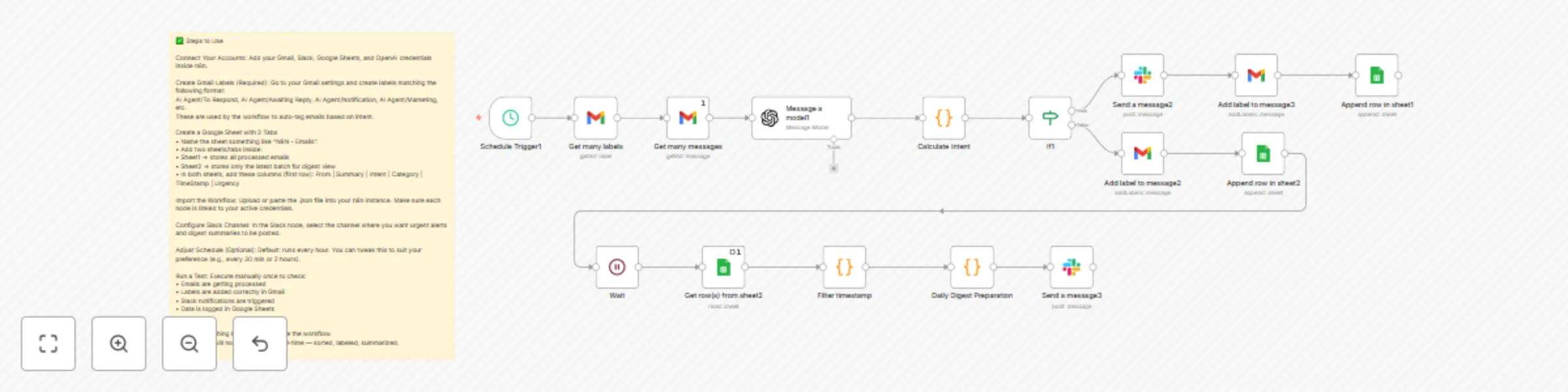
Automated email triage with Gmail, GPT-4o, and Slack urgency notifications

Workflow preview

Workflow preview
100%
Automated email triage with Gmail, GPT-4o, and Slack urgency notifications preview
Open on n8n.io

Important notice

This workflow is provided as-is. Please review and test before using in production.

1. Workflow Overview

Hourly Email Summary: This agent scans your inbox every 4 hour and summarizes new emails into a clean, actionable Slack message. Powered by GPT 4, it classifies emails by Urgency (High, Medium, Low...

Best for

  • Ticket Management automation workflows
  • AI Summarization automation workflows
  • advanced n8n builders looking for reusable templates

Tools used

n8n-nodes-base.scheduletrigger, n8n-nodes-base.gmail, @n8n/n8n-nodes-langchain.openai, n8n-nodes-base.if, n8n-nodes-base.slack, n8n-nodes-base.code, n8n-nodes-base.googlesheets, n8n-nodes-base.wait

Source and attribution

This workflow is cataloged by N8N Workflows and links back to its original n8n.io source page by Siddhant.

Original n8n.io source

1.1 Workflow description

Title
Automated email triage with Gmail, GPT-4o, and Slack urgency notifications
Workflow name
Automated email triage with Gmail, GPT-4o, and Slack urgency notifications

Hourly Email Summary: This agent scans your inbox every 4 hour and summarizes new emails into a clean, actionable Slack message. Powered by GPT-4, it classifies emails by Urgency (High, Medium, Low) and Intent (Awaiting Reply, To Respond, Comment, Notification, Marketing). No more inbox FOMO — just what you need to act fast.

Main Use Cases: • Stay on top of important threads without refreshing your inbox constantly • Prioritize tasks and replies based on urgency and context • Catch missed follow-ups by surfacing emails that need a response • Filter out noise like marketing emails or low-priority notifications • Enable async decision-making by keeping the team updated on critical emails via Slack • Reduce cognitive load by letting AI handle sorting and triaging ⸻

✅ Steps to Use

  1. Connect Your Accounts: Add your Gmail, Slack, Google Sheets, and OpenAI credentials inside n8n.
  2. Create Gmail Labels (Required): Go to your Gmail settings and create labels matching the following format: AI Agent/To Respond, AI Agent/Awaiting Reply, AI Agent/Notification, AI Agent/Marketing, etc. These are used by the workflow to auto-tag emails based on intent.
  3. Create a Google Sheet with 2 Tabs • Name the sheet something like “N8N - Emails”. • Add two sheets/tabs inside: • Sheet1 → stores all processed emails • Sheet2 → stores only the latest batch for digest view • In both sheets, add these columns (first row): From | Summary | Intent | Category | TimeStamp | Urgency
  4. Import the Workflow: Upload or paste the .json file into your n8n instance. Make sure each node is linked to your active credentials.
  5. Configure Slack Channel: In the Slack node, select the channel where you want urgent alerts and digest summaries to be posted.
  6. Adjust Schedule (Optional): Default: runs every hour. You can tweak this to suit your preference (e.g., every 30 min or 2 hours).
  7. Run a Test: Execute manually once to check: • Emails are getting processed • Labels are added correctly in Gmail • Slack notifications are triggered • Data is logged in Google Sheets
  8. Turn It On • Once everything looks good, activate the workflow. • Your inbox will now be triaged in real-time — sorted, labeled, summarized.

Step-by-Step Breakdown:

  1. ⏰ Schedule Trigger: Runs every hour to kick off the workflow automatically.
  2. 📩 Fetch Emails & Labels • Pulls all Gmail messages received in the last 4 hours. • Also fetches Gmail labels to use for tagging messages based on intent.
  3. 🤖 Analyze with GPT-4 • Each email is analyzed using GPT-4. • Output includes: • Summary • Urgency: High, Medium, Low • Intent: To Respond, Awaiting Reply, Marketing, Notification, etc. • Category: Customer, Investor, Spam, etc.
  4. Classify and Label • Emails are tagged with the right intent label inside Gmail. 5.🚨 Slack Alerts for High Urgency • If an email is marked High Urgency, it sends an alert to a designated Slack channel with all key details.
  5. 📊 Google Sheets Logging • All emails are logged to two Google Sheets: • Sheet1: All messages, for long-term record. • Sheet2: Temporary sheet to collect latest batch for digest.
  6. ⏳ Wait + Digest Preparation • After logging, the workflow waits 30 seconds. • It then fetches recent entries from Sheet2, filters out older messages, and groups them by Medium and Low urgency.
  7. 📬 Slack Digest Summary • A clean digest is posted on Slack showing only the Medium and Low urgency messages from the past hour — helping you catch up without inbox overload.

Uses a System Prompt to define its role as an AI Chief of Staff.

Uses a User Prompt that instructs GPT-4 to analyze each email and return a structured JSON with the following: • summary – One-line summary of the email • urgency – High / Medium / Low • category – Investor, Customer, Support, Spam, Other • Intent – One of: • To Respond: Needs your reply • Awaiting Reply: You’re waiting for a response • Notification: Auto-updates from tools or services • Meeting Update: Calendar or schedule changes • Marketing: Promotional or cold emails • FYI: Informational emails that don’t need action

The output is clean JSON with built-in guardrails to avoid hallucinations or irrelevant content. Only real message data is used for summaries and classification.

Sections with no relevant data are omitted to keep it concise.

🧩 What’s Next

This agent already cuts through inbox noise and gives you clarity — but there’s more you can build on top:

💡 Suggestions to Improve: • Train on your past threads to make prioritization even smarter • Allow custom rules per sender or domain (e.g. always mark investor emails as High) • Add emoji tags or reactions in Slack to quickly mark emails as done or follow-up • Support voice summary via Slack audio snippet or Loom integration

🚀 Next Features You Could Add: • Reply-from-Slack: One-click smart reply suggestions that can be sent right from Slack • Cross-inbox support: Add Outlook or multiple Gmail accounts • Weekend Digest: A weekly email or Slack drop with trends (top senders, most flagged categories) • Daily Timeline View: Generate a Notion page that logs the day’s most critical communication

1.2 Logical Blocks

This catalog entry is organized from the workflow JSON. The node-level section below shows the executable blocks available for review before importing the template.

2. Block-by-Block Analysis

Block 1 - Schedule Trigger1

Type / Role
n8n-nodes-base.scheduleTrigger - scheduleTrigger
Config choices
Version 1.2

Block 2 - Get many messages

Type / Role
n8n-nodes-base.gmail - gmail
Config choices
Version 2.1

Block 3 - Get many labels

Type / Role
n8n-nodes-base.gmail - gmail
Config choices
Version 2.1

Block 4 - Message a model1

Type / Role
@n8n/n8n-nodes-langchain.openAi - openAi
Config choices
Version 1.8

Block 5 - If1

Type / Role
n8n-nodes-base.if - if
Config choices
Version 2.2

Block 6 - Send a message2

Type / Role
n8n-nodes-base.slack - slack
Config choices
Version 2.3

Block 7 - Add label to message2

Type / Role
n8n-nodes-base.gmail - gmail
Config choices
Version 2.1

Block 8 - Add label to message3

Type / Role
n8n-nodes-base.gmail - gmail
Config choices
Version 2.1

Block 9 - Send a message3

Type / Role
n8n-nodes-base.slack - slack
Config choices
Version 2.3

Block 10 - Calculate Intent

Type / Role
n8n-nodes-base.code - code
Config choices
Version 2

Block 11 - Append row in sheet1

Type / Role
n8n-nodes-base.googleSheets - googleSheets
Config choices
Version 4.6

Block 12 - Append row in sheet2

Type / Role
n8n-nodes-base.googleSheets - googleSheets
Config choices
Version 4.6

Block 13 - Get row(s) from sheet2

Type / Role
n8n-nodes-base.googleSheets - googleSheets
Config choices
Version 4.6

Block 14 - Filter timestamp

Type / Role
n8n-nodes-base.code - code
Config choices
Version 2

Block 15 - Daily Digest Preparation

Type / Role
n8n-nodes-base.code - code
Config choices
Version 2

Block 16 - Wait

Type / Role
n8n-nodes-base.wait - wait
Config choices
Version 1.1

Block 17 - Sticky Note

Type / Role
n8n-nodes-base.stickyNote - stickyNote
Config choices
Version 1

3. Summary Table

Workflow Automated email triage with Gmail, GPT-4o, and Slack urgency notifications
Complexity advanced
Nodes 17
Categories Ticket Management, AI Summarization
Author Siddhant
Published 28 Jul 2025

4. Reproducing the Workflow from Scratch

  1. 1. Download the workflow JSON

    Use the JSON export at /data/workflows/6588/6588.json as the source template for this automation.

  2. 2. Import the template into n8n

    Open n8n, import the downloaded JSON, and review each node before activating the workflow.

  3. 3. Configure credentials and variables

    Replace placeholder credentials, API keys, webhook URLs, account IDs, and environment-specific values with your own settings.

  4. 4. Test with sample data

    Run the workflow manually or in a staging workspace, inspect node output, and confirm downstream systems receive the expected data.

  5. 5. Activate and monitor

    Enable the workflow only after testing, then monitor executions, errors, and rate limits during the first production runs.

5. General Notes & Resources

Review imported nodes carefully before activation. This catalog entry is intended to help you inspect the workflow structure, understand required services, and find related templates faster.

Node names, credentials, schedules, webhook paths, and external service limits may need adjustment for your workspace.

Frequently asked questions

What does Automated email triage with Gmail, GPT-4o, and Slack urgency notifications do?

Hourly Email Summary: This agent scans your inbox every 4 hour and summarizes new emails into a clean, actionable Slack message. Powered by GPT 4, it classifies emails by Urgency (High, Medium, Low...

What do I need before importing this workflow?

Review the workflow JSON, configure any required credentials in n8n, and test the automation in a safe workspace before using it in production.

Can I customize this workflow?

Yes. Use the block-by-block analysis and the downloadable JSON to inspect each node, then adjust credentials, prompts, schedules, filters, or destinations for your Ticket Management, AI Summarization use case.