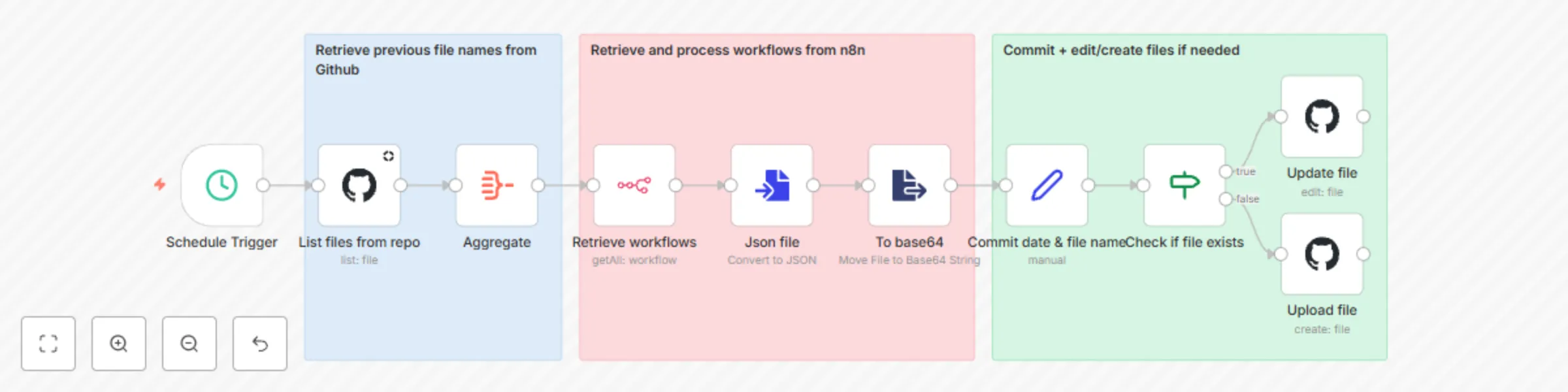
Automated daily workflow backup to GitHub

Workflow preview

Workflow preview
100%
Automated daily workflow backup to GitHub preview
Open on n8n.io

Important notice

This workflow is provided as-is. Please review and test before using in production.

1. Workflow Overview

This workflow provides a robust solution for automatically backing up all your n8n workflows to a designated GitHub repository on a daily basis. By leveraging the n8n API and GitHub API, it ensures...

Best for

  • DevOps automation workflows
  • intermediate n8n builders looking for reusable templates

Tools used

n8n-nodes-base.scheduletrigger, n8n-nodes-base.n8n, n8n-nodes-base.aggregate, n8n-nodes-base.github, n8n-nodes-base.if, n8n-nodes-base.converttofile, n8n-nodes-base.extractfromfile, n8n-nodes-base.stickynote

Source and attribution

This workflow is cataloged by N8N Workflows and links back to its original n8n.io source page by Hugo.

Original n8n.io source

1.1 Workflow description

Title
Automated daily workflow backup to GitHub
Workflow name
Automated daily workflow backup to GitHub

This workflow provides a robust solution for automatically backing up all your n8n workflows to a designated GitHub repository on a daily basis. By leveraging the n8n API and GitHub API, it ensures your workflows are version-controlled and securely stored, safeguarding against data loss and facilitating disaster recovery.

How it works

The automation follows these key steps:

  1. Scheduled trigger: The workflow is initiated automatically every day at a pre-configured time.
  2. List existing backups: It first connects to your GitHub repository to retrieve a list of already backed-up workflow files. This helps in determining whether a workflow's backup file needs to be created or updated.
  3. Retrieve n8n workflows: The workflow then fetches all current workflows directly from your n8n instance using the n8n REST API.
  4. Process and prepare: Each retrieved workflow is individually processed. Its data is converted into JSON format. This JSON content is then encoded to base64, a format suitable for GitHub API file operations.
  5. Commit to GitHub: For each n8n workflow:
    • A standardized filename is generated (e.g., workflow-name-tag.json).
    • The workflow checks if a file with this name already exists in the GitHub repository (based on the list fetched in step 2).
    • If the file exists: It updates the existing file with the latest version of the workflow.
    • If it's a new workflow (file doesn't exist): A new file is created in the repository.
    • Each commit is timestamped for clarity.

This process ensures that you always have an up-to-date version of all your n8n workflows stored securely in your GitHub version control system, providing peace of mind and a reliable backup history.

Pre-requisites

Before you can use this template, please ensure you have the following:

  • An active n8n instance (self-hosted or cloud).
  • A GitHub account.
  • A GitHub repository created where you want to store the workflow backups.
  • A GitHub Personal Access Token with repo scope (or fine-grained token with read/write access to the specific backup repository). This token will be used for GitHub API authentication.
  • n8n API credentials (API key) for your n8n instance.

Set up steps

Setting up this workflow should take approximately 10-15 minutes if you have your credentials ready.

  1. Import the template: Import this workflow into your n8n instance.
  2. Configure n8n API credentials:
    • Locate the "Retrieve workflows" node.
    • In the "Credentials" section for "n8n API", create new credentials (or select existing ones).
    • Enter your n8n instance URL and your n8n API Key (you can create your n8n api key in the settings of your n8n instance)
  3. Configure GitHub credentials:
    • Locate the "List files from repo" node (and subsequently "Update file" / "Upload file" nodes which will use the same credential).
    • In the "Credentials" section for "GitHub API", create new credentials.
    • Select OAuth2/Personal Access Token authentication method.
    • Enter the GitHub Personal Access Token you generated as per the pre-requisites.
  4. Specify repository details:
    • In the "List files from repo", "Update file", and "Upload file" GitHub nodes:
      • Set the Owner: Your GitHub username or organization name.
      • Set the Repository: The name of your GitHub repository dedicated to backups.
      • Set the Branch (e.g., main or master) where backups should be stored.
      • (Optional) Specify a Path within the repository if you want backups in a specific folder (e.g., n8n_backups/). Leave blank to store in the root.
  5. Adjust schedule (Optional):
    • Select the "Schedule Trigger" node.
    • Modify the trigger interval (e.g., change the time of day or frequency) as needed. By default, it's set for a daily run.
  6. Activate the workflow: Save and activate the workflow.

Explanation of nodes

Here's a detailed breakdown of each node used in this workflow:

  • Schedule trigger
    • Type: n8n-nodes-base.scheduleTrigger
    • Purpose: This node automatically starts the workflow based on a defined schedule (e.g., daily at midnight).
  • List files from repo
    • Type: n8n-nodes-base.github
    • Purpose: Connects to your specified GitHub repository and lists all files, primarily to check for existing workflow backups.
  • Aggregate
    • Type: n8n-nodes-base.aggregate
    • Purpose: Consolidates the list of file names obtained from the "List files from repo" node into a single item for easier lookup later in the "Check if file exists" node.
  • Retrieve workflows
    • Type: n8n-nodes-base.n8n
    • Purpose: Uses the n8n API to fetch a list of all workflows currently present in your n8n instance.
  • Json file
    • Type: n8n-nodes-base.convertToFile
    • Purpose: Takes the data of each workflow (retrieved by the "Retrieve workflows" node) and converts it into a structured JSON file format.
  • To base64
    • Type: n8n-nodes-base.extractFromFile
    • Purpose: Converts the binary content of the JSON file (from the "Json file" node) into a base64 encoded string. This encoding is required by the GitHub API for file content.
  • Commit date & file name
    • Type: n8n-nodes-base.set
    • Purpose: Prepares metadata for the GitHub commit. It generates:
      • commitDate: The current date and time for the commit message.
      • fileName: A standardized file name for the workflow backup (e.g., my-workflow-vps-backups.json), typically using the workflow's name and its first tag.
  • Check if file exists
    • Type: n8n-nodes-base.if
    • Purpose: A conditional node. It checks if the fileName (generated by "Commit date & file name") is present in the list of files aggregated by the "Aggregate" node. This determines if the workflow backup already exists in GitHub.
  • Update file
    • Type: n8n-nodes-base.github
    • Purpose: If the "Check if file exists" node determines the file does exist, this node updates that existing file in your GitHub repository with the latest workflow content (base64 encoded) and a commit message.
  • Upload file
    • Type: n8n-nodes-base.github
    • Purpose: If the "Check if file exists" node determines the file does not exist, this node creates and uploads a new file to your GitHub repository with the workflow content and a commit message.

Customization

Here are a few ways you can customize this template to better fit your needs:

  • Backup path: In the GitHub nodes ("List files from repo", "Update file", "Upload file"), you can specify a Path parameter to store backups in a specific folder within your repository (e.g., workflows/ or daily_backups/).
  • Filename convention: Modify the "Commit date & file name" node (specifically the expression for fileName) to change how backup files are named. For example, you might want to include the workflow ID or a different date format.
  • Commit messages: Customize the commit messages in the "Update file" and "Upload file" GitHub nodes to include more specific information if needed.
  • Error handling: Consider adding error handling branches (e.g., using the "Error Trigger" node or checking for node execution failures) to notify you if a backup fails for any reason.
  • Filtering workflows: If you only want to back up specific workflows (e.g., those with a particular tag or name pattern), you can add a "Filter" node after "Retrieve workflows" to include only the desired workflows in the backup process.
  • Backup frequency: Adjust the "Schedule Trigger" node to change how often the backup runs (e.g., hourly, weekly, or on specific days).

Template was created in n8n v1.92.2

1.2 Logical Blocks

This catalog entry is organized from the workflow JSON. The node-level section below shows the executable blocks available for review before importing the template.

2. Block-by-Block Analysis

Block 1 - Schedule Trigger

Type / Role
n8n-nodes-base.scheduleTrigger - scheduleTrigger
Config choices
Version 1.2

Block 2 - Retrieve workflows

Type / Role
n8n-nodes-base.n8n - n8n
Config choices
Version 1

Block 3 - Aggregate

Type / Role
n8n-nodes-base.aggregate - aggregate
Config choices
Version 1

Block 4 - List files from repo

Type / Role
n8n-nodes-base.github - github
Config choices
Version 1

Block 5 - Update file

Type / Role
n8n-nodes-base.github - github
Config choices
Version 1

Block 6 - Upload file

Type / Role
n8n-nodes-base.github - github
Config choices
Version 1

Block 7 - Check if file exists

Type / Role
n8n-nodes-base.if - if
Config choices
Version 1

Block 8 - Json file

Type / Role
n8n-nodes-base.convertToFile - convertToFile
Config choices
Version 1.1

Block 9 - To base64

Type / Role
n8n-nodes-base.extractFromFile - extractFromFile
Config choices
Version 1

Block 10 - Sticky Note1

Type / Role
n8n-nodes-base.stickyNote - stickyNote
Config choices
Version 1

Block 11 - Commit date & file name

Type / Role
n8n-nodes-base.set - set
Config choices
Version 3.4

Block 12 - Sticky Note2

Type / Role
n8n-nodes-base.stickyNote - stickyNote
Config choices
Version 1

Block 13 - Sticky Note3

Type / Role
n8n-nodes-base.stickyNote - stickyNote
Config choices
Version 1

3. Summary Table

Workflow Automated daily workflow backup to GitHub
Complexity intermediate
Nodes 13
Categories DevOps
Author Hugo
Published 15 May 2025

4. Reproducing the Workflow from Scratch

  1. 1. Download the workflow JSON

    Use the JSON export at /data/workflows/4064/4064.json as the source template for this automation.

  2. 2. Import the template into n8n

    Open n8n, import the downloaded JSON, and review each node before activating the workflow.

  3. 3. Configure credentials and variables

    Replace placeholder credentials, API keys, webhook URLs, account IDs, and environment-specific values with your own settings.

  4. 4. Test with sample data

    Run the workflow manually or in a staging workspace, inspect node output, and confirm downstream systems receive the expected data.

  5. 5. Activate and monitor

    Enable the workflow only after testing, then monitor executions, errors, and rate limits during the first production runs.

5. General Notes & Resources

Review imported nodes carefully before activation. This catalog entry is intended to help you inspect the workflow structure, understand required services, and find related templates faster.

Node names, credentials, schedules, webhook paths, and external service limits may need adjustment for your workspace.

Frequently asked questions

What does Automated daily workflow backup to GitHub do?

This workflow provides a robust solution for automatically backing up all your n8n workflows to a designated GitHub repository on a daily basis. By leveraging the n8n API and GitHub API, it ensures...

What do I need before importing this workflow?

Review the workflow JSON, configure any required credentials in n8n, and test the automation in a safe workspace before using it in production.

Can I customize this workflow?

Yes. Use the block-by-block analysis and the downloadable JSON to inspect each node, then adjust credentials, prompts, schedules, filters, or destinations for your DevOps use case.