Block 1 - Sticky: README
- Type / Role
- n8n-nodes-base.stickyNote - stickyNote
- Config choices
- Version 1


 Early Deal
This workflow is provided as-is. Please review and test before using in production.
Graceful Client Onboarding Concierge — Pro A warm, reliable onboarding system for small businesses and studios. Captures a form submission via webhook, creates a Client record in Notion, sends a co...
n8n-nodes-base.stickynote, n8n-nodes-base.webhook, n8n-nodes-base.manualtrigger, n8n-nodes-base.set, n8n-nodes-base.function, n8n-nodes-base.notion, n8n-nodes-base.emailsend, n8n-nodes-base.if
This workflow is cataloged by N8N Workflows and links back to its original n8n.io source page by Shelly-Ann Davy.
Original n8n.io sourceA warm, reliable onboarding system for small businesses and studios. Captures a form submission via webhook, creates a Client record in Notion, sends a concierge-style welcome email (with scheduler + optional contract link), optionally pings the owner on Telegram, mirrors the lead to Airtable/HubSpot, places a temporary Google Calendar hold, and includes a double opt-in confirmation link.
Made for: coaches, designers, boutique agencies, e-commerce and service providers who want consistent follow-up without manual busywork.
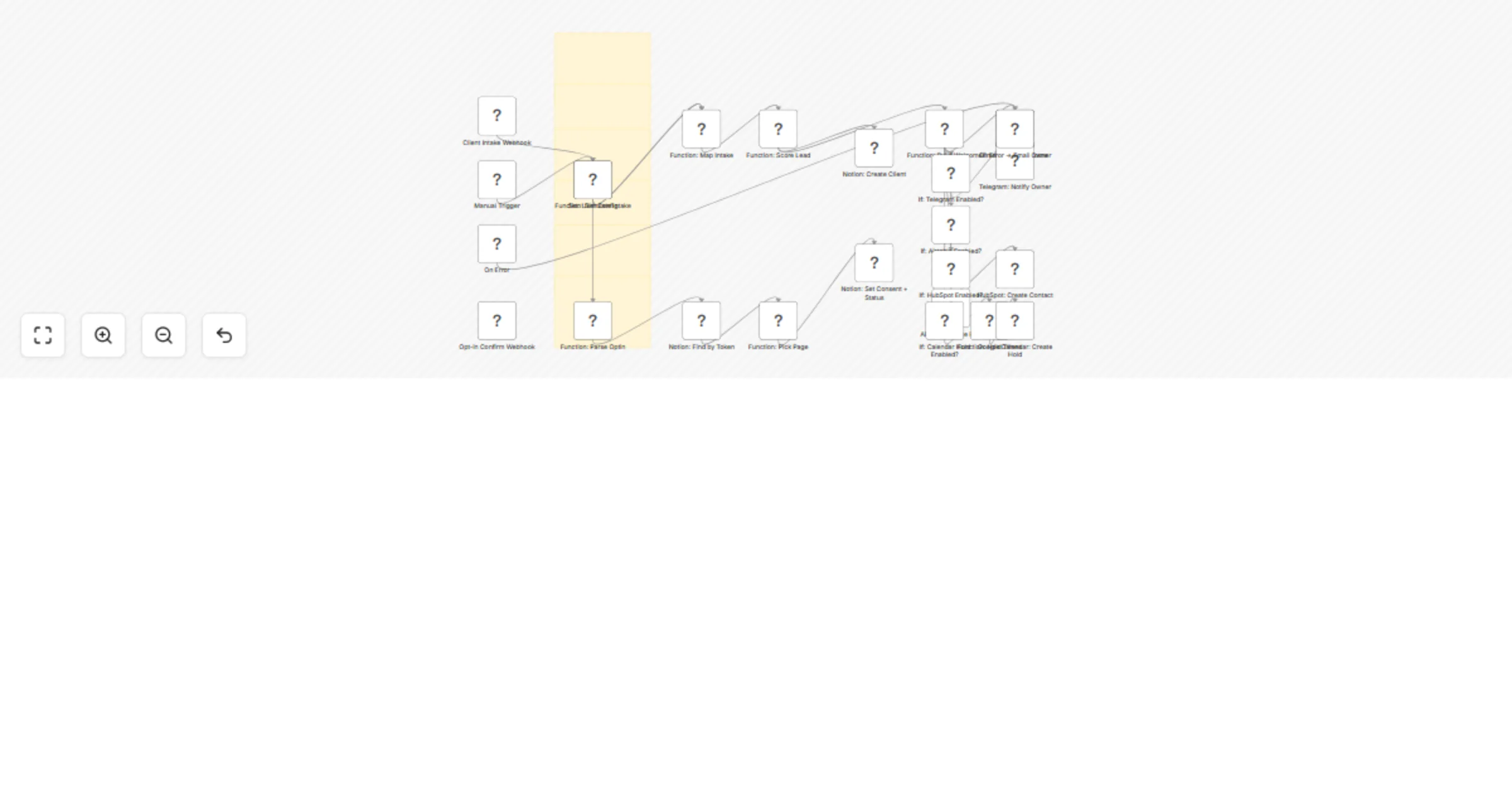
POST /client-intake (or Manual Trigger for instant demo)optInToken, compute score and tierClients page (Name, Email, Package, Notes, Status, Score, Tier, OptInToken, Consent=false)/optin-confirm?token=...&email=... sets Consent=true & Status=Confirmed in Notionflowchart TD
A[Form → Webhook /client-intake] --> B[Map Intake + Score Lead]
B --> C[Notion: Create Client]
B --> D[Build Welcome Email]
D --> E[Email: Send Welcome]
D --> F{Optional actions}
F -->|Telegram| G[Telegram: Notify Owner]
F -->|Airtable| H[Airtable: Create Row]
F -->|HubSpot| I[HubSpot: Create Contact]
F -->|Calendar Hold| J[Google Calendar: Create Hold]
K[GET /optin-confirm] --> L[Find Notion by OptInToken] --> M[Update: Consent=true, Status=Confirmed]
ER[Error Trigger] --> EH[Email Owner]
Clients with properties:
Name (title), Email (email), Package (select), Notes (rich text), Status (select), Score (number), Tier (select), OptInToken (text), Consent (checkbox)
(CSV header provided in the Sticky note on canvas.)NOTION_DB_ID = your Notion Clients DB ID
FROM_EMAIL = sender address for welcome email
OWNER_EMAIL = where error notifications go
SCHEDULER_URL = booking link (Calendly, Once, etc.)
BASE_URL = your public n8n domain (for opt-in link)
CONTRACT_BASE_URL = (optional) proposal/contract URL base
ENABLE_TELEGRAM = true|false
TELEGRAM_CHAT_ID = (if enabled)
ENABLE_AIRTABLE = true|false
AIRTABLE_BASE_ID = (if enabled)
AIRTABLE_TABLE = (if enabled)
ENABLE_HUBSPOT = true|false
ENABLE_CAL_HOLD = true|false
CALENDAR_ID = "primary" or calendar ID
HOLD_HOURS_FROM_NOW = number of hours (default 48)
INDUSTRY = coaching | design_studio | ecommerce | services
Credentials: Attach in node credentials panels (no secrets in JSON).
Import the workflow JSON.
Open Set: User Config and fill required values (see above).
Attach credentials: Notion + Email; optional Telegram/Airtable/HubSpot/Google Calendar.
Run Manual Trigger to simulate an intake and verify:
Switch your form to the Production Webhook URL shown in the Client Intake Webhook node.
Sample JSON (for testing the live webhook):
{"name":"Ava Laurent","email":"[email protected]","package":"Growth","message":"Excited to begin!"}
Double opt-in: The welcome email includes a link like
https://YOUR-N8N-DOMAIN/webhook/optin-confirm?token=...&email=...
Clicking it sets Consent=true and Status=Confirmed on the Notion record.
Set INDUSTRY to control phrasing automatically:
coaching – gentle goals/blocks framingdesign_studio – asset handoff + milestone languageecommerce – store link + quick-win focusservices – general service languageFROM_EMAIL is allowed by your provider.NOTION_DB_ID and property names; check Notion permissions.BASE_URL must be your public n8n domain; workflow must be active.ENABLE_CAL_HOLD=true, attach Google Calendar creds, confirm CALENDAR_ID.Tags: onboarding, notion, email, crm, telegram, airtable, hubspot, calendar, double-opt-in, small business, concierge, women-led brands
Version: v3 (see Changelog sticky on canvas)
This catalog entry is organized from the workflow JSON. The node-level section below shows the executable blocks available for review before importing the template.
Showing the first 24 of 31 workflow blocks. Download the JSON for the full node graph.
| Workflow | Automated client onboarding system with Notion, email & CRM integration |
|---|---|
| Complexity | advanced |
| Nodes | 31 |
| Categories | CRM, Multimodal AI |
| Author | Shelly-Ann Davy |
| Published | 24 Aug 2025 |
Use the JSON export at /data/workflows/7781/7781.json as the source template for this automation.
Open n8n, import the downloaded JSON, and review each node before activating the workflow.
Replace placeholder credentials, API keys, webhook URLs, account IDs, and environment-specific values with your own settings.
Run the workflow manually or in a staging workspace, inspect node output, and confirm downstream systems receive the expected data.
Enable the workflow only after testing, then monitor executions, errors, and rate limits during the first production runs.
Review imported nodes carefully before activation. This catalog entry is intended to help you inspect the workflow structure, understand required services, and find related templates faster.
Node names, credentials, schedules, webhook paths, and external service limits may need adjustment for your workspace.
Graceful Client Onboarding Concierge — Pro A warm, reliable onboarding system for small businesses and studios. Captures a form submission via webhook, creates a Client record in Notion, sends a co...
Review the workflow JSON, configure any required credentials in n8n, and test the automation in a safe workspace before using it in production.
Yes. Use the block-by-block analysis and the downloadable JSON to inspect each node, then adjust credentials, prompts, schedules, filters, or destinations for your CRM, Multimodal AI use case.