Block 1 - When clicking ‘Execute workflow’
- Type / Role
- n8n-nodes-base.manualTrigger - manualTrigger
- Config choices
- Version 1


 Early Deal
This workflow is provided as-is. Please review and test before using in production.
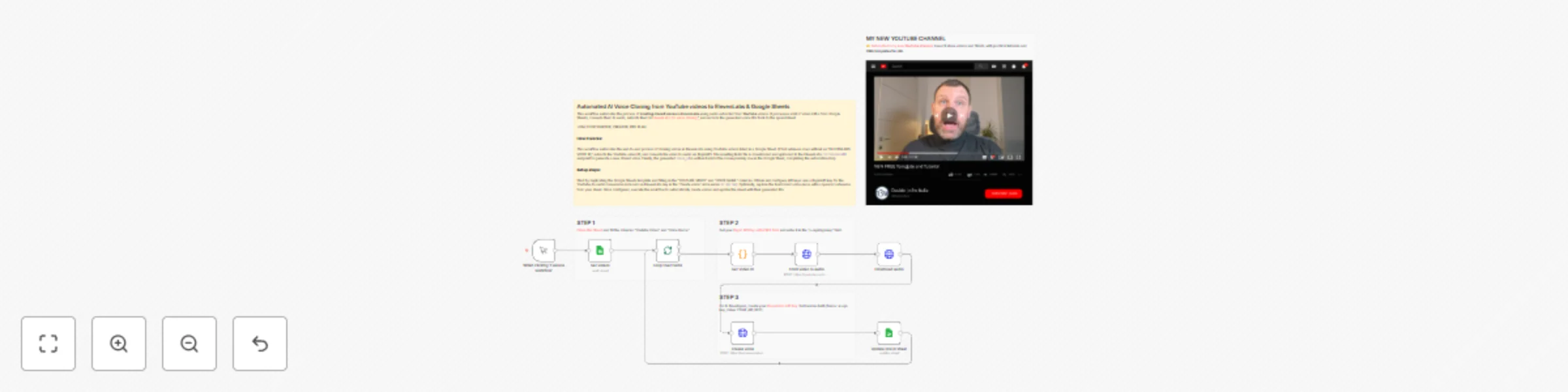
This workflow automates the process of creating cloned voices in ElevenLabs using audio extracted from YouTube videos. It processes a list of video URLs from Google Sheets, converts them to audio, ...
n8n-nodes-base.manualtrigger, n8n-nodes-base.splitinbatches, n8n-nodes-base.googlesheets, n8n-nodes-base.code, n8n-nodes-base.httprequest, n8n-nodes-base.stickynote
This workflow is cataloged by N8N Workflows and links back to its original n8n.io source page by Davide.
Original n8n.io sourceThis workflow automates the process of creating cloned voices in ElevenLabs using audio extracted from YouTube videos. It processes a list of video URLs from Google Sheets, converts them to audio, submits them to ElevenLabs for voice cloning*, and records the generated voice IDs back to the spreadsheet.
*ONLY FOR STARTER, CREATOR, PRO PLAN
Important Considerations for Best Results:
For optimal voice cloning quality with ElevenLabs, carefully select your source YouTube videos:
Using RapidAPI ensures:
The workflow handles all the steps required by the ElevenLabs API, including:
This is much faster than the manual method inside the ElevenLabs dashboard.
Once the API keys are added:
Data Retrieval: The workflow starts by fetching data from a Google Sheets spreadsheet that contains YouTube video URLs in the "YOUTUBE VIDEO" column and desired voice names in the "VOICE NAME" column. It specifically targets rows where the "ELEVENLABS VOICE ID" field is empty, ensuring only unprocessed videos are handled.
Video Processing Pipeline:
Voice Creation: The downloaded audio file is submitted to ElevenLabs API via a POST request to the /v1/voices/add endpoint. This creates a new voice clone based on the audio sample. The voice name is currently hardcoded as "Teresa Mannino" in the workflow but should be dynamically configured to use the value from the "VOICE NAME" spreadsheet column.
Data Update: The workflow captures the voice_id returned by ElevenLabs and writes it back to the corresponding row in the Google Sheets spreadsheet in the "ELEVENLABS VOICE ID" column, completing the processing cycle for that video.
Prepare the Data Sheet: Duplicate the provided Google Sheets template. Fill in the "YOUTUBE VIDEO" column with YouTube URLs and the "VOICE NAME" column with your desired names for the cloned voices. Ensure your videos meet the quality criteria mentioned above.
Configure APIs:
x-rapidapi-key header field in the "From video to audio" node.xi-api-key and your ElevenLabs API key as the value.Optional Customization: Modify the "Create voice" node to use the dynamic voice name from your spreadsheet instead of the hardcoded "Teresa Mannino" value for more flexible operation.
Execute: Run the workflow. It will automatically process each qualifying row, create voices in ElevenLabs, and populate the spreadsheet with the new Voice IDs. Monitor the workflow execution to ensure successful processing of each video.
👉 Subscribe to my new YouTube channel. Here I’ll share videos and Shorts with practical tutorials and FREE templates for n8n.
Contact me for consulting and support or add me on Linkedin.
This catalog entry is organized from the workflow JSON. The node-level section below shows the executable blocks available for review before importing the template.
| Workflow | Automated AI voice cloning 🤖🎤 from YouTube videos to ElevenLabs & Google Sheets |
|---|---|
| Complexity | intermediate |
| Nodes | 13 |
| Categories | Content Creation, Multimodal AI |
| Author | Davide |
| Published | 05 Dec 2025 |
Use the JSON export at /data/workflows/11532/11532.json as the source template for this automation.
Open n8n, import the downloaded JSON, and review each node before activating the workflow.
Replace placeholder credentials, API keys, webhook URLs, account IDs, and environment-specific values with your own settings.
Run the workflow manually or in a staging workspace, inspect node output, and confirm downstream systems receive the expected data.
Enable the workflow only after testing, then monitor executions, errors, and rate limits during the first production runs.
Review imported nodes carefully before activation. This catalog entry is intended to help you inspect the workflow structure, understand required services, and find related templates faster.
Node names, credentials, schedules, webhook paths, and external service limits may need adjustment for your workspace.
This workflow automates the process of creating cloned voices in ElevenLabs using audio extracted from YouTube videos. It processes a list of video URLs from Google Sheets, converts them to audio, ...
Review the workflow JSON, configure any required credentials in n8n, and test the automation in a safe workspace before using it in production.
Yes. Use the block-by-block analysis and the downloadable JSON to inspect each node, then adjust credentials, prompts, schedules, filters, or destinations for your Content Creation, Multimodal AI use case.