Block 1 - Sticky Note
- Type / Role
- n8n-nodes-base.stickyNote - stickyNote
- Config choices
- Version 1


 Early Deal
This workflow is provided as-is. Please review and test before using in production.
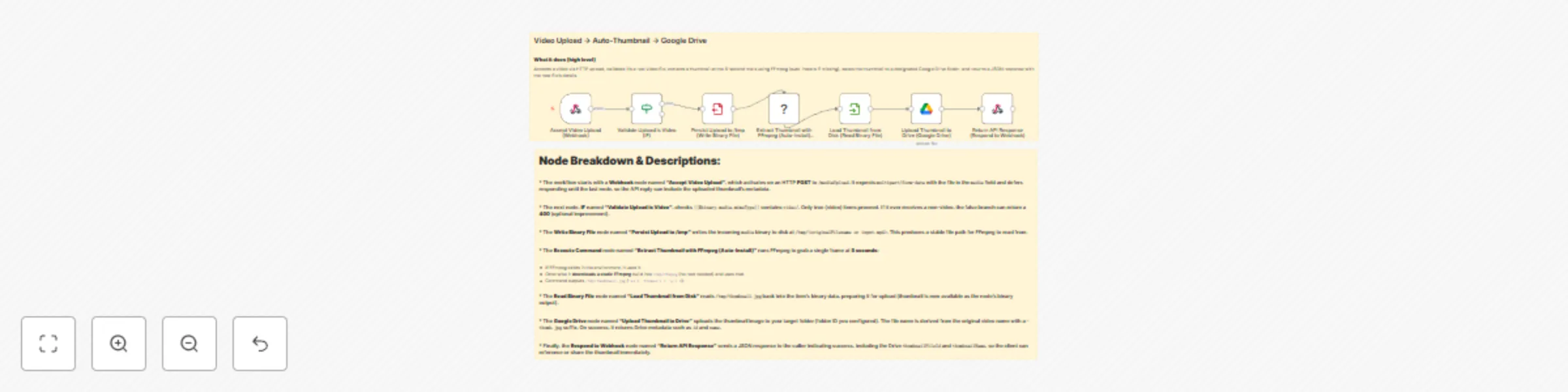
Automate Video Upload → Auto Thumbnail → Google Drive This workflow accepts a video via HTTP upload, verifies it’s a valid video, extracts a thumbnail frame at the 5 second mark using FFmpeg (auto ...
n8n-nodes-base.stickynote, n8n-nodes-base.webhook, n8n-nodes-base.if, n8n-nodes-base.writebinaryfile, n8n-nodes-base.executecommand, n8n-nodes-base.readbinaryfile, n8n-nodes-base.googledrive, n8n-nodes-base.respondtowebhook
This workflow is cataloged by N8N Workflows and links back to its original n8n.io source page by WeblineIndia.
Original n8n.io sourceThis workflow accepts a video via HTTP upload, verifies it’s a valid video, extracts a thumbnail frame at the 5-second mark using FFmpeg (auto-installs a static build if missing), uploads the image to a specified Google Drive folder and returns a structured JSON response containing the new file’s details.
multipart/form-data with file in field media at /mediaUpload. Response is deferred until the final node.{{$binary.media.mimeType}} contains video/. Non-video payloads can be rejected with HTTP 400./tmp/<originalFilename or input.mp4> for stable processing.ffmpeg if available; otherwise downloads a static binary to /tmp/ffmpeg.ffmpeg -y -ss 5 -i <video> -frames:v 1 -q:v 2 /tmp/thumbnail.jpg/tmp/thumbnail.jpg into the item’s binary as thumbnail.<original>-thumb.jpg.id, name, links, size, and checksums (if available).POST /webhook/mediaUpload.curl -X POST https://YOUR-N8N-URL/webhook/mediaUpload \
-F "media=@/path/to/video.mp4"
ffmpeg if it’s not present.ffmpeg./tmp for the uploaded video and generated thumbnail.-ss 5 to another second, or parameterize it via query/body (e.g., timestamp=15).-ss 5, -ss 15, -ss 30, suffix names -thumb-5.jpg, etc.{{ base + '-' + $now + '-thumb.jpg' }}.reader, Type: anyone) and return webViewLink.sourceFile, thumbId, size, duration, status.| Issue | Possible Cause | Solution |
|---|---|---|
ffmpeg: not found |
System lacks ffmpeg and static build couldn’t download | Ensure outbound HTTPS allowed; keep the auto-installer lines intact; or use a Docker image that includes ffmpeg. |
| Webhook returns 400 “not a video” | Wrong field name or non-video MIME | Send file in media field; ensure it’s video/*. |
Drive upload fails (403 / insufficient permissions) |
OAuth scope or account lacks folder access | Reconnect Drive credential; verify the destination Folder ID and sharing/ownership. |
Response missing webViewLink / webContentLink |
Drive node not returning link fields | Enable link fields in the Drive node or build URLs using the returned id. |
413 Payload Too Large at reverse proxy |
Proxy limits on upload size | Increase body size limits in your proxy (e.g., Nginx client_max_body_size). |
| Disk full / ENOSPC | Large uploads filling /tmp |
Increase temp storage; keep Cleanup step; consider size caps and early rejection. |
| Corrupt thumbnail or black frame | Timestamp lands on a black frame | Change -ss or use -ss before -i vs. after; try different seconds (e.g., 1–3s). |
| Slow extraction | Large or remote files; cold FFmpeg download | Warm the container; host near upload source; keep static ffmpeg cached in image. |
| Duplicate outputs | Repeat requests with same video/name | Add a de-dup check (query Drive for existing <base>-thumb.jpg before upload). |
Want this wired to S3 or Zoho WorkDrive or to generate multiple timestamps and public links out of the box? We're happy to help.
This catalog entry is organized from the workflow JSON. The node-level section below shows the executable blocks available for review before importing the template.
| Workflow | Automate video uploads to thumbnails with FFmpeg and Google Drive |
|---|---|
| Complexity | intermediate |
| Nodes | 9 |
| Categories | Content Creation, Multimodal AI |
| Author | WeblineIndia |
| Published | 19 Aug 2025 |
Use the JSON export at /data/workflows/7595/7595.json as the source template for this automation.
Open n8n, import the downloaded JSON, and review each node before activating the workflow.
Replace placeholder credentials, API keys, webhook URLs, account IDs, and environment-specific values with your own settings.
Run the workflow manually or in a staging workspace, inspect node output, and confirm downstream systems receive the expected data.
Enable the workflow only after testing, then monitor executions, errors, and rate limits during the first production runs.
Review imported nodes carefully before activation. This catalog entry is intended to help you inspect the workflow structure, understand required services, and find related templates faster.
Node names, credentials, schedules, webhook paths, and external service limits may need adjustment for your workspace.
Automate Video Upload → Auto Thumbnail → Google Drive This workflow accepts a video via HTTP upload, verifies it’s a valid video, extracts a thumbnail frame at the 5 second mark using FFmpeg (auto ...
Review the workflow JSON, configure any required credentials in n8n, and test the automation in a safe workspace before using it in production.
Yes. Use the block-by-block analysis and the downloadable JSON to inspect each node, then adjust credentials, prompts, schedules, filters, or destinations for your Content Creation, Multimodal AI use case.