Automate video creation with Luma AI Dream Machine and Airtable (Part 1)

Workflow preview

Workflow preview
100%
Automate video creation with Luma AI Dream Machine and Airtable (Part 1) preview
Open on n8n.io

Important notice

This workflow is provided as-is. Please review and test before using in production.

1. Workflow Overview

Automate Video Creation with Luma AI Dream Machine and Airtable (Part 1) Description This workflow automates video creation using Luma AI Dream Machine and n8n . It generates dynamic videos based o...

Best for

  • Content Creation automation workflows
  • Multimodal AI automation workflows
  • intermediate n8n builders looking for reusable templates

Tools used

n8n-nodes-base.manualtrigger, n8n-nodes-base.httprequest, n8n-nodes-base.code, n8n-nodes-base.stickynote, n8n-nodes-base.set, n8n-nodes-base.airtable, n8n-nodes-base.executiondata

Source and attribution

This workflow is cataloged by N8N Workflows and links back to its original n8n.io source page by Alex Kim.

Original n8n.io source

1.1 Workflow description

Title
Automate video creation with Luma AI Dream Machine and Airtable (Part 1)
Workflow name
Automate video creation with Luma AI Dream Machine and Airtable (Part 1)

Automate Video Creation with Luma AI Dream Machine and Airtable (Part 1)

Description

This workflow automates video creation using Luma AI Dream Machine and n8n. It generates dynamic videos based on custom prompts, random camera motion, and predefined settings, then stores the video and thumbnail URLs in Airtable for easy access and tracking. This automation makes it easy to create high-quality videos at scale with minimal effort.

πŸ‘‰ Airtable Base Template
πŸŽ₯ Tutorial Video


Setup

1. Luma AI Setup

  • Create an account with Luma AI.
  • Generate an API key from Luma AI for authentication.
  • Ensure the API key has permission to create and manage video requests.

2. Airtable Setup

Create an Airtable base with the following fields:

  • Generation ID – To match incoming webhook data.
  • Status – Workflow status (e.g., "Done").
  • Video URL – Stores the generated video URL.
  • Thumbnail URL – Stores the thumbnail URL.
  • Prompt – The video prompt used in the request.
  • Aspect Ratio – Defines the video format (e.g., 9:16).
  • Duration – Length of the video.

πŸ‘‰ Use the Airtable template linked above to simplify setup.

3. n8n Setup

  • Install n8n (local or cloud).
  • Set up Luma AI and Airtable credentials in n8n.
  • Import the workflow and customize the settings based on your needs.

How It Works

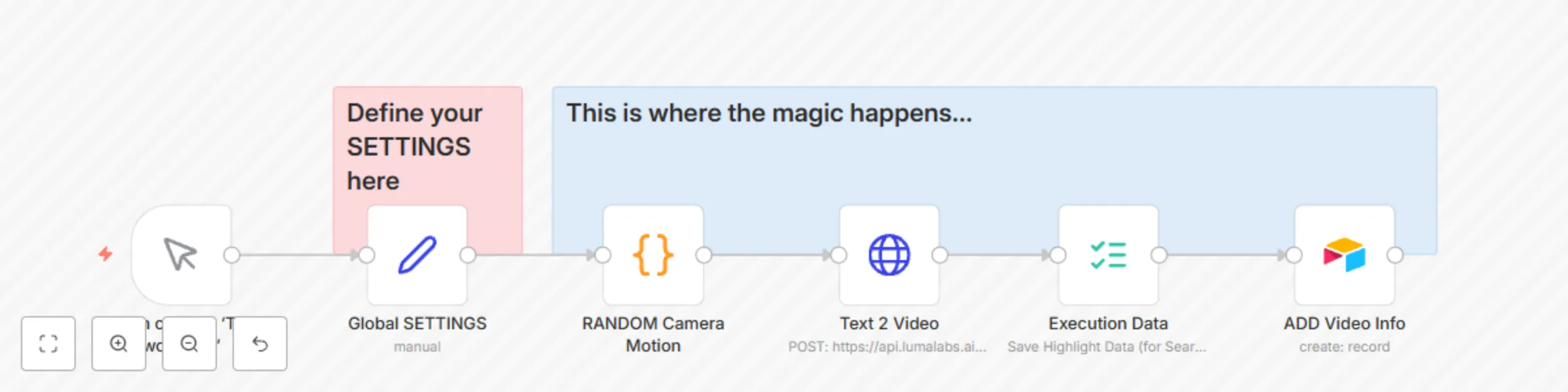
1. Global Settings Configuration

The Set node defines key settings such as:

  • Prompt – Example: "A crocheted parrot in a crocheted pirate outfit swinging on a crocheted perch."
  • Aspect Ratio – Example: "9:16"
  • Loop – Example: "true"
  • Duration – Example: "5 seconds"
  • Cluster ID – Used to group related videos for easy tracking.
  • Callback URL - Used for the Webhook workflow in Part 2

2. Random Camera Motion

  • The Code node randomly selects a camera motion (e.g., Zoom In, Pan Left, Crane Up) to create dynamic and visually engaging videos.

3. API Request to Luma AI

  • The HTTP Request node sends a POST request to Luma AI’s API with the following parameters:
    • Prompt – Uses the defined global settings.
    • Aspect Ratio – Matches the target platform (e.g., TikTok or YouTube).
    • Duration – Length of the video.
    • Loop – Determines if the video should loop.
    • Callback URL – Sends a POST response when the video is complete.

4. Capture API Response

  • Luma AI sends a POST response to the callback URL once video generation is complete.
  • The response includes:
    • Video URL – Direct link to the video.
    • Thumbnail URL – Link to the video thumbnail.
    • Generation ID – Used to match the record in Airtable.

5. Store in Airtable

  • The Airtable node updates the record with the video and thumbnail URLs.
  • Generation ID is crucial for matching future webhook responses to the correct video record.

Why This Workflow is Useful

βœ… Automates high-quality video creation
βœ… Reduces manual effort by handling prompt generation and API calls
βœ… Random camera motion makes videos more dynamic
βœ… Ensures organized tracking with Airtable
βœ… Scalable – Ideal for automating large-scale content creation


Next Steps

  • Part 2 – Handling webhook responses and updating Airtable automatically.
  • Future Enhancements – Adding more camera motions, multi-platform support, and automated video editing.

1.2 Logical Blocks

This catalog entry is organized from the workflow JSON. The node-level section below shows the executable blocks available for review before importing the template.

2. Block-by-Block Analysis

Block 1 - When clicking β€˜Test workflow’

Type / Role
n8n-nodes-base.manualTrigger - manualTrigger
Config choices
Version 1

Block 2 - Text 2 Video

Type / Role
n8n-nodes-base.httpRequest - httpRequest
Config choices
Version 4.2

Block 3 - RANDOM Camera Motion

Type / Role
n8n-nodes-base.code - code
Config choices
Version 2

Block 4 - Sticky Note

Type / Role
n8n-nodes-base.stickyNote - stickyNote
Config choices
Version 1

Block 5 - Global SETTINGS

Type / Role
n8n-nodes-base.set - set
Config choices
Version 3.4

Block 6 - ADD Video Info

Type / Role
n8n-nodes-base.airtable - airtable
Config choices
Version 2.1

Block 7 - Execution Data

Type / Role
n8n-nodes-base.executionData - executionData
Config choices
Version 1

Block 8 - Sticky Note1

Type / Role
n8n-nodes-base.stickyNote - stickyNote
Config choices
Version 1

3. Summary Table

Workflow Automate video creation with Luma AI Dream Machine and Airtable (Part 1)
Complexity intermediate
Nodes 8
Categories Content Creation, Multimodal AI
Author Alex Kim
Published 17 Mar 2025

4. Reproducing the Workflow from Scratch

  1. 1. Download the workflow JSON

    Use the JSON export at /data/workflows/3200/3200.json as the source template for this automation.

  2. 2. Import the template into n8n

    Open n8n, import the downloaded JSON, and review each node before activating the workflow.

  3. 3. Configure credentials and variables

    Replace placeholder credentials, API keys, webhook URLs, account IDs, and environment-specific values with your own settings.

  4. 4. Test with sample data

    Run the workflow manually or in a staging workspace, inspect node output, and confirm downstream systems receive the expected data.

  5. 5. Activate and monitor

    Enable the workflow only after testing, then monitor executions, errors, and rate limits during the first production runs.

5. General Notes & Resources

Review imported nodes carefully before activation. This catalog entry is intended to help you inspect the workflow structure, understand required services, and find related templates faster.

Node names, credentials, schedules, webhook paths, and external service limits may need adjustment for your workspace.

Frequently asked questions

What does Automate video creation with Luma AI Dream Machine and Airtable (Part 1) do?

Automate Video Creation with Luma AI Dream Machine and Airtable (Part 1) Description This workflow automates video creation using Luma AI Dream Machine and n8n . It generates dynamic videos based o...

What do I need before importing this workflow?

Review the workflow JSON, configure any required credentials in n8n, and test the automation in a safe workspace before using it in production.

Can I customize this workflow?

Yes. Use the block-by-block analysis and the downloadable JSON to inspect each node, then adjust credentials, prompts, schedules, filters, or destinations for your Content Creation, Multimodal AI use case.