Alex Kim
Workflows by Alex Kim
Transform text into AI videos with Google Veo3, Leonardo.ai and Claude 4
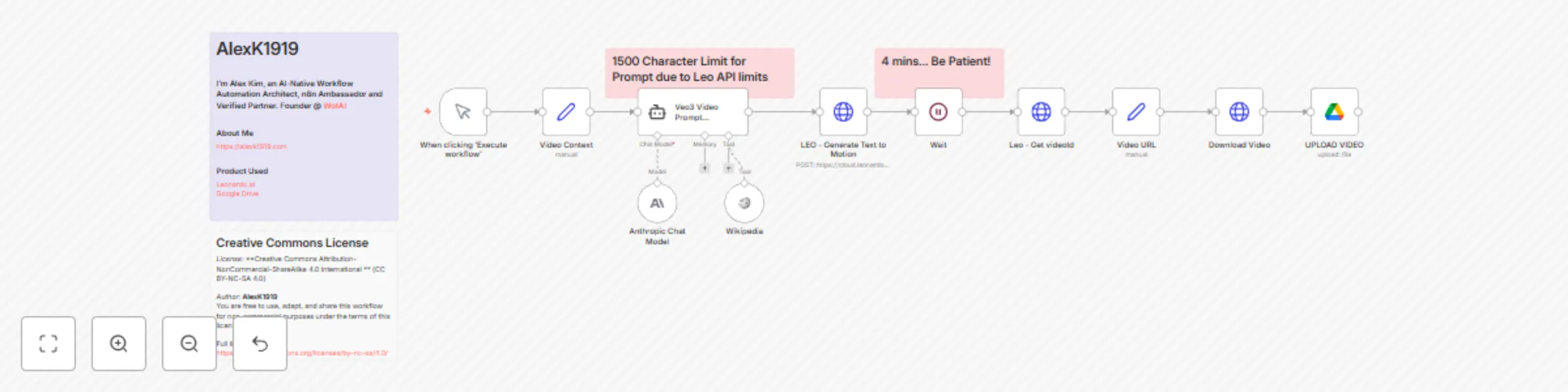
# 🎬 Google Veo 3 Prompt and Video Generator via Leonardo.ai + Claude 4 **Transform text descriptions into cinematic videos using Google's Veo 3 model through Leonardo.ai's platform!** ## 🚀 What This Workflow Does This advanced automation pipeline takes your creative ideas and turns them into professional-quality videos using Google's powerful Veo 3 model (accessed via Leonardo.ai), enhanced by Claude 4's sophisticated prompt engineering. ### ✨ Key Features - **🤖 AI-Powered Prompt Enhancement**: Uses Claude 4 Sonnet with Wikipedia integration to craft optimal Google Veo 3 prompts - **🎥 Professional Video Generation**: Leverages Google's Veo 3 model through Leonardo.ai for high-quality text-to-video conversion - **☁️ Automatic Cloud Storage**: Videos are automatically saved to your Google Drive - **📋 Structured Prompting**: Follows Google Veo3 best practices with 8 essential elements (Subject, Context, Action, Style, Camera Motion, Composition, Ambiance, Audio) - **⚡ Hands-Off Processing**: Set it and forget it - the workflow handles the entire pipeline ## 🔧 How It Works 1. **Input Your Concept** - Describe your video idea in the "Video Context" node 2. **AI Enhancement** - Claude 4 transforms your description into a cinematic Google Veo 3 prompt using advanced techniques 3. **Video Generation** - Google's Veo 3 model (via Leonardo.ai) creates your video (720p resolution, ~8 seconds) 4. **Smart Waiting** - 4-minute processing buffer ensures completion 5. **Auto-Download** - Retrieves the finished video from Leonardo's servers 6. **Cloud Storage** - Uploads directly to your Google Drive folder ## 💡 Perfect For - **Content Creators** looking to automate video production - **Marketing Teams** needing quick promotional videos - **Educators** creating engaging visual content - **Social Media Managers** generating scroll-stopping content - **Creative Professionals** exploring AI-assisted filmmaking ## 📋 Requirements - Leonardo AI account with API access - Anthropic API key (Claude 4 Sonnet) - Google Drive integration - N8N instance (cloud or self-hosted) ## 👨💻 About the Creator **Created by:** [AlexK1919](https://alexk1919.com) - AI-Native Workflow Automation Architect, n8n Ambassador and Verified Partner, Founder @ [WotAI](https://wotai.co) If you'd like to review more Google Veo 3 Prompts organized by business category, check out over 9,000+ free, pre-made prompts at: [Google Veo 3 Prompts](https://wotai.co/resources/google-veo-3-prompts) ## 📄 License This workflow is available under Creative Commons Attribution-NonCommercial-ShareAlike 4.0 International (CC BY-NC-SA 4.0) license. You are free to use, adapt, and share this workflow for non-commercial purposes under the terms of this license. Full license details: https://creativecommons.org/licenses/by-nc-sa/4.0/ ## 🎯 Example Output Input: *"Star Wars stormtrooper digging for uranium in desert, saying something funny"* The AI generates a structured prompt with: - **Subject**: Detailed character description - **Context**: Desert environment specifics - **Action**: Dynamic digging movements - **Style**: Cinematic vlog aesthetic - **Camera**: Appropriate angles and movement - **Audio**: Dialogue, sound effects, and music ## ⚙️ Setup Notes - **Character Limit**: Prompts are optimized for Leonardo's 1,500 character API limit - **Processing Time**: Allow 4+ minutes for Google Veo3 video generation - **Quality**: 720p resolution with native audio generation - **Consistency**: Uses advanced Google Veo3 prompting for reliable results ## 🔄 Customization Options - Modify the prompt engineering system message for different styles - Adjust video resolution and model parameters - Change storage destination (Google Drive folder) - Add post-processing steps or notifications ## 📈 Why This Workflow Rocks Unlike simple text-to-video tools, this workflow: - **Intelligently enhances** your prompts using AI for Google Veo 3 - **Follows industry best practices** for Google Veo3 prompting - **Automates the entire pipeline** from idea to stored video - **Leverages multiple AI models** for superior results - **Handles technical details** like API limits and timing ## 🚨 Pro Tips 1. Be specific in your initial context - detail creates better videos 2. The workflow includes comprehensive Google Veo3 prompting guidelines 3. Videos are typically 5-8 seconds - plan accordingly for longer content 4. Experiment with different styles and camera movements optimized for Veo 3 5. The AI can access Wikipedia for factual enhancement --- **Ready to revolutionize your video creation process?** Import this workflow and start generating professional videos with just a text description! Perfect for anyone looking to harness the power of AI for content creation. *Tags: #veo3 #GoogleVeo3 #AI #VideoGeneration #Leonardo #Claude #Automation #ContentCreation #GoogleAI*
📥 Transform Google Drive documents into vector embeddings
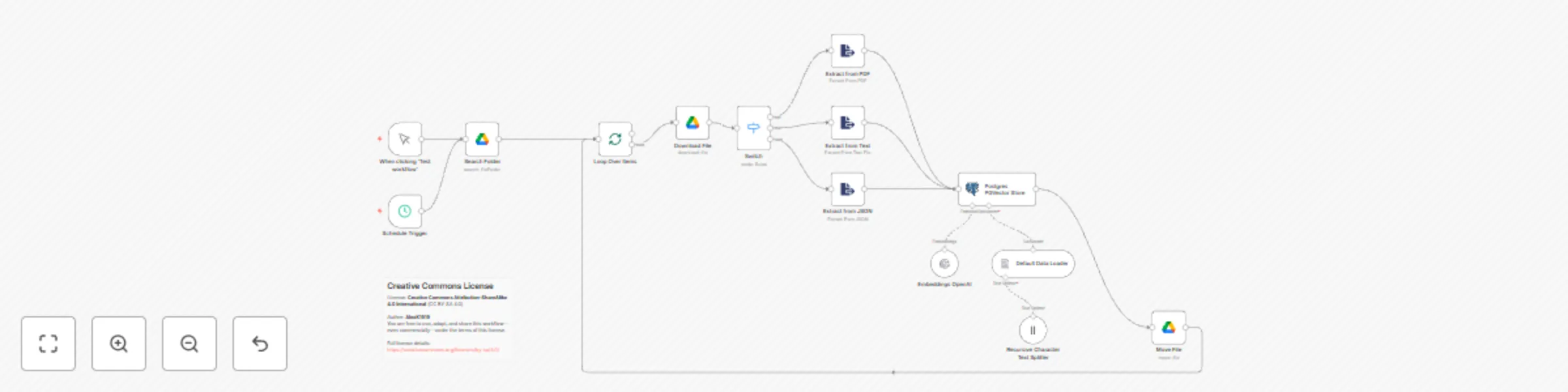
Automatically convert documents from Google Drive into vector embeddings using OpenAI, LangChain, and PGVector — fully automated through n8n. --- ### ⚙️ What It Does This workflow monitors a Google Drive folder for new files, supports multiple file types (PDF, TXT, JSON), and processes them into vector embeddings using OpenAI’s `text-embedding-3-small` model. These embeddings are stored in a Postgres database using the PGVector extension, making them query-ready for semantic search or RAG-based AI agents. After successful processing, files are moved to a separate “vectorized” folder to avoid duplication. --- ### 💡 Use Cases - Powering Retrieval-Augmented Generation (RAG) AI agents - Semantic search across private documents - AI assistant knowledge ingestion - Automated document pipelines for indexing or classification --- ### 🧠 Workflow Highlights - **Trigger Options:** Manual or Scheduled (3 AM daily by default) - **Supported File Types:** PDF, TXT, JSON - **Embedding Stack:** LangChain Text Splitter, OpenAI Embeddings, PGVector - **Deduplication:** Files are moved after processing - **License:** CC BY-SA 4.0 - **Author:** [AlexK1919](https://www.alexk1919.com) --- ### 🛠 What You’ll Need - **Google Drive OAuth2** credentials (connected to `Search Folder`, `Download File`, and `Move File` nodes) - **OpenAI API Key** (used in the `Embeddings OpenAI` node) - **Postgres + PGVector** database (connected in the `Postgres PGVector Store` node) --- ### 🔧 Step-by-Step Setup Instructions 1. **Create Google OAuth2 credentials** in n8n and connect them to all Google Drive nodes. 2. **Set your source folder** ID in the `Search Folder` node — this is where incoming files are placed. 3. **Set your processed folder** ID in the `Move File` node — files will be moved here after vectorization. 4. **Ensure you have a PGVector-enabled Postgres instance** and input the table name and collection in the `Postgres PGVector Store` node. 5. **Add your OpenAI credentials** to the `Embeddings OpenAI` node and select `text-embedding-3-small`. 6. **Optional:** Activate the `Schedule Trigger` node to run daily or configure your own schedule. 7. **Run manually** by triggering `When clicking ‘Test workflow’` for on-demand ingestion. --- ### 🧩 Customization Tips Want to support more file types or enhance the pipeline? - **Add new extractors**: Use `Extract from File` with other formats like DOCX, Markdown, or HTML. - **Refine logic by file type**: The `Switch` node routes files to the correct extraction method based on MIME type (`application/pdf`, `text/plain`, `application/json`). - **Pre-process with OCR**: Add an OCR step before extraction to handle scanned PDFs or images. - **Add filters**: Enhance the `Search Folder` or `Switch` node logic to skip specific files or folders. --- ### 📄 License This workflow is available under Creative Commons Attribution-NonCommercial-ShareAlike 4.0 International (CC BY-NC-SA 4.0) license. You are free to use, adapt, and share this workflow for non-commercial purposes under the terms of this license. Full license details: https://creativecommons.org/licenses/by-nc-sa/4.0/
Automate video creation with Luma AI Dream Machine and Airtable (Part 2)
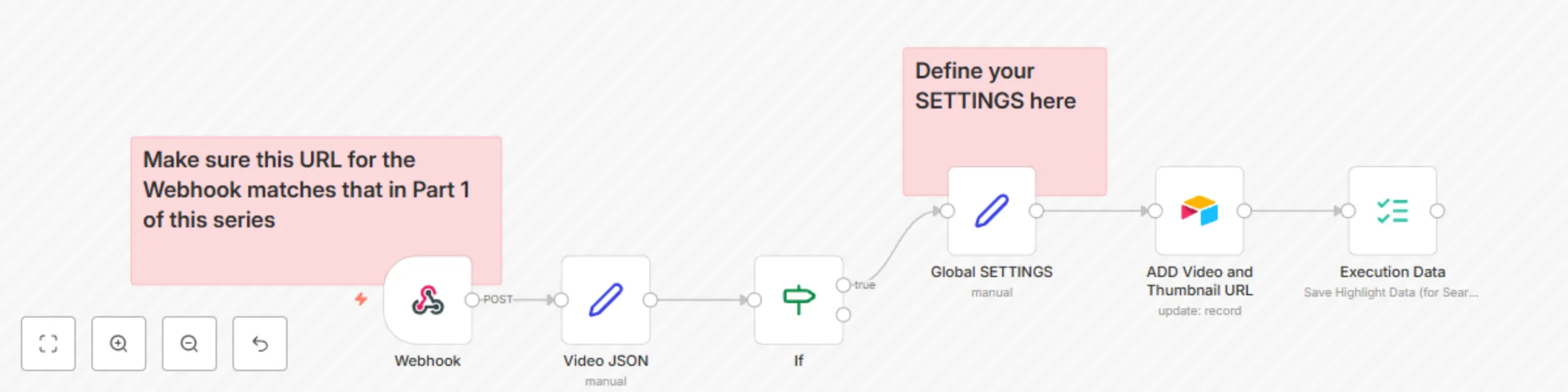
# Automate Video Creation with Luma AI Dream Machine and Airtable (Part 2) ## **Description** This is the second part of the Luma AI Dream Machine automation. It captures the webhook response from Luma AI after video generation is complete, processes the data, and automatically updates Airtable with the video and thumbnail URLs. This completes the end-to-end automation for video creation and tracking. 👉 [Airtable Base Template](https://airtable.com/invite/l?inviteId=invOr5AApOnDOtkhi&inviteToken=72a165d2df1c9a1c82a6144effc626f88ad501e9eaab10a1c2f279c3d7a6faff) 👉 [Tutorial Video](https://youtu.be/yFCZYGHM9d8) --- ## **Setup** ### **1. Luma AI Setup** - Ensure you’ve created an account with **Luma AI** and generated an **API key**. - Confirm that the API key has permission to manage video requests. ### **2. Airtable Setup** Make sure your Airtable base includes the following fields (set up in Part 1): - Use the **Airtable Base Template** linked above to simplify setup. - **Generation ID** – To match incoming webhook data. - **Status** – Workflow status (e.g., "Done"). - **Video URL** – Stores the generated video URL. - **Thumbnail URL** – Stores the thumbnail URL. ### **3. n8n Setup** - Ensure that the n8n workflow from **Part 1** is set up and configured. - Import this workflow and connect it to the webhook callback from Luma AI. --- ## **How It Works** ### 1. **Webhook Trigger** - The **Webhook** node listens for a POST response from Luma AI once video generation is finished. - The response includes: - **Video URL** – Direct link to the video. - **Thumbnail URL** – Link to the video thumbnail. - **Generation ID** – Used to match the record in Airtable. ### 2. **Process Webhook Data** - The **Set** node extracts the video data from the webhook response. - The **If** node checks if the video URL is valid before proceeding. ### 3. **Store in Airtable** - The **Airtable** node updates the record with: - **Video URL** – Direct link to the video. - **Thumbnail URL** – Link to the video thumbnail. - **Status** – Marked as "Done." - Uses the **Generation ID** to match and update the correct record. --- ## **Why This Workflow is Useful** ✅ Automates the completion step for video creation ✅ Ensures accurate record-keeping by matching generation IDs ✅ Simplifies the process of managing and organizing video content ✅ Reduces manual effort by automating the update process --- ## **Next Steps** - **Future Enhancements** – Adding more complex post-processing, video trimming, and multi-platform publishing.
Automate video creation with Luma AI Dream Machine and Airtable (Part 1)
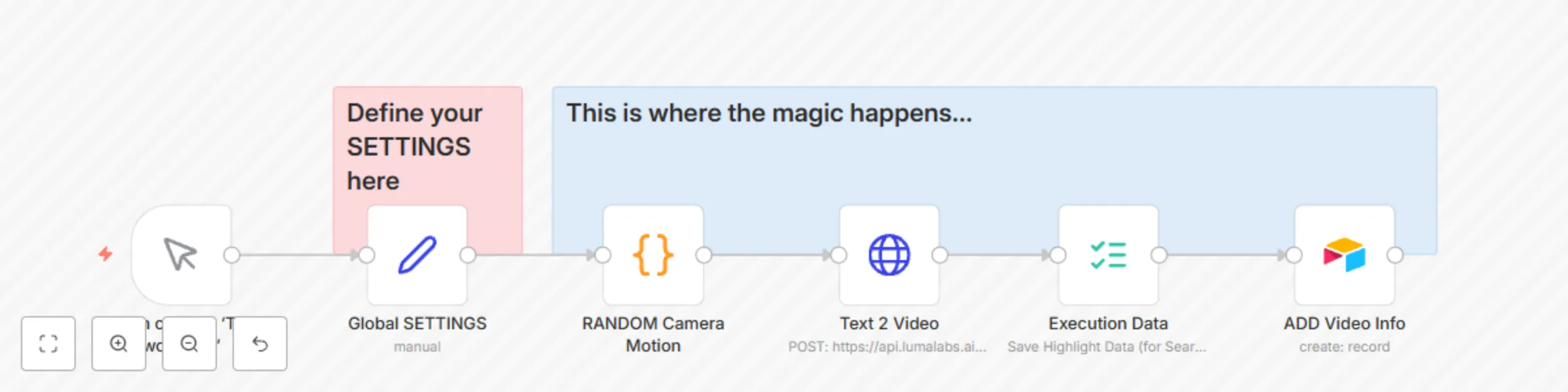
# Automate Video Creation with Luma AI Dream Machine and Airtable (Part 1) ## **Description** This workflow automates video creation using **Luma AI Dream Machine** and **n8n**. It generates dynamic videos based on custom prompts, random camera motion, and predefined settings, then stores the video and thumbnail URLs in Airtable for easy access and tracking. This automation makes it easy to create high-quality videos at scale with minimal effort. 👉 [Airtable Base Template](https://airtable.com/invite/l?inviteId=invOr5AApOnDOtkhi&inviteToken=72a165d2df1c9a1c82a6144effc626f88ad501e9eaab10a1c2f279c3d7a6faff) 🎥 [Tutorial Video](https://youtu.be/yFCZYGHM9d8) --- ## **Setup** ### **1. Luma AI Setup** - Create an account with **Luma AI**. - Generate an **API key** from Luma AI for authentication. - Ensure the API key has permission to create and manage video requests. ### **2. Airtable Setup** Create an Airtable base with the following fields: - **Generation ID** – To match incoming webhook data. - **Status** – Workflow status (e.g., "Done"). - **Video URL** – Stores the generated video URL. - **Thumbnail URL** – Stores the thumbnail URL. - **Prompt** – The video prompt used in the request. - **Aspect Ratio** – Defines the video format (e.g., 9:16). - **Duration** – Length of the video. 👉 Use the Airtable template linked above to simplify setup. ### **3. n8n Setup** - Install n8n (local or cloud). - Set up Luma AI and Airtable credentials in n8n. - Import the workflow and customize the settings based on your needs. --- ## **How It Works** ### 1. **Global Settings Configuration** The **Set** node defines key settings such as: - **Prompt** – Example: "A crocheted parrot in a crocheted pirate outfit swinging on a crocheted perch." - **Aspect Ratio** – Example: "9:16" - **Loop** – Example: "true" - **Duration** – Example: "5 seconds" - **Cluster ID** – Used to group related videos for easy tracking. - **Callback URL** - Used for the Webhook workflow in Part 2 ### 2. **Random Camera Motion** - The **Code** node randomly selects a camera motion (e.g., Zoom In, Pan Left, Crane Up) to create dynamic and visually engaging videos. ### 3. **API Request to Luma AI** - The **HTTP Request** node sends a POST request to Luma AI’s API with the following parameters: - **Prompt** – Uses the defined global settings. - **Aspect Ratio** – Matches the target platform (e.g., TikTok or YouTube). - **Duration** – Length of the video. - **Loop** – Determines if the video should loop. - **Callback URL** – Sends a POST response when the video is complete. ### 4. **Capture API Response** - Luma AI sends a POST response to the callback URL once video generation is complete. - The response includes: - **Video URL** – Direct link to the video. - **Thumbnail URL** – Link to the video thumbnail. - **Generation ID** – Used to match the record in Airtable. ### 5. **Store in Airtable** - The **Airtable** node updates the record with the video and thumbnail URLs. - **Generation ID** is crucial for matching future webhook responses to the correct video record. --- ## **Why This Workflow is Useful** ✅ Automates high-quality video creation ✅ Reduces manual effort by handling prompt generation and API calls ✅ Random camera motion makes videos more dynamic ✅ Ensures organized tracking with Airtable ✅ Scalable – Ideal for automating large-scale content creation --- ## **Next Steps** - **Part 2** – Handling webhook responses and updating Airtable automatically. - **Future Enhancements** – Adding more camera motions, multi-platform support, and automated video editing.
Clone n8n workflows between instances using n8n API
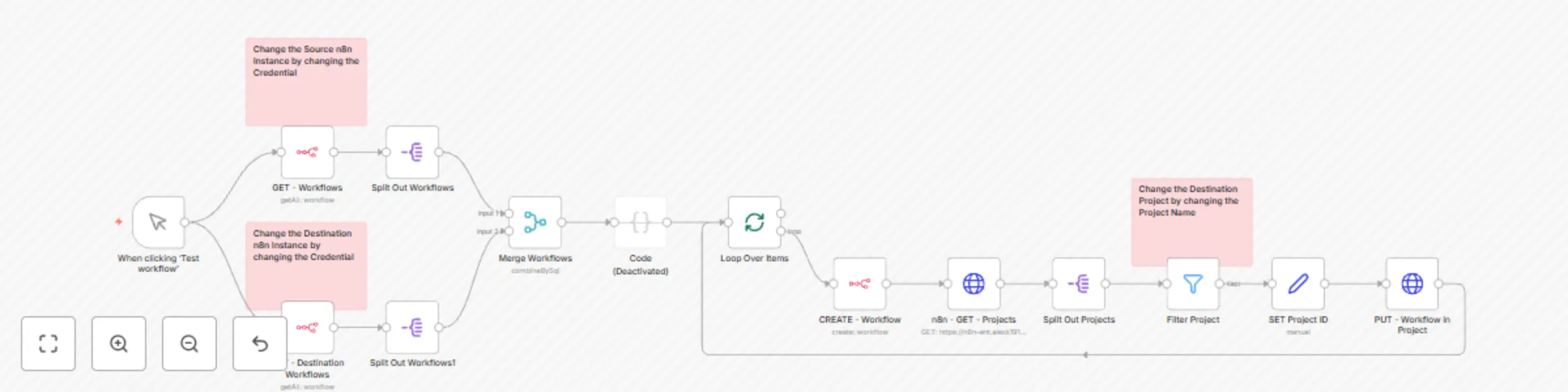
## **Overview** The **n8n Workflow Cloner** is a powerful automation tool designed to **copy, sync, and migrate workflows** across different n8n instances or projects. Whether you're managing multiple environments (development, staging, production) or organizing workflows within a team, this workflow **automates the transfer process**, ensuring seamless workflow deployment with minimal manual effort. By automatically detecting and copying only the missing workflows, this tool helps **maintain consistency, improve collaboration, and streamline workflow migration** between projects or instances. ## **How to Use** ### 1️⃣ **Set Up API Credentials** - Configure API credentials for both **source** and **destination** n8n instances. - Ensure the credentials have **read and write** access to manage workflows. ### 2️⃣ **Select Source & Destination** - Update the **"GET - Workflows"** node to define the **source instance**. - Set the **"CREATE - Workflow"** node to specify the **destination instance**. ### 3️⃣ **Run the Workflow** - Click **"Test Workflow"** to start the transfer. - The system will fetch all workflows from the source, **compare** them with the destination, and copy any missing workflows. ### 4️⃣ **Change the Destination Project** (Optional) - By default, workflows are moved to the **"KBB Workflows"** project. - Modify the **"Filter"** node to transfer workflows to a different project. ### 5️⃣ **Monitor & Verify** - The **Loop Over Items** node ensures batch processing for multiple workflows. - Log outputs provide details on transferred workflows and statuses. ## **Key Benefits** ✅ **Automate Workflow Transfers** – No more manual exports/imports. ✅ **Sync Workflows Across Environments** – Keep workflows up to date in dev, staging, and production. ✅ **Effortless Team Collaboration** – Share workflows across projects seamlessly. ✅ **Backup & Migration Ready** – Easily move workflows between n8n instances. ## **Use Cases** 🔹 **CI/CD for Workflows** – Deploy workflows between development and production environments. 🔹 **Team Workflow Sharing** – Share workflows across multiple n8n projects. 🔹 **Workflow Backup Solution** – Store copies of workflows in a dedicated backup project. ## **Tags** 🚀 Workflow Migration 🚀 n8n Automation 🚀 Sync Workflows 🚀 Backup & Deployment
National Weather Service 7-day forecast in Slack
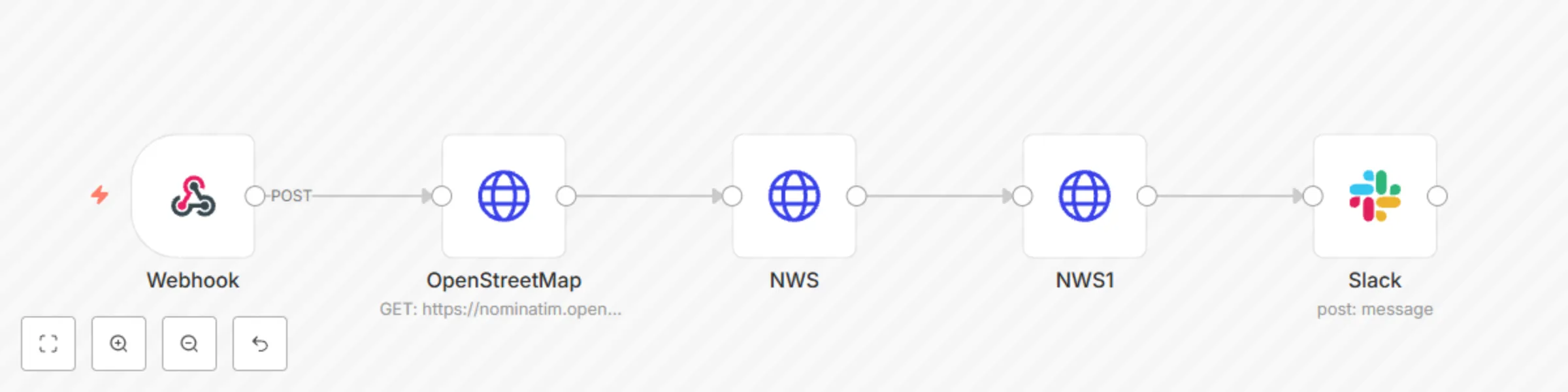
# Weather via Slack 🌦️💬 ## Overview This workflow provides real-time weather updates via Slack using a **custom Slack command**: `/weather [cityname]` Users can type this command in Slack (e.g., `/weather New York`), and the workflow will fetch and post the latest forecast, including temperature, wind conditions, and a short weather summary. While this workflow is designed for Slack, users can modify it to send weather updates via **email, Discord, Microsoft Teams, or any other communication platform**. ## How It Works 1. **Webhook Trigger** – The workflow is triggered when a user runs `/weather [cityname]` in Slack. 2. **Geocoding with OpenStreetMap** – The city name is converted into latitude and longitude coordinates. 3. **Weather Data from NOAA** – The coordinates are used to retrieve detailed weather data from the **National Weather Service (NWS)** API. 4. **Formatted Weather Report** – The workflow extracts relevant weather details, such as: - Temperature (°F/°C) - Wind speed and direction - Short forecast summary 5. **Slack Notification** – The weather forecast is posted back to the Slack channel in a structured format. ## Requirements - A **custom Slack app** with: - The ability to create a **Slash Command (`/weather`)** - OAuth permissions to post messages in Slack - An **n8n instance** to host and execute the workflow ## Customization - Replace Slack messaging with **email, Discord, Microsoft Teams, Telegram, or another service**. - Modify the weather data format for different output preferences. - Set up scheduled weather updates for specific locations. ## Use Cases - Instantly check the weather for any location directly in Slack. - Automate weather reports for team members or projects. - Useful for remote teams, outdoor event planning, or general weather tracking. ## Setup Instructions 1. **Create a custom Slack app**: - Go to [api.slack.com/apps](https://api.slack.com/apps) and create a new app. - Add a **Slash Command** (`/weather`) with the webhook URL from n8n. - Enable OAuth scopes for sending messages. 2. **Deploy the webhook** – Ensure it can receive and process Slack commands. 3. **Run the workflow** – Type `/weather [cityname]` in Slack and receive instant weather updates.
Content generator for WordPress v3
# UPDATE This is an updated version of the previous Ultimate Content Generator for WordPress v2. https://n8n.io/workflows/2737-ultimate-content-generator-for-wordpress/ It includes an additional workflow to generate content using Anthropic Claude in addition to OpenAI 4o. I also mofidied it to use the AI Agent Tool node with structured output for more consistent outputs. Lastly, the workflow updates a new table in AirTable with the published blog post url and featured image url. # Overview- This workflow automates the end-to-end process of creating, optimizing, and publishing content on WordPress. It integrates AI-powered tools, Airtable, and WordPress plugins to generate high-quality, on-brand posts effortlessly. Perfect for content creators, marketers, and business owners looking to save time and scale their content strategy. ## Features ### Content Creation: **AI-Powered Content:** Generates SEO-friendly blog posts with structured headings, relevant keywords, and meta descriptions. **Custom Prompts:** Tailor the AI-generated content to match your brand’s tone and voice. **SEO Optimization:** RankMath Plugin Integration: Updates RankMath SEO with focus keywords and meta descriptions, ensuring your content is search-engine optimized. **Content Management:** Airtable Integration: Organizes content ideas, drafts, and publishing schedules in one place. Easily scalable for teams or solo creators. **Visuals:** Branded Featured Images: Automatically generates on-brand images for every post. **Publishing:** Effortless Formatting: Adapts content to fit your WordPress theme and schedules it for publication. ### Workflow Steps **Trigger:** Initiated manually or on a schedule. **Content Management:** Retrieves and organizes ideas from Airtable. **Content Generation:** Generates AI-driven blog content tailored to your audience. **SEO Optimization:** Automatically updates RankMath with SEO details. **Featured Image Creation:** Produces on-brand images for the post. **Publishing:** Formats and schedules the post on WordPress. ## Prerequisites **API Keys:** - OpenAI - Claude - Airtable - WordPress REST API ### Custom Code: Add a small update to your WordPress theme’s functions.php file to enable seamless automation. ### Customization - Replace Airtable with another content management system if preferred. - Adjust AI prompts to reflect different tones, styles, or industries. - Add integrations for additional plugins, analytics, or storage services. ### Usage - Import the workflow into your n8n instance. - Configure API credentials for WordPress, Airtable, OpenAI, Claude and Slack. - Update your functions.php file with the provided code snippet. - Customize prompts and Airtable structure for your content needs. - Trigger the workflow manually or set it on a schedule. ### Notes - Experiment with Airtable views or add filters for more granular control over your content pipeline. - Extend the workflow to include social media posting or analytics tracking. Feel free to adapt and extend this workflow to meet your specific needs! 🎉
Ultimate content generator for WordPress
## **Overview** This workflow automates the end-to-end process of creating, optimizing, and publishing content on WordPress. It integrates AI-powered tools, Airtable, and WordPress plugins to generate high-quality, on-brand posts effortlessly. Perfect for content creators, marketers, and business owners looking to save time and scale their content strategy. --- ## **Features** ### **Content Creation:** - **AI-Powered Content:** Generates SEO-friendly blog posts with structured headings, relevant keywords, and meta descriptions. - **Custom Prompts:** Tailor the AI-generated content to match your brand’s tone and voice. ### **SEO Optimization:** - **RankMath Plugin Integration:** Updates RankMath SEO with focus keywords and meta descriptions, ensuring your content is search-engine optimized. ### **Content Management:** - **Airtable Integration:** Organizes content ideas, drafts, and publishing schedules in one place. Easily scalable for teams or solo creators. ### **Visuals:** - **Branded Featured Images:** Automatically generates on-brand images for every post. ### **Publishing:** - **Effortless Formatting:** Adapts content to fit your WordPress theme and schedules it for publication. --- ## **Workflow Steps** 1. **Trigger:** Initiated manually or on a schedule. 2. **Content Management:** Retrieves and organizes ideas from Airtable. 3. **Content Generation:** Generates AI-driven blog content tailored to your audience. 4. **SEO Optimization:** Automatically updates RankMath with SEO details. 5. **Featured Image Creation:** Produces on-brand images for the post. 6. **Publishing:** Formats and schedules the post on WordPress. --- ## **Prerequisites** ### **API Keys:** - OpenAI - Airtable - WordPress REST API - RankMath SEO Plugin ### **Custom Code:** Add a small update to your WordPress theme’s `functions.php` file to enable seamless automation. --- ## **Customization** - Replace Airtable with another content management system if preferred. - Adjust AI prompts to reflect different tones, styles, or industries. - Add integrations for additional plugins, analytics, or storage services. --- ## **Usage** 1. Import the workflow into your n8n instance. 2. Configure API credentials for WordPress, Airtable, OpenAI, and RankMath. 3. Update your `functions.php` file with the provided code snippet. 4. Customize prompts and Airtable structure for your content needs. 5. Trigger the workflow manually or set it on a schedule. --- ## **Notes** - Experiment with Airtable views or add filters for more granular control over your content pipeline. - Extend the workflow to include social media posting or analytics tracking. - For questions, refer to n8n documentation or reach out to the creator. --- ## **Tools Used** - Airtable - OpenAI GPT - WordPress REST API - RankMath SEO Plugin Feel free to adapt and extend this workflow to meet your specific needs! 🎉
Generate 9:16 images from content and brand guidelines
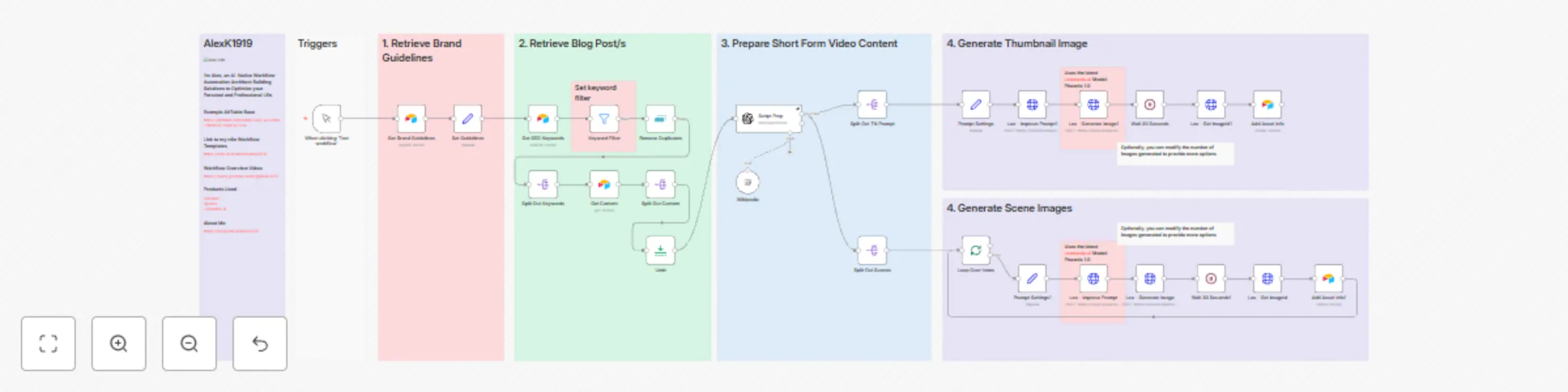
## Overview This **n8n workflow** automates the creation of 9:16 aspect ratio images optimized for short-form video content and thumbnails. It integrates multiple tools to retrieve content, generate scripts, and create AI-generated imagery. --- ## Key Features 1. **Trigger Workflow Manually** - The workflow starts when triggered manually in n8n. 2. **Retrieve Brand Guidelines** - Fetch brand elements like style, tone, and guidelines from Airtable. 3. **SEO Keywords and Blog Post Retrieval** - Retrieves blog posts and associated SEO keywords from Airtable to form the basis of image content. 4. **Content Preparation** - Uses GPT-4 to prepare a 4-scene script and thumbnail prompts for short-form videos. 5. **AI Image Generation** - Uses Leonardo.ai API to generate: - Thumbnail Images - Scene-specific Images (9:16 Aspect Ratio) 6. **Airtable Asset Management** - Generated assets (images) are saved back into Airtable with metadata like URLs and file sizes. --- ## Tools and Integrations - **n8n**: Workflow automation platform. - **OpenAI**: Generates scripts and prompts (GPT-4O-MINI). - **Leonardo.ai**: AI tool for improving prompts and generating high-quality images. - **Airtable**: Used as a data source for brand guidelines, blog posts, and to store generated assets. --- ## Workflow Steps 1. **Manual Trigger** - Initiate the workflow. 2. **Retrieve Brand and SEO Guidelines** - Fetch essential brand elements like tone, style, and keywords. 3. **Filter and Fetch Blog Content** - Search for blog posts relevant to selected SEO keywords. 4. **Script Preparation** - Use GPT-4 to generate a script with image prompts for scenes and thumbnails. 5. **Image Generation** - Call Leonardo.ai to create: - Scene Images in 9:16 Aspect Ratio. - A Thumbnail Image with an improved prompt. 6. **Store Assets** - Save generated assets (images) to Airtable for future use. --- ## Workflow Structure ### Nodes Breakdown: - **Manual Trigger**: Start the workflow. - **Get Brand Guidelines**: Pull brand-related information (style, tagline, tone, etc.) from Airtable. - **Set Guidelines**: Prepare fetched data. - **Get SEO Keywords**: Retrieve keywords to filter relevant content. - **Keyword Filter**: Filter results for specified keywords (e.g., *"AI Automation"*). - **Script Prep**: Generate 4-scene scripts and prompts with GPT-4. - **Leo - Improve Prompt**: Improve image prompts for clarity and detail. - **Leo - Generate Image**: Create AI-generated images for scenes and thumbnails. - **Wait Nodes**: Ensures Leonardo image generation is complete. - **Add Asset Info**: Store the generated images back into Airtable with metadata. --- ## API Credentials Required Ensure the following credentials are configured in n8n: 1. **OpenAI API Key** 2. **Leonardo.ai API Key** 3. **Airtable API Token** --- ## Output - **Generated Images**: High-quality AI-generated images with a 9:16 aspect ratio. - **Saved Metadata**: Asset details (URLs, sizes, types) stored in Airtable. --- ## Usage 1. Import this workflow into n8n. 2. Set up your Airtable API, Leonardo.ai API, and OpenAI API credentials. 3. Run the workflow manually. 4. Monitor image generation and check the Airtable output for results. --- ## Tags - **OpenAI** - **RunwayML** - **Leonardo** - **Airtable** - **Video Automation** --- ## Author **AlexK1919** - AI-Native Workflow Architect - [More Workflow Templates](https://n8n.io/creators/alexk1919) - [YouTube Channel](https://www.youtube.com/@alexk1919_) - [Connect with Alex](https://beacons.ai/alexk1919)
Generate leads with Google Maps
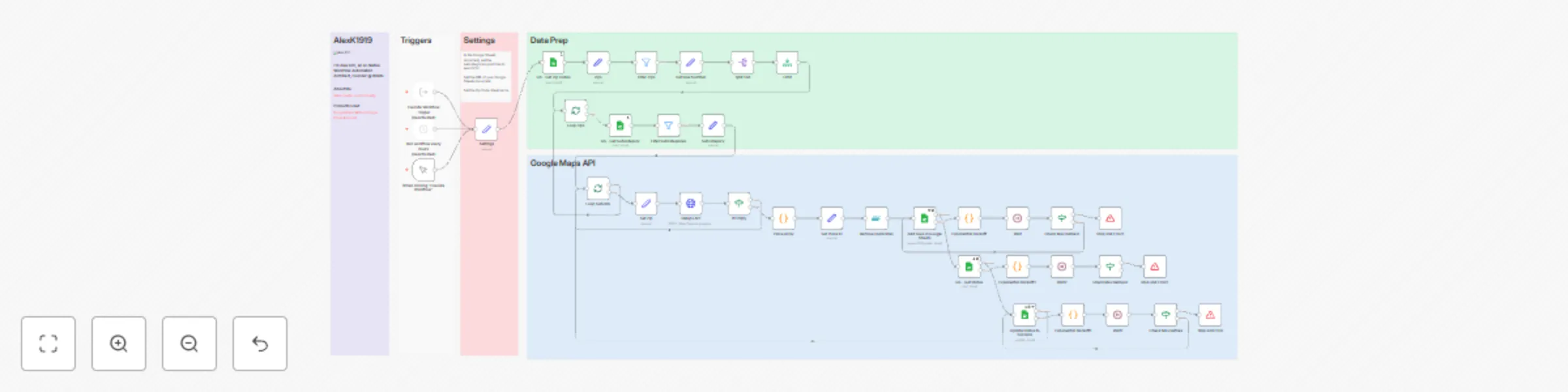
This workflow leverages **n8n** to perform automated Google Maps API queries and manage data efficiently in Google Sheets. It's designed to extract specific location data based on a given list of ZIP codes and categories. --- ## Features - Queries the Google Maps API for location data using predefined ZIP codes and subcategories. - Filters, de-duplicates, and organizes data into structured rows in Google Sheets. - Implements **exponential backoff retries** to handle API rate limits. - Logs and updates statuses directly in Google Sheets for easy tracking. --- ## Prerequisites 1. **Google OAuth Credentials**: A configured Google Cloud project for Google Maps API and Sheets API access. 2. **Google Sheets**: A sheet with ZIP codes and categories defined (e.g., "AZ Zips"). 3. **n8n Setup**: A running instance of n8n with credentials configured for Google OAuth. --- ## Setup Instructions ### 1. Prepare Google Sheets - Add the ZIP codes to the "AZ Zips" sheet. - Define subcategories in another sheet (e.g., "Google Maps Categories"). - Provide the sheet's URL in the `Settings` node of the workflow. ### 2. Configure API Access - Set up Google OAuth credentials for Maps and Sheets APIs in n8n. - Ensure your API key has access to the `places.searchText` endpoint. ### 3. Workflow Customization - Modify `textQuery` parameters in the **GMaps API** node to match your query needs. - Adjust trigger intervals as required (e.g., manual or scheduled execution). ### 4. Run the Workflow - Execute the workflow manually or schedule periodic runs to keep your data updated. --- ## Notes - This workflow includes robust error handling to retry failed API calls with exponential backoff. - All data is organized and logged directly in Google Sheets for easy reference and updates. For more information or issues, feel free to reach out!
Optimize & update Printify title and description workflow
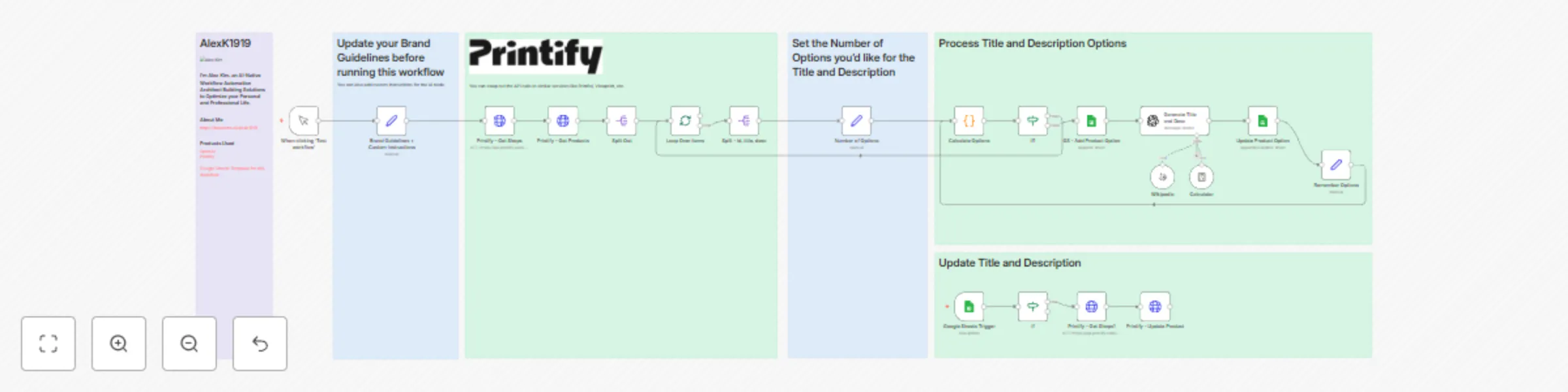
# Printify Automation - Update Title and Description Workflow This **n8n workflow** automates the process of retrieving products from Printify, generating optimized product titles and descriptions, and updating them back to the platform. It leverages OpenAI for content generation and integrates with Google Sheets for tracking and managing updates. --- ## Features - **Integration with Printify**: Fetch shops and products through Printify's API. - **AI-Powered Optimization**: Generate engaging product titles and descriptions using OpenAI's GPT model. - **Google Sheets Tracking**: Log and manage updates in Google Sheets. - **Custom Brand Guidelines**: Ensure consistent tone by incorporating brand-specific instructions. - **Loop Processing**: Iteratively process each product in batches. --- ## Workflow Structure ### Nodes Overview 1. **Manual Trigger**: Manually start the workflow for testing purposes. 2. **Printify - Get Shops**: Retrieves the list of shops from Printify. 3. **Printify - Get Products**: Fetches product details for each shop. 4. **Split Out**: Breaks down the product list into individual items for processing. 5. **Loop Over Items**: Iteratively processes products in manageable batches. 6. **Generate Title and Desc**: Uses OpenAI GPT to create optimized product titles and descriptions. 7. **Google Sheets Integration**: - **Trigger**: Monitors Google Sheets for changes. - **Log Updates**: Records product updates, including old and new titles/descriptions. 8. **Conditional Logic**: - **If Nodes**: Ensure products are ready for updates and stop processing once completed. 9. **Printify - Update Product**: Sends updated titles and descriptions back to Printify. 10. **Brand Guidelines + Custom Instructions**: Sets brand tone and seasonal instructions. --- ## Setup Instructions ### Prerequisites 1. **n8n Instance**: Ensure n8n is installed and configured. 2. **Printify API Key**: - Obtain an API key from your Printify account. - Add it to n8n under `HTTP Header Auth`. 3. **OpenAI API Key**: - Obtain an API key from OpenAI. - Add it to n8n under `OpenAI API`. 4. **Google Sheets Integration**: - Share your Google Sheets with the Google API service account. - Configure Google Sheets credentials in n8n. --- ### Workflow Configuration 1. **Set Brand Guidelines**: - Update the `Brand Guidelines + Custom Instructions` node with your brand name, tone, and seasonal instructions. 2. **Batch Size**: - Configure the `Loop Over Items` node for optimal batch sizes. 3. **Google Sheets Configuration**: - Set the correct Google Sheets document and sheet names in the integration nodes. 4. **Run the Workflow**: - Start manually or configure the workflow to trigger automatically. --- ## Key Notes - **Customization**: - Modify API calls to support other platforms like Printful or Vistaprint. - **Scalability**: - Use batch processing for efficient handling of large product catalogs. - **Error Handling**: - Configure retries or logging for any failed nodes. --- ## Output Examples ### Optimized Content Example - **Input Title**: "Classic White T-Shirt" - **Generated Title**: "Stylish Classic White Tee for Everyday Wear" - **Input Description**: "Plain white T-shirt made of cotton." - **Generated Description**: "Discover comfort and style with our classic white tee, crafted from premium cotton for all-day wear. Perfect for casual outings or layering." --- ## Next Steps 1. **Monitor Updates**: - Use Google Sheets to review logs of updated products. 2. **Expand Integration**: - Add support for more Printify shops or integrate with other platforms. 3. **Enhance AI Prompts**: - Customize prompts for different product categories or seasonal needs. --- Feel free to reach out for additional guidance or troubleshooting!
Automatically promote your YouTube video on X
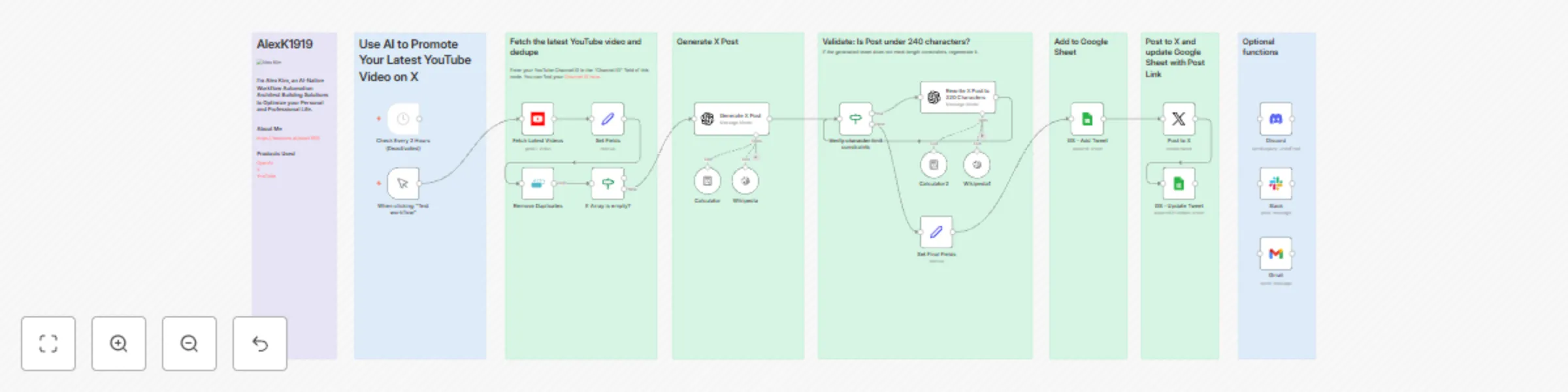
# YouTube to X Post ## Overview This **n8n workflow** automates the process of promoting your latest YouTube videos on **X (formerly Twitter)**. It ensures that posts are engaging, concise, and follow platform-specific requirements. Additionally, the workflow logs social posts into a **Google Sheet** for record-keeping. ## Features - **Fetch Latest YouTube Videos:** Pulls recently uploaded videos from a specified channel. - **Generate Engaging X Posts:** Uses OpenAI's GPT-4 to create tailored, witty posts about your videos. - **Character Limit Validation:** Ensures posts comply with X's character limit by rewriting if necessary. - **Post Scheduling:** Automates post publishing to X. - **Google Sheets Integration:** Logs posts and their status for tracking and management. - **Optional Notifications:** Sends updates via Discord, Slack, or Gmail (disabled by default). --- ## How It Works 1. **Trigger:** - Manually trigger the workflow or set a scheduled check for new videos (disabled by default). 2. **Fetch YouTube Videos:** - Retrieves the latest videos from your YouTube channel, filtering duplicates. 3. **Content Creation:** - OpenAI generates a witty and humanized post under 220 characters, using video title and description. - If the post exceeds the character limit, it is rewritten automatically. 4. **Google Sheets Logging:** - Logs the generated post to a Google Sheet with details like time, date, and post status. 5. **Post to X:** - Publishes the generated post on X. Updates the Google Sheet with the post URL. 6. **Optional Notifications:** - Sends notifications about the published post via Discord, Slack, or Gmail. --- ## Setup Instructions 1. **Credentials:** - Add credentials for: - YouTube API - OpenAI API - Google Sheets API - X (formerly Twitter) API - Use the accounts associated with "AlexK1919." 2. **YouTube Node:** - Specify your **YouTube Channel ID** in the `Fetch Latest Videos` node. - [Find your Channel ID here](https://youtube.com/account_advanced). 3. **Google Sheets Node:** - Configure the node with your Google Sheet for logging posts. Use the linked sheet: [AlexK1919 Social Posts](https://docs.google.com/spreadsheets/d/1Ql9TGAzZCSdSqrHvkZLcsBPoNMAjNpPVsELkumP2heM/edit#gid=0). 4. **OpenAI Node:** - Set up your OpenAI API key for generating posts. 5. **X Post Node:** - Connect your X account to the `Post to X` node. 6. **Optional Notifications:** - Configure Discord, Slack, or Gmail nodes for custom notifications. --- ## Customization - **Schedule:** - Enable and modify the `Check Every 2 Hours` node to automatically check for new videos. - **Post Format:** - Edit the OpenAI prompt in the `Generate X Post` node to tweak the tone or style of the generated posts. - **Additional Platforms:** - Expand this workflow to post on other social platforms by adding respective nodes (e.g., Facebook, LinkedIn). --- ## Notes - Posts are validated for character limits but are restricted to 220 characters to ensure compliance with X's guidelines and leave space for links. - Posts are logged in the Google Sheet with details, including post status and timestamps. - Current integrations are focused on promoting YouTube content; additional types can be supported with minor adjustments. --- ## Contact For support or inquiries: - **Alex Kim** - [About Me](https://beacons.ai/alexk1919)
Hacker News to video content
# Hacker News to Video Content ## Overview This workflow converts trending articles from **Hacker News** into engaging video content. It integrates AI-based tools to analyze, summarize, and generate multimedia content, making it ideal for content creators, educators, and marketers. --- ## Features 1. **Article Retrieval**: - Pulls trending articles from **Hacker News**. - Limits the number of articles to process (configurable). 2. **Content Analysis**: - Uses OpenAI's GPT model to: - Summarize articles. - Assess their relevance to specific topics like automation or AI. - Extract key image URLs. 3. **Image and Video Generation**: - **Leonardo.ai**: Creates stunning AI-generated images based on extracted prompts. - **RunwayML**: Converts images into high-quality videos. 4. **Structured Content Creation**: - Parses content into structured formats for easy reuse. - Generates newsletter-friendly blurbs and social media-ready captions. 5. **Cloud Integration**: - Uploads generated assets to: - **Dropbox** - **Google Drive** - **Microsoft OneDrive** - **MinIO** 6. **Social Media Posting** (Optional): - Supports posting to **YouTube**, **X (Twitter)**, **LinkedIn**, and **Instagram**. --- ## Workflow Steps ### 1. **Trigger** - Initiated manually via the "Test Workflow" button. ### 2. **Fetch Articles** - Retrieves articles from Hacker News. - Limits the results to avoid processing overload. ### 3. **Content Filtering** - Evaluates if articles are related to AI/Automation using OpenAI's language model. ### 4. **Image and Video Generation** - Generates: - AI-driven image prompts via **Leonardo.ai**. - Videos using **RunwayML**. ### 5. **Asset Management** - Saves the output to cloud storage services or uploads directly to social media platforms. --- ## Prerequisites - **API Keys**: - Hacker News - OpenAI - Leonardo.ai - RunwayML - Creatomate - **n8n Installation**: Ensure n8n is installed and configured locally or on a server. - **Credentials**: Set up credentials in n8n for all external services used in the workflow. --- ## Customization - Replace **Hacker News** with any other data source node if needed. - Configure the "Article Analysis" node for different topics. - Adjust the cloud storage services or add custom storage options. --- ## Usage 1. Import this workflow into your n8n instance. 2. Configure your API credentials. 3. Trigger the workflow manually or schedule it as needed. 4. Check the outputs in your preferred cloud storage or social media platform. --- ## Notes - Extend this workflow further by automating **social media posting** or **newsletter integration**. - For any questions, refer to the [official documentation](https://docs.n8n.io) or reach out to the creator. --- ### About the Creator This workflow was built by [AlexK1919](https://beacons.ai/alexk1919), an AI-native workflow automation architect. Check out the [overview video](https://youtu.be/XaKybLDUlLk) for a quick demo. --- ### Tools Used - **Leonardo.ai** - **RunwayML** - **Creatomate** - **Hacker News API** - **OpenAI GPT** Feel free to adapt and extend this workflow to meet your specific needs! 🎉
Exponential backoff for Google APIs
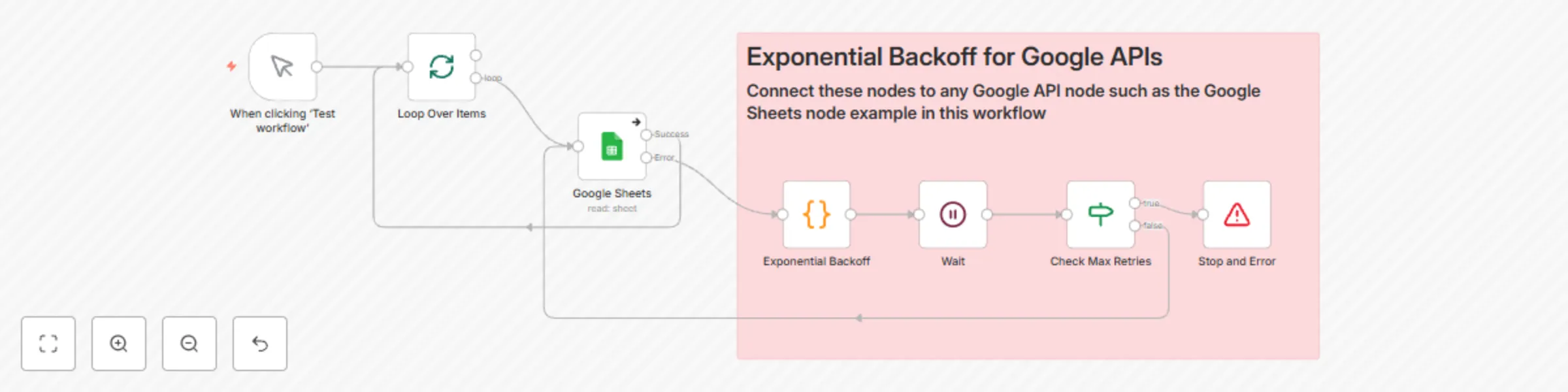
# n8n Workflow: Exponential Backoff for Google APIs ## Overview This n8n workflow implements an **Exponential Backoff** mechanism to handle retries when interacting with Google APIs. It ensures that failed API requests are retried with increasing delays, up to a specified maximum retry count. This approach helps mitigate transient errors (e.g., rate limits or temporary network issues) while maintaining workflow efficiency. ### Key Features: - **Exponential Backoff Logic**: Dynamically increases wait time between retries based on the retry count. - **Error Handling**: Stops the workflow and raises an error after a specified number of retries. - **Dynamic Waiting**: Waits for a calculated duration before each retry. - **Scalable Design**: Modular nodes for easy debugging and customization. --- ## Workflow Details ### Nodes in the Workflow: 1. **Trigger** (`When clicking "Test Workflow"`): - Manually starts the workflow for testing. 2. **Loop Over Items**: - Iterates over multiple input items to process Google API requests row by row. 3. **Google API Node (Example: Update Sheet)**: - Sends a request to a Google API endpoint (e.g., updating a row in Google Sheets). - On success: Moves to the next item in the loop. - On error: Passes the error to the **Exponential Backoff** node. 4. **Exponential Backoff**: - Calculates the delay for the next retry based on the retry count. - Logic: ```javascript const retryCount = $json["retryCount"] || 0; const maxRetries = 5; const initialDelay = 1; // in seconds if (retryCount < maxRetries) { const currentDelayInSeconds = initialDelay * Math.pow(2, retryCount); return { json: { retryCount: retryCount + 1, waitTimeInSeconds: currentDelayInSeconds, status: 'retrying', } }; } else { return { json: { error: 'Max retries exceeded', retryCount: retryCount, status: 'failed' } }; } ``` 5. **Wait**: - Dynamically waits for the `waitTimeInSeconds` value calculated in the Exponential Backoff node. - **Configuration:** - Resume: `After Time Interval` - Wait Amount: `{{ $json["waitTimeInSeconds"] }}` - Unit: `Seconds` 6. **Check Max Retries**: - Evaluates whether the retry count has exceeded the maximum limit. - Routes the workflow: - **True**: Passes to the **Stop and Error** node. - **False**: Loops back to the Google API node for retry. 7. **Stop and Error**: - Stops the workflow and logs the error when the maximum retry count is reached. --- ## Parameters ### Configurable Settings: 1. **Max Retries**: - Defined in the Exponential Backoff node (`const maxRetries = 5`). - Adjust this value based on your requirements. 2. **Initial Delay**: - The starting wait time for retries, defined as `1` second. 3. **Google API Configuration**: - Ensure your Google API node is properly authenticated and configured with the desired endpoint and parameters. --- ## How to Use 1. **Import the Workflow**: - Copy the workflow JSON and import it into your n8n instance. 2. **Configure Google API Node**: - Set up the Google API node with your credentials and target API endpoint (e.g., Google Sheets, Gmail, etc.). 3. **Test the Workflow**: - Manually trigger the workflow and observe the retry behavior in case of errors. 4. **Monitor Logs**: - Use the console logs in the Exponential Backoff node to debug retry timings and status. --- ## Example Scenarios ### Scenario 1: Successful Execution - The Google API processes all requests without errors. - Workflow completes without triggering the retry logic. ### Scenario 2: Transient API Errors - The Google API returns an error (e.g., `429 Too Many Requests`). - The workflow retries the request with increasing wait times. ### Scenario 3: Maximum Retries Exceeded - The workflow reaches the maximum retry count (e.g., 5 retries). - An error is raised, and the workflow stops. --- ## Considerations 1. **Jitter**: - This workflow does not implement jitter (randomized delay) since it's not required for low-volume use cases. - If needed, jitter can be added to the exponential backoff calculation. 2. **Retry Storms**: - If multiple workflows run simultaneously, ensure your API quotas can handle potential retries. 3. **Error Handling Beyond Max Retries**: - Customize the **Stop and Error** node to notify stakeholders or log errors in a centralized system. --- ## Customization Options - Adjust the maximum retry limit and delay calculation to suit your use case. - Add additional logic to handle specific error codes differently. - Extend the workflow to notify stakeholders when an error occurs (e.g., via Slack or email). --- ## Troubleshooting - **Retry Not Triggering**: - Ensure the `retryCount` variable is passed correctly between nodes. - Confirm that the error output from the Google API node flows to the Exponential Backoff node. - **Incorrect Wait Time**: - Verify the `Wait` node is referencing the correct field for `waitTimeInSeconds`. --- ## Request for Feedback We are always looking to improve this workflow. If you have suggestions, improvements, or ideas for additional features, please feel free to share them. Your feedback helps us refine and enhance this solution!
Automate google analytics reporting
# Automate Google Analytics Reporting with n8n This n8n workflow collects, processes, and formats Google Analytics data into a comprehensive HTML report. The report is segmented into three primary categories: Engagement Stats, Search Results, and Country Views. The formatted report can be emailed or saved as a document, and the workflow includes error handling and logging for better debugging. ## Overview ### Purpose To automate the extraction, processing, and presentation of Google Analytics data in a visually appealing and structured format for easier insights and decision-making. ### Features - **Data Parsing**: Individual parsers process raw Google Analytics data for different time periods and categories. - **Data Aggregation**: Combines parsed data into a single structured JSON object. - **HTML Report Generation**: Formats the aggregated data into an HTML table with color-coded segments for better readability. - **Email or Document Output**: The formatted report can be emailed or saved as a Google Doc (will need additional setup). - **Error Handling**: Includes checks for missing data and detailed error messages for debugging. ## Workflow Steps 1. **Data Fetching**: - Six separate Google Analytics data pulls: - Page Engagement Stats (This Week and Prior Week) - Google Search Results (This Week and Prior Week) - Country Views (This Week and Prior Week) 2. **Data Parsing**: - Each data pull is processed using a dedicated parser node to generate a URL-safe string. - Example nodes: - `Parse - Get Page Engagement This Week` - `Parse - Country Views Prior Week` 3. **Data Aggregation**: - Aggregates parsed data into a structured JSON object using the `Aggregate Data` node. - Ensures consistency and handles missing or malformed data. 4. **HTML Report Generation**: - Creates a formatted HTML report with color-coded tables for each segment: - **Engagement Stats**: Green - **Search Results**: Blue - **Country Views**: Orange - Includes headers and neatly formatted tables for each data set. 5. **Output**: - The report can be sent via email using the Gmail API or saved to Google Docs. - Example nodes: - `Gmail` node for email delivery. - `Google Docs` node for saving the report as a document. ## Requirements ### Prerequisites - **Google Cloud Setup**: - Enable Google Analytics API. - Enable Gmail API (if using email output). - Generate OAuth credentials for API access. - **n8n Installation**: - Self-hosted n8n instance with required nodes (Gmail, Google Docs, etc.). - [Free Cloud-based n8n account]( https://n8n.partnerlinks.io/alexk1919). ### Environment Variables - Ensure API credentials and tokens are set up in the n8n environment. - Update the respective nodes with client ID, client secret, and access tokens. ## Configuration ### Google Analytics - Configure the `Get Report` nodes with the appropriate property ID and metrics. - Ensure correct date ranges are selected for each node. ### Formatting Node - The `Format Data` node processes aggregated data and generates the HTML content. - Customize the HTML styling and segment colors as needed. ### Email Node - Configure the Gmail node with OAuth credentials. - Set the recipient email address and subject line dynamically. ## Error Handling ### Common Issues 1. **Authentication Errors**: - Ensure OAuth credentials are correct. - Verify that the APIs are enabled in the Google Cloud Console. 2. **Empty Data**: - Check the raw data from Google Analytics. - Validate the property ID and query parameters in the `Get Report` nodes. 3. **Parsing Errors**: - Ensure the parser nodes are correctly configured and match the expected input format. ### Debugging - Use debug logs in each node to identify data flow issues. - Add error-handling nodes to capture and log issues during execution. ## Example Usage 1. **Run the Workflow** - Trigger the workflow to fetch, process, and format Google Analytics data. 2. **Verify Output** - Check the formatted HTML output in the debug logs. - Ensure the email or Google Doc contains the correctly formatted report. ## Future Enhancements - Add support for additional metrics or dimensions. - Integrate with Slack for notifications. - Enable scheduling for automated reports. - Add a visual dashboard for real-time analytics. ---