Automate Shopify product CSV from images using Gemini, GPT-4o, Google Drive & Sheets

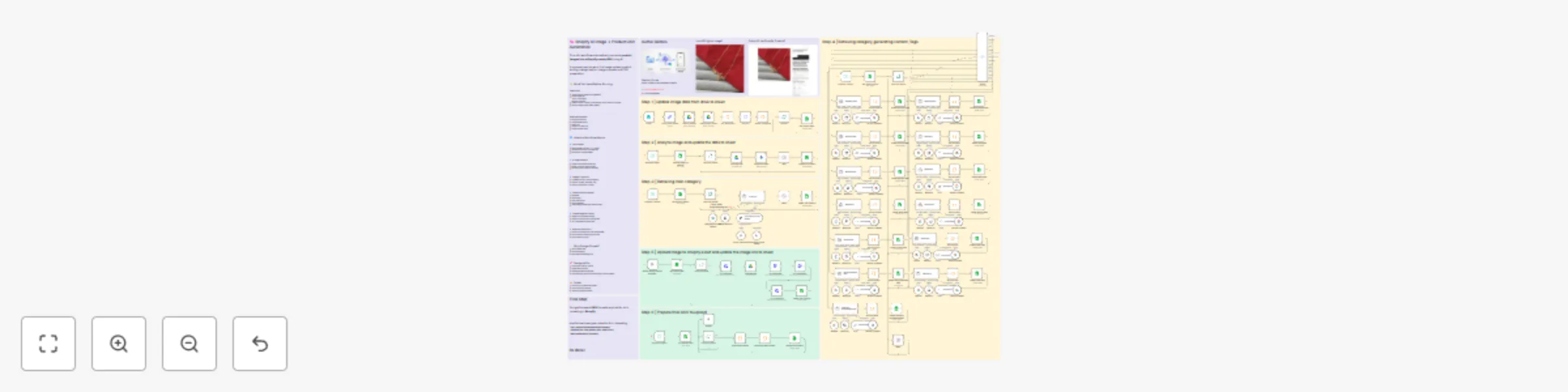
Workflow preview

Workflow preview
100%
Automate Shopify product CSV from images using Gemini, GPT-4o, Google Drive & Sheets preview
Open on n8n.io

Important notice

This workflow is provided as-is. Please review and test before using in production.

1. Workflow Overview

Shopify AI Automation Image to Product CSV Bulk U...

Best for

  • Content Creation automation workflows
  • Multimodal AI automation workflows
  • advanced n8n builders looking for reusable templates

Tools used

n8n-nodes-base.manualtrigger, n8n-nodes-base.httprequest, n8n-nodes-base.googledrive, @n8n/n8n-nodes-langchain.googlegemini, n8n-nodes-base.scheduletrigger, n8n-nodes-base.splitinbatches, n8n-nodes-base.googlesheets, n8n-nodes-base.stickynote

Source and attribution

This workflow is cataloged by N8N Workflows and links back to its original n8n.io source page by MANISH KUMAR.

Original n8n.io source

1.1 Workflow description

Title
Automate Shopify product CSV from images using Gemini, GPT-4o, Google Drive & Sheets
Workflow name
Automate Shopify product CSV from images using Gemini, GPT-4o, Google Drive & Sheets

Shopify AI Automation

Image-to-Product CSV Bulk Upload Automation

This Shopify AI automation is an advanced n8n-powered workflow that converts raw product images into a Shopify-ready product CSV.
It uses AI image analysis, Google Drive, Google Sheets, and Shopify APIs to fully automate product onboarding β€” from images to structured ecommerce data.

Built for scalable ecommerce automation, this workflow is especially effective for image-first catalogs such as jewelry, fashion, and accessories.


πŸš€ Features

  • πŸ–ΌοΈ AI Image Analysis β€” Analyzes product images one by one for higher accuracy and lower risk
  • 🧠 Automatic Category Detection β€” Identifies main product category (e.g. Jewelry), easily customizable for any niche
  • ✍️ AI Product Content Generation β€” Creates product names, descriptions (HTML), tags, and attributes
  • πŸ“„ Google Sheets Orchestration β€” Structures data and outputs a clean Shopify-compatible CSV
  • πŸ›οΈ Shopify Asset Upload β€” Uploads images to Shopify and retrieves CDN URLs

🧩 Workflow Preparation

Before running the workflow:

  1. Upload all product images to Google Drive

  2. Name images using the format: <SKU><ColorCode> Example: 12345GR

  3. Place all images inside a folder named:<Brand Name>

  4. Root folder name : pending

Example :

Google_Drive/pending/Manish Collection/All Images

Each image represents one product variant.


βš™οΈ How It Works

The workflow follows a 6-step automation pipeline designed for reliability and scalability.

Notes : You may connect all these step to make it fully automatic or shecdule it according to your suitable time.


πŸ”„ Step-by-Step Process

Step 1: Fetch Images from Google Drive

  • Scans the pending/&lt;brand_name&gt; folder
  • Fetches all images
  • Extracts SKU and color code
  • Stores references in Google Sheets

Step 2: AI Image Analysis (One-by-One)

  • Images are analyzed individually
  • Slower than batch processing, but far more reliable
  • Reduces hallucinations and incorrect attributes

Ideal for production-grade Shopify automation.


Step 3: Main Category Identification

  • AI determines the primary product category (example: Jewelry)
  • Prompts can be modified for any ecommerce niche

Step 4: Conditional Product Content Generation

Based on category:

  • Product titles are generated
  • Descriptions are written in Shopify-ready HTML
  • Tags and attributes are created

This replaces repetitive work typically handled via Shopify Flow or manual data entry.


Step 5: Shopify Image Upload

  • Images are uploaded to Shopify assets
  • Shopify returns CDN URLs
  • URLs are mapped back to product data

Step 6: Shopify CSV Generation

  • All enriched data is compiled into a new Google Sheet
  • Output matches Shopify’s product import CSV format
  • File is ready for bulk upload

πŸ› οΈ n8n Nodes Used

  • Trigger Node (Manual / Schedule)
  • Google Drive Node
  • Google Sheets Node
  • AI Agent Node (Image Analysis + Content)
  • Switch Node (Category-based logic)
  • Code Node (Formatting & CSV structure)
  • Shopify Node / HTTP Node

πŸ” Credentials Required

Before running the workflow, configure the following credentials in n8n:

  • Shopify Access Token β€” For asset uploads and API calls
  • AI Provider API Key β€” For image analysis and content generation
  • Google Drive OAuth β€” To access product images
  • Google Sheets OAuth β€” To store and export data

πŸ‘€ Ideal For

This workflow is ideal for:

  • Shopify store owners handling bulk product uploads
  • Ecommerce teams managing image-heavy catalogs
  • Agencies building scalable Shopify automation systems
  • Anyone exploring how to automate Shopify product onboarding

πŸ’¬ Extensibility

This workflow is modular and easy to extend. You can add:

  • Multi-language product descriptions
  • Pricing and margin automation
  • Shopify marketing automation triggers
  • Shopify Flow integrations after product import
  • Marketplace exports (Google Shopping, Meta, Amazon)

πŸ”‘ Keywords

shopify ai
shopify flow
shopify marketing automation
shopify automation
ecommerce automation
how to automate shopify


πŸ“Œ Notes

  • No AI fine-tuning required
  • No fragile prompt chaining
  • Designed for accuracy over speed
  • Safe for production ecommerce workflows

πŸ“ž Support

If you’re looking to customize or extend this workflow, feel free to reach out or fork the project.

Happy automating πŸš€

1.2 Logical Blocks

This catalog entry is organized from the workflow JSON. The node-level section below shows the executable blocks available for review before importing the template.

2. Block-by-Block Analysis

Block 1 - When clicking β€˜Execute workflow’

Type / Role
n8n-nodes-base.manualTrigger - manualTrigger
Config choices
Version 1

Block 2 - HTTP Request

Type / Role
n8n-nodes-base.httpRequest - httpRequest
Config choices
Version 4.3

Block 3 - HTTP Request1

Type / Role
n8n-nodes-base.httpRequest - httpRequest
Config choices
Version 4.3

Block 4 - Download file

Type / Role
n8n-nodes-base.googleDrive - googleDrive
Config choices
Version 3

Block 5 - HTTP Request2

Type / Role
n8n-nodes-base.httpRequest - httpRequest
Config choices
Version 4.3

Block 6 - HTTP Request3

Type / Role
n8n-nodes-base.httpRequest - httpRequest
Config choices
Version 4.3

Block 7 - Analyze an image

Type / Role
@n8n/n8n-nodes-langchain.googleGemini - googleGemini
Config choices
Version 1

Block 8 - Schedule Trigger

Type / Role
n8n-nodes-base.scheduleTrigger - scheduleTrigger
Config choices
Version 1.3

Block 9 - Loop Over Items1

Type / Role
n8n-nodes-base.splitInBatches - splitInBatches
Config choices
Version 3

Block 10 - Download file1

Type / Role
n8n-nodes-base.googleDrive - googleDrive
Config choices
Version 3

Block 11 - Update row in sheet

Type / Role
n8n-nodes-base.googleSheets - googleSheets
Config choices
Version 4.7

Block 12 - pending_image_to analyze

Type / Role
n8n-nodes-base.googleSheets - googleSheets
Config choices
Version 4.7

Block 13 - Get row(s) in sheet

Type / Role
n8n-nodes-base.googleSheets - googleSheets
Config choices
Version 4.7

Block 14 - Schedule Trigger1

Type / Role
n8n-nodes-base.scheduleTrigger - scheduleTrigger
Config choices
Version 1.3

Block 15 - Sticky Note2

Type / Role
n8n-nodes-base.stickyNote - stickyNote
Config choices
Version 1

Block 16 - Sticky Note3

Type / Role
n8n-nodes-base.stickyNote - stickyNote
Config choices
Version 1

Block 17 - Loop Over Items2

Type / Role
n8n-nodes-base.splitInBatches - splitInBatches
Config choices
Version 3

Block 18 - Sticky Note4

Type / Role
n8n-nodes-base.stickyNote - stickyNote
Config choices
Version 1

Block 19 - Loop Over Items

Type / Role
n8n-nodes-base.splitInBatches - splitInBatches
Config choices
Version 3

Block 20 - Update row in sheet2

Type / Role
n8n-nodes-base.googleSheets - googleSheets
Config choices
Version 4.7

Block 21 - Sticky Note

Type / Role
n8n-nodes-base.stickyNote - stickyNote
Config choices
Version 1

Block 22 - Schedule Trigger2

Type / Role
n8n-nodes-base.scheduleTrigger - scheduleTrigger
Config choices
Version 1.3

Block 23 - get finalized data

Type / Role
n8n-nodes-base.googleSheets - googleSheets
Config choices
Version 4.7

Block 24 - structuring columns

Type / Role
n8n-nodes-base.code - code
Config choices
Version 2

Showing the first 24 of 153 workflow blocks. Download the JSON for the full node graph.

3. Summary Table

Workflow Automate Shopify product CSV from images using Gemini, GPT-4o, Google Drive & Sheets
Complexity advanced
Nodes 153
Categories Content Creation, Multimodal AI
Author MANISH KUMAR
Published 24 Dec 2025

4. Reproducing the Workflow from Scratch

  1. 1. Download the workflow JSON

    Use the JSON export at /data/workflows/12120/12120.json as the source template for this automation.

  2. 2. Import the template into n8n

    Open n8n, import the downloaded JSON, and review each node before activating the workflow.

  3. 3. Configure credentials and variables

    Replace placeholder credentials, API keys, webhook URLs, account IDs, and environment-specific values with your own settings.

  4. 4. Test with sample data

    Run the workflow manually or in a staging workspace, inspect node output, and confirm downstream systems receive the expected data.

  5. 5. Activate and monitor

    Enable the workflow only after testing, then monitor executions, errors, and rate limits during the first production runs.

5. General Notes & Resources

Review imported nodes carefully before activation. This catalog entry is intended to help you inspect the workflow structure, understand required services, and find related templates faster.

Node names, credentials, schedules, webhook paths, and external service limits may need adjustment for your workspace.

Frequently asked questions

What does Automate Shopify product CSV from images using Gemini, GPT-4o, Google Drive & Sheets do?

Shopify AI Automation Image to Product CSV Bulk U...

What do I need before importing this workflow?

Review the workflow JSON, configure any required credentials in n8n, and test the automation in a safe workspace before using it in production.

Can I customize this workflow?

Yes. Use the block-by-block analysis and the downloadable JSON to inspect each node, then adjust credentials, prompts, schedules, filters, or destinations for your Content Creation, Multimodal AI use case.